Add a smile from neutral
Turn a flat or serious expression into a natural smile — from closed-mouth warmth to a full open smile.
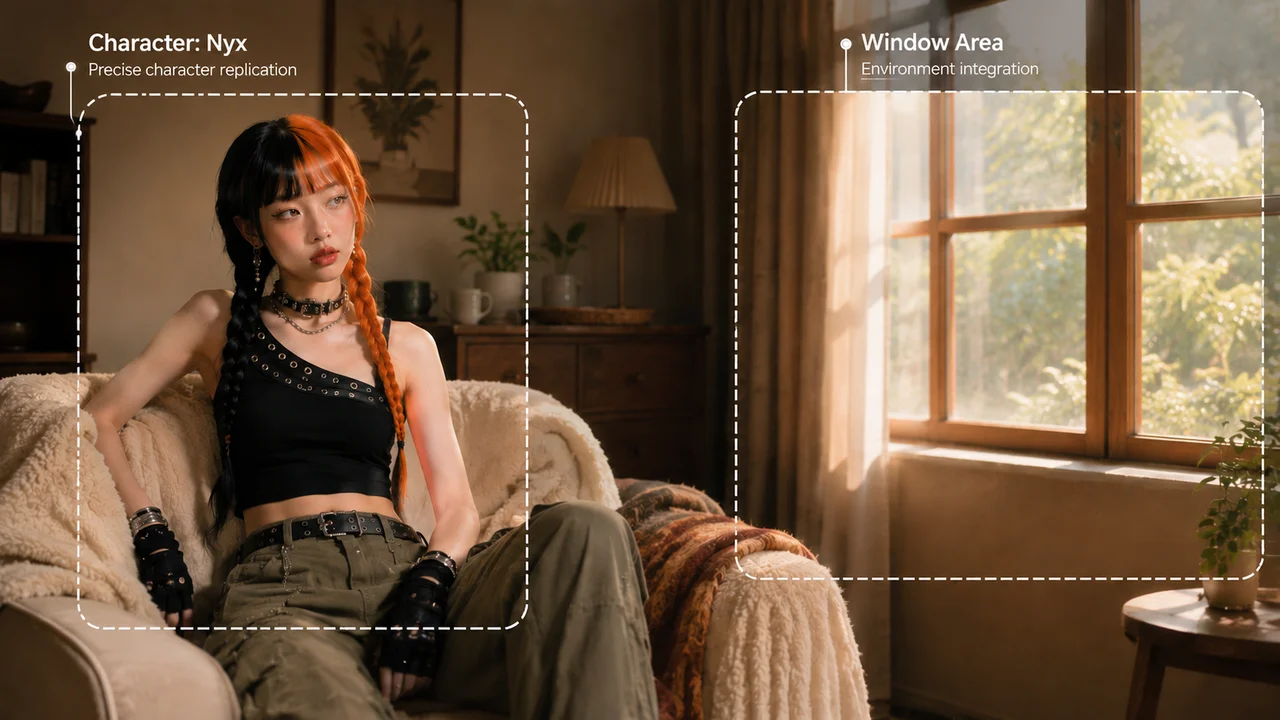
Upload a portrait, describe the smile you want, get a natural result.
Upload your portrait to Renoise Canvas, select GPT Image 2, and type a prompt describing the smile you want — "add a natural smile", "make the expression warmer", or "give her a slight smirk". GPT Image 2 edits the expression in context, preserving the subject's face, lighting, and surroundings. The result downloads as a full-resolution image.
Want to make deeper portrait edits — background, style, or full photo retouching? See the AI Photo Editor guide
Smile generation is image-to-image editing: the model reads your photo and rewrites the expression based on your prompt.
Turn a flat or serious expression into a natural smile — from closed-mouth warmth to a full open smile.
Prompt the degree: "slight smile", "warm smile", "wider smile". The model scales the edit to match your description.
GPT Image 2 keeps the original face structure, skin tone, lighting direction, and background intact during the edit.
Studio shots, casual selfies, outdoor portraits, and professional headshots — all handled by the same image-editing model.
Upload your portrait, write a smile prompt, and download the edited result.
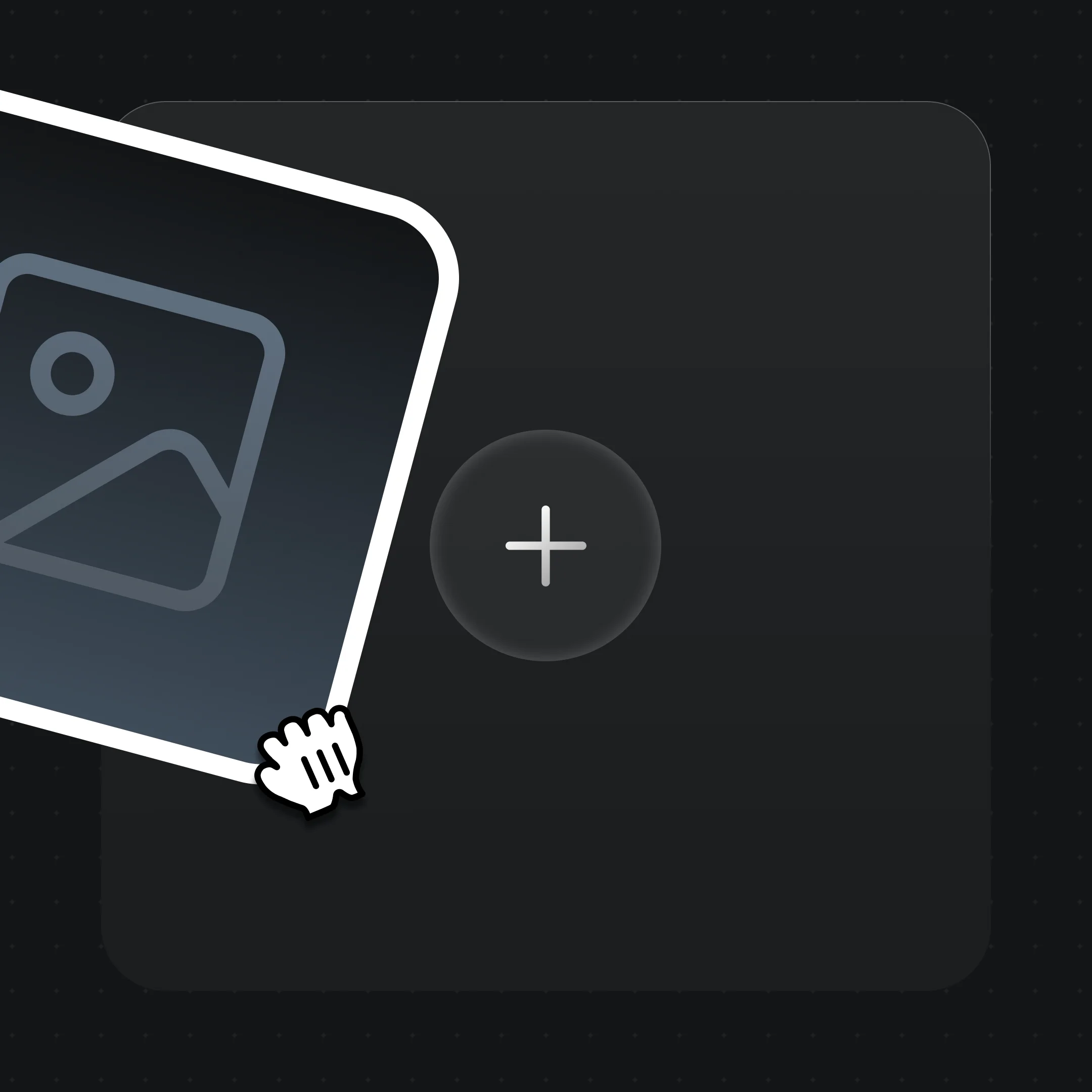
Drag your portrait photo onto Renoise Canvas. Any clear, front-facing shot works.
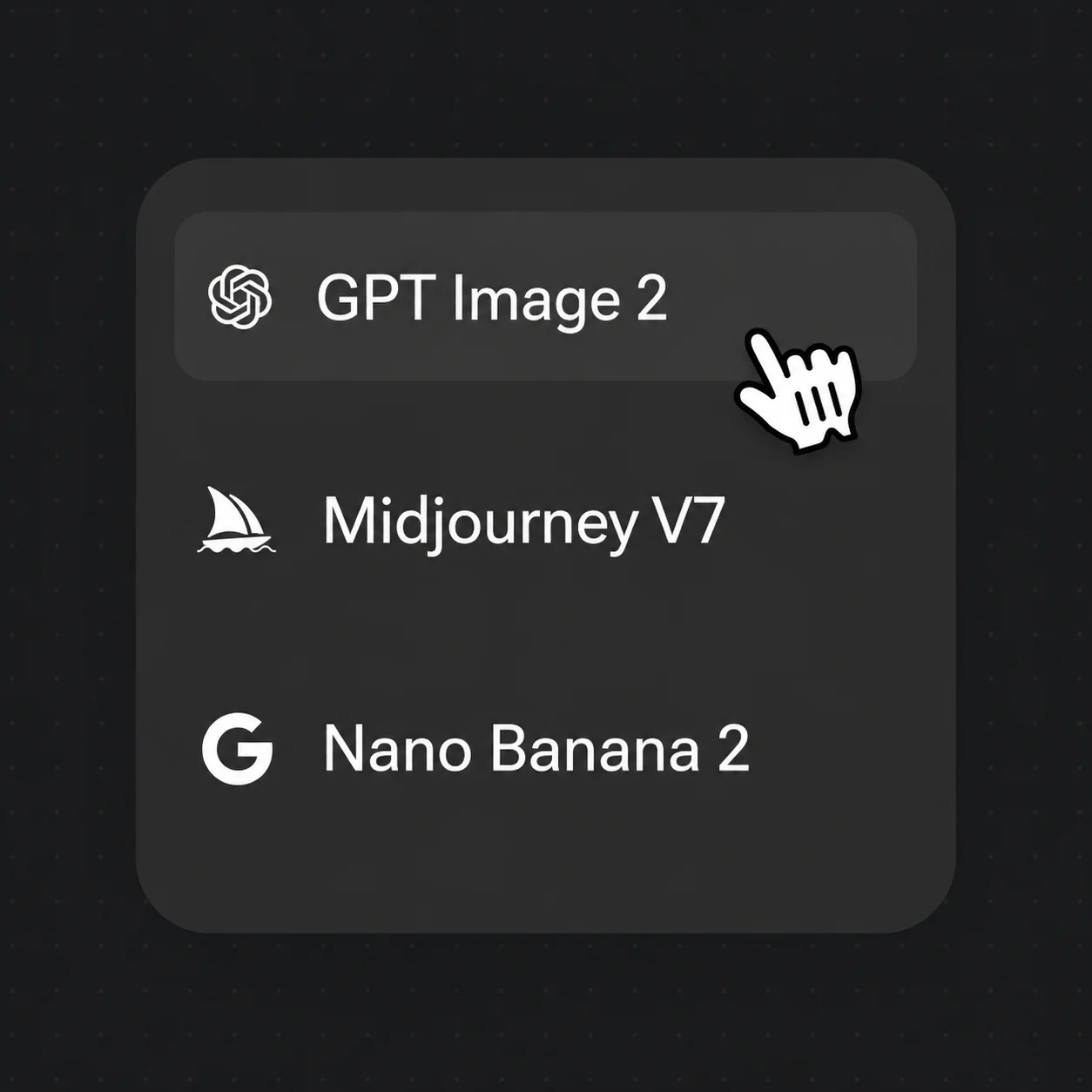
Type your edit — "add a natural smile" — then select GPT Image 2 from the model picker.
Review the edited portrait and download at full resolution. Watermark-free on paid plans.
GPT Image 2 handles expression edits, style changes, and lighting variations — all from a text prompt on the same canvas.
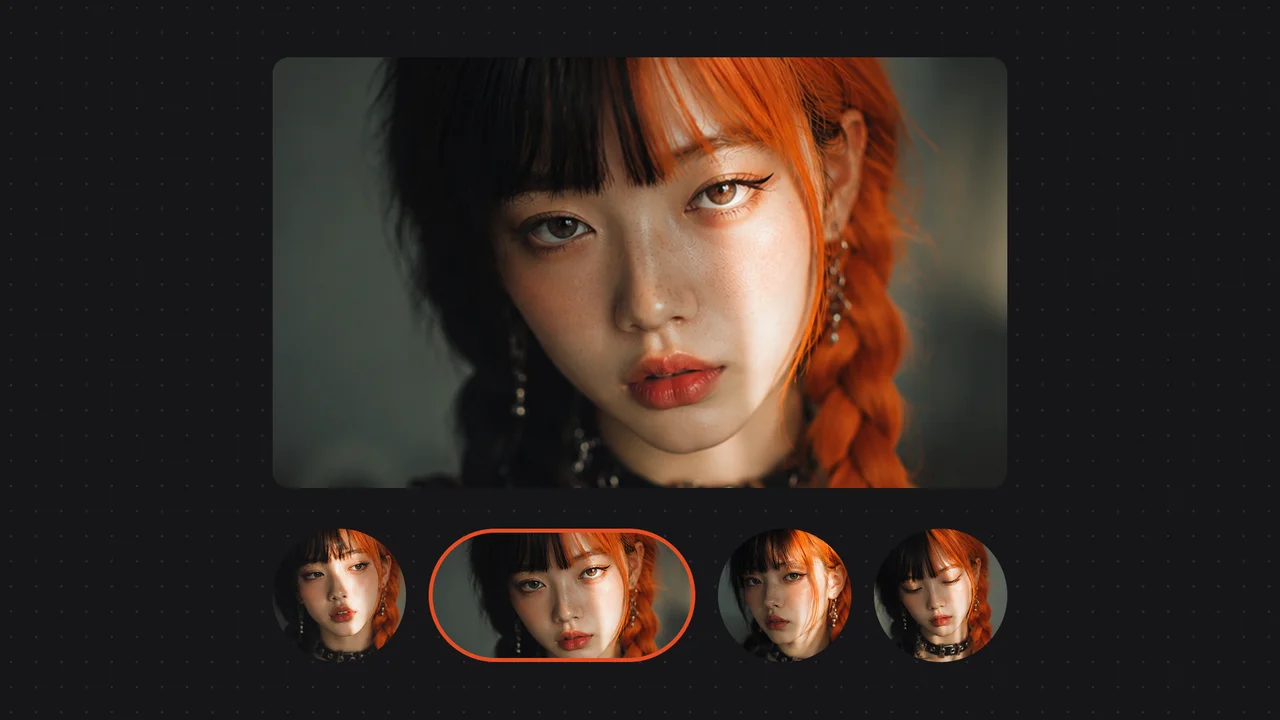
Four versions of the same face — from neutral to warm to laughing — generated from expression prompts.
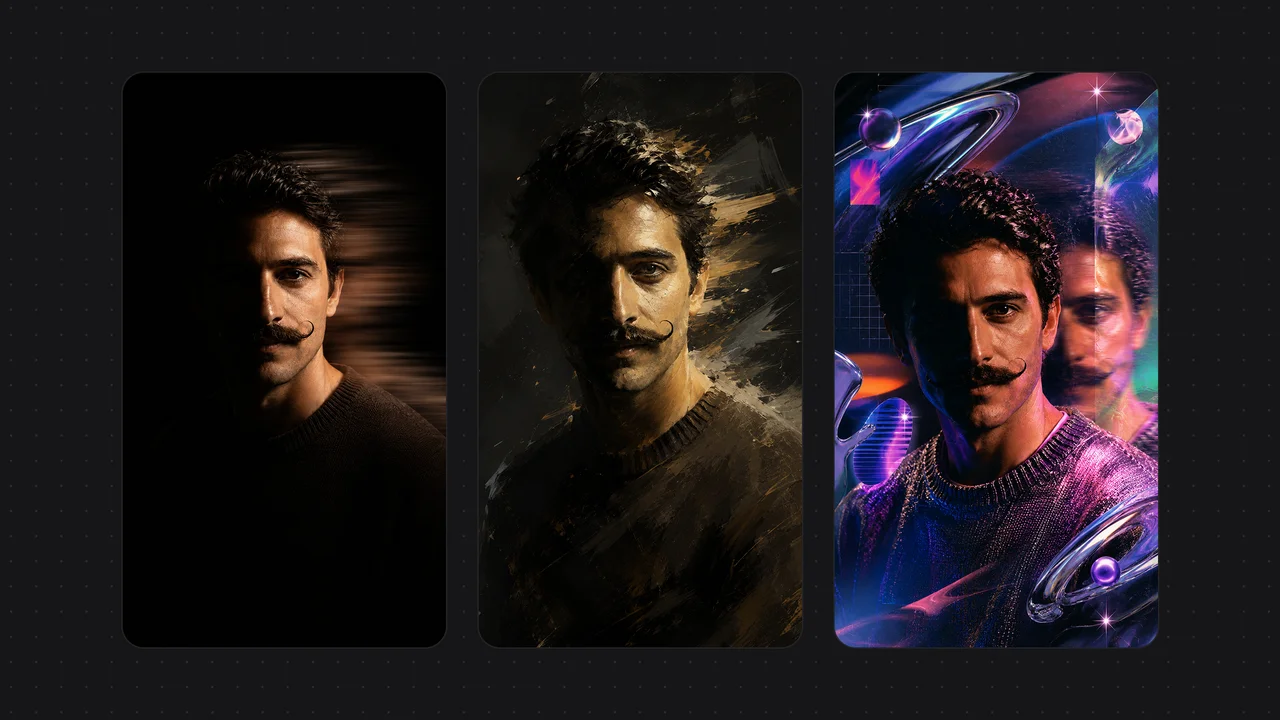
The same portrait in three distinct AI-generated art styles — showing how a single image can be transformed with a prompt.
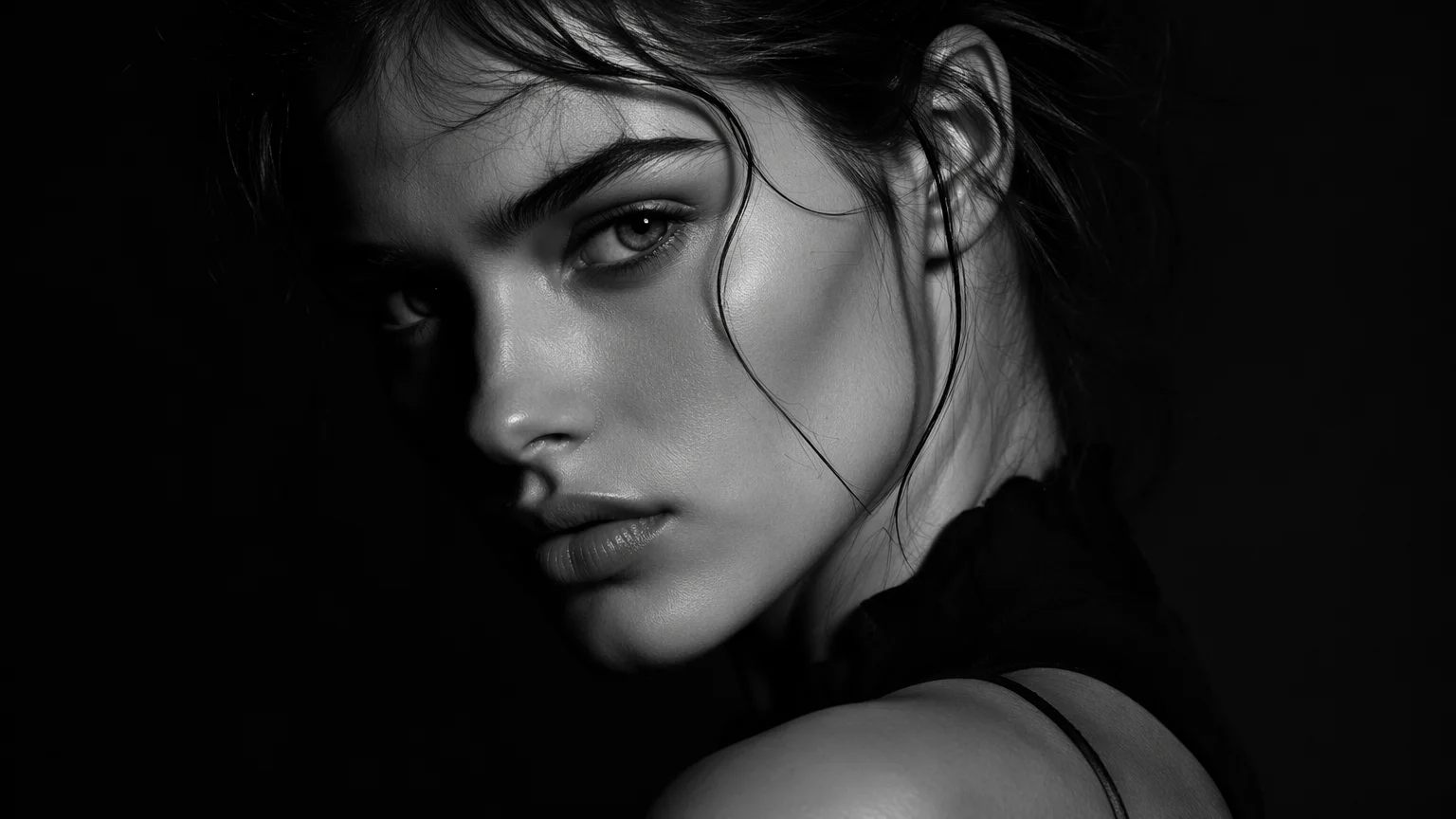
A fictional original character portrait with soft studio lighting — the kind of base image that responds well to smile edits.
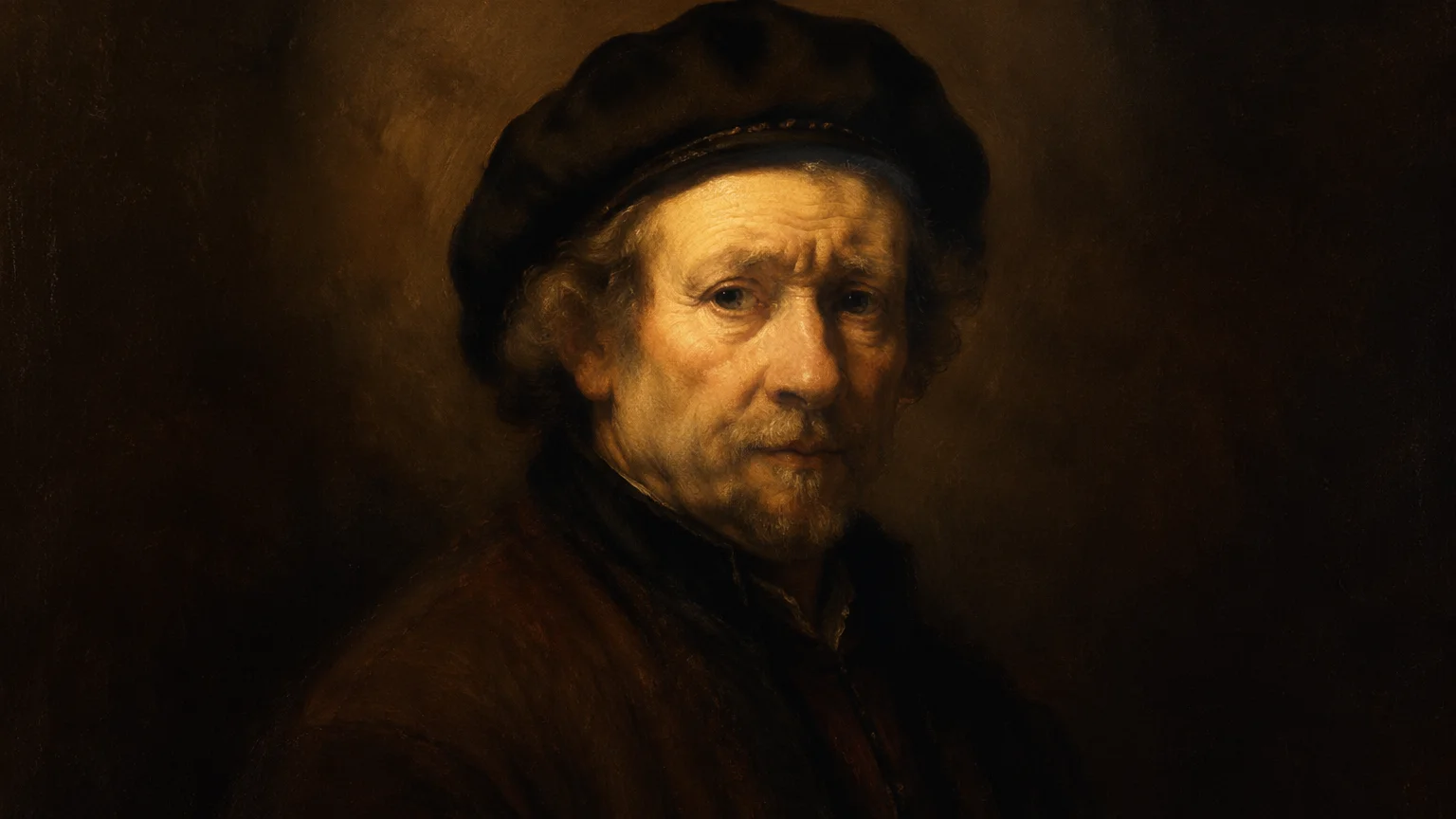
Warm natural lighting on an original fictional character — demonstrating portrait quality before and during expression editing.
Upload any portrait and prompt the expression you want. GPT Image 2 handles the rest.
GPT Image 2 is an image-editing model, not a filter. It reads the original photo in context — face geometry, skin tone, lighting direction — and generates an expression change that respects those constraints. Results are most natural on clear, front-facing portraits with even lighting.
"Add a natural, warm smile" is a strong default. To control intensity: "add a slight smile", "make the smile wider", or "show teeth". To preserve a serious mood while softening expression: "add a subtle, closed-mouth smile". The more specific the prompt, the more predictable the edit.
Smile editing uses GPT Image 2, OpenAI's image-to-image editing model. It is selected in the model picker on Renoise Canvas. GPT Image 2 follows precise editing instructions and maintains photo consistency better than generative-only models for expression edits.
It works best on solo portraits where the subject occupies most of the frame. In group photos, you can specify which person to edit — "make the woman on the left smile" — but results are less consistent the smaller the subject appears in the image.
Yes. Prompt in the opposite direction: "make the expression more neutral", "remove the smile and make the face relaxed", or "soften the expression to a calm look". GPT Image 2 handles subtractive expression edits as well as additive ones.
Renoise accepts JPEG, PNG, and WebP. For best smile-editing results, upload a portrait where the face is at least 400px tall in the image. Blurry, very dark, or heavily filtered photos may produce less accurate expression edits.
Check the GPT Image 2 usage policy for your specific use case. Renoise delivers full-resolution exports suitable for print and digital use. Watermark-free exports are available on paid plans.
No. Smile generation is image-to-image editing — you start with a real photo and modify the expression. AI portrait generation creates an entirely new portrait from a text description. Both use GPT Image 2, but the workflow starts differently: edit mode for existing photos, generate mode for new portraits.