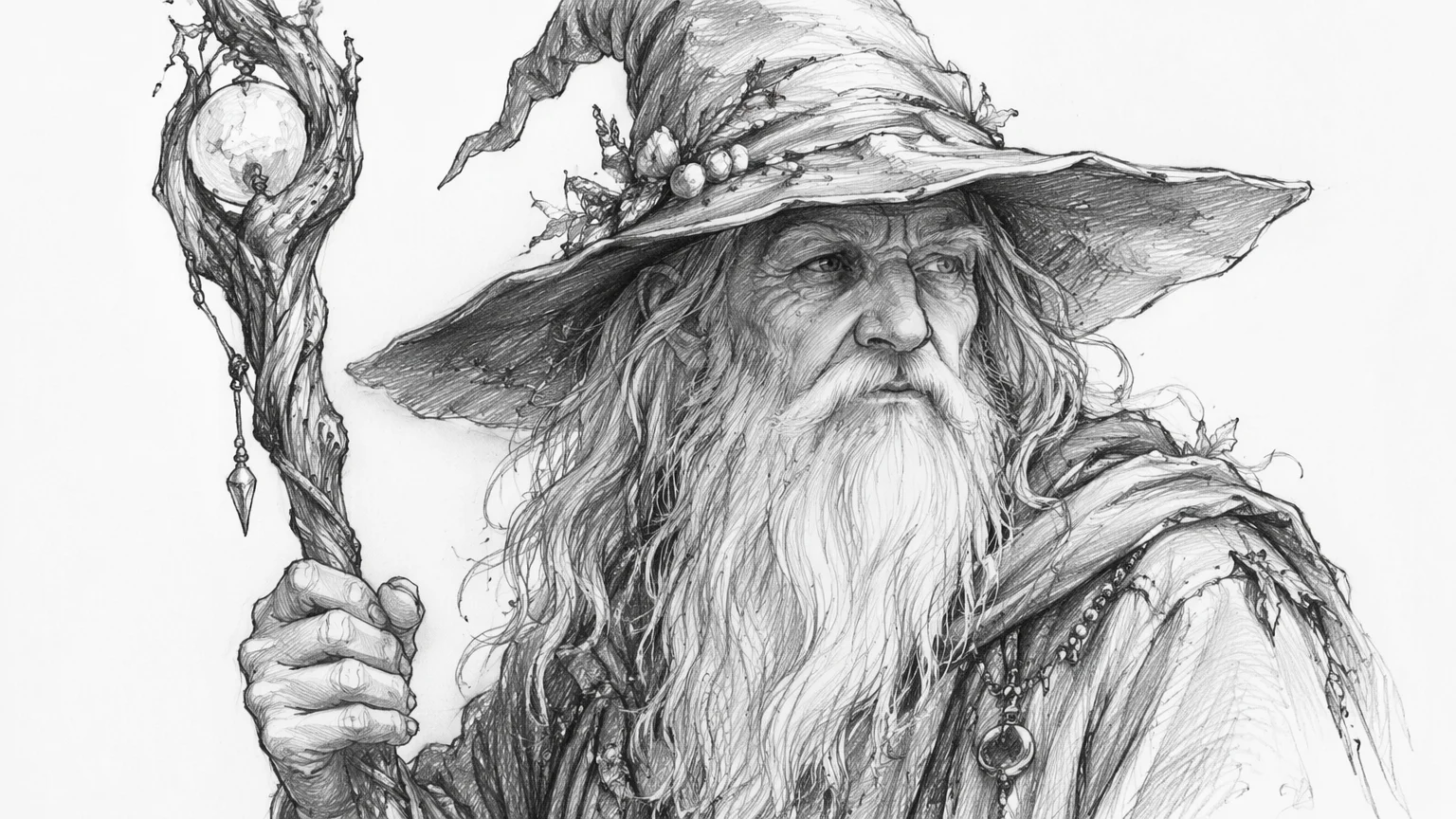
Pencil sketch
Graphite line work with hand-drawn shading.
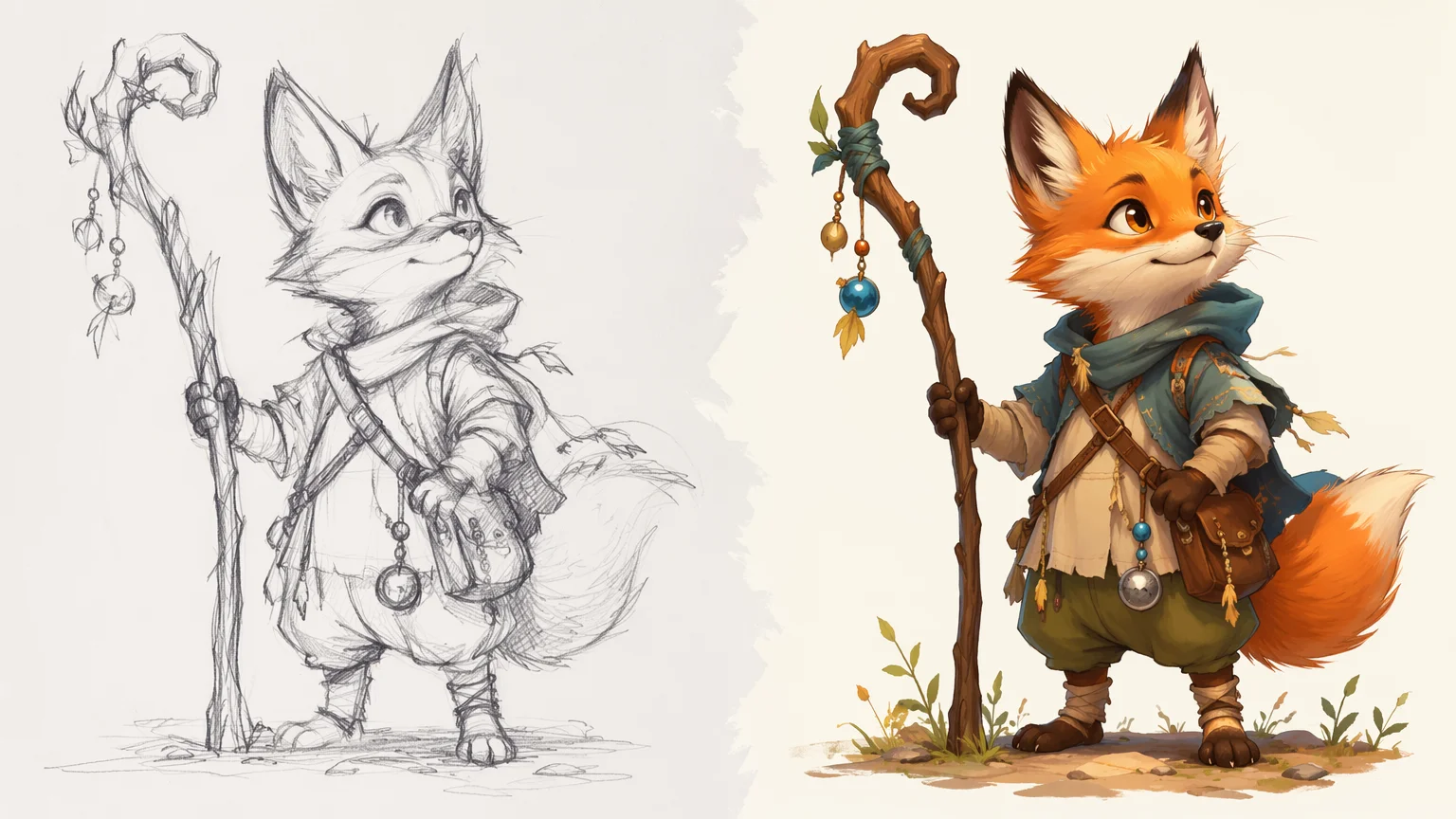
Draw from a prompt, or refine a rough sketch into a finished image.
Open Canvas, then either describe the drawing in text or upload a rough sketch to refine. Pick a style — pencil, lineart, ink, or painterly illustration — and generate. GPT Image 2 gives the cleanest lines and detail; Nano Banana turns a sketch into a finished drawing image-to-image.
For cartoon characters see ai-cartoon, for Japanese anime see ai-anime. AI cartoon guide
From a prompt or a rough sketch to a finished drawing.
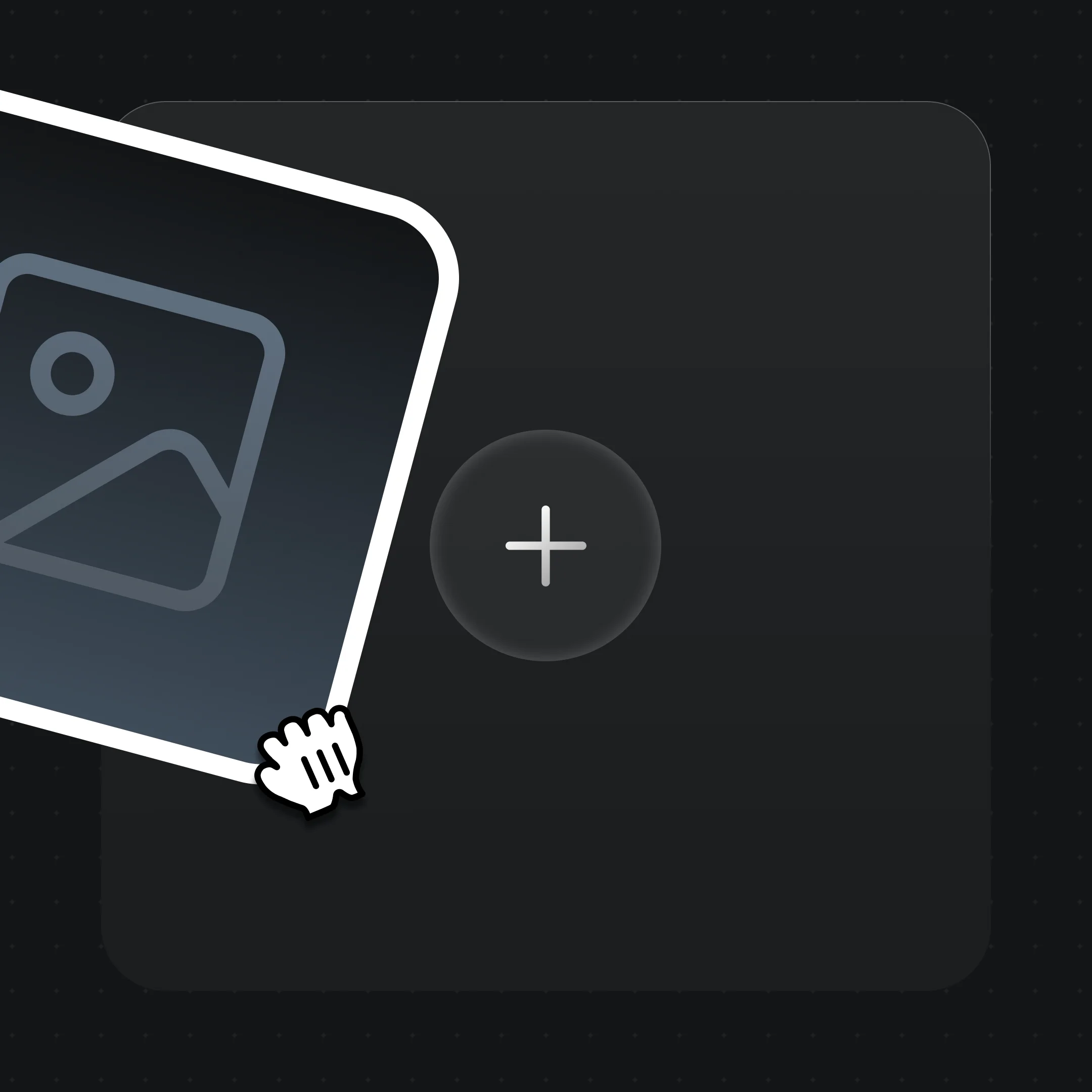
Describe it in a prompt, or drag a rough sketch onto the upload card to refine it.
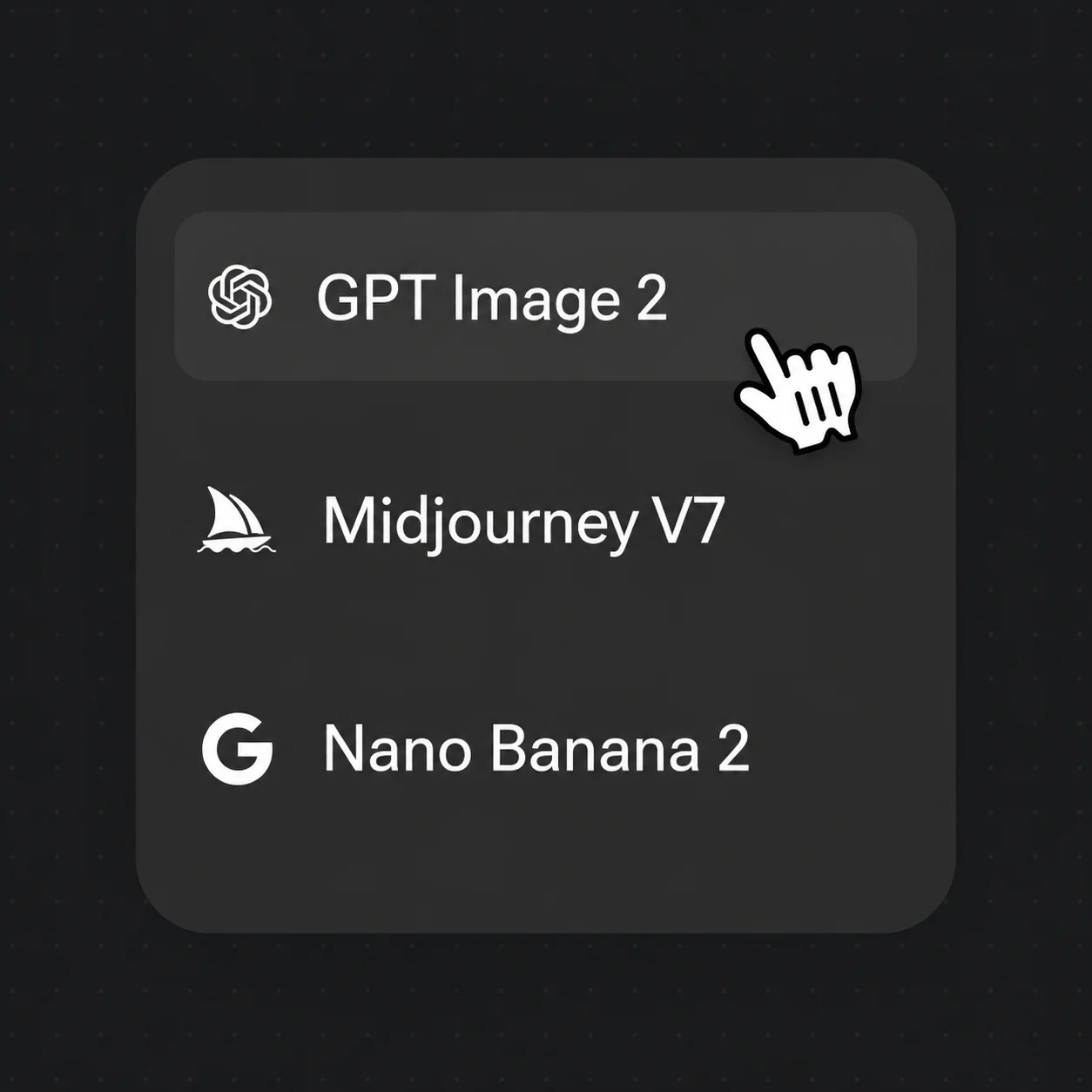
Prompt the look: "pencil sketch, clean lineart" or "loose watercolor illustration". Pick GPT Image 2 for crisp lines.
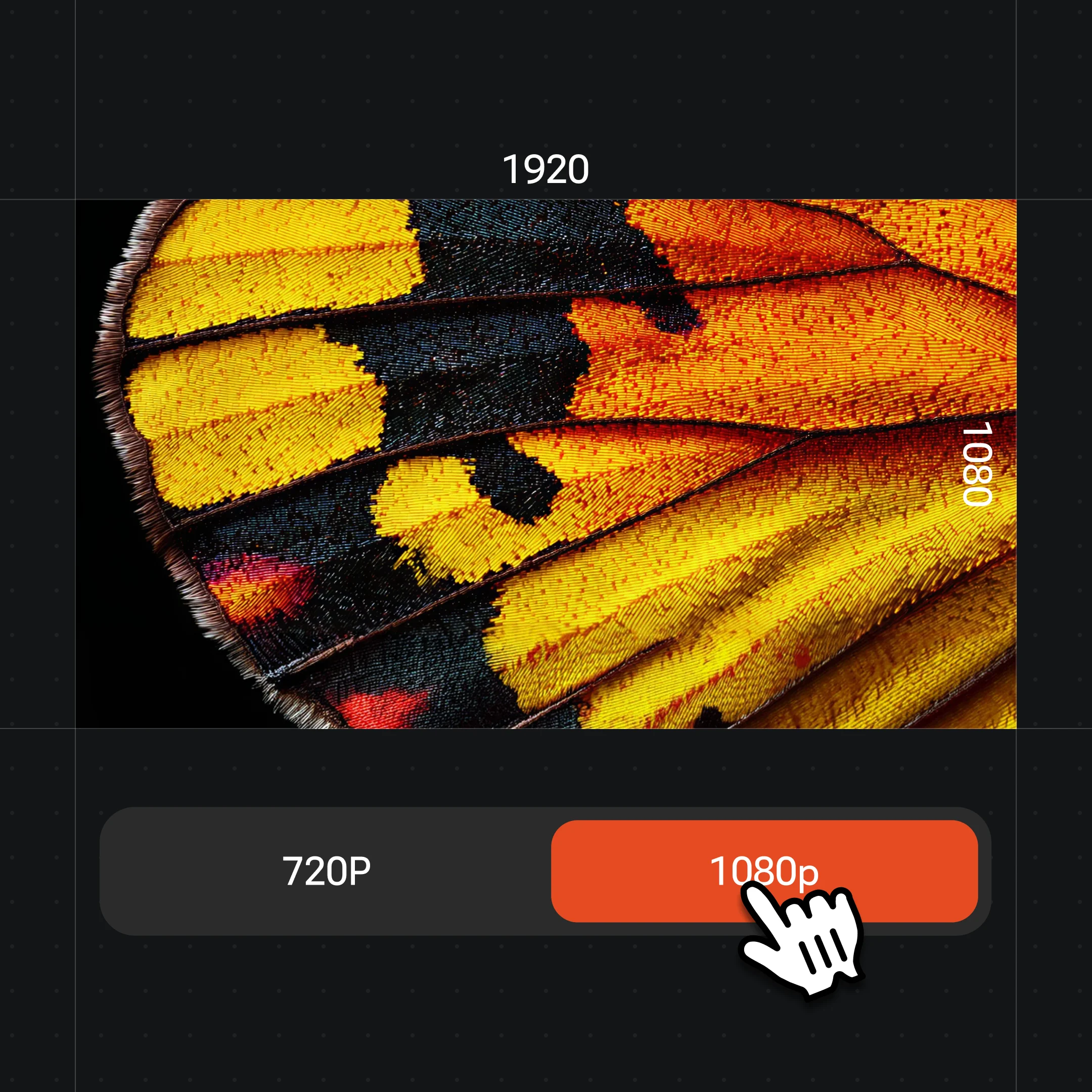
Generate, then set resolution up to 4K on Nano Banana before exporting the finished drawing.
Pencil sketches, ink lineart, painterly illustration, and sketch-to-image refinement — all original work in one canvas.
Graphite line work with hand-drawn shading.
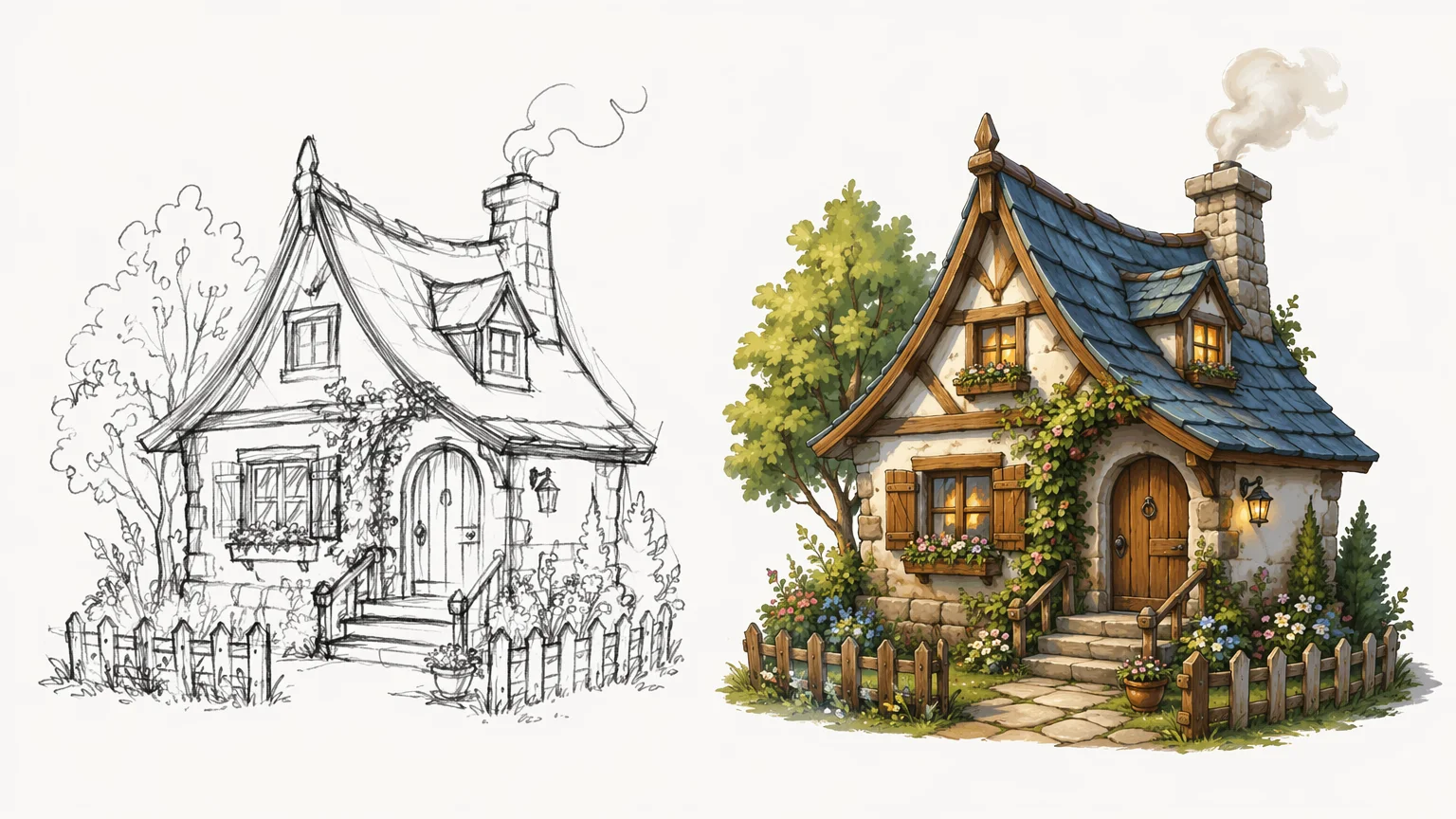
Upload a rough sketch and refine it into a finished piece.
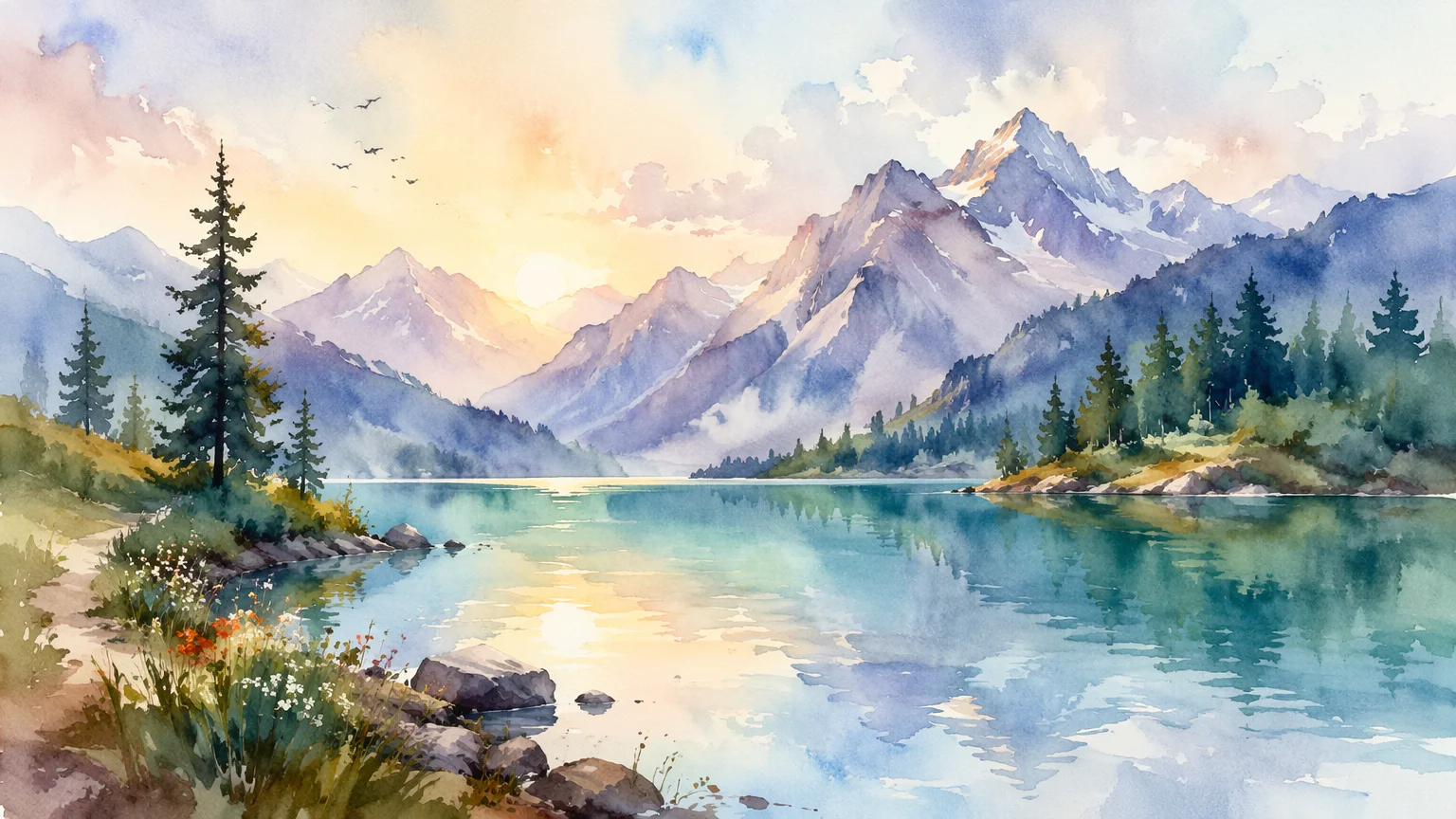
Soft painterly washes for an illustrated look.
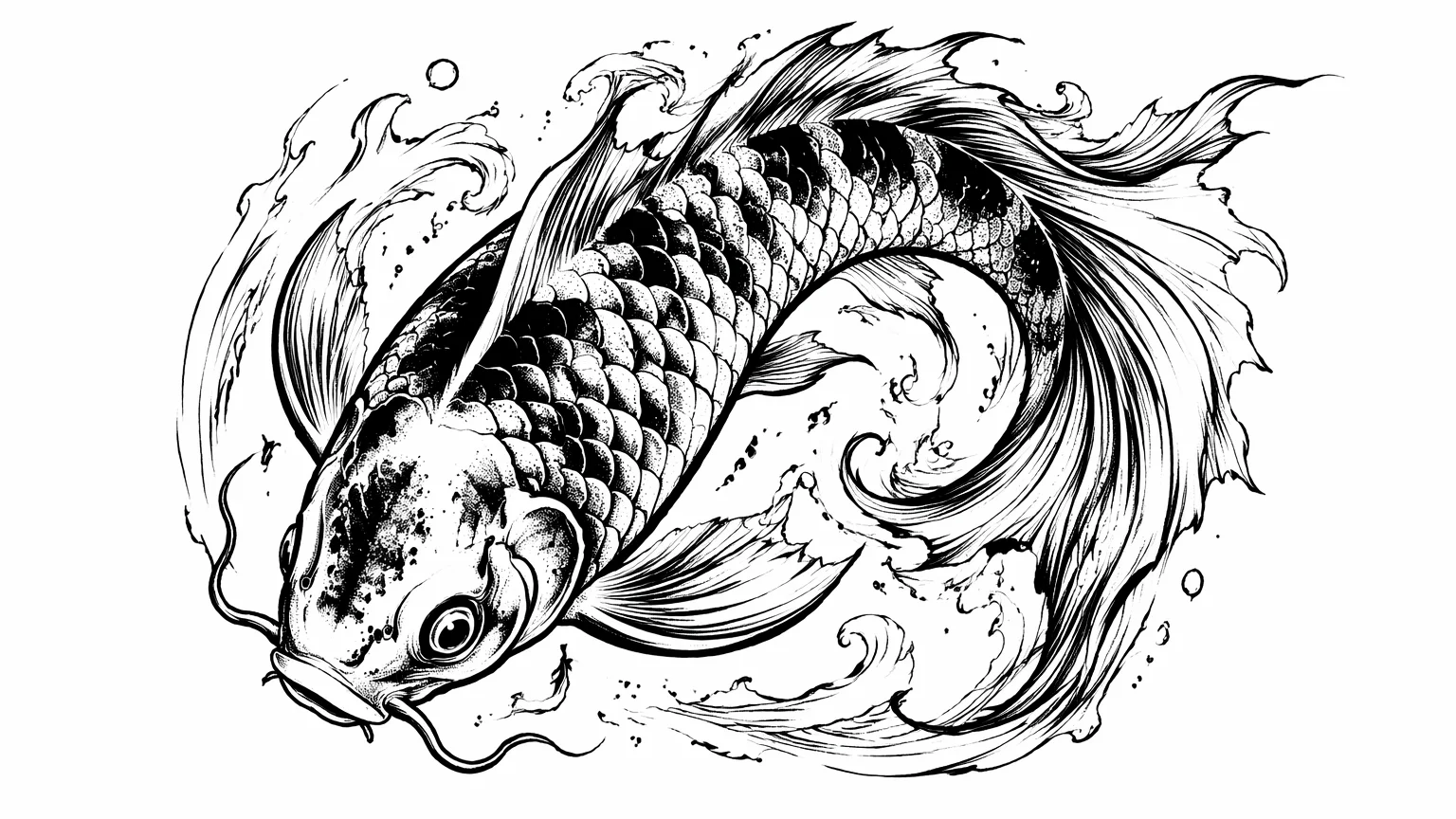
Bold high-contrast ink linework.
All live in the same Renoise canvas — pick by what you start from and the look you want. GPT Image 2 for clean lines, Nano Banana for sketch-to-image, Midjourney V7 for painterly art.
| For drawing | GPT Image 2 (Recommended) | Nano Banana Pro | Midjourney V7 |
|---|---|---|---|
| Best for | Lineart & detail | Sketch → image | Painterly art |
| Sketch-to-image | ✓ | ✓ | ✓ |
| Reference images | Up to 16 | Image-to-image | Up to 4 |
| Max resolution | 4K | 4K | Auto |
| Text in image | ✓ | ✓ | — |
There are two ways to make a drawing with AI, and they start from different places. Text-to-drawing begins with a blank canvas: you describe the subject and the medium — "graphite pencil sketch, cross-hatching" or "loose ink illustration" — and the model draws it from scratch. It is fastest when you have a clear idea but nothing on paper yet.
Sketch-to-image (also called image-to-image) starts from a drawing you already have. You upload a rough pencil sketch or line scribble, and the model treats it as structure — keeping your composition and pose while filling in clean lines, shading, and detail. This is the route when you can draw the rough idea but want a polished finish, and it keeps far more of your intent than a text prompt alone.
In Renoise, both run in the same Canvas. For text-to-drawing, prompt the medium explicitly and pick GPT Image 2 for the crispest lineart. For sketch-to-image, drag your sketch onto the upload card and refine it on Nano Banana, or feed up to 16 reference images into GPT Image 2 to fuse several sketches into one drawing. Switch models per generation without leaving the canvas.
Drawing leans on a few things — and Renoise gives you GPT Image 2, Nano Banana, Midjourney V7, and more in one canvas.
Renders the crispest lineart and detail, and fuses up to 16 reference sketches into one drawing.
Upload a rough sketch and refine it into a finished drawing image-to-image, keeping your composition.
Export drawings at 1K, 2K, or 4K on Nano Banana for print or high-resolution use.
Switch between GPT Image 2, Nano Banana, and Midjourney V7 per generation, no tool-hopping.
One plan unlocks GPT Image 2, Nano Banana, Midjourney V7, and every other image model.
For first-time AI content creators
Billed $168 annually
Upgrade PlanSave $72/year
For creators shipping content every week.
Billed $504 annually
Upgrade PlanSave $216/year
For studios and pros producing at commercial scale.
Billed $1680 annually
Upgrade PlanSave $720/year
For first-time AI content creators
Billed monthly
Upgrade PlanFor creators shipping content every week.
Billed monthly
Upgrade PlanFor studios and pros producing at commercial scale.
Billed monthly
Upgrade PlanRenews automatically each year until canceled.
Renews automatically each month until canceled.
Draw from a prompt or refine a sketch, watermark-free on paid plans.
Open Canvas, pick GPT Image 2, and prompt the medium explicitly — "graphite pencil sketch, clean lineart, cross-hatching" plus the subject. Generate, then refine the prompt. Naming the drawing medium matters more than any single style word.
Yes. Drag a rough sketch onto the upload card and prompt the finish you want. Nano Banana refines it image-to-image, keeping your composition and pose. GPT Image 2 can also fuse up to 16 reference sketches into one drawing.
GPT Image 2 for most lineart — it renders the cleanest edges and finest detail. Use Nano Banana when starting from a sketch, or Midjourney V7 for a looser, more painterly illustration. All live in the same canvas.
Sketch-to-image (image-to-image) takes a rough drawing you upload and refines it into a finished one, keeping your composition while adding clean lines and shading. It keeps far more of your intent than a text prompt alone.
This guide covers general drawing — pencil, ink, and painterly illustration. For cartoon characters see the AI cartoon guide; for Japanese cel-shaded styles see the AI anime guide; for printable lineart see the AI coloring page guide.
Up to 4K. Nano Banana and GPT Image 2 export at 1K, 2K, or 4K — pick from the resolution menu before exporting. Midjourney V7 outputs at an automatic resolution without a 4K selector.
Yes, with GPT Image 2 or Nano Banana Pro, which render text inside images. Midjourney V7 does not support text rendering, so use it for purely visual illustration without lettering.
Yes, with the usual AI-image caveats. Renoise outputs are watermark-free on paid plans and can be commercially licensed. Keep characters original and avoid copying any real artist or franchise. Verify licensing terms in your account before publishing.