Object removal
Remove unwanted objects, people, or distractions and fill the area naturally with surrounding content.
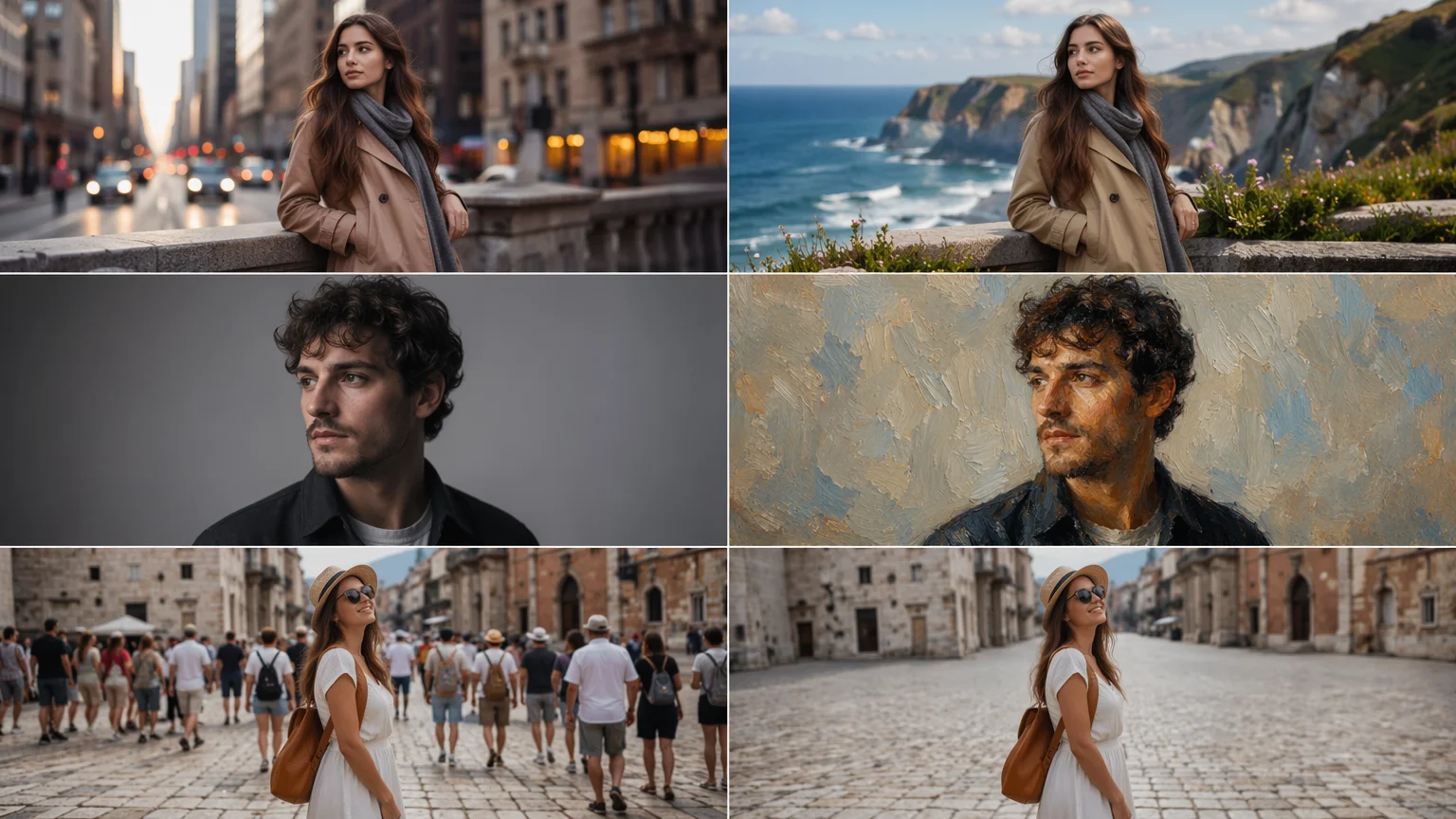
Remove objects, swap backgrounds, enhance details, and transform photos — all with AI on one canvas.
Upload your photo to Renoise Canvas, then describe the edit you want in plain text. GPT Image 2 handles object removal, background replacement, style transfers, and compositional edits. Nano Banana Pro adds bold stylizations and graphic enhancements. For face-specific edits — swapping faces, changing expressions, or identity-preserving changes — use FacePass on the same Canvas.
Need to remove a background specifically? See the AI Background Remover guide
Every major AI photo editing task in one Canvas.
Remove unwanted objects, people, or distractions and fill the area naturally with surrounding content.
Swap any background — replace it with a new scene, solid color, or custom environment you describe.
Transform a photo into an oil painting, watercolor, illustration, or any artistic style while keeping the subject.
FacePass handles face swaps, expression changes, and identity-preserving modifications on portraits.
Sharpen details, restore old photos, fix lighting, and upscale resolution for print-ready quality.
Change color grade, shift seasons, alter time of day, or apply cinematic moods to any photo.
Upload, describe your edit, and generate — all in one Canvas workflow.
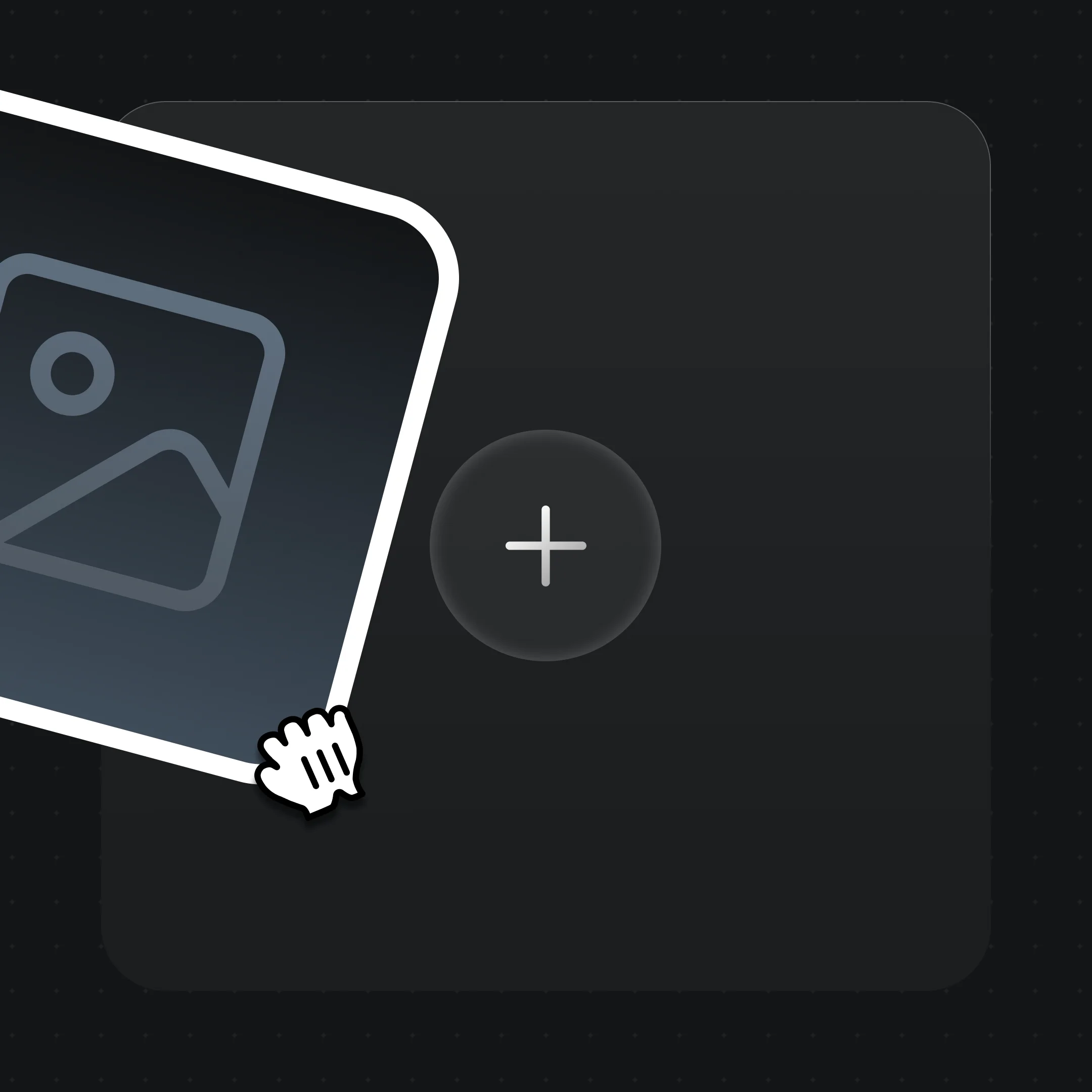
Drag your photo onto Renoise Canvas. You can also start with a reference image to establish the base before editing.
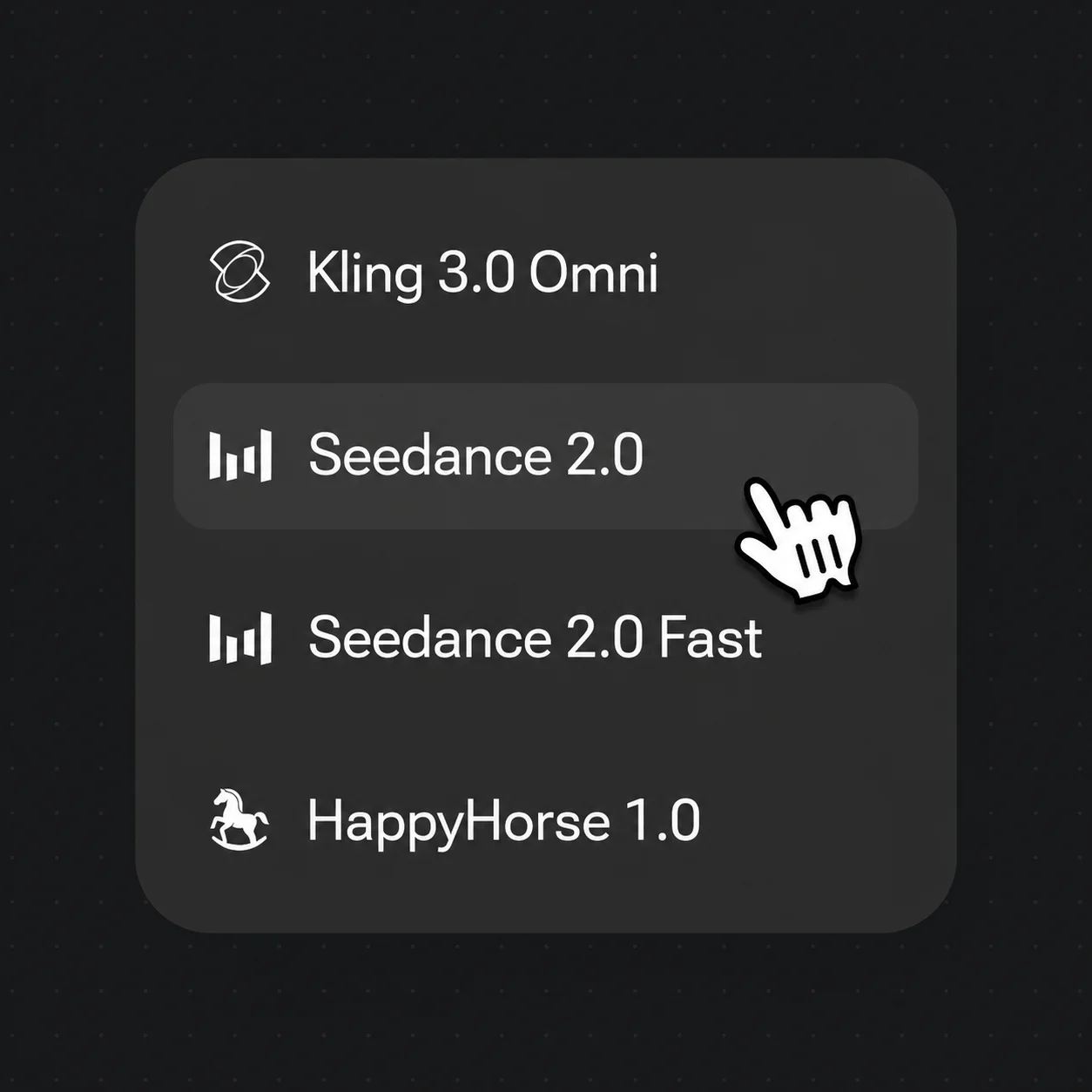
Type exactly what you want changed — "remove the person in the background", "replace background with a tropical beach", "make it look like an oil painting". The more specific, the better.
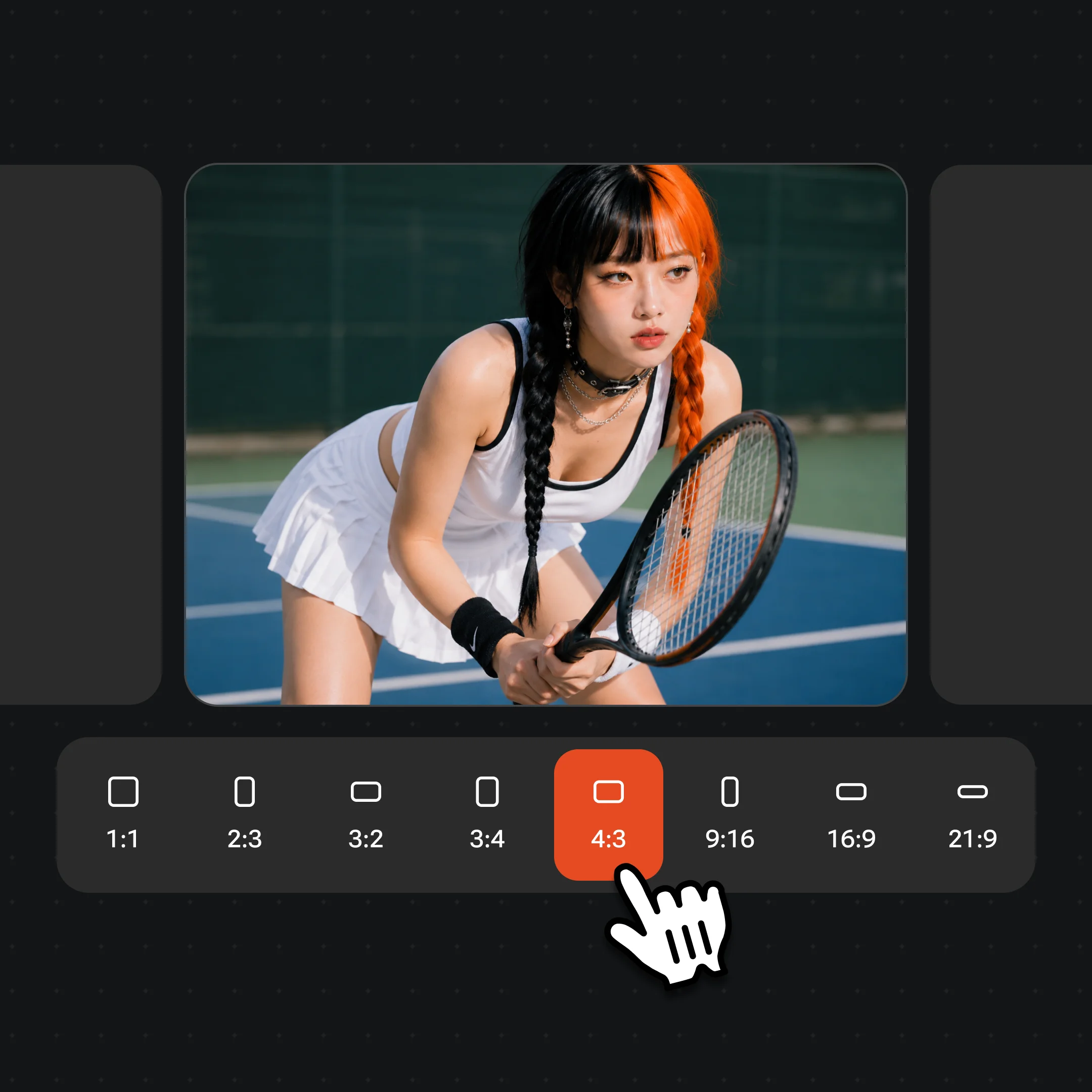
Generate the edit, review the result, and iterate with follow-up prompts if needed. Export high-resolution results watermark-free on paid plans.
Object removal, background swap, style transfer, and portrait enhancement.
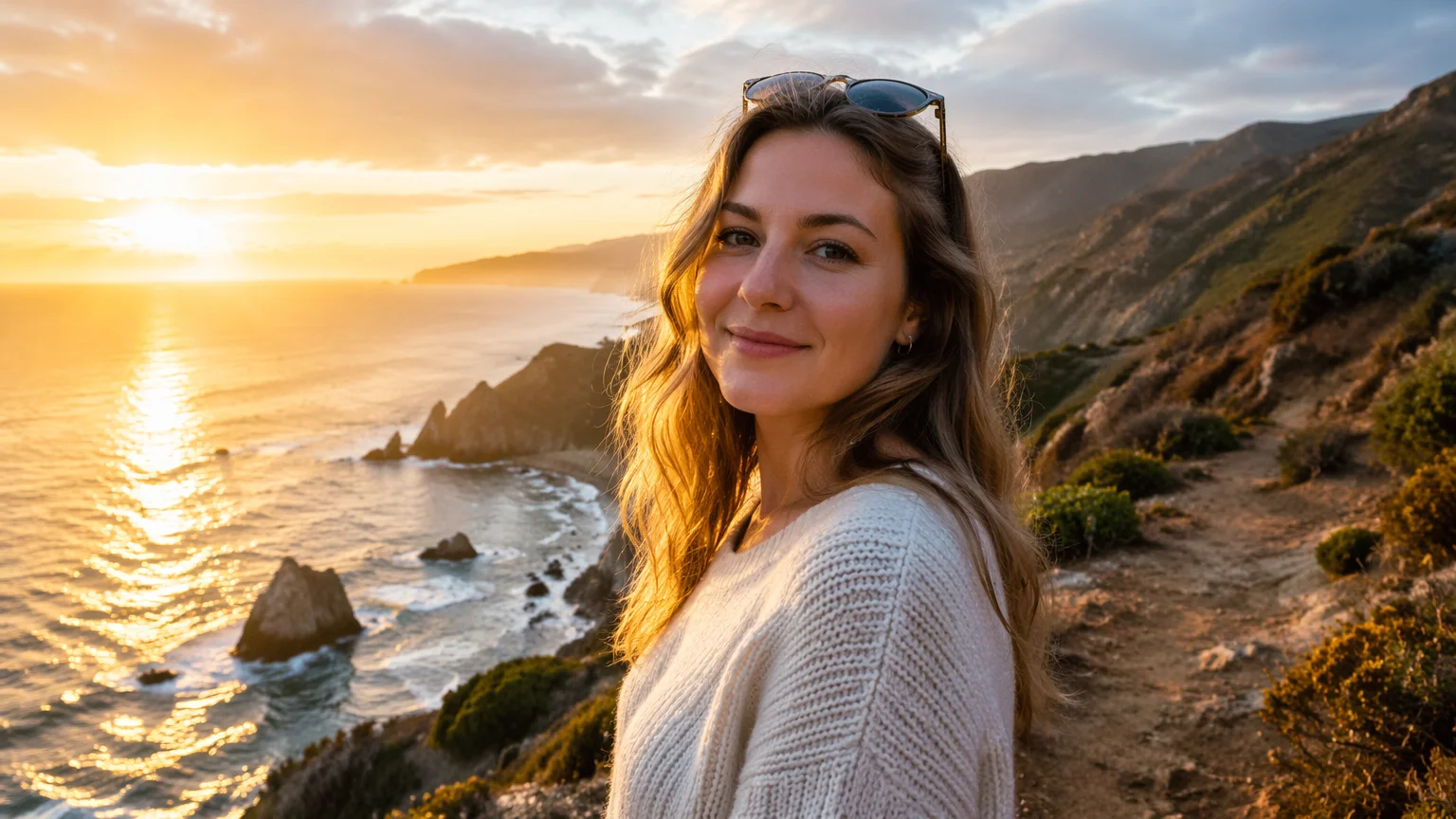
City street portrait with background swapped to golden-hour coastal cliffs.
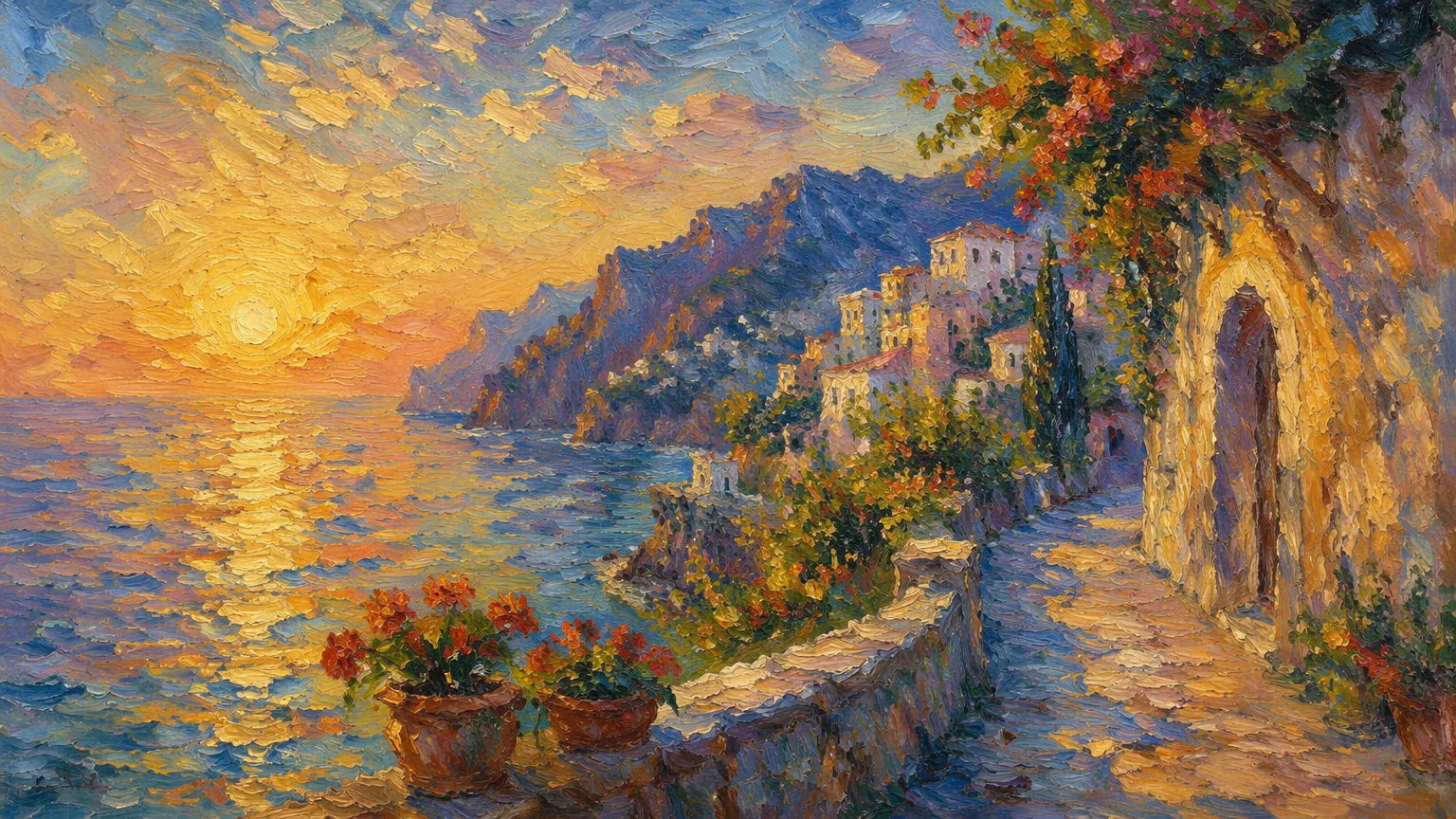
Landscape photo transformed into an impressionist oil painting style.
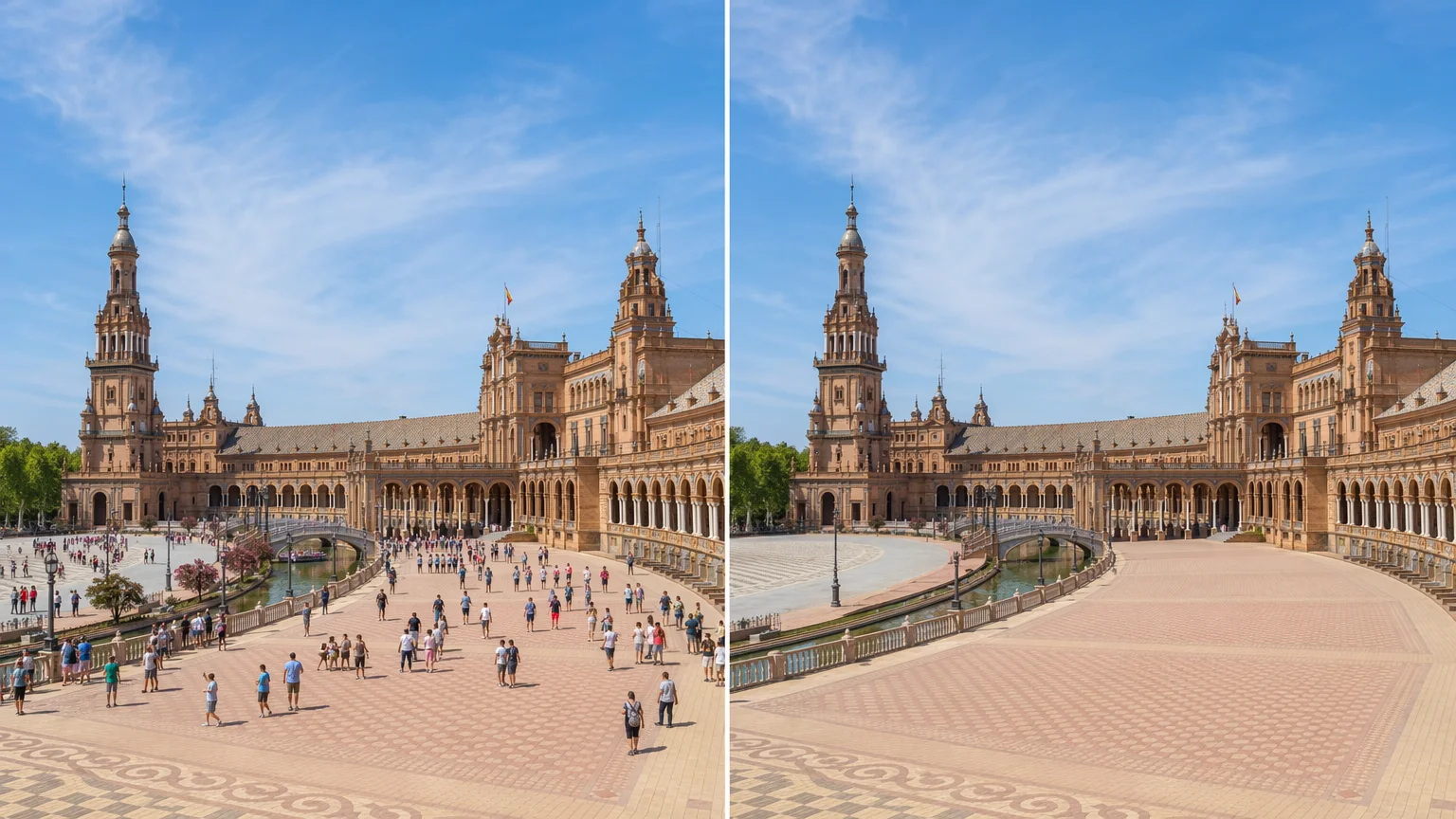
Tourist photo with crowds removed — clean, empty scene with natural fill.
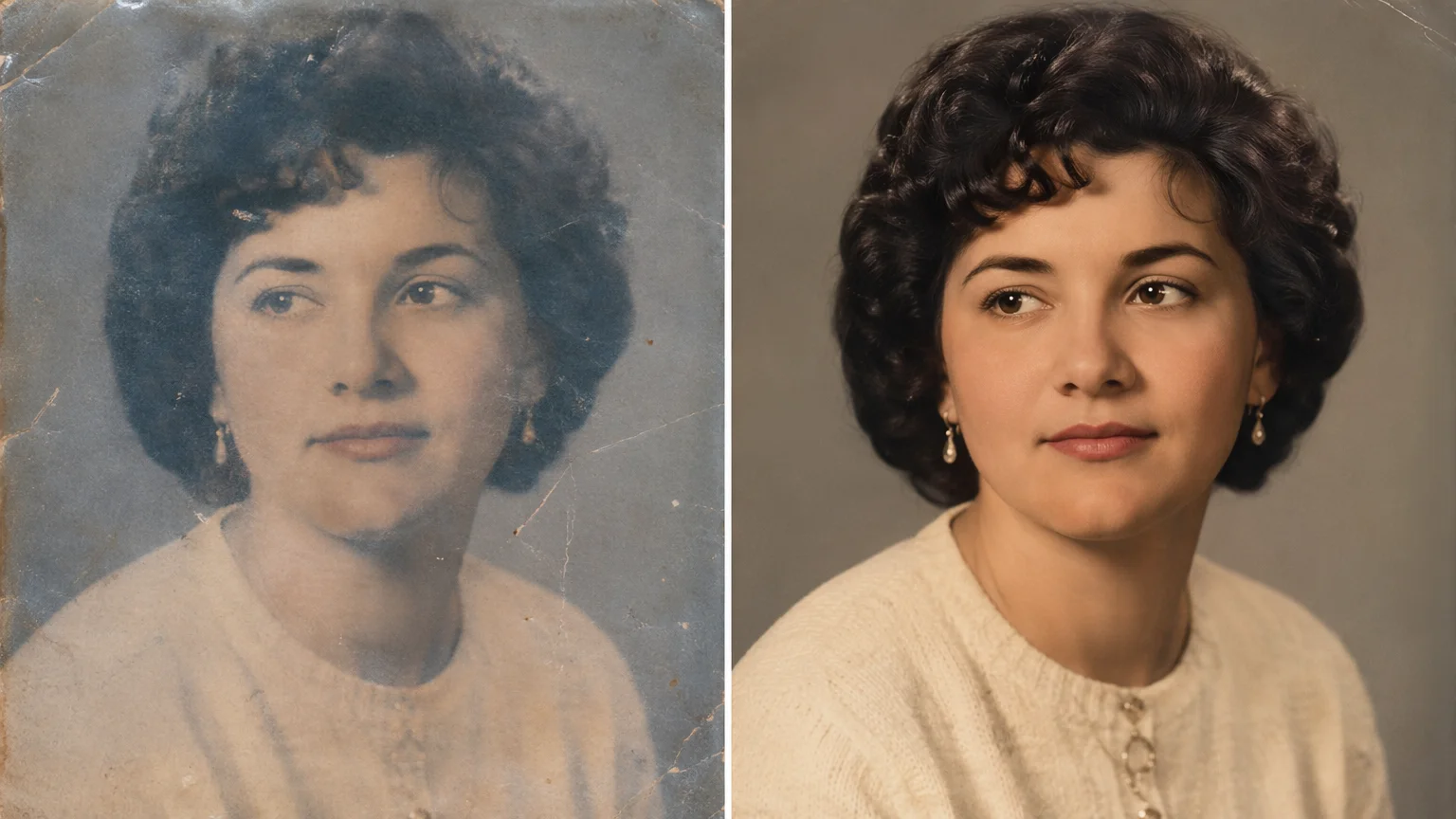
Old, faded portrait photo restored with enhanced detail and color correction.
Both run in Renoise Canvas — pick the model for the edit you need.
| For photo editing | GPT Image 2 (Recommended) | Nano Banana Pro |
|---|---|---|
| Best for | Precise, instruction-following edits | Bold stylizations and graphic transformations |
| Object removal | ✓✓ (strong) | ✓ |
| Background replacement | ✓✓ (strong) | ✓ |
| Style transfer | ✓ | ✓✓ (graphic heavy) |
| Photo enhancement | ✓ | ✓ |
| Face editing | Use FacePass | Use FacePass |
Traditional photo editing is layer-based: you adjust sliders, mask areas, clone-stamp over distractions, and apply filters manually. It is precise and controllable, but it requires significant skill and time, especially for complex edits like object removal or background replacement.
AI photo editing flips this. You describe the outcome you want in plain language — "remove the lamppost and fill naturally", "replace the gray sky with a dramatic sunset", "make this look like a 1970s film photo" — and the model generates the result. It is dramatically faster for exploratory editing and for users who lack traditional photo editing skills.
The honest trade-off: AI editing is generative, not surgical. It does not give you pixel-by-pixel control. For professional retouching that requires precise control over specific pixels, traditional tools remain better. For exploratory transformations, style shifts, background swaps, and quick enhancements, AI editing is significantly faster and often produces surprising results.
For face edits specifically — swapping faces, preserving identity while changing expression or context — FacePass is the dedicated model. It is purpose-built for face consistency in ways that general image models are not. Use GPT Image 2 for everything else, and FacePass when the face itself is the edit.
AI photo editing draws on multiple specialized models in one Canvas.
Precise editing model — object removal, background replacement, style transfer, and enhancement.
Bold stylizations and graphic transformations for striking photo effects.
Dedicated face swap and portrait editing — identity-preserving face modifications.
Upload, edit, iterate, and compare edits all in one visual workspace.
One plan unlocks GPT Image 2, Nano Banana Pro, FacePass, and every image and video model in Renoise.
For first-time AI content creators
Billed $168 annually
Upgrade PlanSave $72/year
For creators shipping content every week.
Billed $504 annually
Upgrade PlanSave $216/year
For studios and pros producing at commercial scale.
Billed $1680 annually
Upgrade PlanSave $720/year
For first-time AI content creators
Billed monthly
Upgrade PlanFor creators shipping content every week.
Billed monthly
Upgrade PlanFor studios and pros producing at commercial scale.
Billed monthly
Upgrade PlanRenews automatically each year until canceled.
Renews automatically each month until canceled.
Describe any edit and generate it — object removal, backgrounds, styles, and face edits on one canvas.
You upload your photo and describe what to remove — "remove the person on the left", "erase the car in the background". GPT Image 2 identifies the object and fills the removed area with contextually appropriate content based on the surrounding image. Results vary by complexity — clean backgrounds fill well; complex overlapping scenes may need a few iterations.
Yes — upload your photo and describe the new background you want. "Replace the background with a golden-hour forest", "swap the background for a modern office interior", "put this on a white studio backdrop". GPT Image 2 handles background replacement well while attempting to preserve the main subject naturally.
FacePass is a specialized face editing model on Renoise. Use it when the face itself is the edit — swapping faces, preserving a person's identity in a new context, or making identity-aware portrait modifications. For non-face edits (backgrounds, objects, styles), use GPT Image 2.
Yes — describe the enhancement you want: "sharpen details", "improve resolution", "restore as if high quality". For dedicated image enhancement and upscaling, also see the /features/ai-image-enhancer guide which covers resolution upscaling in depth.
Yes — this is one of the strongest use cases. Prompt: "transform this photo into an oil painting", "make it look like a watercolor illustration", "convert to anime style", "apply a 1970s film photo look". GPT Image 2 and Nano Banana Pro both handle style transfers well, with Nano Banana Pro tending toward more graphic, bold stylizations.
Renoise accepts standard image formats (JPEG, PNG, WebP). If you need to edit RAW files, convert to JPEG or PNG first using your camera software or Lightroom, then upload to Renoise for AI editing.
Your privacy is important to us
We use cookies to improve your experience and for marketing. Read our Cookie Notice.