Generative rebuild
The marked region is repainted from surrounding context — not a fake "pixel-perfect erase".
For photos you own — AI rebuilds the marked area from the surrounding image.
Follow us and get 20 free credits — about 6 images
For photos you own or are licensed to edit.


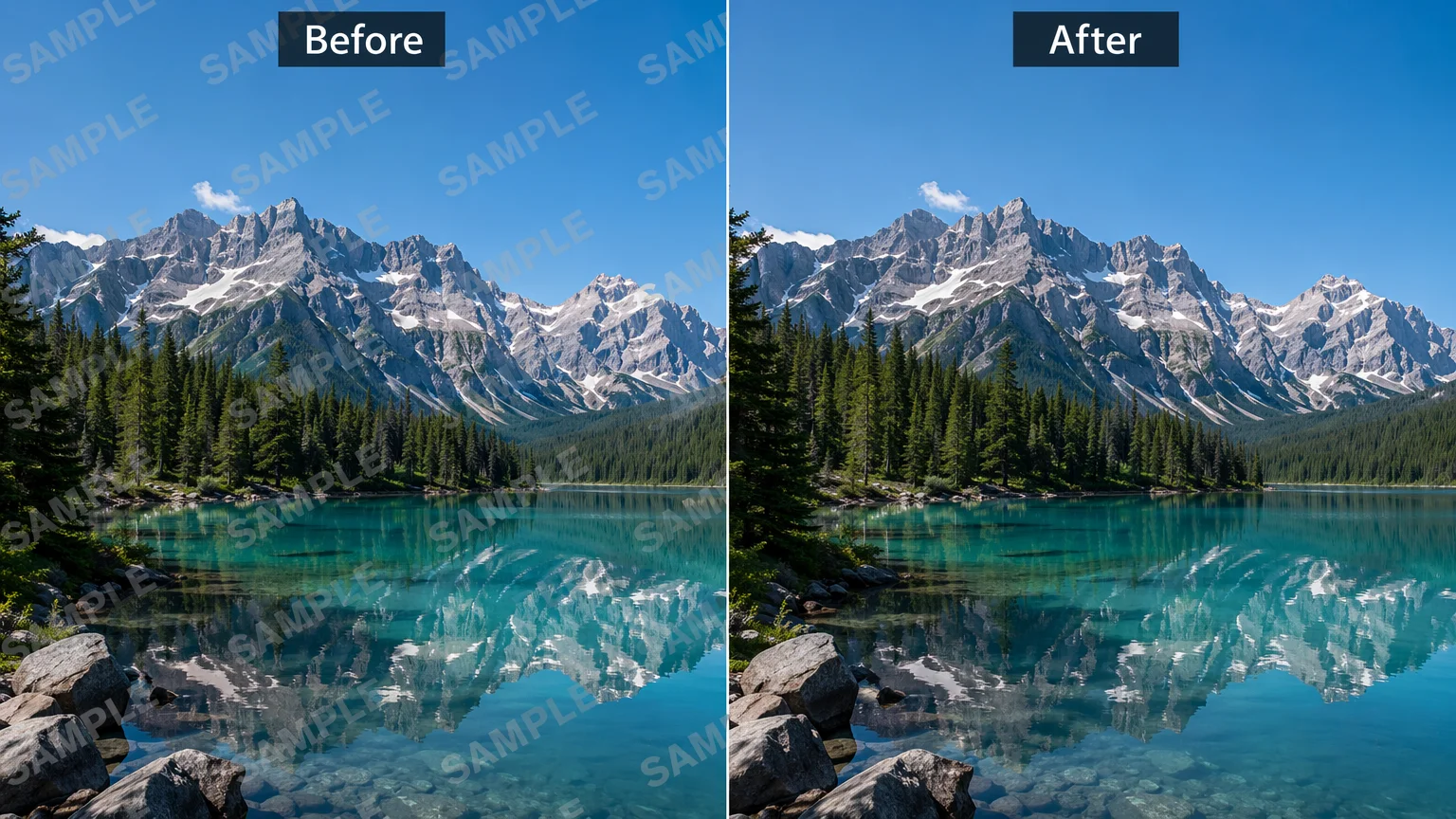
Real model output on an image we own — drag the handle to compare.
Subscribe for more credits and more models.
AI does not lift a watermark off untouched pixels — it re-renders the marked region, rebuilding it from the surrounding image. Upload a photo you own above and the marked area is repainted in about a minute. Only edit images you own or are licensed to edit.
Removing an unwanted object instead of a mark? See the object remover guide
What this watermark remover does — and the lines it keeps.
The marked region is repainted from surrounding context — not a fake "pixel-perfect erase".
Credits-based with no daily caps — clean up photo after photo in one run.
Your own AI creations in Renoise export without a Renoise watermark on paid plans.
Only images you own or are licensed to edit. Respect the rights holder.
For images you own or are licensed to edit — never someone else's copyrighted or stock photo.
Drop up to 10 photos you own into the uploader at the top of this page.
The default prompt removes the mark and keeps everything else unchanged — edit it for tricky cases.
Each photo is rebuilt in about a minute. Compare before and after at full size, then download.
Honest expectations by watermark type — a busy mark leaves the model less real image to rebuild from, so results vary. Tested on photos we own.
| Watermark type | Expected result | Tip |
|---|---|---|
| Corner text or date stamp | Good — small area, plenty of context | The default instruction usually suffices |
| Single translucent logo | Good — context fills the region well | Name the area in the prompt for precision |
| Tiled, repeating marks | Partial — traces can remain | Run twice, or rebuild in Canvas with a mask |
| Dense full-frame overlay | Poor — too little original image left | Regenerate the image instead of repairing it |
Rebuilt regions on owned images — the model repaints the area from surrounding context, not a pixel-perfect erase.
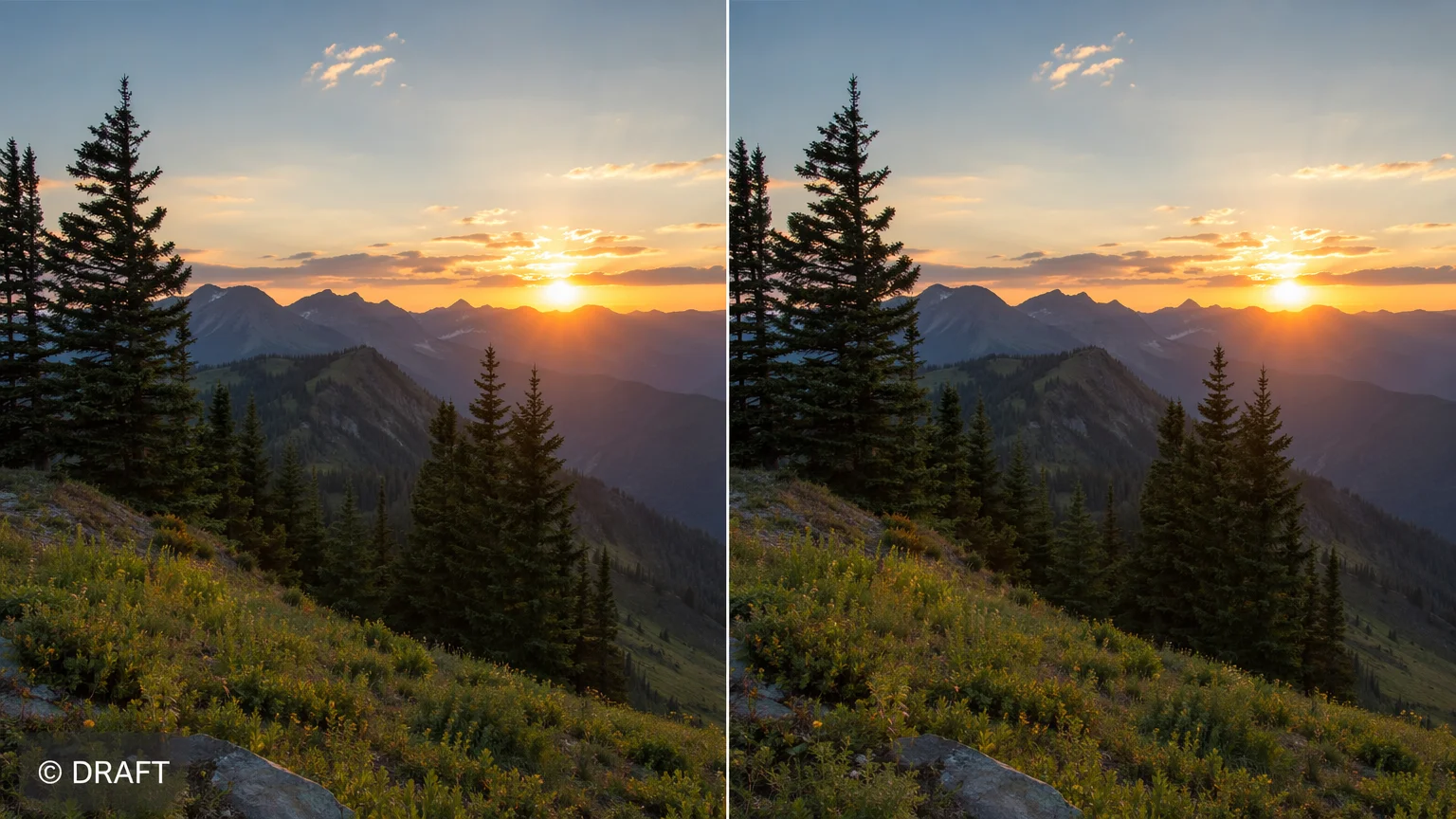
A marked area on a photo you own, rebuilt to match the scene around it.
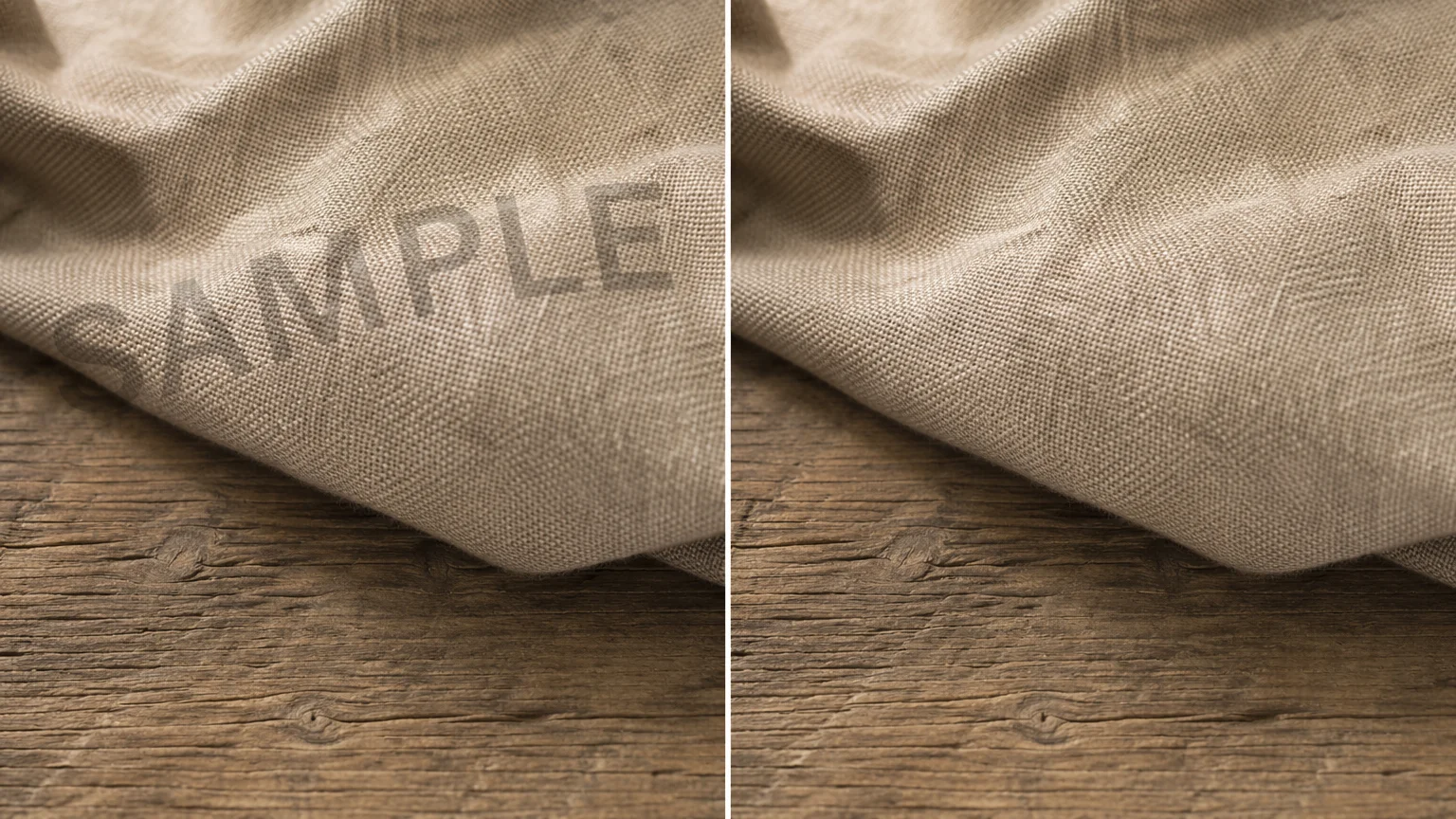
The model infers fabric and surface texture to fill the patched region.
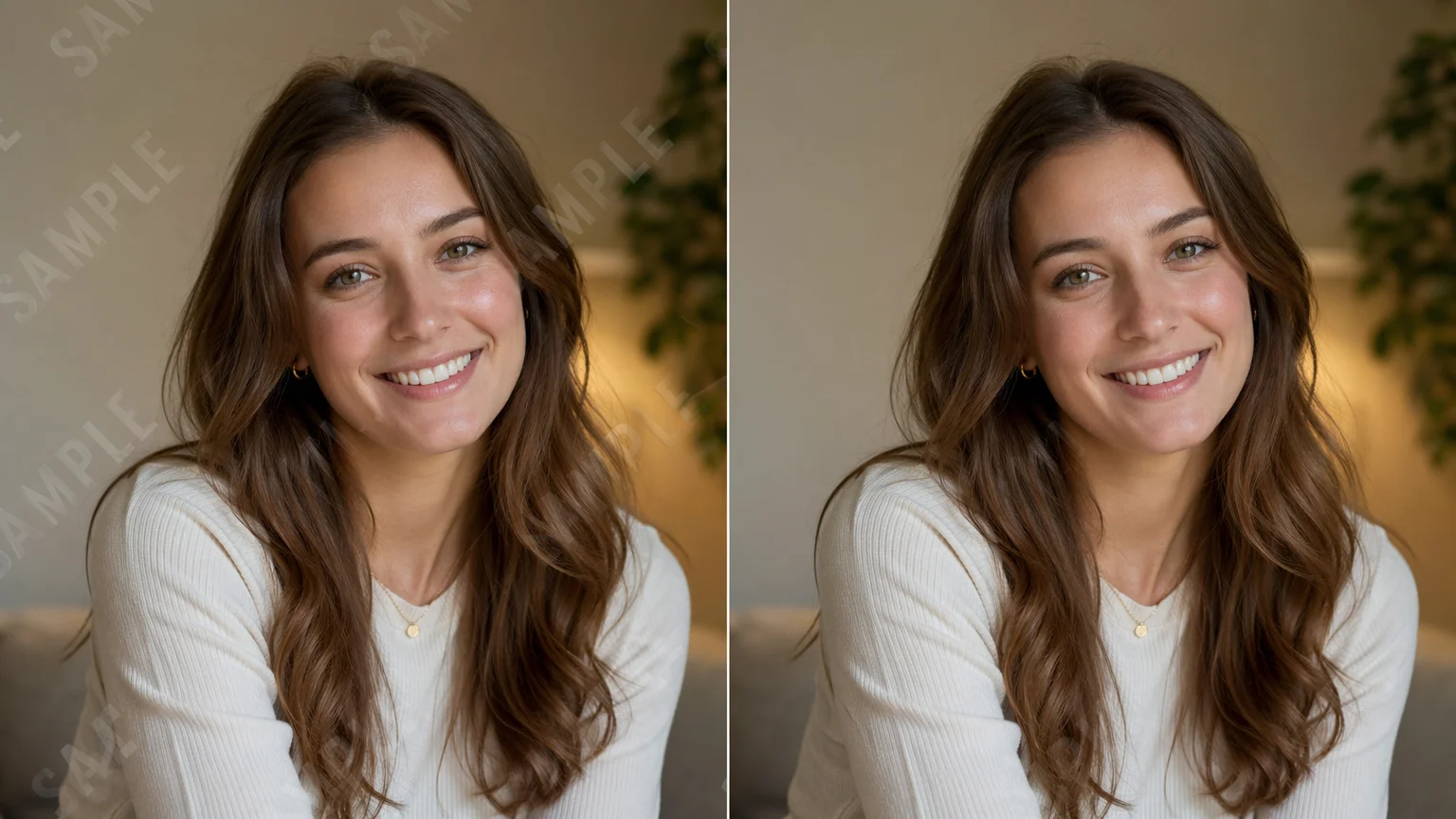
Edges and lighting are re-rendered so the rebuilt area reads as part of the shot.

A Renoise creation exported watermark-free on a paid plan, ready to publish.
It helps to be precise about what is happening, because "AI watermark remover" sounds like a one-click erase and it is not. A watermark sits on top of the original pixels; once it is there, the information underneath is partly gone. What runs on this page is generative inpainting on Grok Imagine Image, the xAI image model: the marked region is re-rendered, rebuilt from the surrounding image. It is an interpretation, not a recovery, so a busy or text-heavy mark may leave traces and the result is not pixel-for-pixel identical to whatever was underneath. For finer control on a stubborn mark, the same model runs in the Renoise Canvas with a hand-drawn mask you paint over the exact area.
The more important point is when this is appropriate. Use it only on images you own or are licensed to edit — a frame you shot, a render you generated, an asset you hold the rights to. Do not use it to strip watermarks from stock libraries, photographers, or any third party's copyrighted images; those marks signal ownership, and removing them can infringe rights and violate licences. If your goal is simply clean output, the cleanest path is to generate the image in Renoise yourself: your own AI creations export watermark-free on paid plans, with nothing to remove in the first place.
What happens to an uploaded photo — the answer most watermark tools avoid.
Picking a file only previews it on your device. Not one byte is stored until you sign in and click generate.
Uploads land in your private library, never a public gallery, and re-running the same photo stores nothing new.
Remove uploads and results from your library whenever you want.
Credits work across every tool — upscaling, image editing and the video models.
For first-time AI content creators
Billed $168 annually
Upgrade PlanSave $72/year
For creators shipping content every week.
Billed $504 annually
Upgrade PlanSave $216/year
For studios and pros producing at commercial scale.
Billed $1680 annually
Upgrade PlanSave $720/year
For first-time AI content creators
Billed monthly
Upgrade PlanFor creators shipping content every week.
Billed monthly
Upgrade PlanFor studios and pros producing at commercial scale.
Billed monthly
Upgrade PlanRenews automatically each year until canceled.
Renews automatically each month until canceled.
Generate your own images in Renoise and export them watermark-free on paid plans.
No, and the other one is both faster and cheaper. Flat text laid over a photo is handled by the text remover, which finds the words itself — no brush, about twenty seconds, one credit a run. This page exists for ownership marks: a large semi-transparent stamp across the middle of the image, or a logo sitting over detail you care about. Those need the painted mask, because a mark like that overlaps everything rather than sitting in a tidy region, and automatic text erase leaves parts of it behind.
No. Do not use Renoise to strip watermarks from stock libraries, photographers, or any third party's copyrighted images. A watermark signals ownership, and removing it can infringe rights and breach licences. Only edit images you own or are explicitly licensed to edit, and respect the rights holder.
The marked region is re-rendered by an image model, which rebuilds the area from the surrounding image. It is generative inpainting — an interpretation rebuilt from context, not a recovery of the exact pixels that were underneath the mark.
Yes. Upload up to 10 photos and they are processed one after another, each billed per image. Credits have no daily caps, so a batch of old product shots or event photos cleans up in a single run.
This tool works on photos only. For clean AI video, generate it in Renoise — videos you create export watermark-free on paid plans, so there is no mark to remove in the first place.
Not always. Corner stamps and single logos usually rebuild cleanly; tiled or dense full-frame marks leave the model less real image to work from and can keep traces — see the type-by-type table above. Compare against the original at full size before you use it.
Right here — the tool at the top of this page runs in the browser, no app to install. Upload the photo you own, keep or refine the instruction, and the mark comes off with the area rebuilt to match. Compare, then download.
JPG, PNG, and WebP, up to 20MB per photo and up to 10 photos per run.
Generate the image in Renoise yourself. Your own AI creations export watermark-free on paid plans, so there is no third-party mark to remove in the first place — which is both the cleanest result and the rights-safe path.