Performance energy
A holographic player trails the artist down the street — the kind of hero shot a chorus is built around.
Turn a song, a shot plan, and authorized reference media into cinematic music video clips.
Break the song into sections such as intro, verse, chorus, and bridge. Write one shot prompt per section, reuse the same authorized reference images where the selected model supports them, and generate the clips with Seedance 2.0. Each result can be edited and trimmed directly in Renoise.
Animating a single still instead of a full MV? See the AI photo to video AI tool
The flow we recommend for a 30–60 second music video. Add more scenes to scale to a full MV.
Listen through the track and note the timestamps for the intro, verse, chorus, and bridge. Add the authorized artist or style references needed for the shots.
Use images you are authorized to use, and reuse the same @-referenced assets in supported models to reduce visual drift between shots.
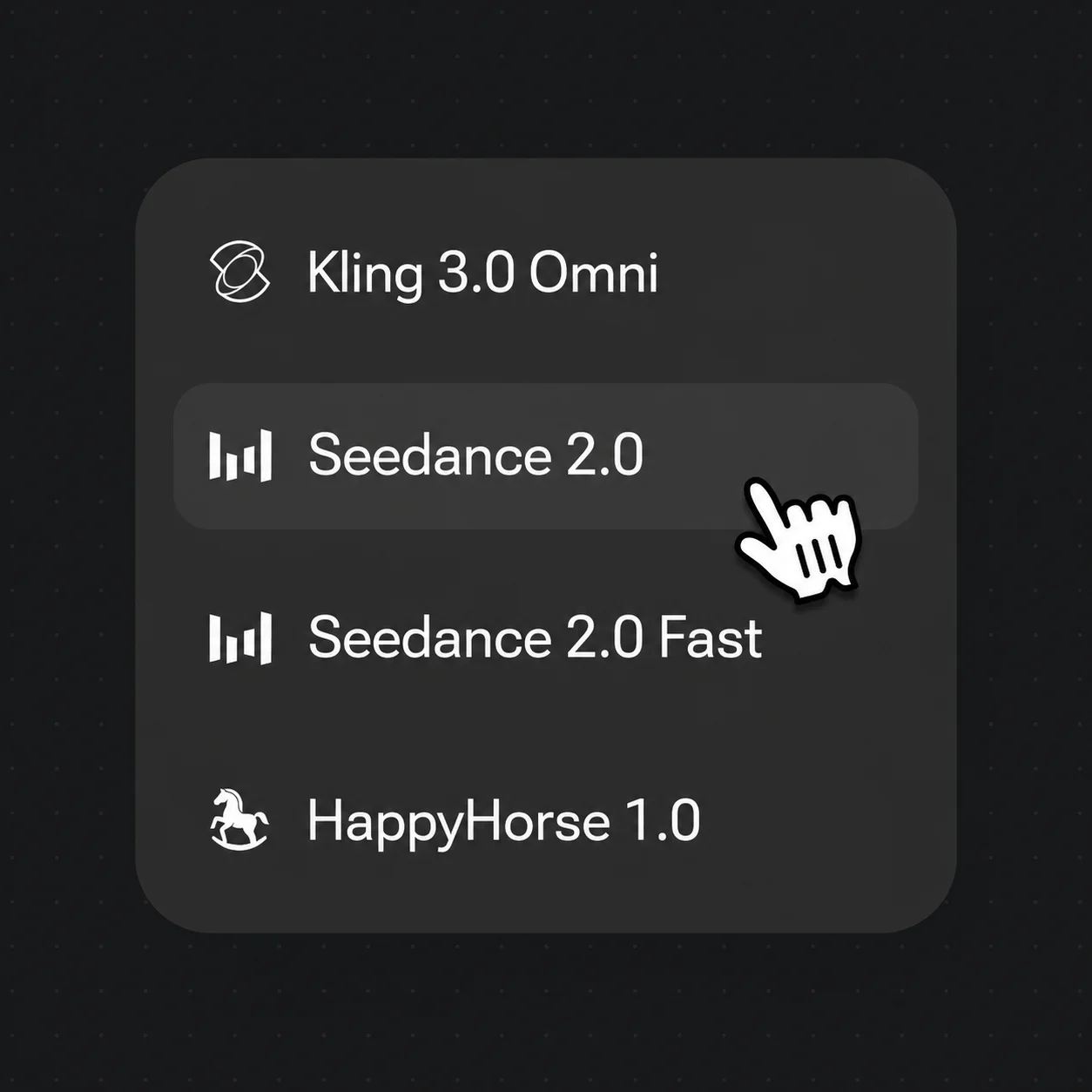
Write one focused prompt per song section. Seedance 2.0 supports 4–15 second clips; choose Kling 3.0 Omni when its resolution and reference controls better match the shot.
Generate the visual building blocks in Renoise, then edit and trim each result directly.
A holographic player trails the artist down the street — the kind of hero shot a chorus is built around.
Wet-pavement reflections and cinematic neon — repeat the palette and reference assets across the verse.
Red-carpet framing for the artist reveal, guided by the same authorized reference images across related shots.
Warm-to-cool lighting for a slow bridge — generate the aspect ratios you need, then edit and trim each result directly.
Both models are available in Renoise. Choose by clip length, resolution, and reference needs; generated clips can be edited and trimmed directly.
| For music video | Seedance 2.0 (Recommended) | Kling 3.0 Omni |
|---|---|---|
| Best for | Cinematic shots up to 4K | Controlled 720p or 1080p shots |
| Clip length | 4–15 seconds | 3–15 seconds |
| Resolution | 480p / 720p / 1080p / 4K | 720p / 1080p |
| Reference images | Up to 9 | Up to 7 |
| Renoise credit balance | ✓ | ✓ |
| Direct editing and trimming | ✓ | ✓ |
A music video feels cohesive when the shots follow the song's structure. Before generating, note the timestamps for the intro, verse, chorus, bridge, and important changes in the track. Turn that list into a shot plan so each clip has a clear purpose.
Write one focused prompt per section, covering the mood, framing, action, and camera movement. Generate those clips in Renoise, then edit and trim each result directly.
For visual continuity, reuse the same authorized artist, wardrobe, and style references wherever the selected model supports them. @-references and repeated descriptions can reduce drift, but generative models can still vary between shots, so review each result before publishing.
Three pieces do the heavy lifting for music video work.
Cinematic 4–15 second clips from text, images, and supported reference media, with output up to native 4K.
Reuse authorized artist and style assets with @-references where supported to reduce visual drift between sections.
Choose a supported aspect ratio for each generation and create separate deliverables for vertical, square, or widescreen publishing.
Keep reference media and generated clips organized on Canvas, then edit and trim each result directly in Renoise.
One plan unlocks every model your music video needs.
For first-time AI content creators
Billed $168 annually
Upgrade PlanSave $72/year
For creators shipping content every week.
Billed $504 annually
Upgrade PlanSave $216/year
For studios and pros producing at commercial scale.
Billed $1680 annually
Upgrade PlanSave $720/year
For first-time AI content creators
Billed monthly
Upgrade PlanFor creators shipping content every week.
Billed monthly
Upgrade PlanFor studios and pros producing at commercial scale.
Billed monthly
Upgrade PlanRenews automatically each year until canceled.
Renews automatically each month until canceled.
Watermark-free on any paid plan.
Yes. Renoise includes Lyria 3 Clip for 30-second music clips and Seed Audio 1.0 for up to 120 seconds of dialogue, background music, and sound effects. If you already have a finished song, use its sections to plan the shots you generate.
Seedance 2.0 supports 4–15 second clips, Kling 3.0 Omni supports 3–15 seconds, and Seedance 2.5 supports 4–30 seconds. Each generated clip can be edited and trimmed directly in Renoise.
Reference images can improve continuity, but they cannot guarantee an identical result in every shot. Use only images you are authorized to use, reuse the same supported references and @-references, and repeat the key appearance details in each prompt. Review every clip before publishing.
Yes. Generated video clips can be edited and trimmed directly in Renoise.
Choose Seedance 2.0 for cinematic shots with resolution options up to native 4K. Choose Kling 3.0 Omni when its 720p or 1080p output and reference controls better fit the shot. Both use the same Renoise credit balance.
Choose a supported aspect ratio for each generation and create separate vertical, square, or widescreen versions as needed. Each result can be edited and trimmed directly in Renoise.