Profile and team photos
Swap a bedroom wall for a clean studio backdrop so a good photo of you works on LinkedIn or a team page.
Upload a photo, pick a new backdrop, and AI redraws only what is behind your subject — face, clothes, and pose stay exactly as they are.
Follow us and get 20 free credits — about 5 images
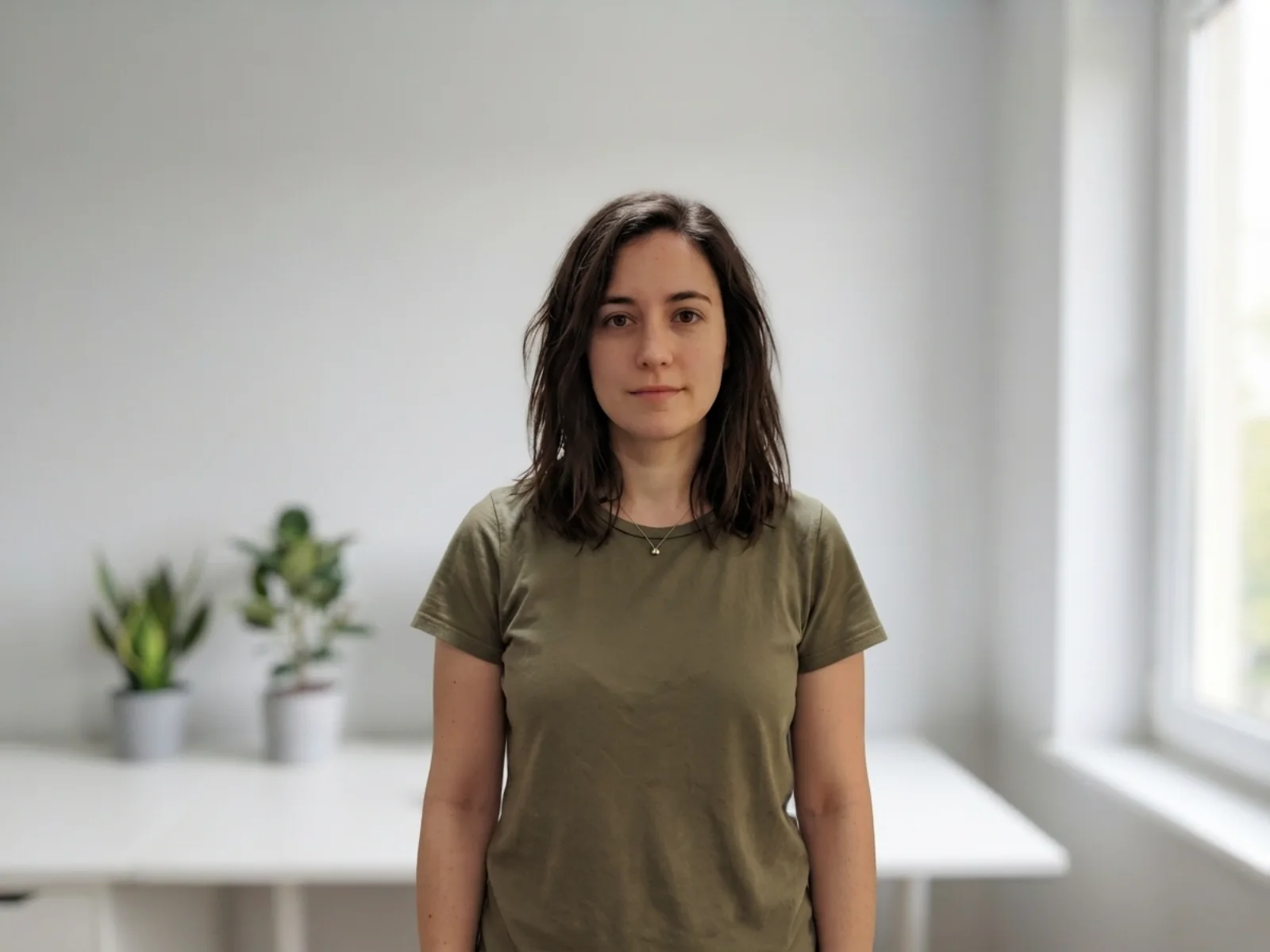
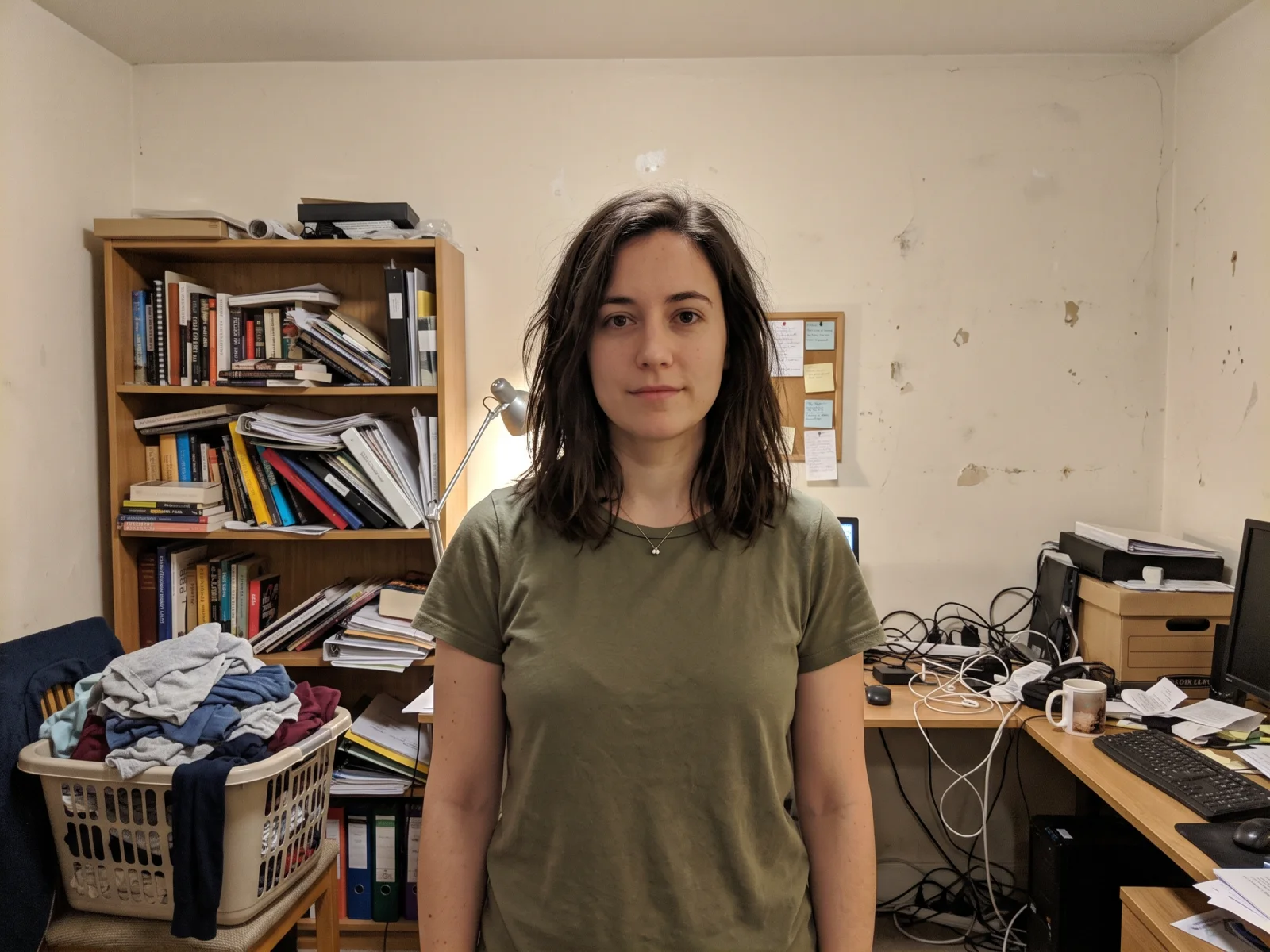
Real model output from this exact photo — drag the handle to compare.
Subscribe for more credits and more models.
Upload your photo above, pick a new backdrop — studio white, office, outdoor, a solid colour, or a blurred setting — and generate. In about a minute AI redraws everything behind your subject while keeping the person or product itself unchanged, then you compare the two and download the result. Following us on X and YouTube earns 20 free credits, which covers your first five images here.
Want to generate a background scene from scratch instead? See the AI background guide
One upload box, very different reasons for using it.
Swap a bedroom wall for a clean studio backdrop so a good photo of you works on LinkedIn or a team page.
Move a product from a kitchen table to plain white or a lifestyle setting without reshooting it.
Replace a grey-sky exterior or a distracting street behind a property shot.
Put yourself somewhere else entirely, then keep editing or animate the result on the same canvas.
Each run is billed per image after your free credits, so you can try several backdrops on the same photo.
Drop in the photo whose background you want to change — a phone photo is fine.
Choose studio white, office, outdoor, a solid colour, or blurred — or describe the backdrop you want in your own words.
The new version is ready in about a minute. Drag the slider to compare, then download it or keep editing in the Canvas.
Honest expectations by photo type — the model redraws the background around your subject rather than cutting it out pixel by pixel. Tested on our own photos.
| Photo type | Expected result | Tip |
|---|---|---|
| One person, clear outline, even light | Clean — subject and edges come through untouched | The default settings usually suffice |
| Product on a plain surface | Clean — shape and labels stay readable | Name the surface you want ("on a white table") |
| Flyaway hair or fur | Good, but stray strands can be redrawn rather than preserved | Pick a plain backdrop so redrawn edges are less visible |
| Glass, smoke, or see-through edges | Partial — anything you can see through gets reinterpreted | Expect a repaint here; compare before you use it |
| Busy scene with several people or objects | Mixed — the model has to decide what counts as foreground | Say what must stay ("keep both people and the bench") |
The same photo run through four different backdrops — every image below is a real model output, not a mockup.
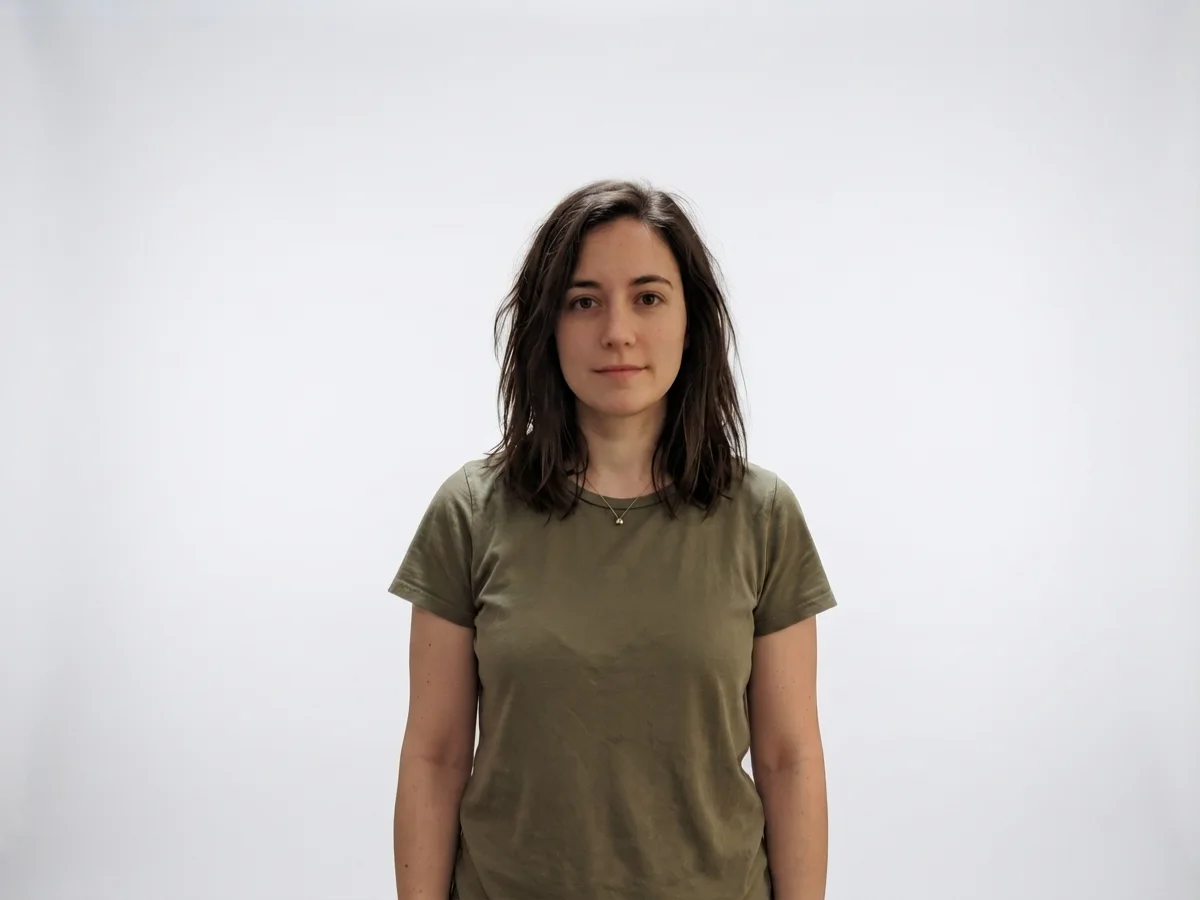
A seamless white backdrop for profile pictures and CVs.
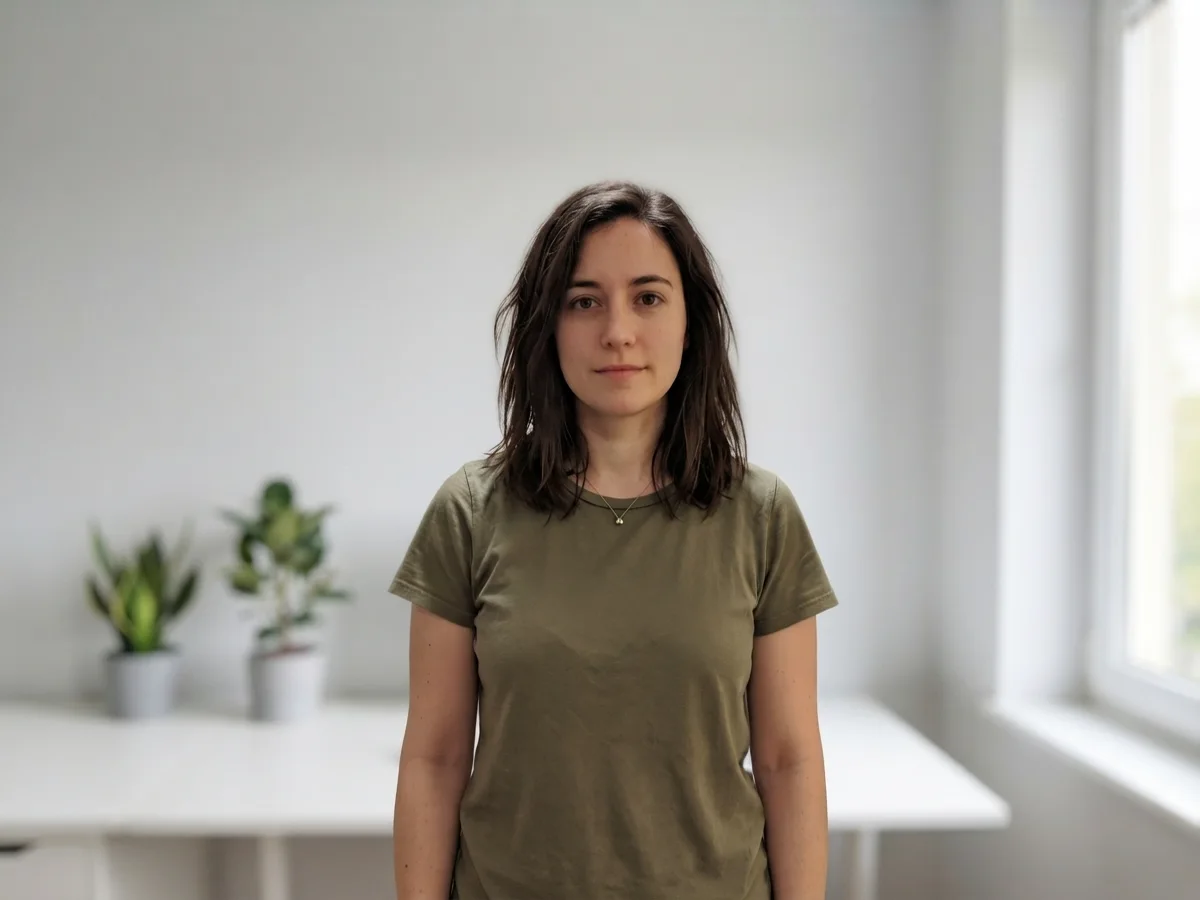
A bright workspace behind the same untouched subject.
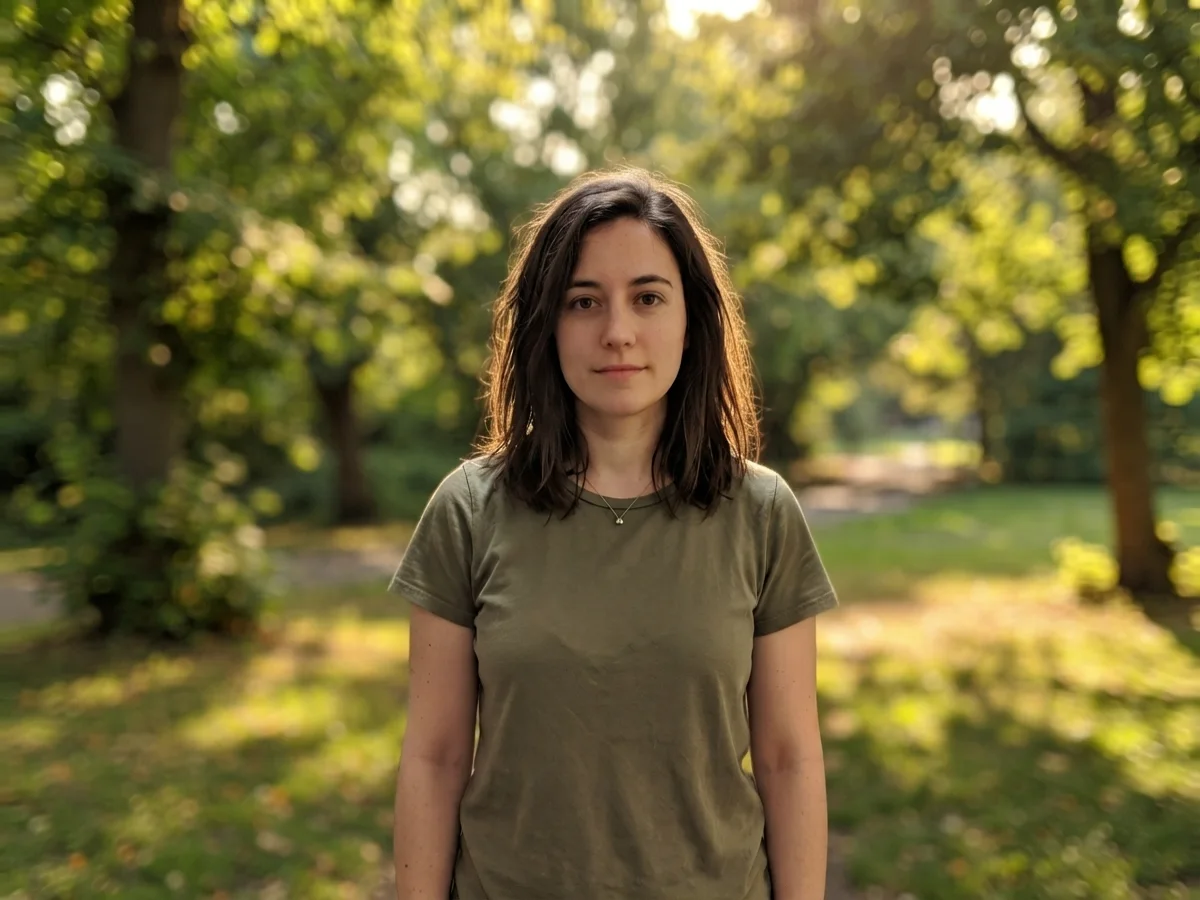
Warm afternoon park light, with the subject relit to match.
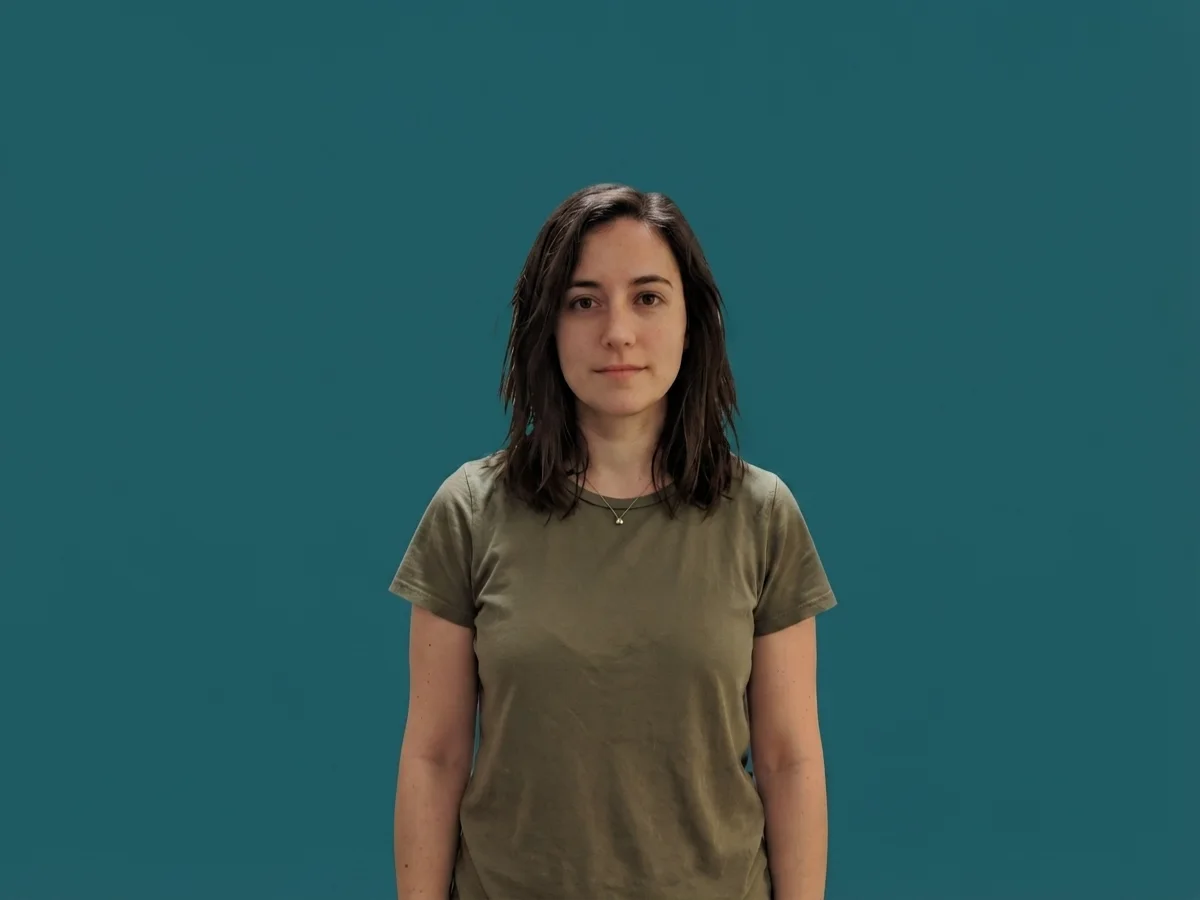
A flat colour backdrop for forms, badges, and thumbnails.
This page runs a generative image-to-image edit on Nano Banana 2 Lite, one of Google's Gemini image models. Your photo goes in as a reference image and the instruction asks the model to keep the subject exactly as it is while replacing everything behind it with the backdrop you picked. Because the model reads the whole picture, it also matches the new background's light direction and colour temperature to your subject — which is why the results usually look photographed rather than pasted together.
That mechanism is also the honest limit. A traditional cutout tool traces a hard edge and gives you a transparent PNG; this does not. It redraws the background around your subject, so flyaway hair, fur, and anything see-through get reinterpreted rather than preserved, and you get back a normal JPG or PNG with a background baked in — not an alpha channel. If what you actually need is a transparent cutout to composite yourself, that is a different job, and the background remover guide covers it.
What you get in exchange is everything that comes after: the result stays in the Renoise Canvas, where you can enhance it, upscale it, restyle it, or animate it with the video models. And upload only photos you own or are allowed to edit — someone else's portrait is theirs.
What happens to an uploaded photo — the answer most background tools avoid.
Picking a file only previews it on your device. Not one byte is stored until you sign in and click generate.
Uploads land in your private library, never a public gallery, and re-running the same photo stores nothing new.
Remove uploads and results from your library whenever you want.
As of October 2026, 100,000+ creators in 170+ countries and regions use Renoise AI, an AI video, image and audio platform, to generate 300,000+ images and videos with 30+ models.
Source: Renoise internal data, March–October 2026. Figures are rounded down and updated quarterly. Last updated
Real feedback from creators who use Renoise AI to make videos, images and ads.
Renoise is pretty easy to use, with a clean and smooth interface. The results from Seedance 2.5 also feel noticeably smoother in action sequences.
Renoise Ai is a good tool for making ai videos and photos. it puts several Ai models in one place, so you don't need to use many different apps.
あまりAIツールを使ったりしたことなかったですが、キャラクターの固定や動画を続いて作成できて使いやすいです。これからどんどん進んでいくアップデートが楽しみです。
Renoise has been a great platform for AI creativity. The tools are easy to use, the experience is smooth, and it makes creating content more enjoyable and efficient. I really appreciate the work the team is doing and look forward to seeing more improvements. Highly recommended!
What I like about Renoise AI compared to other platforms: Fast generation speed: Slow generation takes up way too much time, but Renoise AI is surprisingly about 30% faster. Intuitive and user-friendly UI: Cheaply made platforms have terrible UIs that make me not even want to log in, but Renoise is very clean and convenient. Remembers my previous settings: It helpfully remembers my last workspace settings. Some odd platforms force you to re-adjust everything every single time you generate a video, which is extremely frustrating. Overall preference: For all these reasons, Renoise AI is definitely my preferred platform. Thank you!
Renoise is your go to one stop all for ai creators. all view and use all models in one place, for any type of content you have your mind on!
I have a creat experience with the app. Consistent characters but also unique. THere were some issues with storyline continuity and non-typical humanoid characters.
Credits work across every tool — upscaling, image editing and the video models.
For first-time AI content creators
Billed $168 annually
Upgrade PlanSave $72/year
For creators shipping content every week.
Billed $504 annually
Upgrade PlanSave $216/year
For studios and pros producing at commercial scale.
Billed $1680 annually
Upgrade PlanSave $720/year
For first-time AI content creators
Billed monthly
Upgrade PlanFor creators shipping content every week.
Billed monthly
Upgrade PlanFor studios and pros producing at commercial scale.
Billed monthly
Upgrade PlanRenews automatically each year until canceled.
Renews automatically each month until canceled.
Swap the backdrop here, then enhance, upscale, or animate the result in the Renoise Canvas.
Following us on X and YouTube earns 20 free credits. A background change here costs 4 credits, so your first five images are free. After that runs are billed per image — there is no free plan and no subscription needed to use the credits you were given.
Upload the photo at the top of this page, pick one of the five backdrops (or describe your own), and generate. In about a minute you get the same photo with a new background behind an untouched subject, and a slider to compare the two.
No. This tool replaces the background with a new one rather than cutting the subject out, so the result is a normal image with a background, not an alpha channel. If you need a transparent cutout to composite yourself, see the AI background remover guide.
Yes — the instruction keeps the subject fixed, and in our tests faces, hair, clothing, and pose came through unchanged. What does get reinterpreted is the boundary: flyaway strands of hair and see-through edges are redrawn rather than traced.
You can put your photo on a plain white or solid-colour backdrop, and many school and workplace forms accept that. Official ID documents have their own rules on size, lighting, and editing, so check the issuing authority — we make no compliance claim.
Yes, and it is one of the cleaner cases: a product on a plain surface keeps its shape and label text while the surroundings change. For a full product-photo workflow, the product photography guide goes further.
JPG, PNG, and WebP, up to 20MB per photo. One photo per run, and the result keeps your original framing rather than being cropped to a square.
Only photos you own or are allowed to edit. Someone else's portrait — a stranger, a public figure, a photographer's shot — is theirs; get permission before changing anything about it.