Studio presenter
Bright studio framing, eyes to camera — the default look for a talking-head announcement or product pitch.
Make a still photo speak any script as a lipsynced talking avatar.
Drop a clear front-facing portrait into Renoise Canvas, type the spoken script or attach an audio track, then render on Kling 3.0 Omni. Its native lipsync drives the mouth and face from your words, turning the still photo into a talking avatar. Clear a real person's likeness through FacePass first.
This guide is for lipsynced talking avatars. For general photo motion with no spoken dialogue, see the AI photo to video AI tool
Three steps to turn one portrait into a lipsynced talking avatar in Renoise.
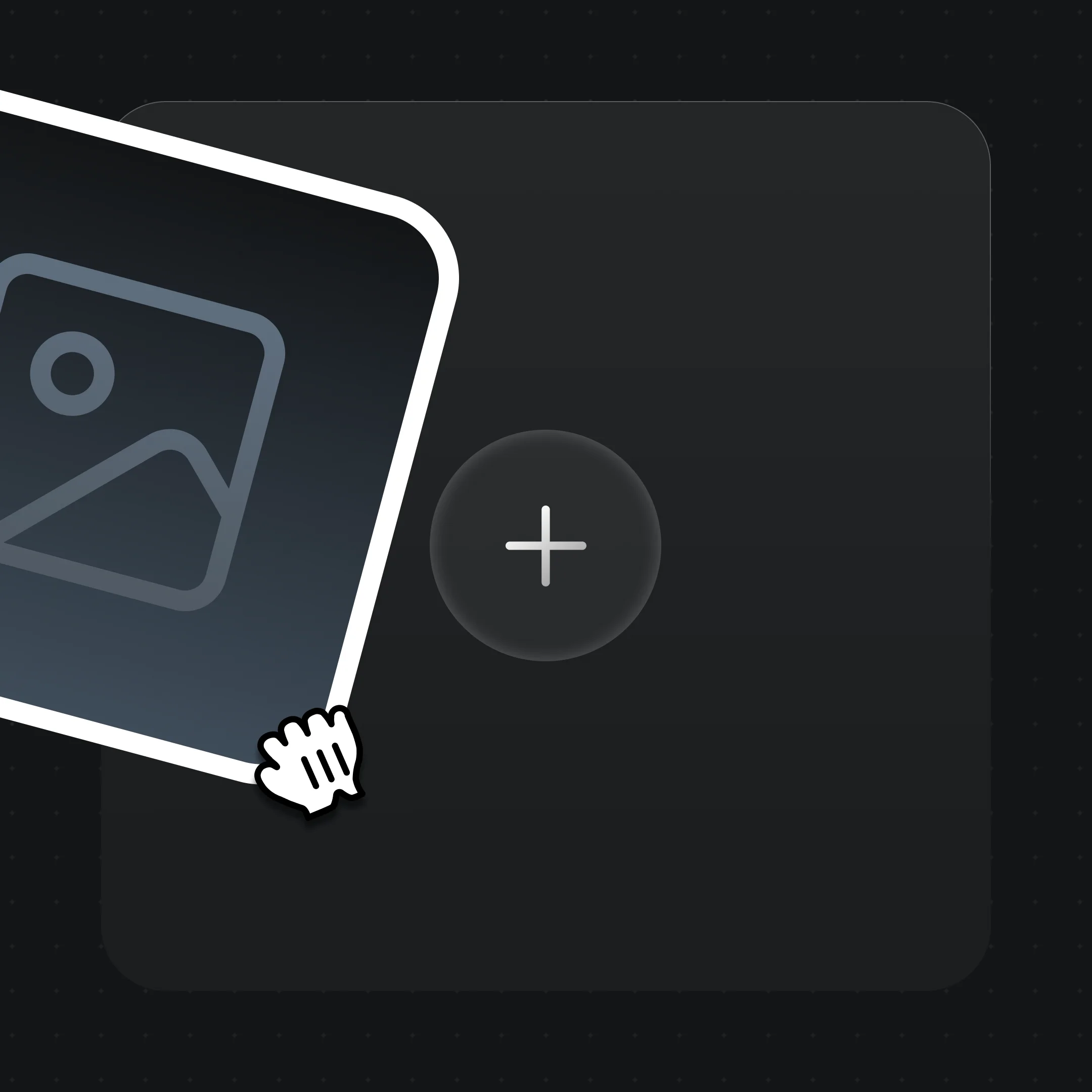
Drag a clear, front-facing portrait into Canvas. For a real person, clear the likeness through FacePass first.
Write the spoken script in the prompt, or attach an audio track — Kling 3.0 Omni reads it as the lipsync source.
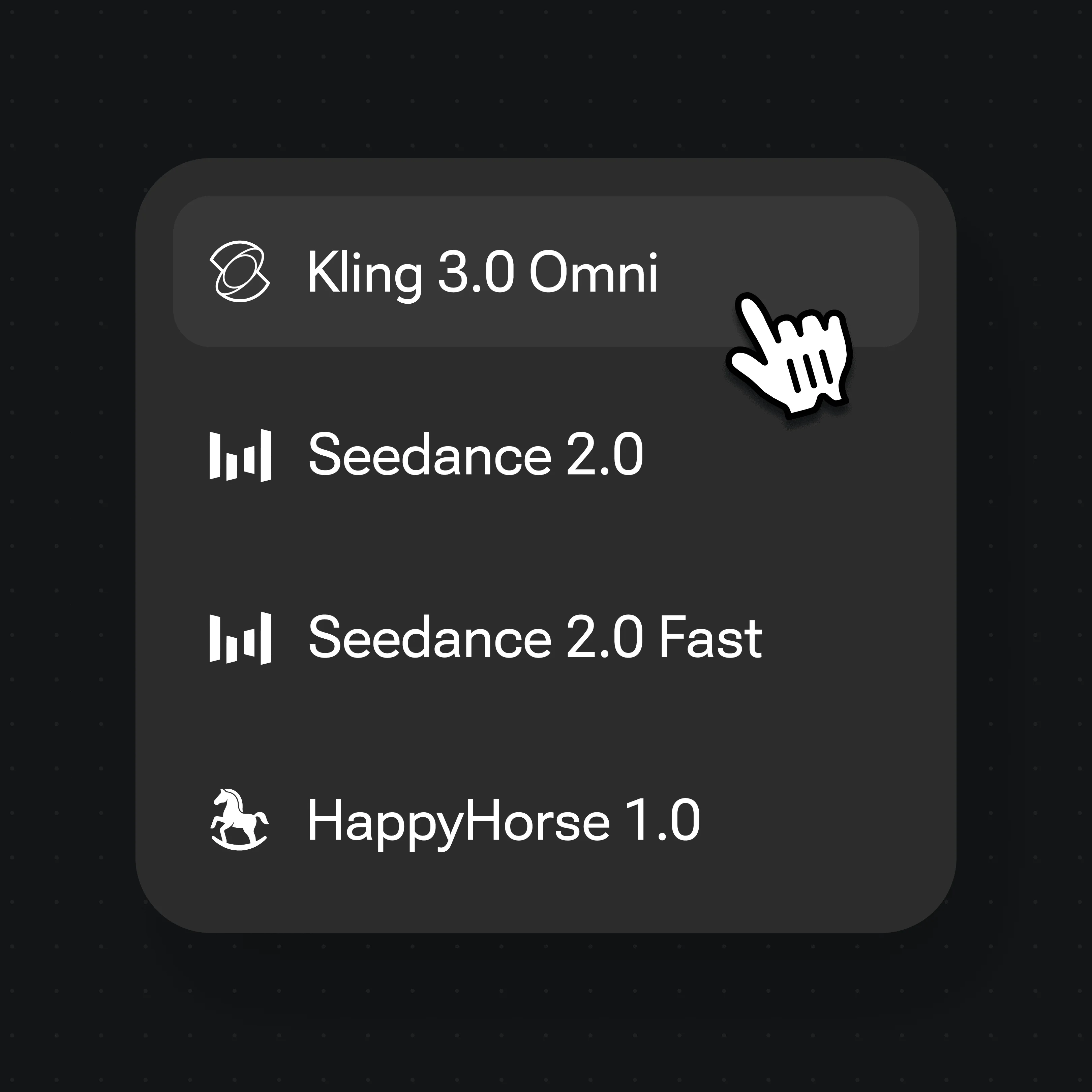
Select Kling 3.0 Omni from the model menu for native lipsync, then render the talking-head clip.
Presenter-style clips made in Renoise — the kind of framing a talking photo cuts to.
Bright studio framing, eyes to camera — the default look for a talking-head announcement or product pitch.
A quiet outdoor portrait with the subject looking straight ahead — natural framing for a sincere spoken message.
A person held steady against a busy street — the reporter-style setup for an on-location talking clip.
A confident outdoor portrait against a clean wall — works for a host intro or a spokesperson avatar.
A talking photo is not the same job as a full AI video. A general text-to-video clip invents motion, camera moves, and a whole scene from a prompt. A talking photo starts from one still portrait you supply and adds a single thing: a mouth and face driven by audio. The frame, identity, and framing stay anchored to your photo; only the speech animates. That is why it reads as the same person, not a fresh generation.
Lip-sync is the technique that maps spoken sound to mouth shapes. Each phoneme — the distinct sounds in a word — has a matching viseme, the mouth position a viewer expects to see. The model lines those up frame by frame so the lips, jaw, and cheeks track whatever audio you give it, whether a typed script it voices or a recording you attach.
In Renoise, Kling 3.0 Omni handles this natively — there is no separate lip-sync pass to bolt on. You drop the portrait, supply the script or voice track, and the model renders the talking-head clip in one step. For a real person, FacePass clears the likeness first and holds that face steady across the clip, so the avatar stays recognizable while it speaks.
A talking photo leans on a few things — and Renoise gives you Kling 3.0 Omni and many other video models in one canvas.
Clears a real person's likeness for video so their photo can legally become a talking avatar.
Native lipsync drives the mouth and face from your script or audio — no separate lipsync tool.
Drive the avatar from typed text or an attached voice track across many spoken languages.
Switch between Kling 3.0 Omni and other video models per clip — all in one project.
One plan unlocks Kling 3.0 Omni and every other video model.
For first-time AI content creators
Billed $168 annually
Upgrade PlanSave $72/year
For creators shipping content every week.
Billed $504 annually
Upgrade PlanSave $216/year
For studios and pros producing at commercial scale.
Billed $1680 annually
Upgrade PlanSave $720/year
For first-time AI content creators
Billed monthly
Upgrade PlanFor creators shipping content every week.
Billed monthly
Upgrade PlanFor studios and pros producing at commercial scale.
Billed monthly
Upgrade PlanRenews automatically each year until canceled.
Renews automatically each month until canceled.
Drop a clear front-facing portrait into Renoise Canvas, type the spoken script or attach an audio track, then render on Kling 3.0 Omni. Its native lipsync drives the mouth and face from your words, turning the still photo into a talking avatar.
Use this flow when you want the photo to speak with lipsynced audio. If you only want general motion — camera moves, the subject turning or walking, no spoken dialogue — that is photo animation; see our photo to video AI tool instead.
Yes, if you hold the rights to that likeness. Video models block real human faces by default, so clear the portrait through FacePass first. FacePass is the compliant path to authorize a real person's likeness before it becomes a talking avatar.
No. FacePass only clears likenesses you are authorized to use, and celebrities or public figures you do not represent are not permitted. Use your own photo, a consenting subject, or a fully original AI-generated face instead.
Yes. Attach a voice track and Kling 3.0 Omni reads it as the lipsync source, matching the mouth to your recording. You can also type a script and let the model voice it — both drive the same native lipsync.
Kling 3.0 Omni lipsyncs across many spoken languages. Type the script in your target language or attach audio in that language, and the mouth movement follows the phonemes of whatever it is given.
Each Kling 3.0 Omni clip is capped at 15 seconds. Generated video clips can be edited and trimmed directly in Renoise.