One identity
FacePass locks your face so every outfit and scene stays recognizably you.
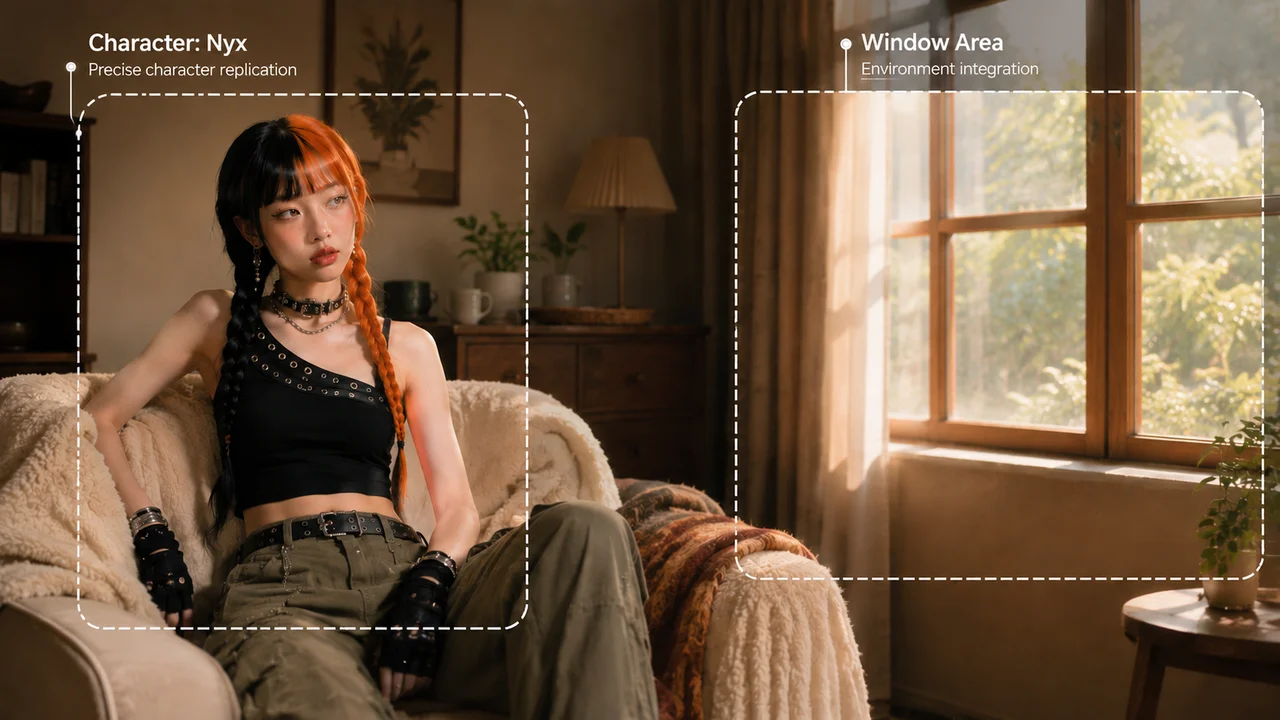
Turn your own photos into full styled shoots — same face, many looks.
Upload a few clear photos of yourself, register them as a FacePass so Renoise locks your identity, then generate a styled shoot on Nano Banana Pro in Canvas. Describe the look — fashion, lifestyle, dating, editorial — and the same face carries across every outfit and scene. Export your favorite frames at high resolution.
Just need a professional headshot, not a full styled shoot? See the headshot guide
What a styled shoot looks like in Renoise.
FacePass locks your face so every outfit and scene stays recognizably you.
Fashion, lifestyle, dating, editorial — switch the brief, keep the face.
Export portfolio-ready frames at 1K, 2K, or 4K resolution.
From a few selfies to a styled multi-look shoot you can post anywhere.
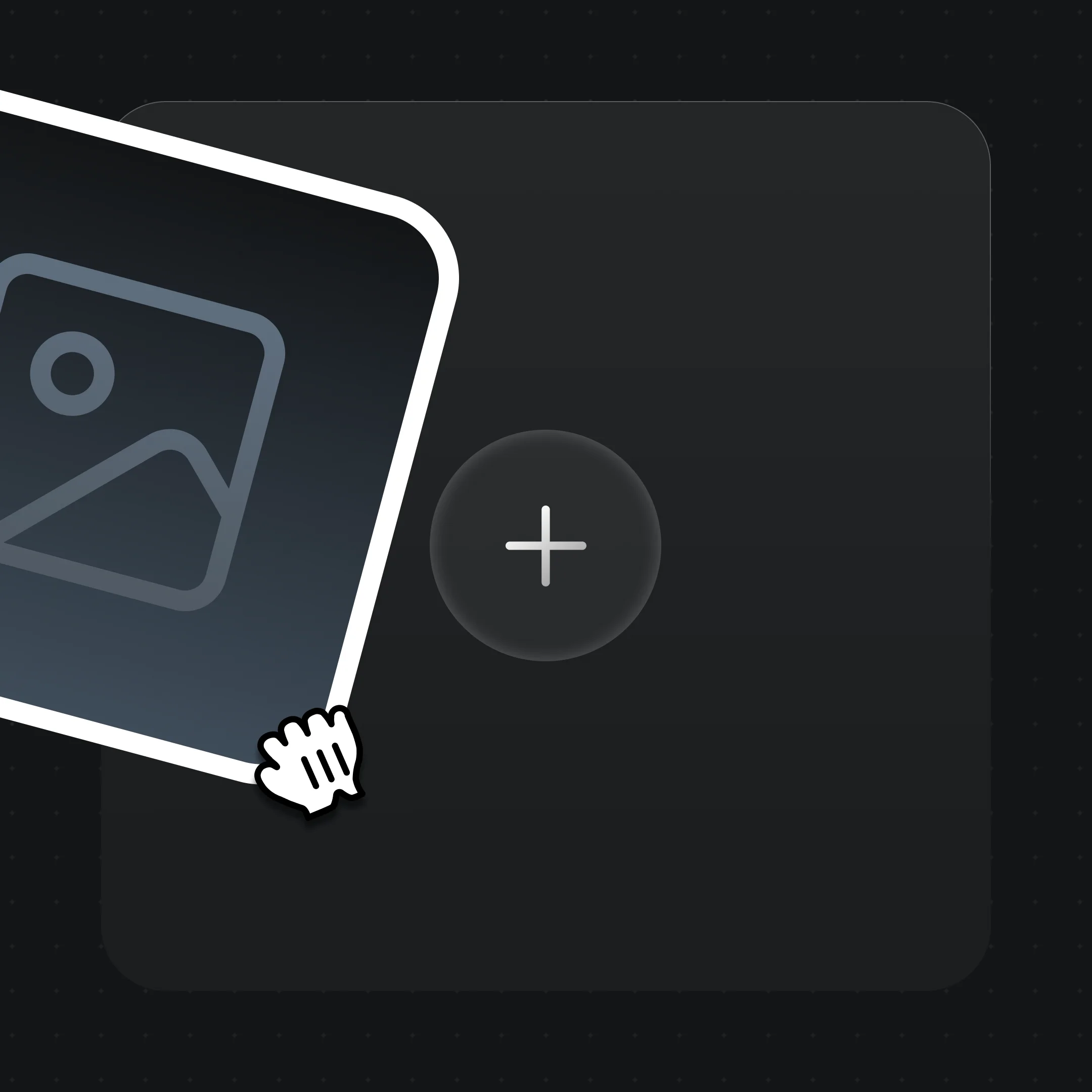
Drag in a few clear photos of yourself and register them as a FacePass so Renoise locks your identity.
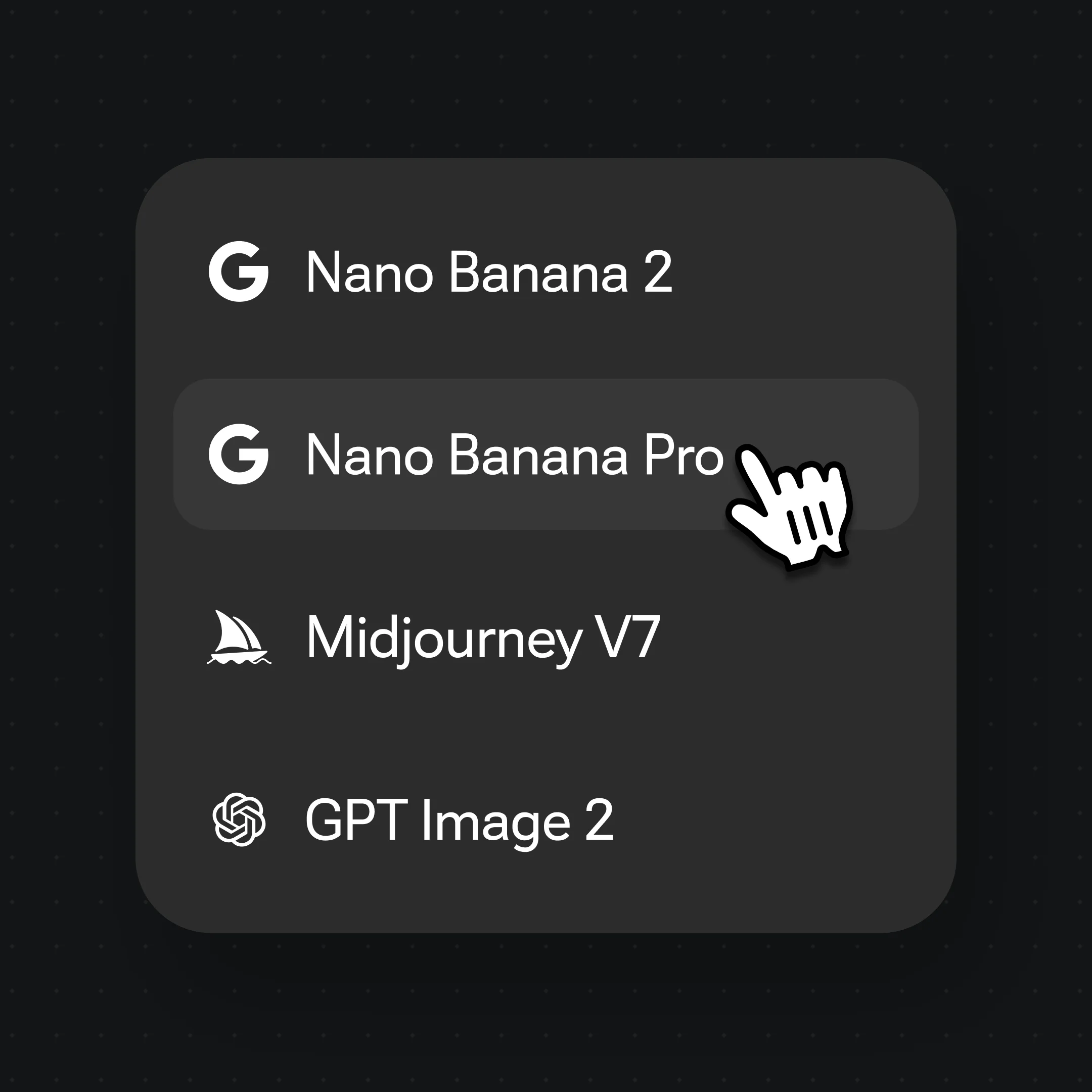
Write the brief as a spec — "streetwear lookbook, golden-hour city backdrop, full-body, three outfit changes".
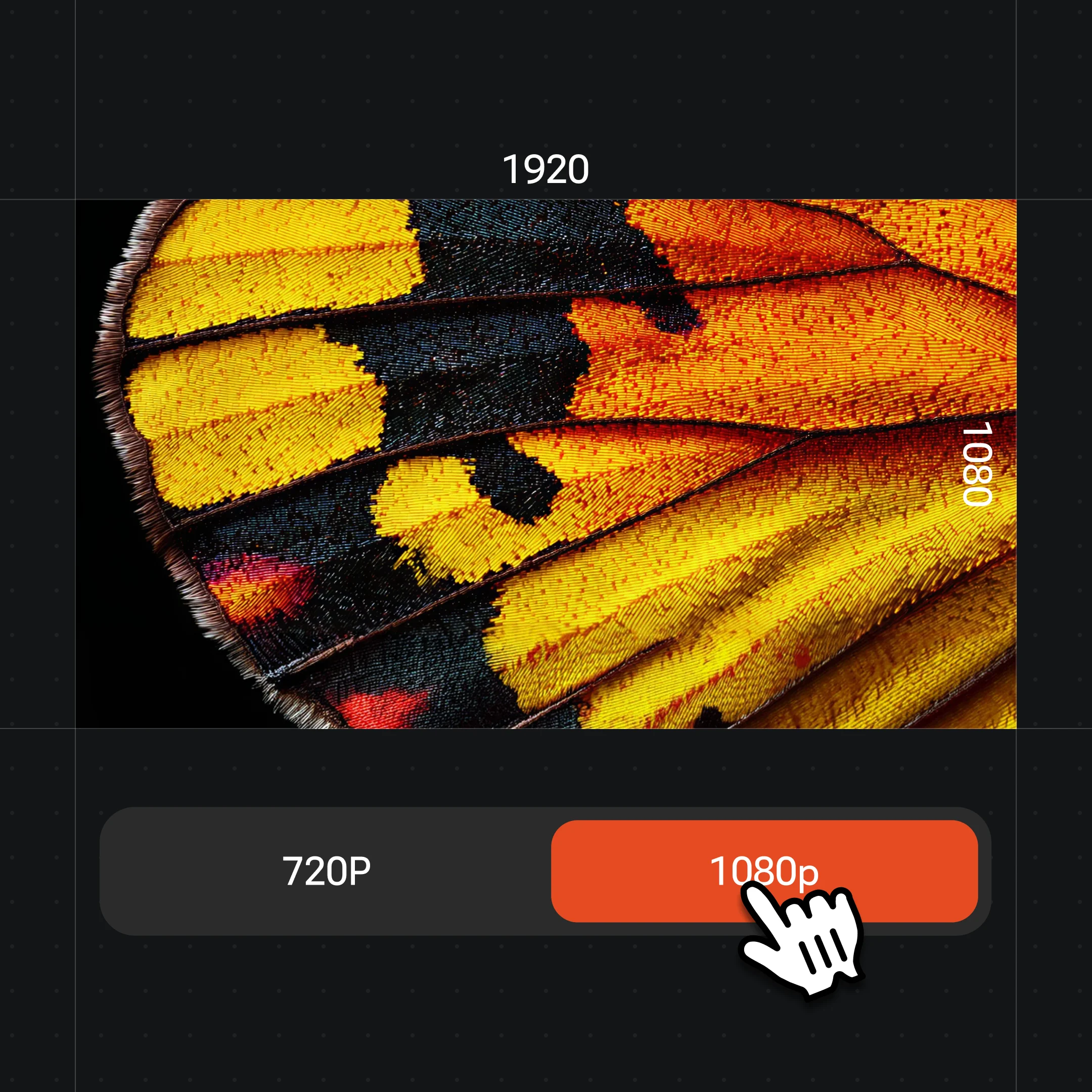
Generate on Nano Banana Pro, restyle outfits and scenes with the same face, then export at up to 4K.
FacePass keeps it recognizably you across outfits, scenes, and crops — all in a single canvas.
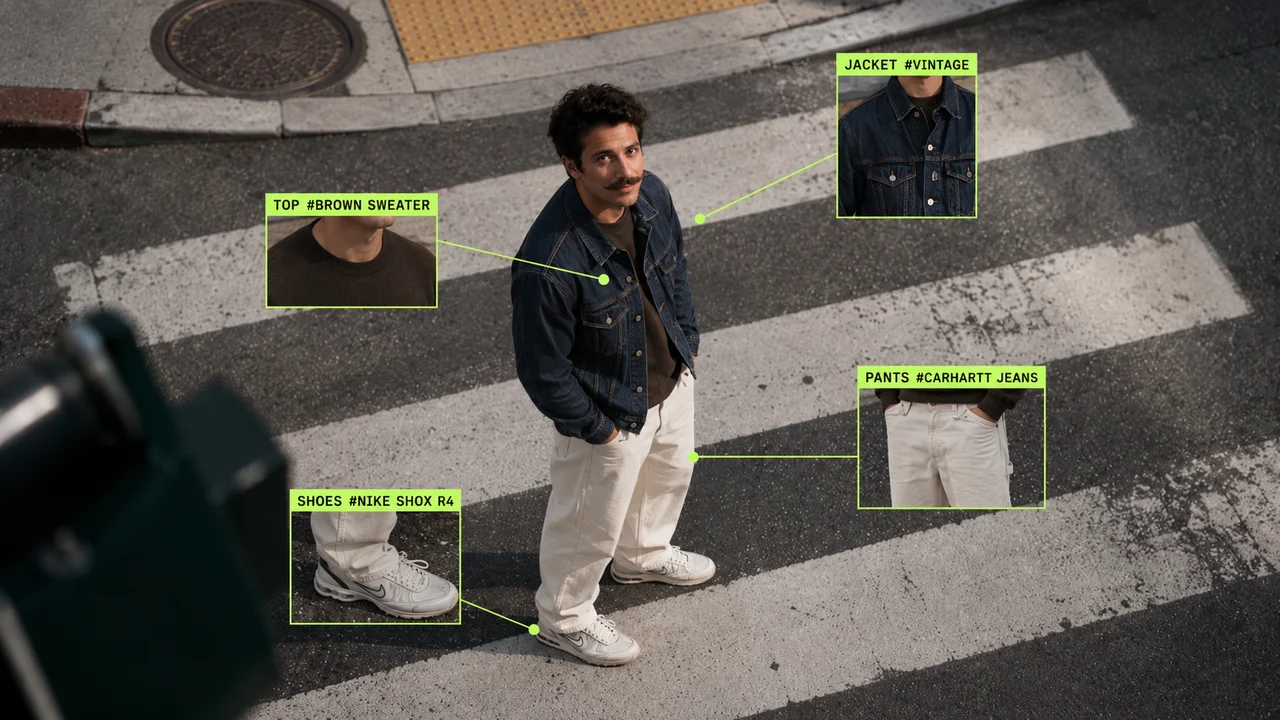
A streetwear set with outfit callouts — the lookbook staple for socials and dating profiles.
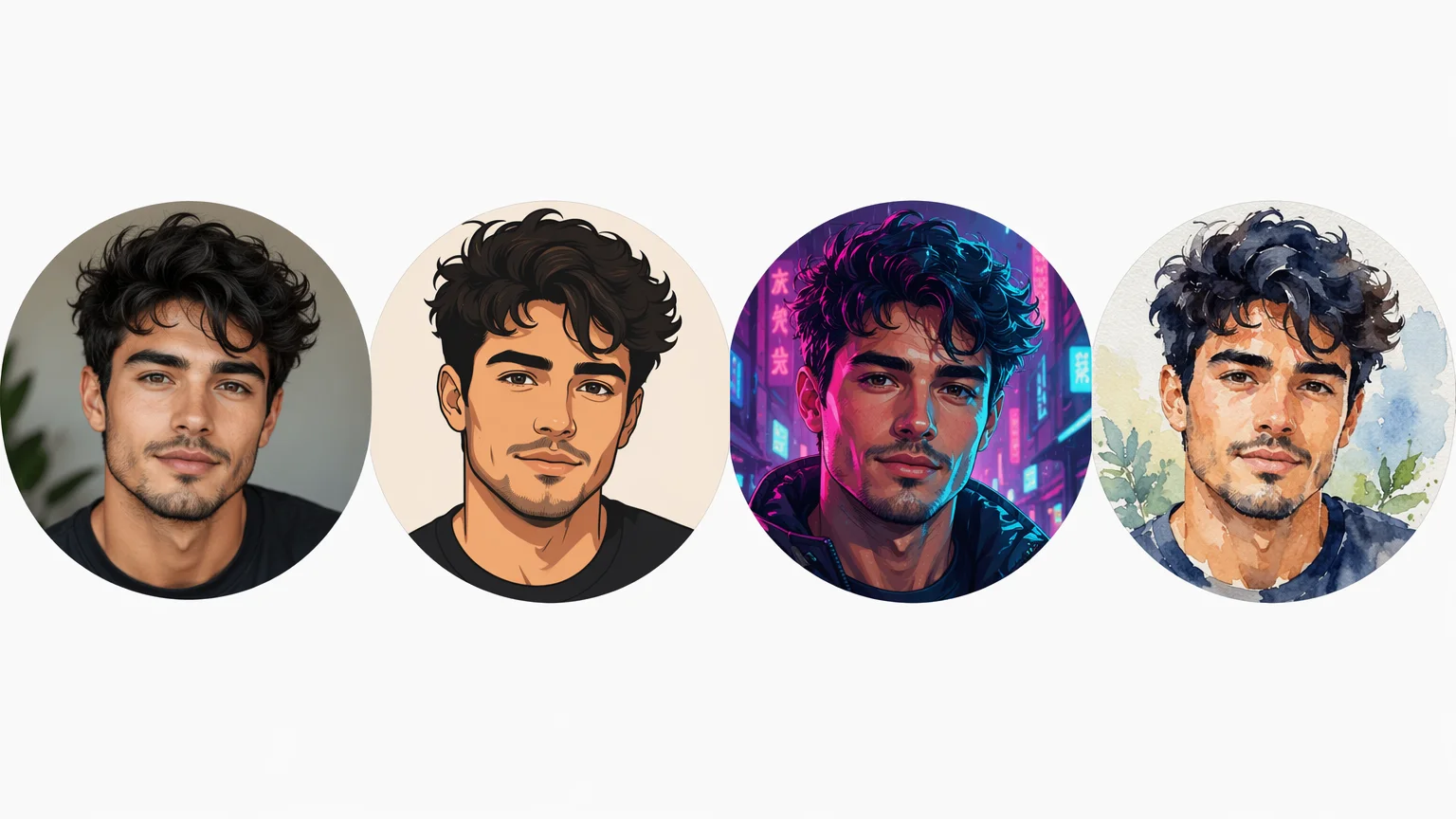
The same identity rendered four ways — FacePass holds the face while the styling changes.
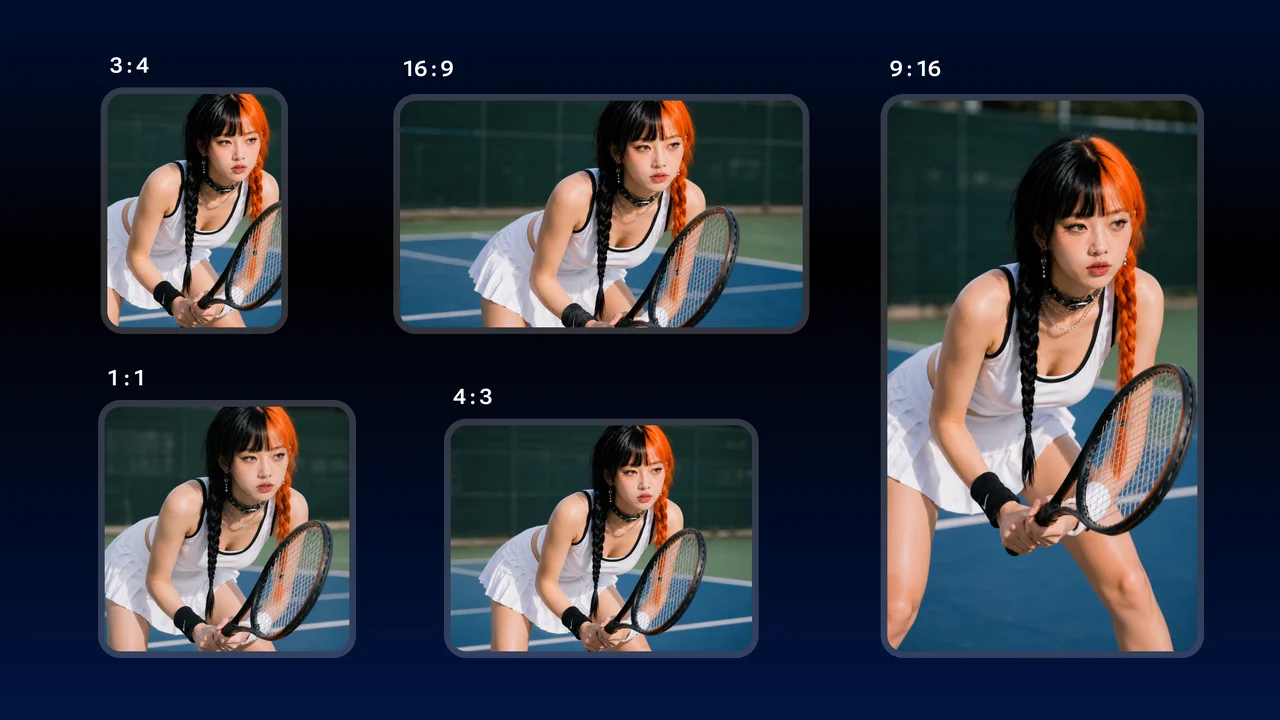
One outdoor scene exported in multiple aspect ratios for feed, story, and profile.
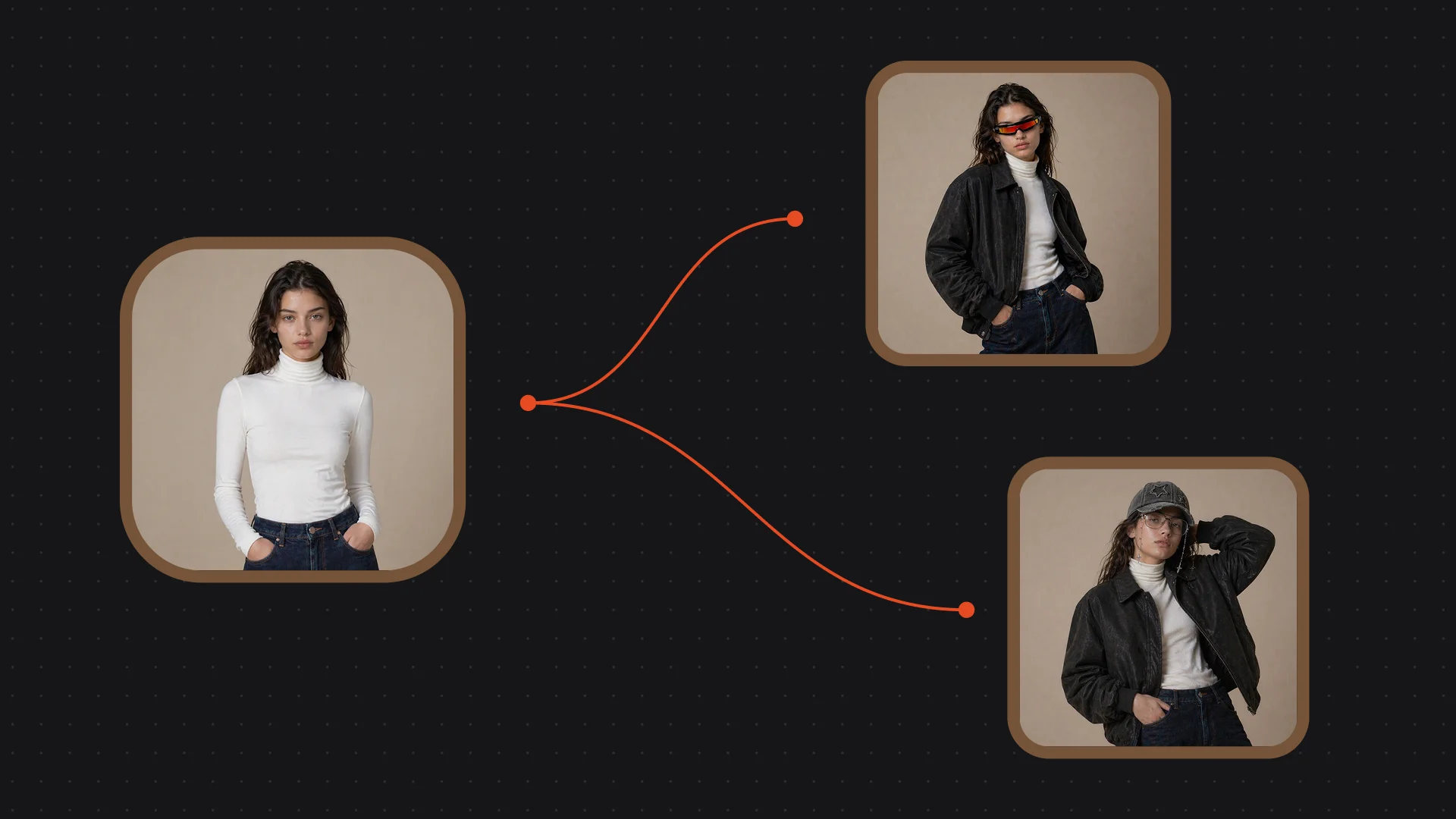
Restyle wardrobe across one shoot while the face and pose stay consistent.
Both live in the same Renoise canvas — pick by what the shoot needs. Nano Banana Pro for photoreal skin and lighting, GPT Image 2 when you want a precise, instruction-heavy outfit brief.
| For photoshoots | Nano Banana Pro (Recommended) | GPT Image 2 |
|---|---|---|
| Best for | Photoreal skin and lighting | Precise instruction following |
| Realistic looks | Best | Good |
| Works with FacePass | ✓ | ✓ |
| Up to 4K export | ✓ | ✓ |
| Same canvas | ✓ | ✓ |
A headshot and a photoshoot are different jobs, and an AI photoshoot generator should treat them that way. A headshot is a single, tightly cropped shot — shoulders-up, neutral backdrop, eyes on the upper third — built for LinkedIn, a team page, or a speaker bio. A photoshoot is broader: a styled set of full-body or three-quarter frames across multiple outfits, poses, and scenes, made for a fashion lookbook, a dating profile, a lifestyle feed, or an editorial spread. If you only need the professional crop, the headshot guide is the faster path.
What makes a photoshoot read as a real shoot is variety held together by one identity. Spell the styling out in the prompt: "full-body streetwear, golden-hour city backdrop, three outfit changes, candid pose". Vary the wardrobe and scene per frame — "matte trench, rooftop", then "linen set, sunlit cafe" — so the set feels like a session, not one repeated photo.
The thing most generators get wrong is identity drift: generate a set from loose prompts and you get a slightly different person each frame. This is where FacePass matters — register your own photos once, generate on Nano Banana Pro for photoreal skin and lighting, then iterate outfits and scenes while the face stays locked. That consistency is what a paid photoshoot sells, produced in minutes inside Canvas.
A photoshoot leans on a few things — and Renoise gives you FacePass, Nano Banana Pro, and many other image models in one canvas.
Register your own photos once; your identity stays locked across every outfit, scene, and model.
Renders photoreal skin, natural lighting, and full-body poses for believable shoots.
Export each frame for feed, story, or profile without re-running the shoot.
Switch between Nano Banana Pro, GPT Image 2, and other image models per frame.
One plan unlocks FacePass, Nano Banana Pro, and every other image model.
Generate styled shoots with watermark-free exports on paid plans.
You upload a few clear photos of yourself and register them as a FacePass. Renoise locks that identity, then generates a styled set from a text brief on Nano Banana Pro — so each frame is recognizably you across different outfits and scenes, not a generic stranger.
Yes — that is the point of FacePass. It holds your identity across looks, so a fashion frame, a lifestyle frame, and a dating-profile shot are clearly the same person. Vary outfits and scenes while keeping your face cues consistent.
A few clear photos in good light are enough to register a reliable FacePass. More angles and expressions help the model hold your identity across full-body poses and varied scenes. Avoid heavy filters, sunglasses, or group shots.
A headshot is one shoulders-up crop for LinkedIn or a bio. A photoshoot is a broader styled set — full-body frames, multiple outfits, and scenes for lookbooks, dating profiles, or lifestyle feeds. Need just the professional crop? See the headshot guide.
Nano Banana Pro for most shoots — it renders photoreal skin, natural lighting, and full-body poses. Reach for GPT Image 2 when your outfit brief is instruction-heavy and precise. Both work with FacePass and live in the same canvas, so you can switch per frame.
Yes. Keep your FacePass and face cues fixed, then change the wardrobe and backdrop per frame — "linen set, sunlit cafe", then "matte trench, rooftop". You get a varied set that still reads as one consistent session.
Up to 4K. Choose 1K for web, 2K for most uses, or 4K for print and large displays. Generate at the highest resolution you may need so you keep detail for portfolios, posters, or press kits without re-running the shoot.
Only with their permission. FacePass is built for your own face or a person who has authorized it — that consent step is required. Do not upload a celebrity, public figure, minor, or anyone who has not agreed; generating shoots of people without consent is not allowed.