Paint to select
A brush marks exactly what goes — no lasso precision needed, a loose cover works.
Paint over the object — AI rebuilds the area from the surrounding scene.
Follow us and get 20 free credits — about 2 images
For photos you own or are licensed to edit.
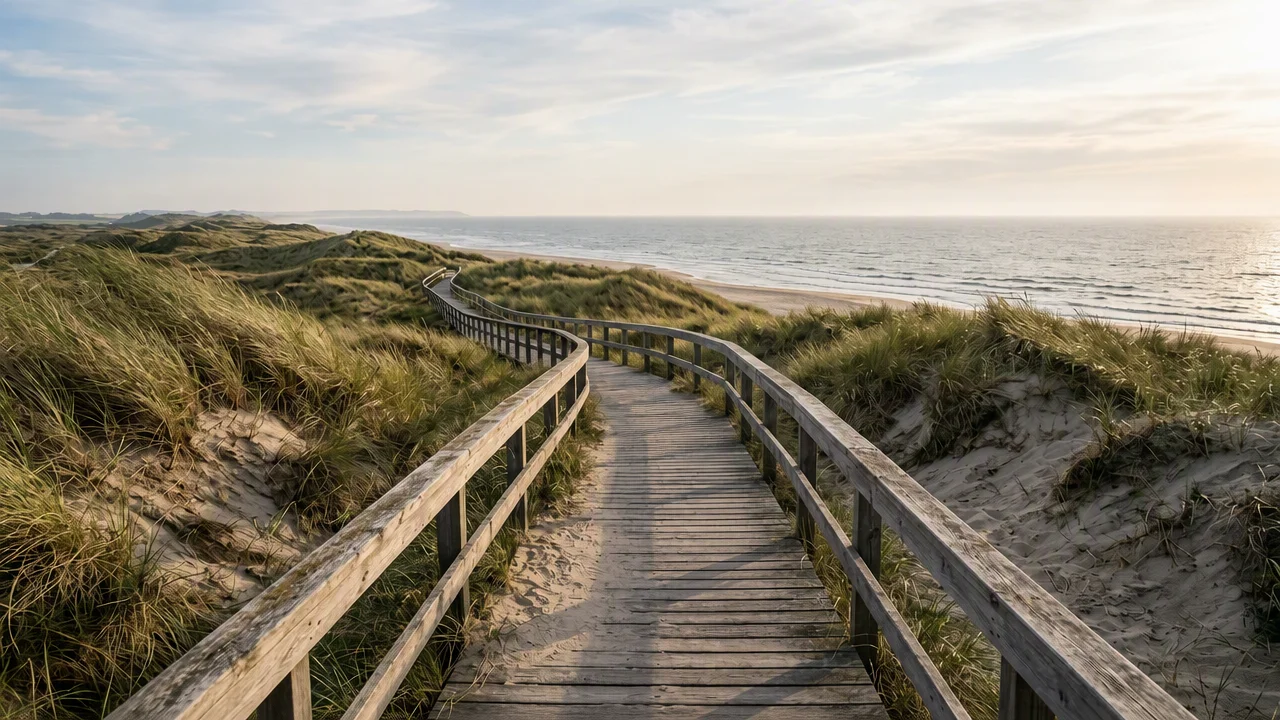
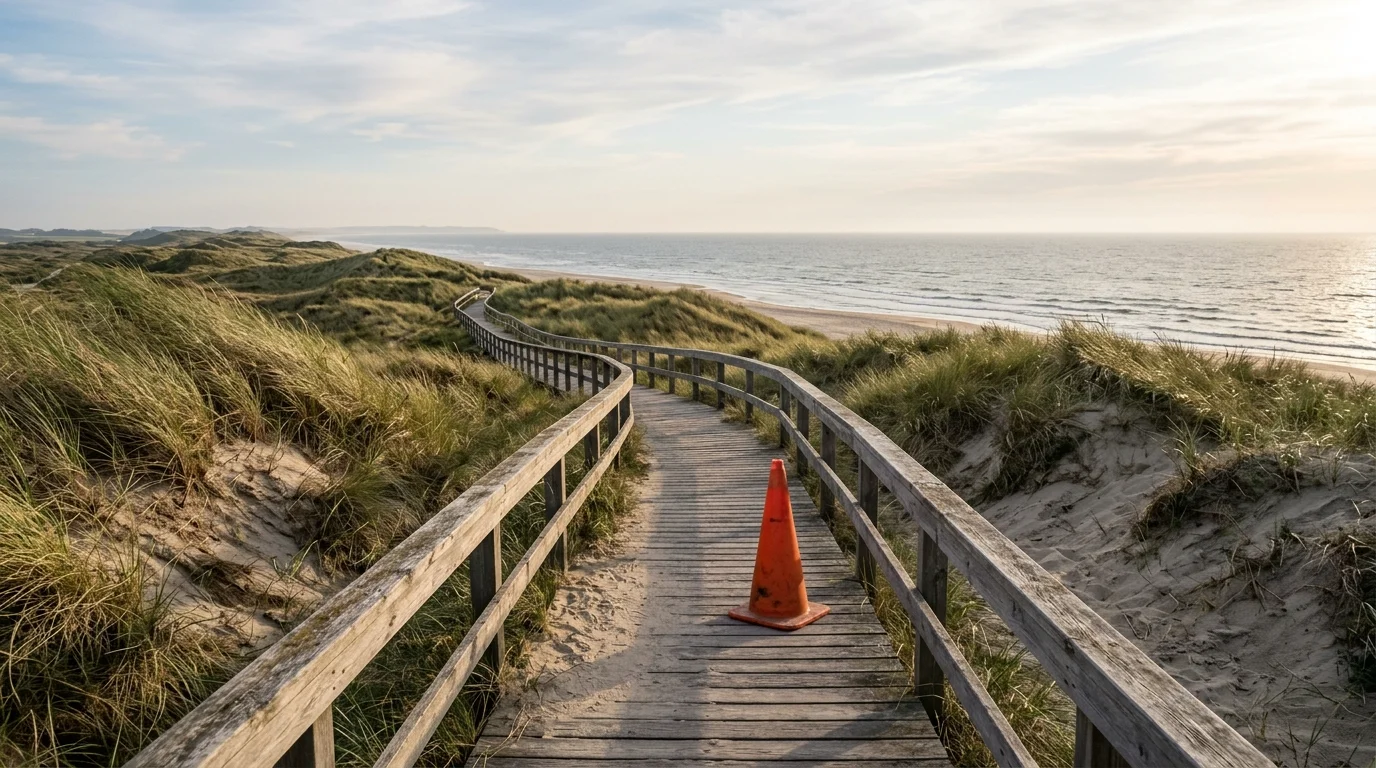
Real model output on an image we own — drag the handle to compare.
Subscribe for more credits and more models.
Yes — paint over the object in the tool above and AI re-renders that area, rebuilding it from the surrounding scene in about a minute. It is generative fill, not a pixel-perfect cut: small and mid-size objects usually disappear cleanly, while large or central ones leave the model more to invent. Only edit photos you own or are licensed to edit.
Removing a watermark or stamp instead of an object? Use the AI watermark remover
What this object remover does — and the lines it keeps.
A brush marks exactly what goes — no lasso precision needed, a loose cover works.
The painted area is re-rendered from the scene around it — background, texture, and lighting continue through.
Output matches your photo's aspect ratio and sharpness tier — a portrait stays a portrait.
Only photos you own or are licensed to edit. People are removed only from your own shots.
For photos you own or are licensed to edit.
Drop a JPG, PNG, or WebP you own into the uploader at the top of this page.
Brush across the cone, bin, or passerby you want gone — adjust the brush size, undo strokes, or clear and start over.
The area is rebuilt in about a minute. Check it against the original at full size, then download.
Honest expectations by object type — the more of the scene an object covers, the more the model has to invent. Tested on photos we own.
| Object type | Expected result | Tip |
|---|---|---|
| Small clutter — cans, wires, signs | Good — plenty of scene to rebuild from | A loose brush pass over the object is enough |
| A person in the background | Good — cover them fully, including shadow | Your own photos only; respect the people in them |
| Large foreground object | Partial — the fill is plausible, not exact | Run again on leftover traces, or refine in Canvas |
| The photo's main subject | Poor — too little scene left to continue | Regenerate the image instead of erasing most of it |
Real GPT Image 2 output on images we generated ourselves — the marked object is rebuilt away from the surrounding scene, not cut out.
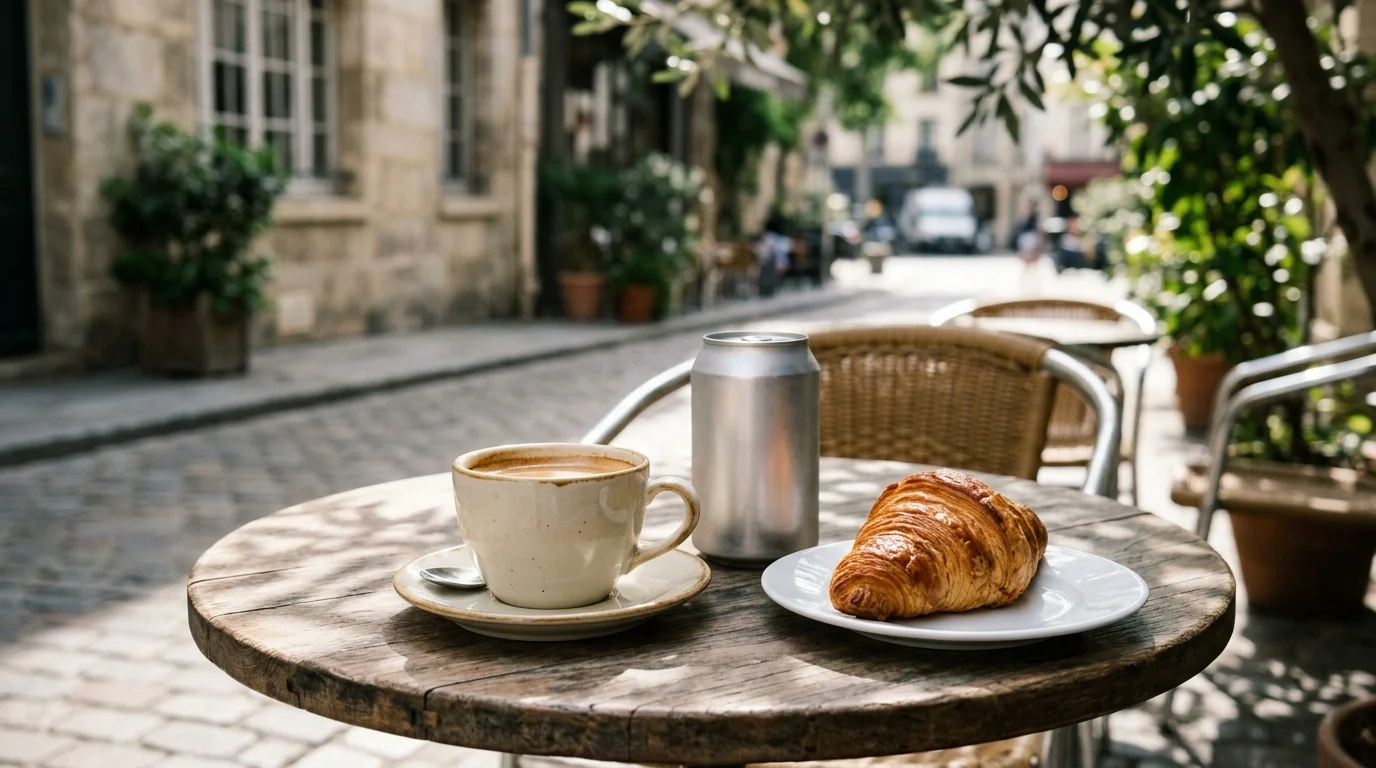
Our own generated photo — a soda can crowding an outdoor café-table still life.
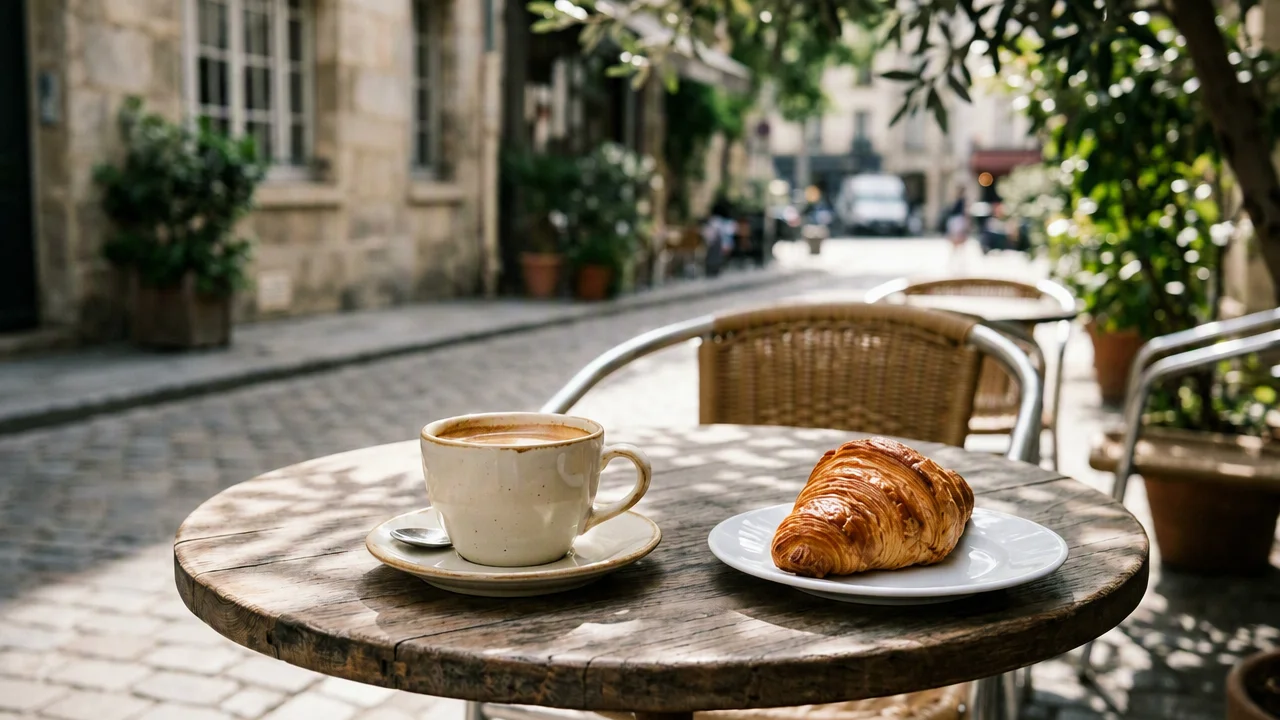
Real erase output — the can is gone and the wood grain and shadows continue through.
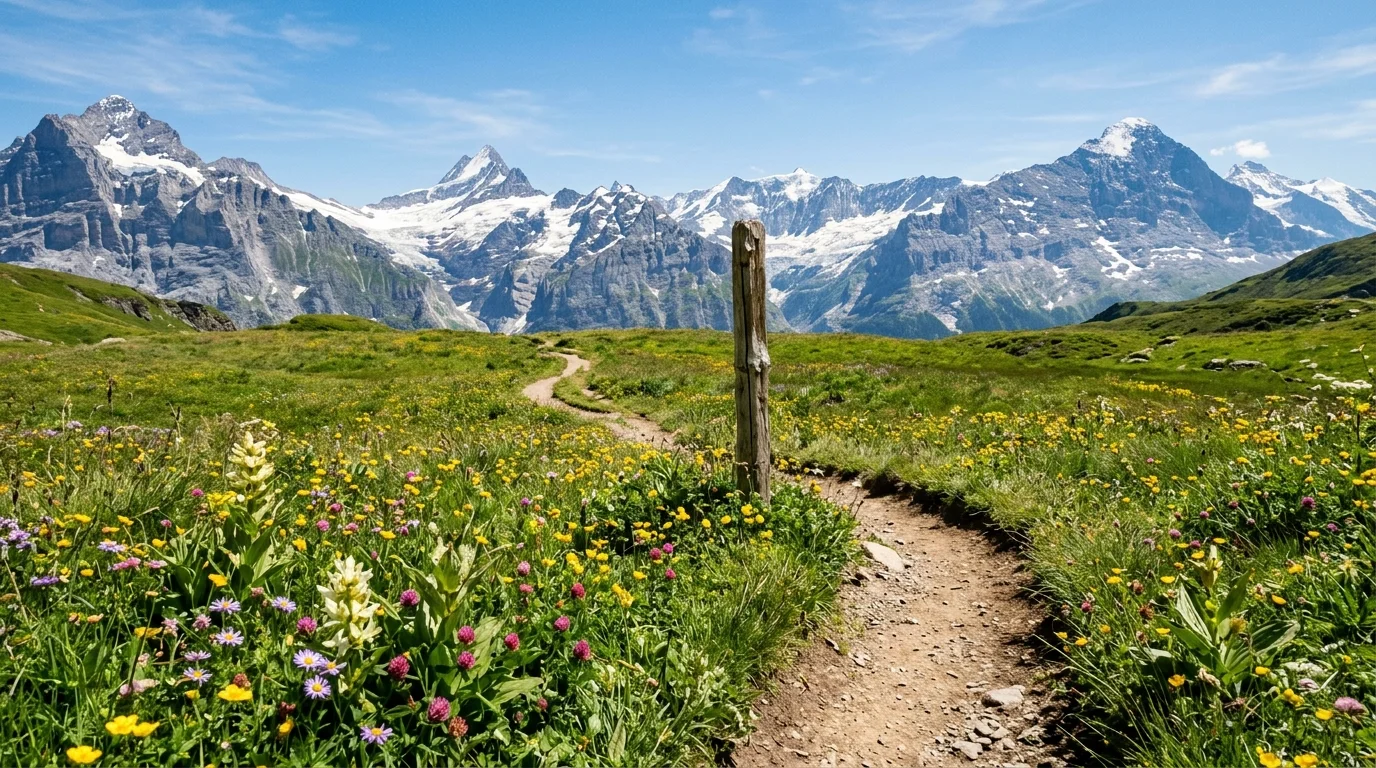
A harder case we set up — a large trail-marker post in the middle distance of a mountain path.
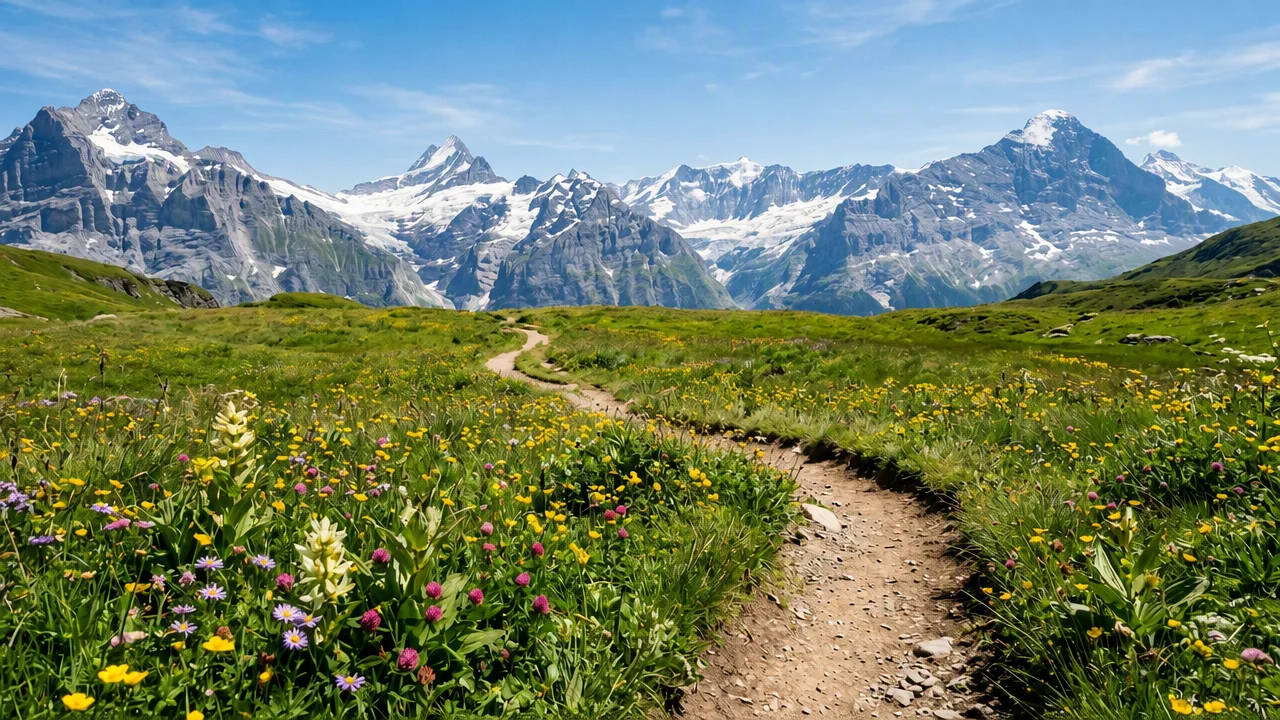
The post is gone; look closely and the rebuilt grass differs from the original — plausible, not identical.
Tools like this get called a magic eraser, and the name is half right. Nothing is "lifted off" the photo: once something sits in front of the background, the pixels behind it were never captured. What runs on this page is generative inpainting on GPT Image 2 (an OpenAI model integrated in Renoise): your brush strokes become a mask, and the model re-renders the masked region so the background, surfaces, lighting, and grain continue through where the object used to be. That is why results follow a simple rule — the less the object covered, the more real scene the model can continue, and the cleaner the fill. A stray can on a table disappears; erasing half the frame asks the model to invent half a photo.
It also sets honest expectations. The rebuilt area is a plausible continuation, not a recovery of what was actually there, so a patterned floor may not line up perfectly and a repeated texture can drift. For stubborn traces, run the eraser again on what is left, or open the photo in the Renoise Canvas and refine it with a mask and your own instruction. And the rights line stays the same as everywhere in Renoise: edit photos you own or are licensed to edit, and use people-removal on your own shots — a photobomber in your travel photo, not someone else's picture.
What happens to an uploaded photo — the answer most eraser tools avoid.
Picking a file only previews it on your device. Not one byte is stored until you sign in and click generate.
Uploads land in your private library, never a public gallery, and re-running the same photo stores nothing new.
Remove uploads and results from your library whenever you want.
As of October 2026, 100,000+ creators in 170+ countries and regions use Renoise AI, an AI video, image and audio platform, to generate 300,000+ images and videos with 30+ models.
Source: Renoise internal data, March–October 2026. Figures are rounded down and updated quarterly. Last updated
Real feedback from creators who use Renoise AI to make videos, images and ads.
Renoise is pretty easy to use, with a clean and smooth interface. The results from Seedance 2.5 also feel noticeably smoother in action sequences.
Renoise Ai is a good tool for making ai videos and photos. it puts several Ai models in one place, so you don't need to use many different apps.
あまりAIツールを使ったりしたことなかったですが、キャラクターの固定や動画を続いて作成できて使いやすいです。これからどんどん進んでいくアップデートが楽しみです。
Renoise has been a great platform for AI creativity. The tools are easy to use, the experience is smooth, and it makes creating content more enjoyable and efficient. I really appreciate the work the team is doing and look forward to seeing more improvements. Highly recommended!
What I like about Renoise AI compared to other platforms: Fast generation speed: Slow generation takes up way too much time, but Renoise AI is surprisingly about 30% faster. Intuitive and user-friendly UI: Cheaply made platforms have terrible UIs that make me not even want to log in, but Renoise is very clean and convenient. Remembers my previous settings: It helpfully remembers my last workspace settings. Some odd platforms force you to re-adjust everything every single time you generate a video, which is extremely frustrating. Overall preference: For all these reasons, Renoise AI is definitely my preferred platform. Thank you!
Renoise is your go to one stop all for ai creators. all view and use all models in one place, for any type of content you have your mind on!
I have a creat experience with the app. Consistent characters but also unique. THere were some issues with storyline continuity and non-typical humanoid characters.
Credits work across every tool — upscaling, image editing and the video models.
For first-time AI content creators
Billed $168 annually
Upgrade PlanSave $72/year
For creators shipping content every week.
Billed $504 annually
Upgrade PlanSave $216/year
For studios and pros producing at commercial scale.
Billed $1680 annually
Upgrade PlanSave $720/year
For first-time AI content creators
Billed monthly
Upgrade PlanFor creators shipping content every week.
Billed monthly
Upgrade PlanFor studios and pros producing at commercial scale.
Billed monthly
Upgrade PlanRenews automatically each year until canceled.
Renews automatically each month until canceled.
Paint over the clutter above, or take the photo further in the Renoise Canvas.
Yes — paint over the person (including their shadow) and the area is rebuilt from the scene. Use it on your own photos: a passerby in your travel shot or a photobomber in your group picture. Do not edit other people's photos or use removal to misrepresent someone.
It solves the same job — brush over an object, AI fills the gap — but it is not affiliated with Google. This page runs generative inpainting on GPT Image 2, an OpenAI model integrated in Renoise, and works in the browser on any device instead of specific phones.
Use the dedicated AI watermark remover for marks and stamps — and only on images you own or are licensed to edit. Removing a watermark from a stock library's or another creator's image can infringe their rights, so neither tool should be pointed at third-party work.
The erase pathway runs through a gateway with its own content moderation, and it sometimes declines photos that contain people — even ordinary ones. If that happens the run is marked failed and says so: try a photo without people, or paint a smaller area and run it again.
Usually for small and mid-size objects — the model continues the surrounding background, texture, and lighting. It is a plausible rebuild, not a recovery of hidden pixels, so large objects or detailed patterns can leave visible drift. Compare at full size before you use it.
No. A loose brush pass that fully covers the object — plus its shadow or reflection — works better than a tight trace. You can change the brush size, undo a stroke, or clear and repaint before running it.
Object removal erases one thing and keeps the scene; background removal keeps the subject and drops the whole scene. To cut out a subject entirely, see the AI background remover guide instead.
JPG, PNG, and WebP up to 20MB. The result keeps your photo's aspect ratio and is rendered at a 1K, 2K, or 4K tier matched to the original's size.