Profile pictures
A cartoon version of your own photo for social, chat apps, and team pages.
Upload a photo, pick a cartoon style, and AI redraws it while keeping the faces, pose, and framing recognisable.
Follow us and get 20 free credits — about 5 images
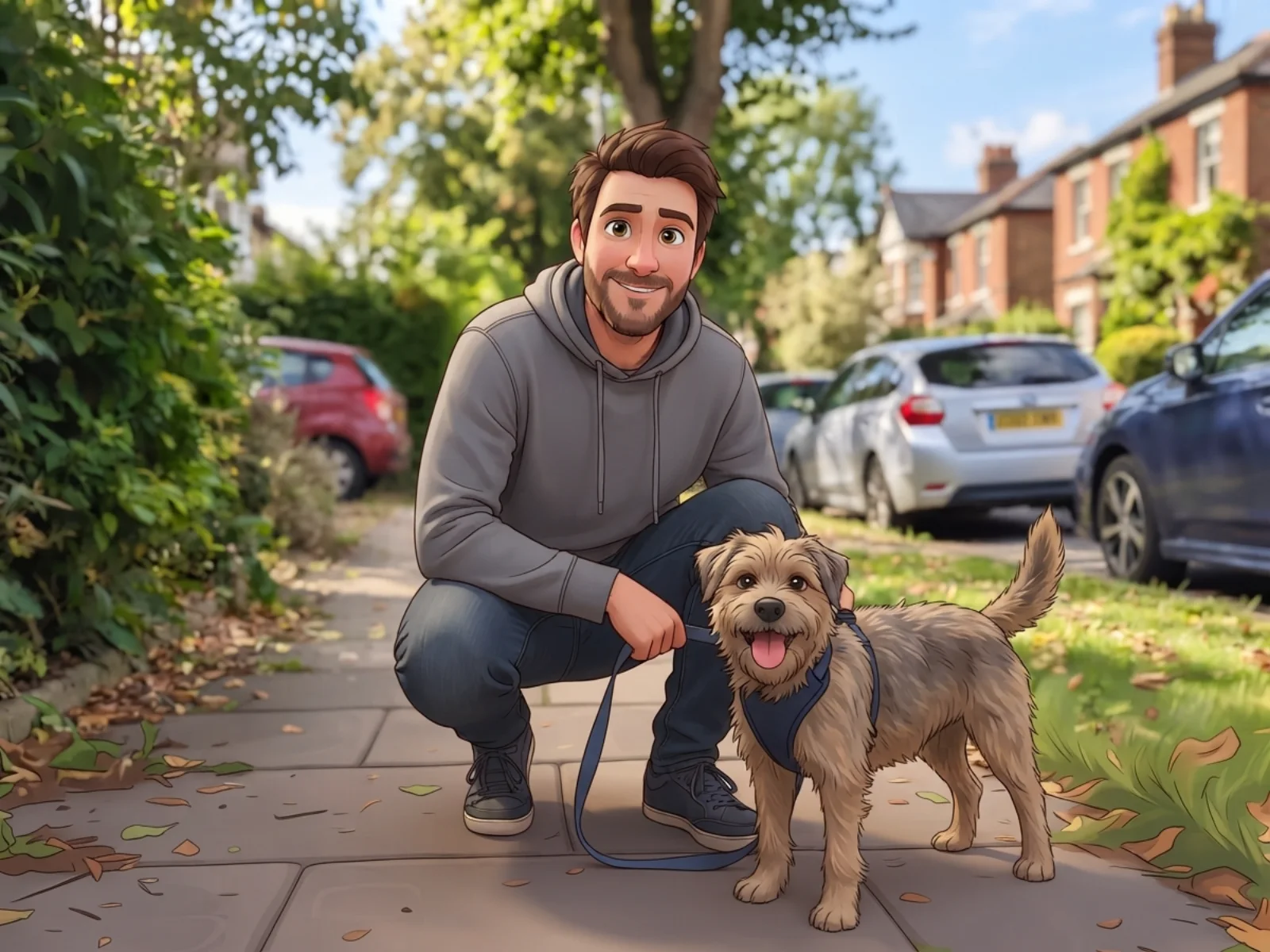
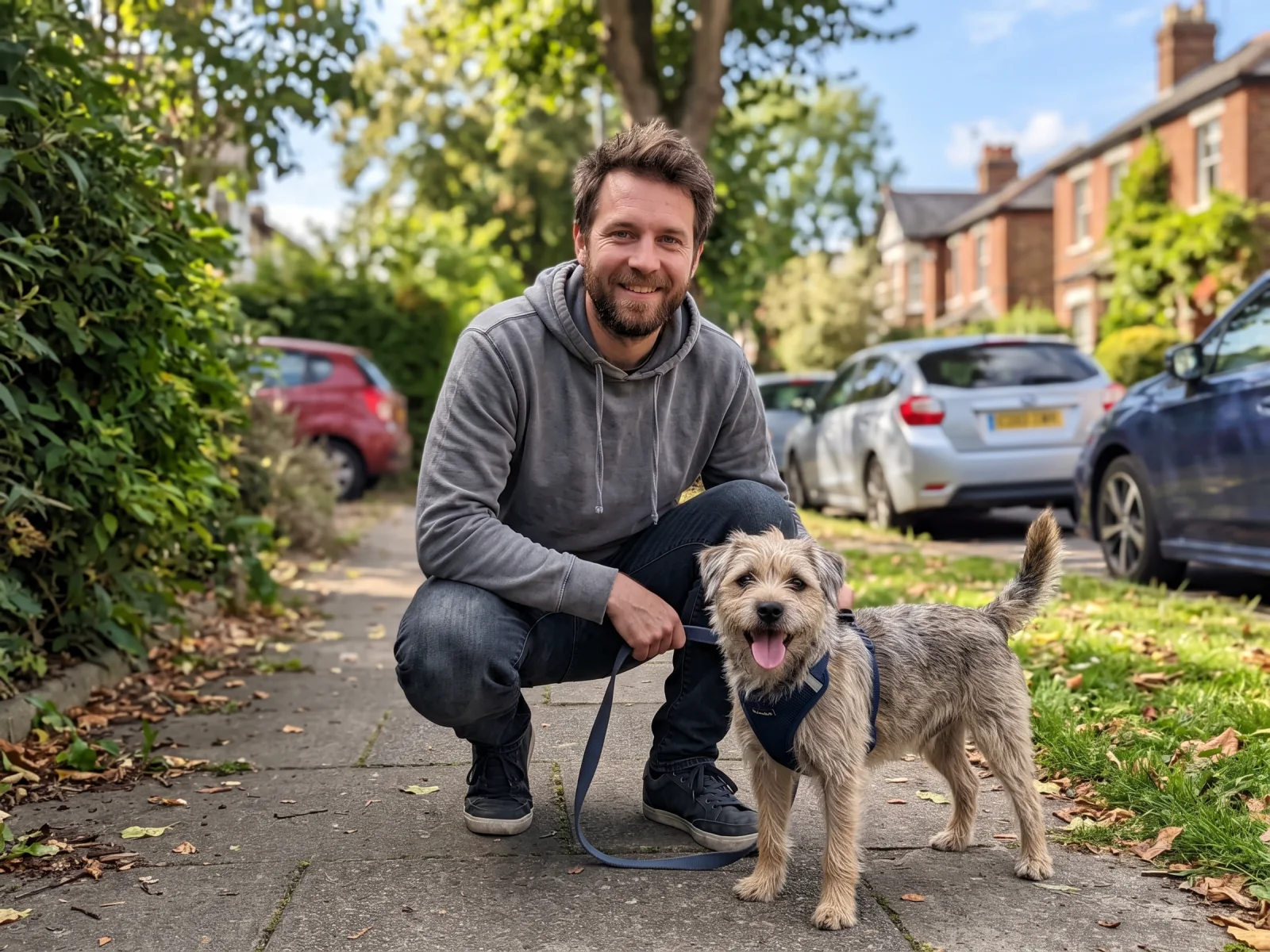
Real model output from this exact photo — drag the handle to compare.
Subscribe for more credits and more models.
Upload your photo above, pick a cartoon style — 3D animated, anime, comic book, storybook, or caricature — and generate. In about a minute AI redraws the picture in that style while keeping faces, pose, and framing recognisable, then you compare it against the original and download. Following us on X and YouTube earns 20 free credits, which covers your first five cartoons here.
Want to create a cartoon character from a text description instead? See the AI cartoon guide
The same upload box, five very different reasons to use it.
A cartoon version of your own photo for social, chat apps, and team pages.
Turn a favourite photo of the family into an illustration worth framing.
Dogs and cats cartoonize particularly well — fur and expression carry over.
Cards, mugs, and posters made from a photo the recipient already loves.
Each run is billed per image after your free credits, so you can try several styles on the same photo.
Drop in a photo of yourself, your family, or your pet — a phone photo works fine.
Choose 3D animated, anime, comic book, storybook, or caricature, and add a note if something must stay.
The cartoon is ready in about a minute. Drag the slider to compare it with the photo, then download or print it.
Honest expectations by photo type — cartoonizing redraws the picture rather than filtering it, so likeness is strong but not pixel-exact. Tested on our own photos.
| Photo type | Expected result | Tip |
|---|---|---|
| Single face, well lit, looking at camera | Strongest likeness — features and expression carry over | The default settings usually suffice |
| Pets | Excellent — fur, markings, and pose carry over well | Fill the frame with the animal so fur detail carries over |
| Group or family photo | Good — everyone stays recognisable, small faces simplify most | Say how many people there are so nobody is dropped |
| Glasses, tattoos, printed logos | Mixed — fine detail and text get simplified or redrawn | Name what matters ("keep the round glasses") |
| Low light or motion blur | Loose — the model invents what it cannot read | Use a sharper photo; style cannot recover missing detail |
The same photos run through four styles — every image below is a real model output, not a mockup.
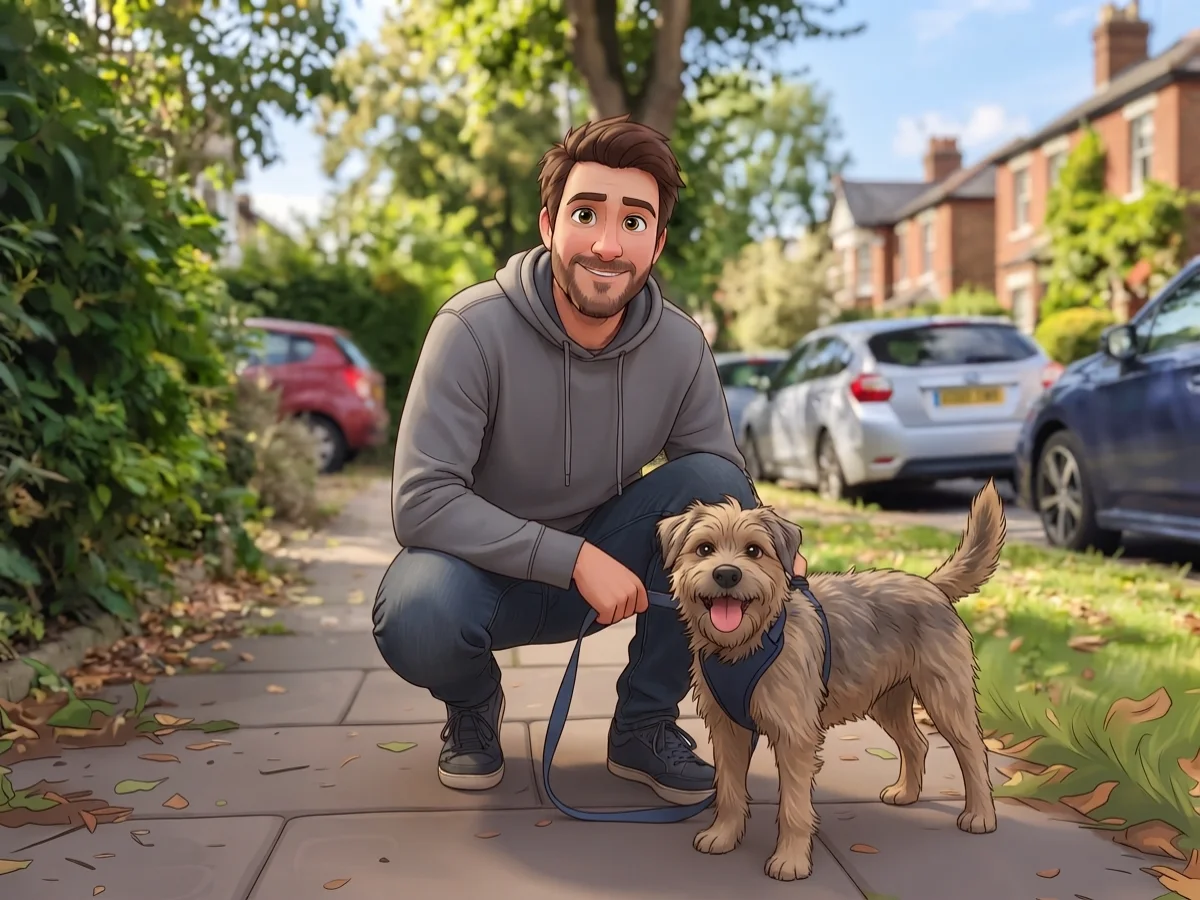
Smooth shapes and warm lighting, the default style.
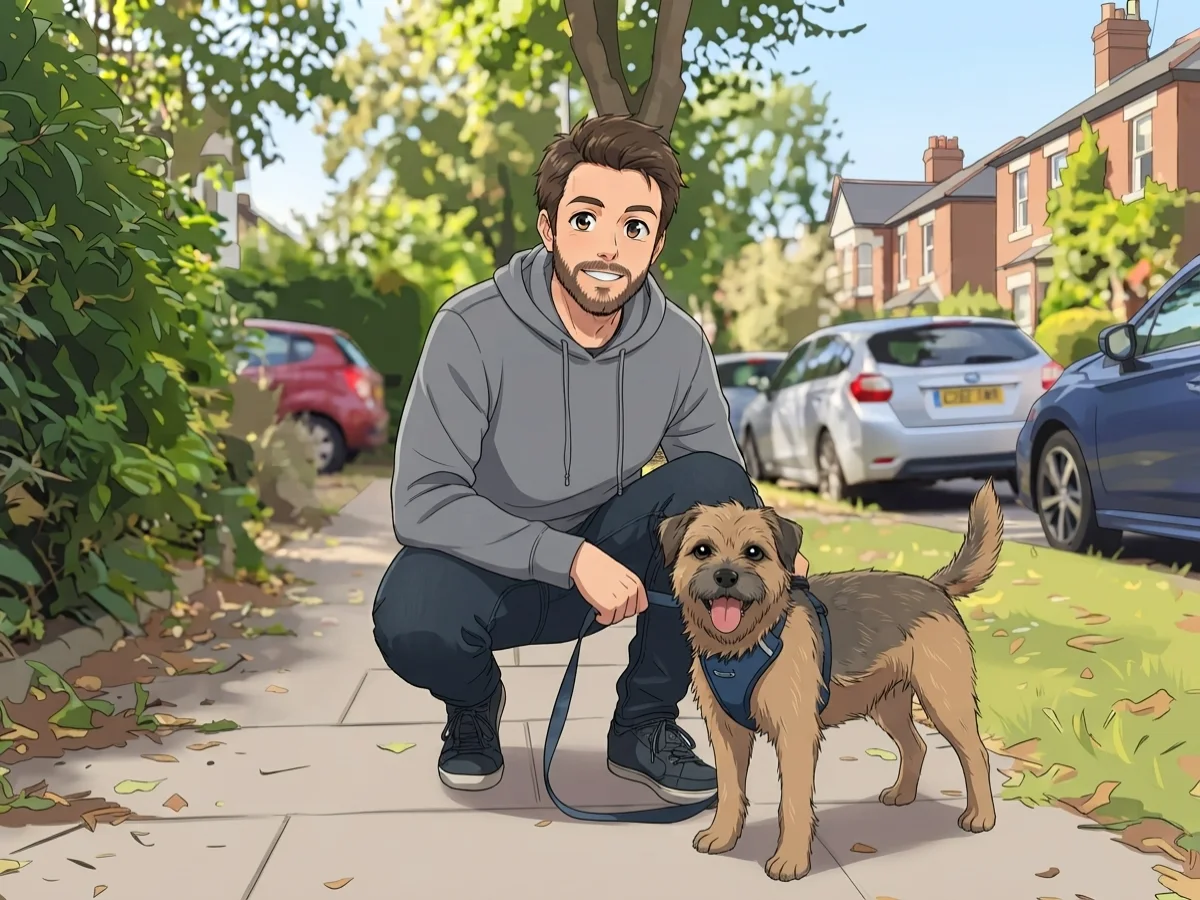
Crisp line art with flat cel shading.
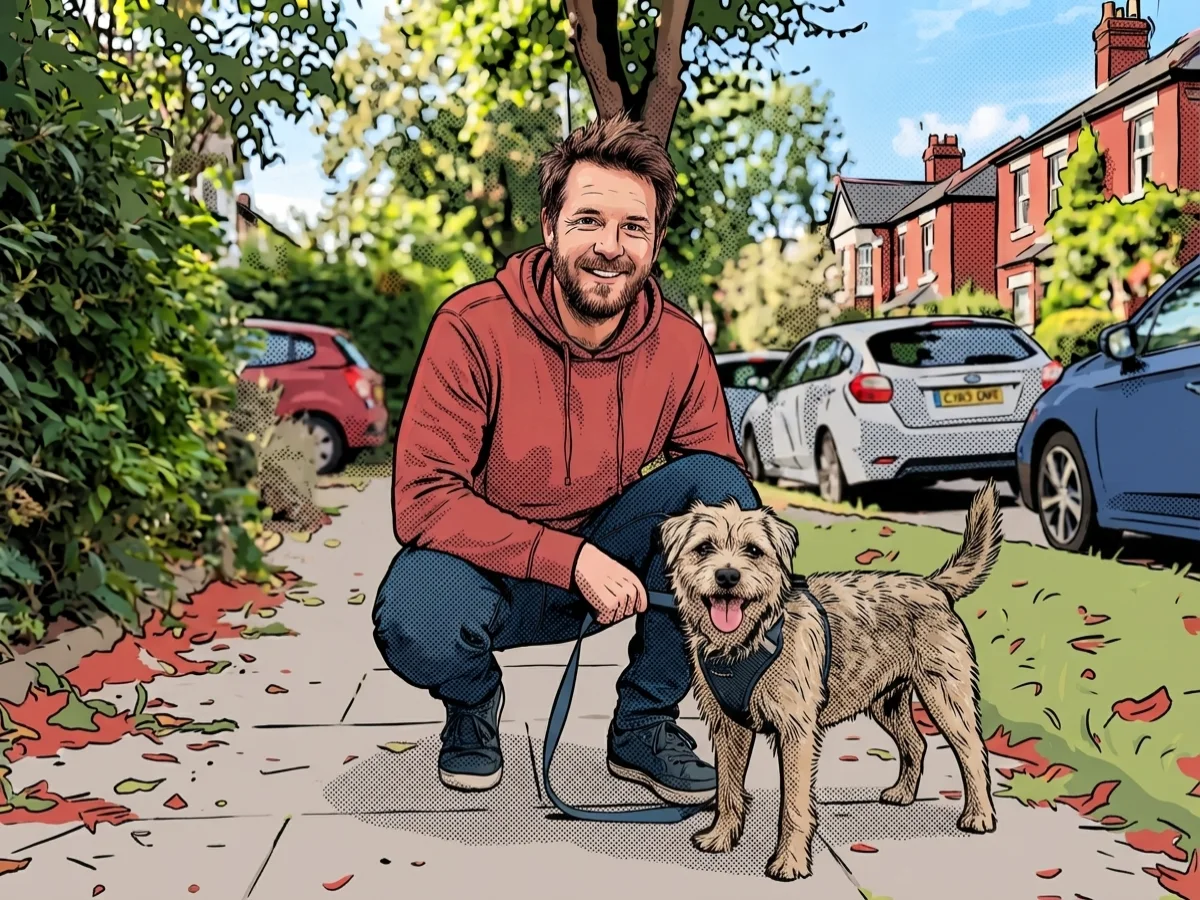
Bold ink outlines and halftone shading.
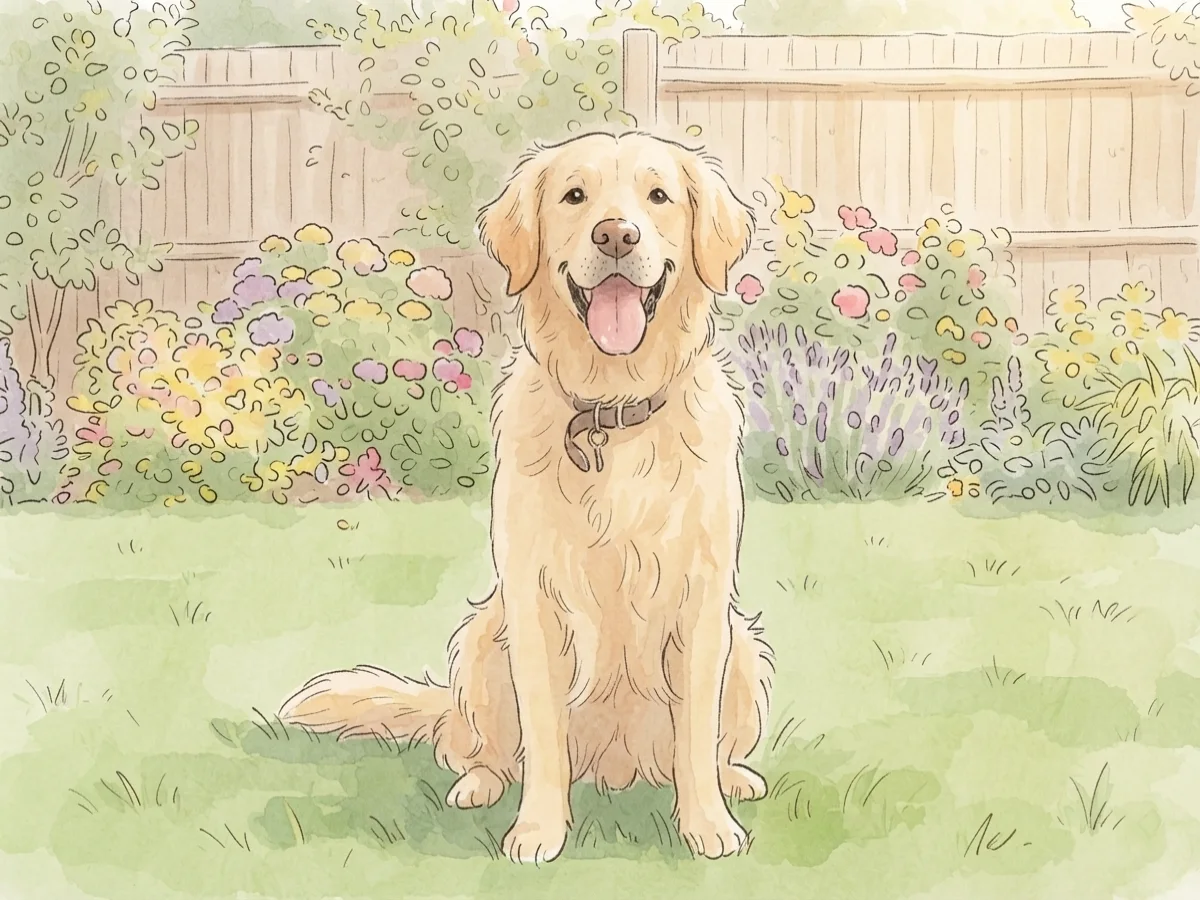
Soft watercolour-and-ink illustration, shown on a pet photo.
This page runs a generative image-to-image edit on Nano Banana 2 Lite, one of Google's Gemini image models. Your photo goes in as a reference image, and the instruction asks the model to redraw the whole picture in the style you picked while keeping faces, pose, and framing recognisable. That is a different mechanism from a cartoon filter: a filter pushes your pixels around — posterising colours, thickening edges — whereas this repaints the image from scratch using yours as the reference. It is why the output has real cartoon line weight and lighting instead of a smeared photo.
Repainting is also where the honest limit lives. Likeness is strong but never pixel-exact: face shape and hair get stylised, and small details — the text on a T-shirt, the pattern of a tattoo, thin glasses frames — are simplified or reinvented. In our tests a single well-lit face carried over most reliably, pets carried over beautifully, and group photos stayed recognisable with the smallest faces simplified the most. If something must survive the redraw, name it in the description box and run it again.
The result is a normal image you can print, and it stays in the Renoise Canvas, where you can upscale it for a poster or animate it with the video models. Upload only photos you own or are allowed to use — a photo of someone else, including a public figure, is not yours to restyle.
What happens to an uploaded photo — the answer most cartoon apps avoid.
Picking a file only previews it on your device. Not one byte is stored until you sign in and click generate.
Uploads land in your private library, never a public gallery, and re-running the same photo stores nothing new.
Remove uploads and results from your library whenever you want.
As of October 2026, 100,000+ creators in 170+ countries and regions use Renoise AI, an AI video, image and audio platform, to generate 300,000+ images and videos with 30+ models.
Source: Renoise internal data, March–October 2026. Figures are rounded down and updated quarterly. Last updated
Real feedback from creators who use Renoise AI to make videos, images and ads.
Renoise is pretty easy to use, with a clean and smooth interface. The results from Seedance 2.5 also feel noticeably smoother in action sequences.
Renoise Ai is a good tool for making ai videos and photos. it puts several Ai models in one place, so you don't need to use many different apps.
あまりAIツールを使ったりしたことなかったですが、キャラクターの固定や動画を続いて作成できて使いやすいです。これからどんどん進んでいくアップデートが楽しみです。
Renoise has been a great platform for AI creativity. The tools are easy to use, the experience is smooth, and it makes creating content more enjoyable and efficient. I really appreciate the work the team is doing and look forward to seeing more improvements. Highly recommended!
What I like about Renoise AI compared to other platforms: Fast generation speed: Slow generation takes up way too much time, but Renoise AI is surprisingly about 30% faster. Intuitive and user-friendly UI: Cheaply made platforms have terrible UIs that make me not even want to log in, but Renoise is very clean and convenient. Remembers my previous settings: It helpfully remembers my last workspace settings. Some odd platforms force you to re-adjust everything every single time you generate a video, which is extremely frustrating. Overall preference: For all these reasons, Renoise AI is definitely my preferred platform. Thank you!
Renoise is your go to one stop all for ai creators. all view and use all models in one place, for any type of content you have your mind on!
I have a creat experience with the app. Consistent characters but also unique. THere were some issues with storyline continuity and non-typical humanoid characters.
Credits work across every tool — upscaling, image editing and the video models.
For first-time AI content creators
Billed $168 annually
Upgrade PlanSave $72/year
For creators shipping content every week.
Billed $504 annually
Upgrade PlanSave $216/year
For studios and pros producing at commercial scale.
Billed $1680 annually
Upgrade PlanSave $720/year
For first-time AI content creators
Billed monthly
Upgrade PlanFor creators shipping content every week.
Billed monthly
Upgrade PlanFor studios and pros producing at commercial scale.
Billed monthly
Upgrade PlanRenews automatically each year until canceled.
Renews automatically each month until canceled.
Cartoonize here, then upscale it for print or animate it in the Renoise Canvas.
Following us on X and YouTube earns 20 free credits. A cartoon here costs 4 credits, so your first five are free. After that runs are billed per image — there is no free plan, and the credits you were given need no subscription to spend.
Upload the photo at the top of this page, pick one of the five cartoon styles, and generate. About a minute later you get a cartoon version of the same picture, with a slider to compare it against the original.
Recognisably, yes — features, hair, expression, and pose carry over. But this is a redraw, not a filter, so the likeness is not pixel-exact: face shape gets stylised and fine details like T-shirt text or thin glasses frames may be simplified. Name what must stay and run it again if it matters.
Yes. Everyone stays recognisable, though the smallest faces in the frame simplify the most. Mentioning how many people are in the photo helps the model keep all of them.
Yes, and pets are one of the strongest cases — fur, markings, and expression carry over well. The storybook example in the grid above is a real output from our own dog photo.
Five: 3D animated, anime, comic book, storybook, and caricature. The description box takes it further — add a palette, a mood, or a medium and the redraw follows. We do not offer styles named after studios or franchises.
Yes — the result is a normal image file. For a poster or a canvas print, run it through the image upscaler first so the print stays sharp at size.
Only photos you own or are allowed to use. A photo of someone else — a stranger, a celebrity, a photographer's work — is theirs; get permission first.