A gift with a deadline
A birthday card, a leaving present, an anniversary photo. Per-run pricing, so you are not signing up for a subscription to make one image.
Upload the picture you want to be in, then one clear photo of the face. About a minute later you get it back with the pose, clothing, lighting and background intact. Following us on X and YouTube earns 20 credits — five swaps here — and free results carry a watermark.
Follow us and get 20 free credits — about 5 images
Use only faces you own or have permission to use. Everyone shown on this page is an AI-generated character.
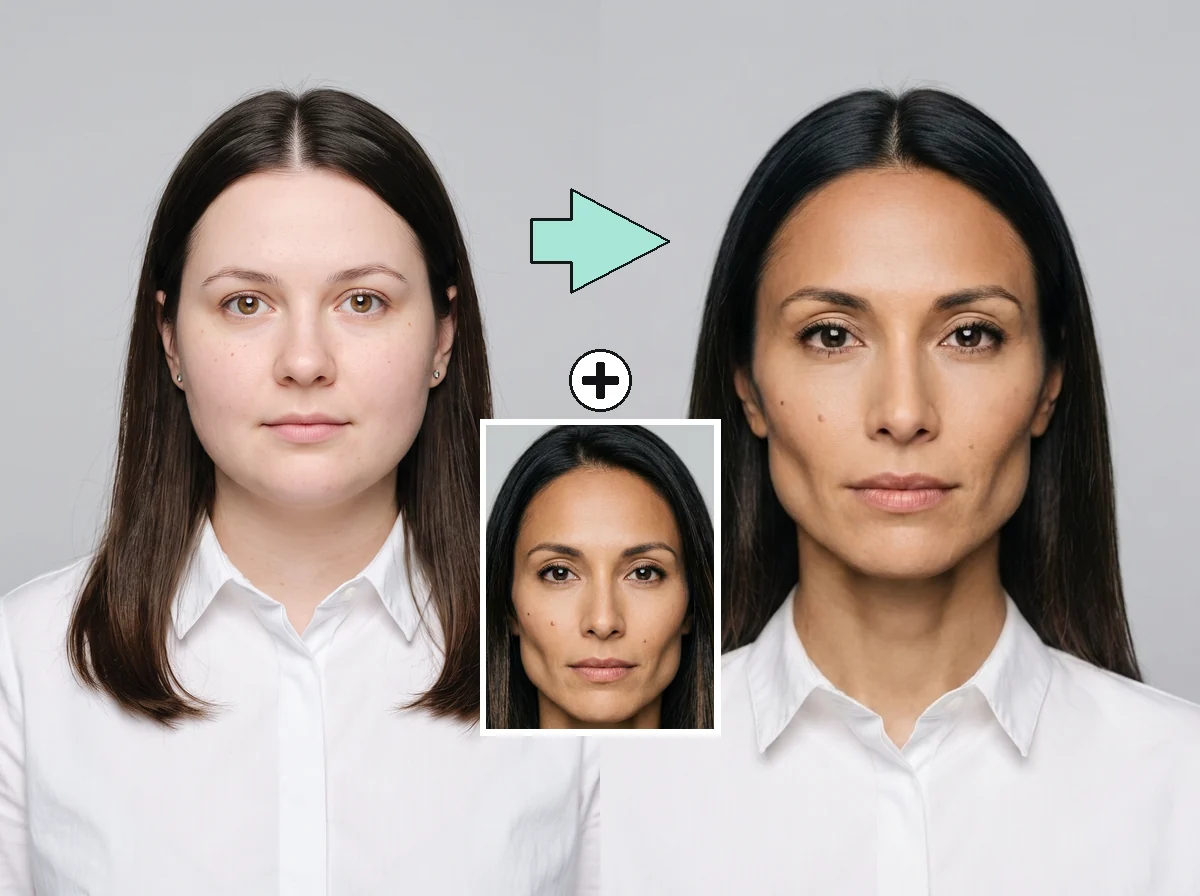
Our own run — the picture, the face we put into it, and the result. This target already had similar hair, which is why only the face changes here; on a target whose hair is different, the hair comes across with the new face too.
Subscribe for more credits and more models.
Upload two pictures: the photo you want the face to appear in, and a clear front-on photo of the face itself. The model redraws the head in the first picture using the second one, and leaves the pose, clothing, lighting and background where they were. It takes about a minute and costs four credits, so the 20 credits a follow earns cover your first five swaps.
Four quite different jobs, one tool.
A birthday card, a leaving present, an anniversary photo. Per-run pricing, so you are not signing up for a subscription to make one image.
Your face in a style you could not photograph. Free runs carry a watermark, so budget one paid run for the version you post.
Your face on a knight, an astronaut, an oil-painted noble. This is where the tool is at its best.
Storyboards, mock posters, a look you want to see before you commit to shooting it properly.
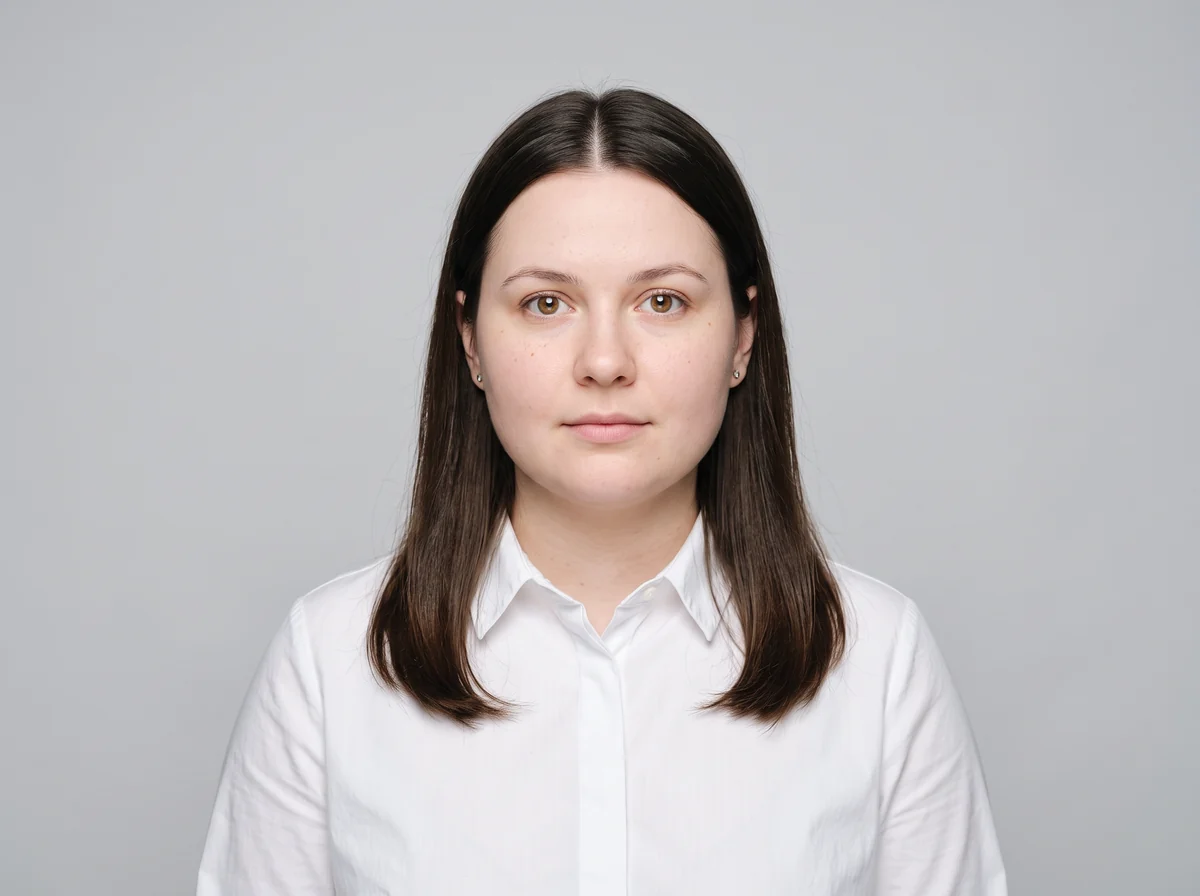
One clearly visible face, front-on or three-quarters. A strict side profile will not carry the likeness.
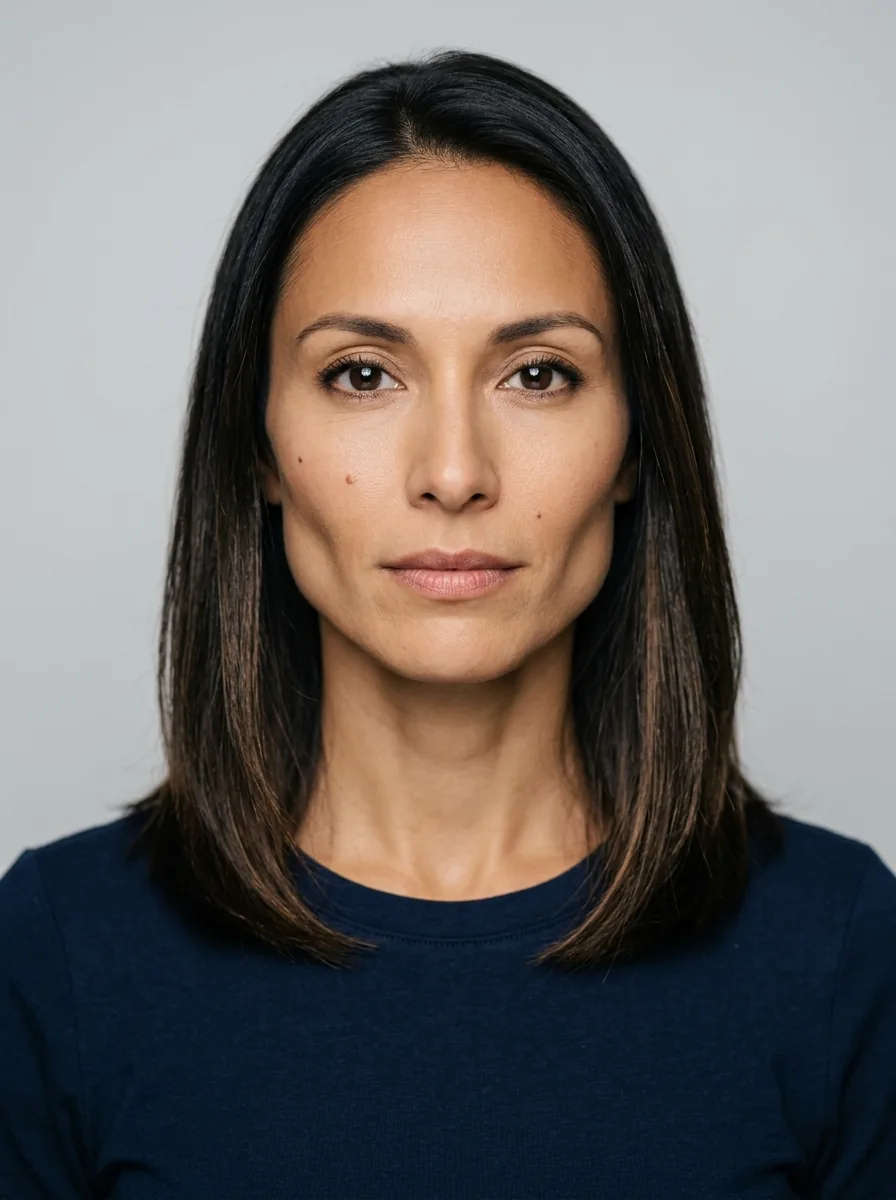
A plain front-on photo, evenly lit. Distinctive detail such as a mole carries the likeness across.
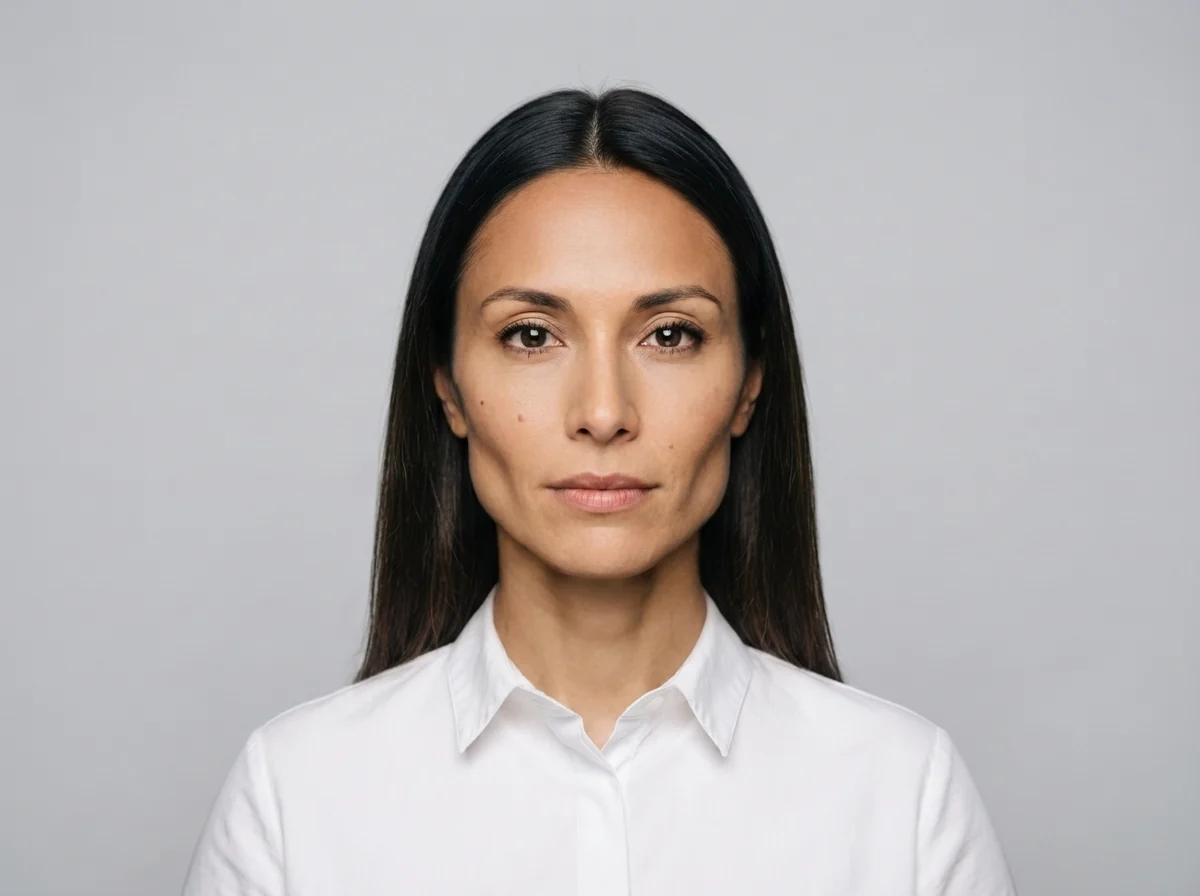
About a minute. You get a slider against your original, and can rerun with different notes.
Measured across four real runs on this page — a studio portrait, a painting, a three-person group shot and a strict side profile.
| What we checked | Result | What we measured |
|---|---|---|
| The likeness | Carries across on a front-on target | Two moles on the source cheek came through, along with the jawline and eye shape |
| Hair | Always follows the new face | It replaces the whole head, not the features — a bald, grey-bearded subject came back with the source face’s long dark hair |
| Clothing and background | Held up in all four runs | Velvet nap, gold thread, a lace collar, a ring, the frame carving and the cracked varnish all survived |
| Side profiles | Does not work | The result was "a woman with long dark hair, in profile" — true of almost anyone. Use a front-on or three-quarter target |
| Group shots | One face at a time, and re-composed | In our three-person run the framing tightened and every expression was redrawn, including the two faces we did not swap |
| Film and video | Not a VFX replacement | Fine for one still or one look. Replacing a performance across an edit is a different craft |
The same source face into four kinds of target, best to worst. The fourth one is the failure case.
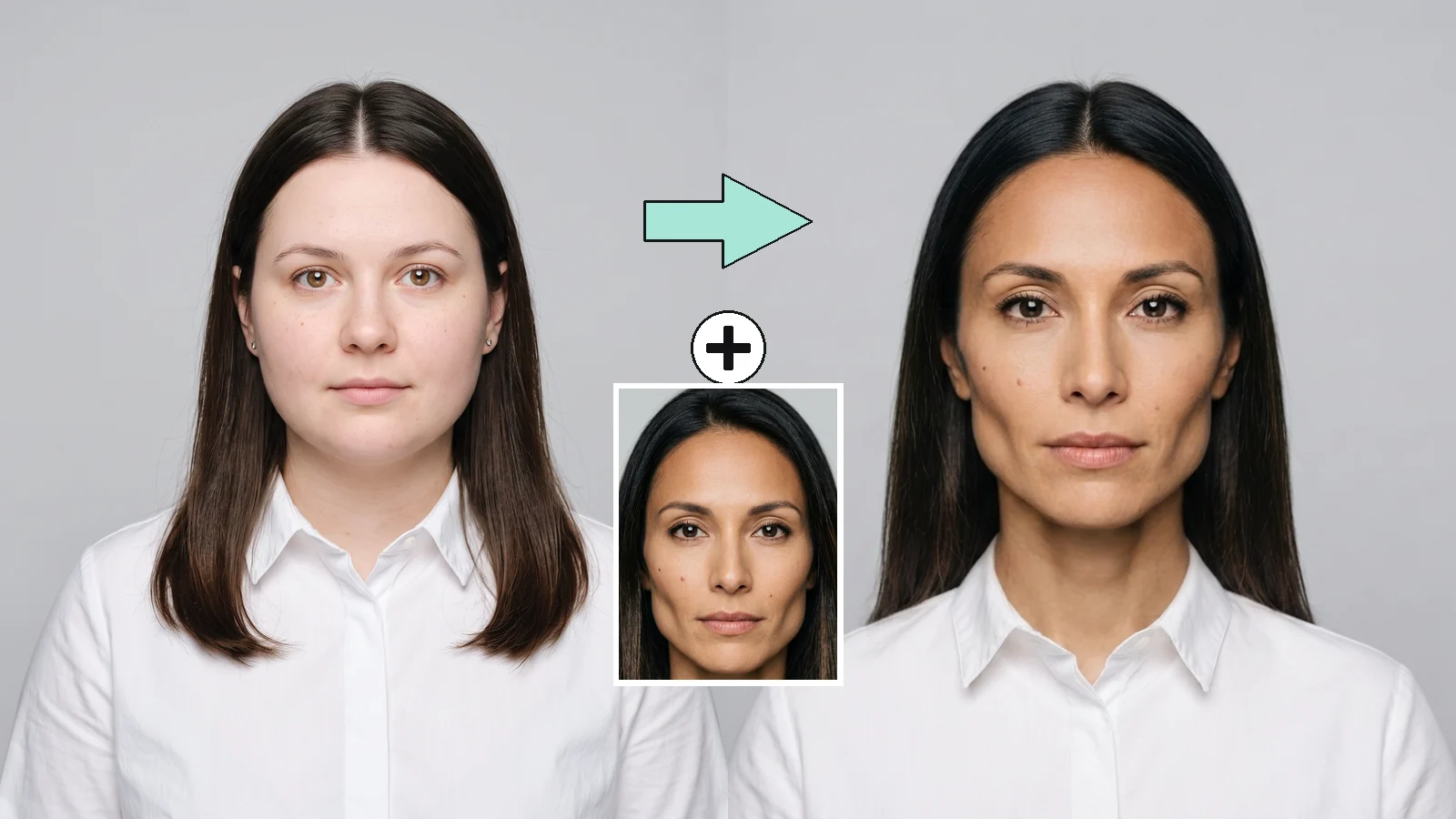
A front-on target whose hair already matched. Only the face changed: the white shirt, the grey backdrop, the lighting and the framing all held.
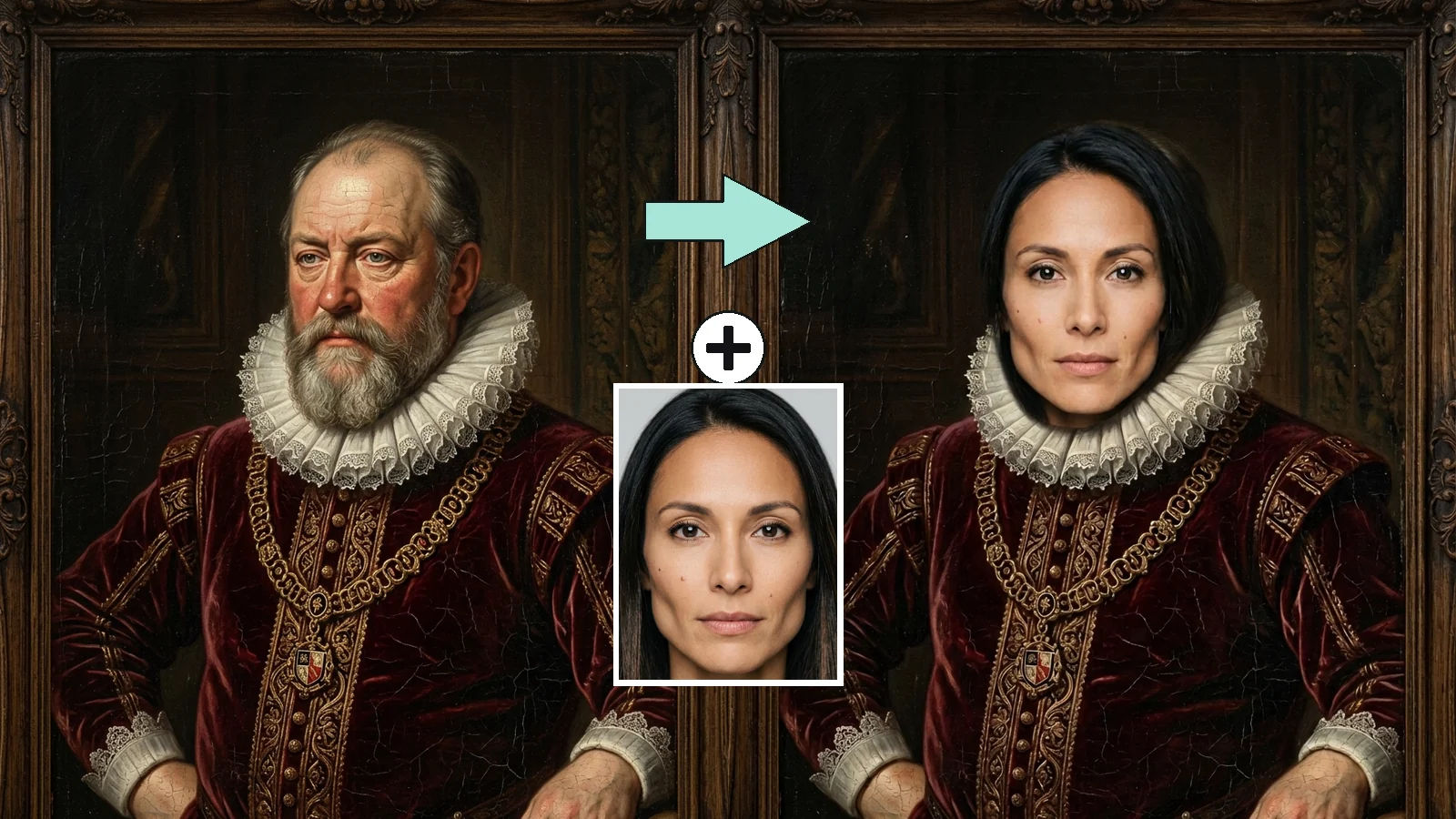
Velvet, gold thread, lace, a ring, the frame carving and the cracked varnish are untouched. But a bald, grey-bearded subject came back with the source face’s long dark hair — this is the run that shows the head, not the features, is what gets replaced.
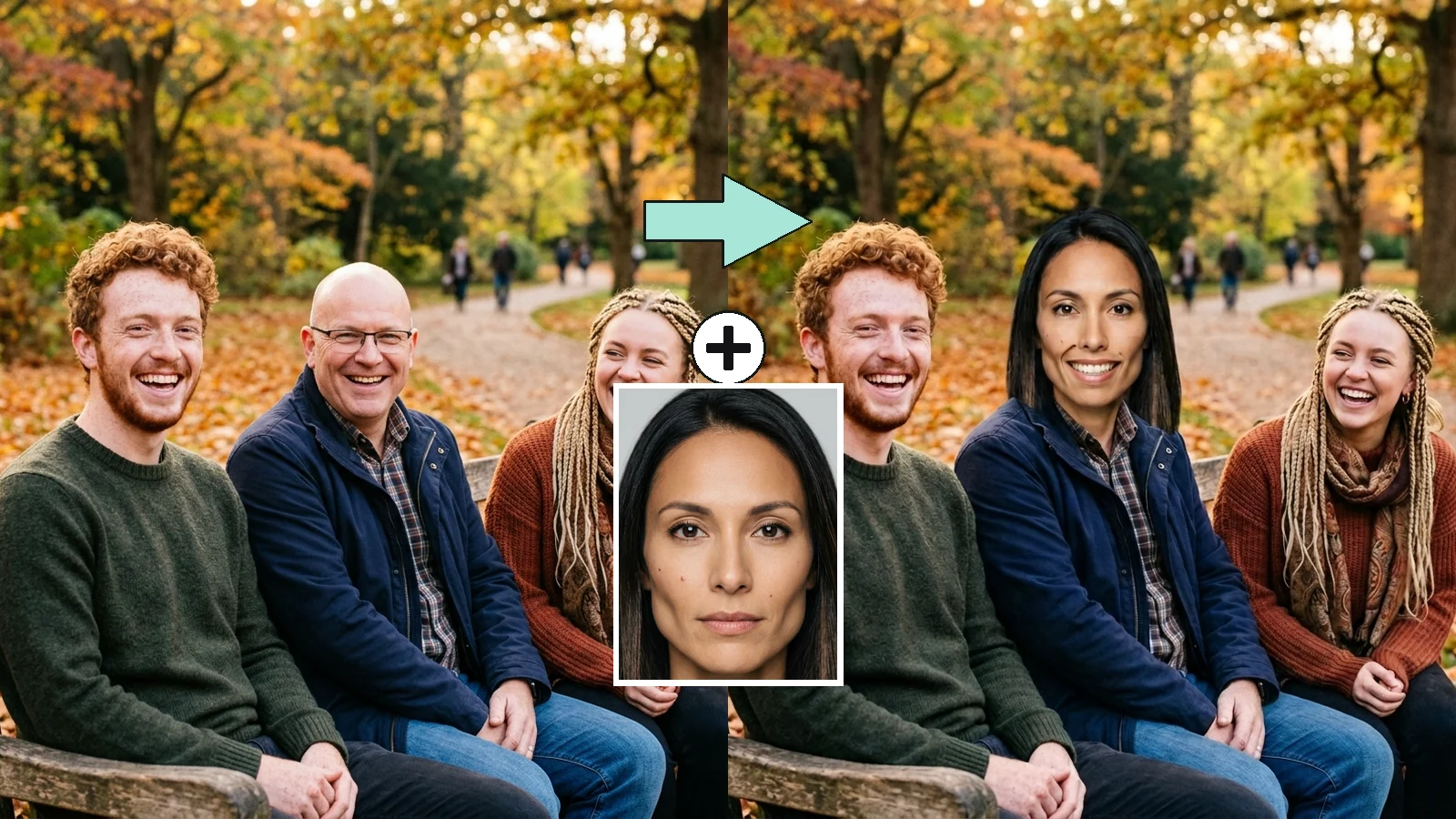
We asked for the middle person only. The identity landed, but the framing tightened and all three expressions changed from laughing to smiling — including the two faces we did not touch.
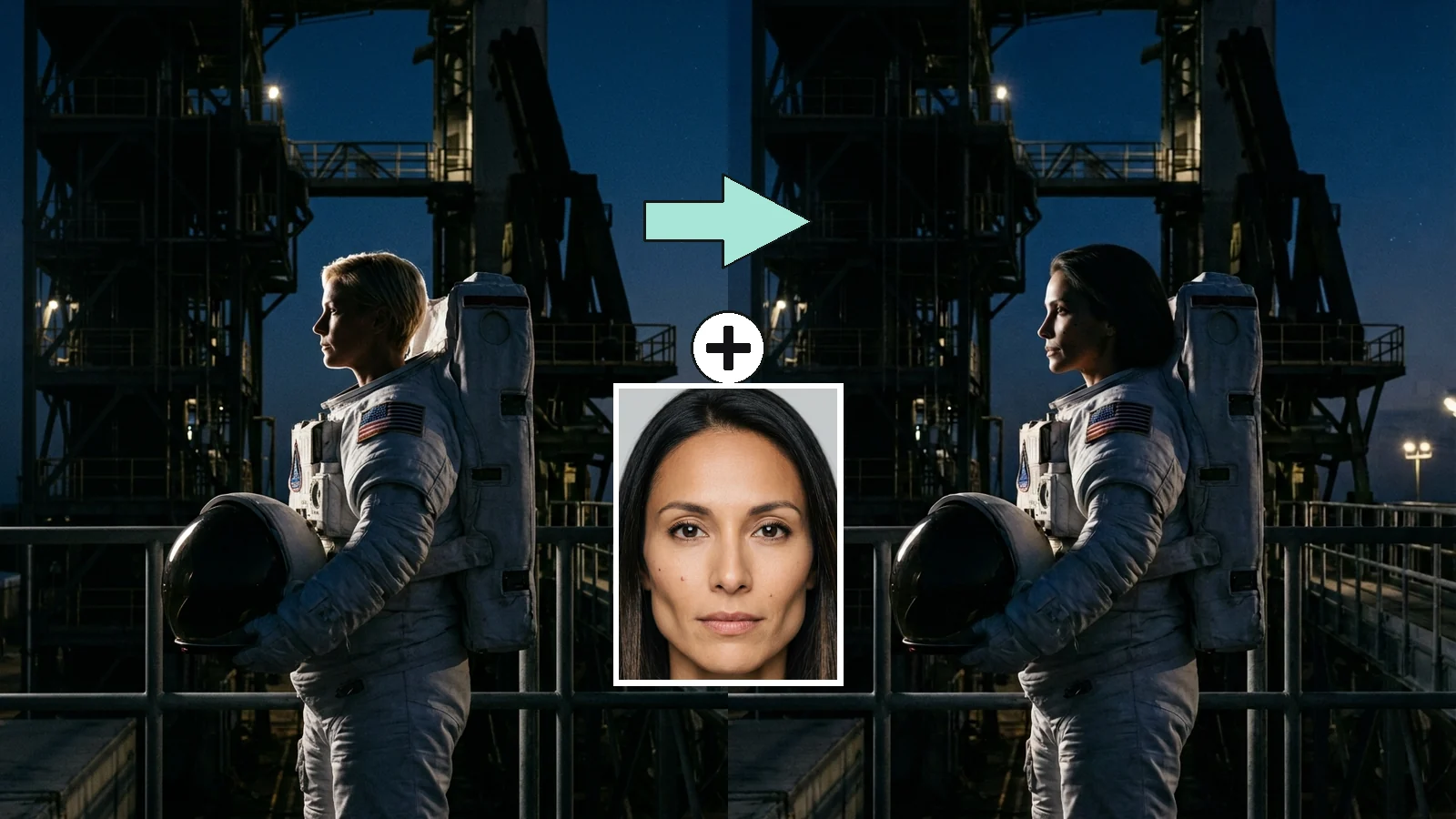
The spacesuit, the rim light and the launch tower are perfect. The face is not recognisably anyone. Profiles do not carry a likeness — bring a front-on or three-quarter target.
Every tool in this category shows you a seamless result and lets you assume it worked by cutting one face out and dropping it onto another. That is not what happens, and knowing the difference tells you which pictures to bring.
The likeness half is genuinely good, and better than we expected. We ran one AI-generated source face into four targets at this page’s own tier. On a three-quarter Renaissance portrait it came back with the jawline, the high cheekbones, the eye shape and — the detail that convinced us — the two small moles on the left cheek. If your question is "will people recognise me in this", on a front-facing picture the answer is yes.
What it does not do is edit the face in isolation. It regenerates the head. In all four runs the hair came from the source photo, not the target: a bald, grey-bearded nobleman came back with long dark hair, and the prompt explicitly asked for the hair to stay. This is inherent rather than a bug, and it is why the tool is at its best on costume-and-character pictures, where a new hairstyle is not a mistake, and weakest on "keep everything, change only the features".
Two more limits worth knowing before you upload. A strict side profile carries almost no identity — our astronaut run kept the spacesuit, the rim light and the launch tower perfectly, and produced a face that could belong to anyone. And in a group shot the model re-frames the picture and redraws every expression, including on the people you left alone; ours went from three friends laughing to three friends smiling politely, with the composition tightened. Bring a picture with one face in it, looking towards the camera, and this tool does the thing it is good at.
It is the question Google now attaches to almost every face-swap search, so it is worth answering plainly. General assistants can edit images, and they will happily restyle a portrait — but face swapping specifically is where they tend to stop, because putting one real person’s face onto another image is exactly the request their policies are built to refuse. You will often get a redraw "in the style of" your photo instead of your actual likeness, which looks like a swap until you look at it twice.
A dedicated page like this one differs in three ways, and none of them is that it tries harder. It takes two images and an instruction written for this one job, so you are not negotiating with a general-purpose model about what you meant. It runs a fixed model at a fixed price, so the result is repeatable and you know what a run costs before you start. And it tells you where it fails — profiles, group shots, hair — which a chat window will not, because it does not know it is doing a face swap in the first place.
Where a general assistant is still the better tool: describing a face that does not exist, writing the brief, or deciding whether the image is a good idea at all. If you want a face that is nobody’s, that is generation rather than swapping, and the Images surface is the place for it.
A photo of someone’s face is personal. What happens to it here:
Picking a file only previews it on your device. Not one byte is stored until you sign in and click generate.
Uploads land in your private library, never a public gallery, and re-running the same photo stores nothing new.
Remove uploads and results from your library whenever you want.
Credits work across every tool — upscaling, image editing and the video models.
For first-time AI content creators
Billed $168 annually
Upgrade PlanSave $72/year
For creators shipping content every week.
Billed $504 annually
Upgrade PlanSave $216/year
For studios and pros producing at commercial scale.
Billed $1680 annually
Upgrade PlanSave $720/year
For first-time AI content creators
Billed monthly
Upgrade PlanFor creators shipping content every week.
Billed monthly
Upgrade PlanFor studios and pros producing at commercial scale.
Billed monthly
Upgrade PlanRenews automatically each year until canceled.
Renews automatically each month until canceled.
Change the backdrop behind the result, upscale it for print, or open the Images surface for stronger models and finer control.
Following us on X and YouTube earns 20 credits and a swap costs four, so your first five are free. After that each one is billed per image. There is no free plan and no subscription — the credits are a one-time grant you spend however you like.
Results generated on the free credits are watermarked. Saying so here rather than after you generate is deliberate: if you need a clean image to post, plan on one paid run for the final version.
On a front-on or three-quarter target, yes — in our own testing the jawline, cheekbones, eye shape and even two small moles carried across. On a strict side profile, no: the result looks like a generic person in profile. And the hair always comes from the face you upload, because the model redraws the whole head.
One at a time. You can run a group photo twice, swapping a different person each time, but be aware of what our test found: with several faces in frame the model re-composes the picture and redraws everyone’s expression, including the people you did not touch. For a two-person gift image, expect to compare a couple of runs and keep the best.
Not on this page — it works on still images only. For video, the Video surface has the generation models, and animating a swapped still is often the better route than trying to reface an existing clip.
No. This is a generation pipeline: you upload two pictures and wait about a minute for a rendered result. It is not a real-time camera filter and cannot be used on a live stream.
No — the output is a still image. There is no model here that writes GIFs directly, so we would rather say that than hand you an mp4 and call it one.
One clearly visible face, looking at the camera or turned no more than three-quarters away, and reasonably well lit. Costume, painting and character pictures are the sweet spot, because a change of hairstyle reads as part of the look rather than as an error.
They are processed to produce your result and are governed by the Renoise privacy policy, which is linked in the footer. Do not upload a face you would not be comfortable having processed by a cloud service.
Your own, or someone else’s with their permission. Do not use a public figure’s face, and do not produce images that put a real person in a situation that never happened or imply an endorsement they did not give.
For one still, a poster or a single look — yes. For replacing a performance across an edit, we would talk you out of it, and so would most people who do that work: a face replacement that holds up shot to shot is a VFX job, and a generated one tends to look worse than the problem it was meant to solve.