Deblur and sharpen
Rebuilds soft edges, faces, and textures lost to focus or mild motion blur.
Fix blurry, noisy, or compressed photos right here — compare before and after.
Follow us and get 20 free credits — about 20 images
Watermark-free exports on paid plans.
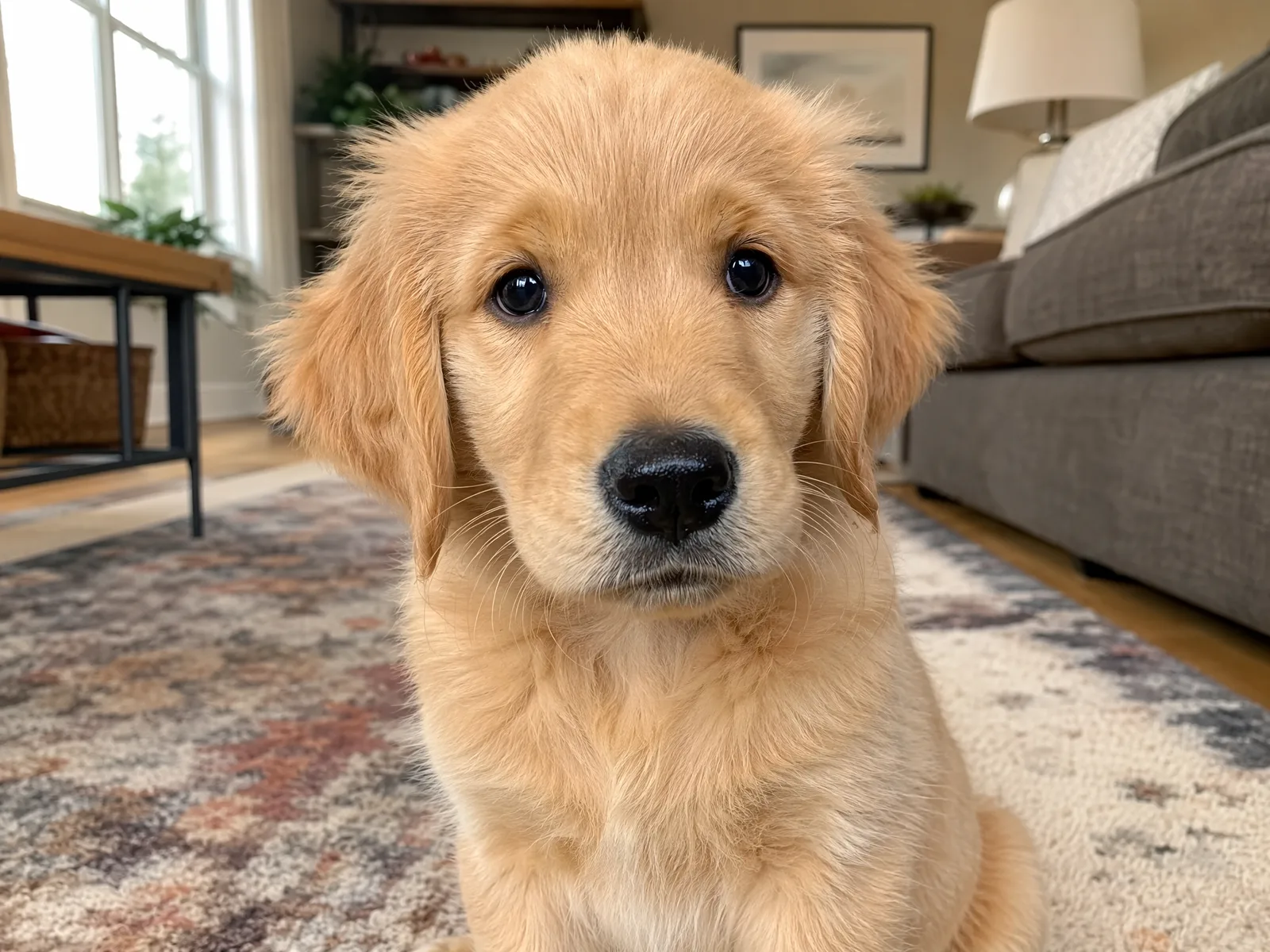
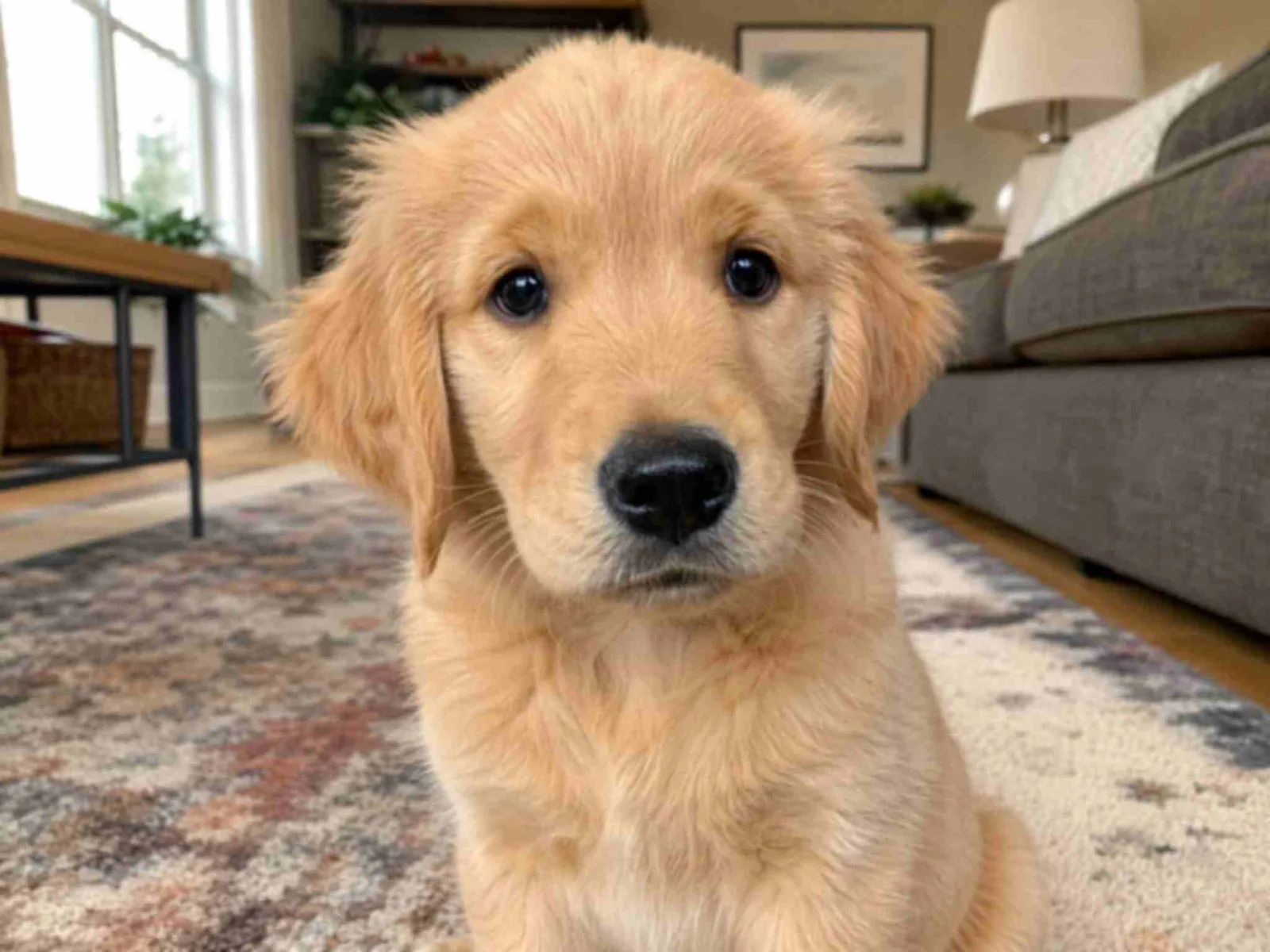
Drag the handle to compare before and after.
Subscribe for more credits and more models.
Upload the photo above, pick an output size, and click Enhance Image — a super-resolution pass sharpens soft detail and cleans noise and compression. For heavier fixes like relighting a dull shot, run a generative re-render on Nano Banana Pro in the Renoise Canvas.
Fixing an old, damaged, or faded print instead? See the photo restoration guide
One pass, three fixes — for one photo or a whole folder.
Rebuilds soft edges, faces, and textures lost to focus or mild motion blur.
Clears grain, noise, and JPEG compression artifacts from the image.
Pick the output size you need — the same one-click pass at every size.
Credits-based with no daily caps — lift a whole event folder in one run.
From soft, noisy, or dull photos to clean, sharp versions.
Drop up to 10 blurry, noisy, or compressed photos into the uploader at the top of this page.
Choose 1080p for web, 2K for most uses, or 4K for print — the same pass runs at every size.
Each photo processes in under a minute. Compare before and after at full size, then download.
Honest expectations by problem type, tested on our own photos. Blur destroys information; AI reconstructs what it can infer, and some damage is beyond rescue.
| Problem | Expected result | What to do |
|---|---|---|
| Soft focus, mild blur | Good — edges and detail rebuild well | The one-click pass above |
| JPEG compression, re-saves | Good — artifacts clean up reliably | The one-click pass above |
| Low-light grain and noise | Good — noise clears, detail holds | The one-click pass above |
| Heavy motion blur | Poor — the information is gone | Generative re-render in Canvas, or reshoot |
| Dull colors, bad lighting | Not this tool — it is a creative fix | Re-render on Nano Banana Pro in Canvas |
Quality lifts on everyday photos — fix blurry, noisy, and compressed shots, before and after.
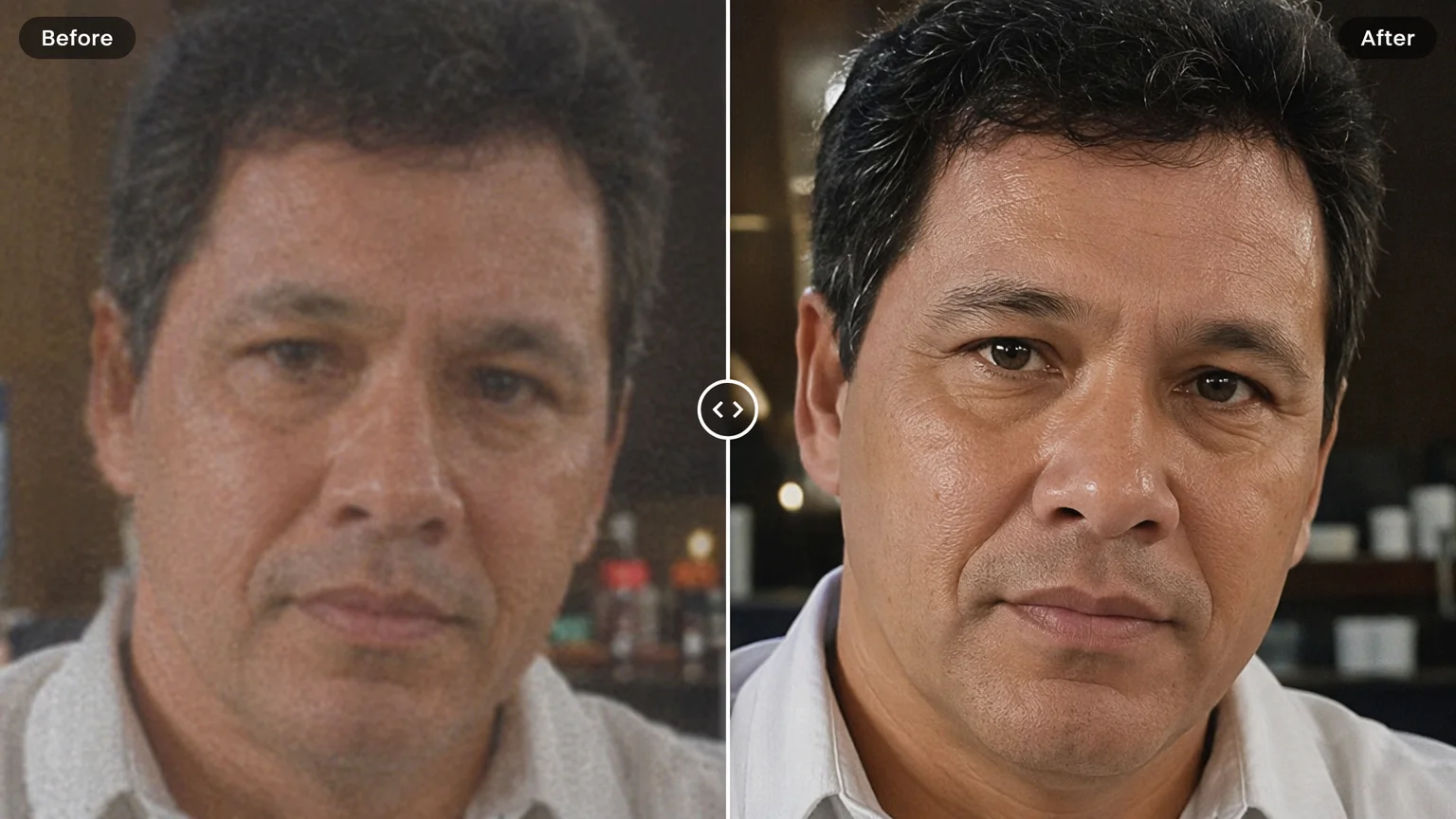
Rebuild a soft, out-of-focus face into a sharp one.
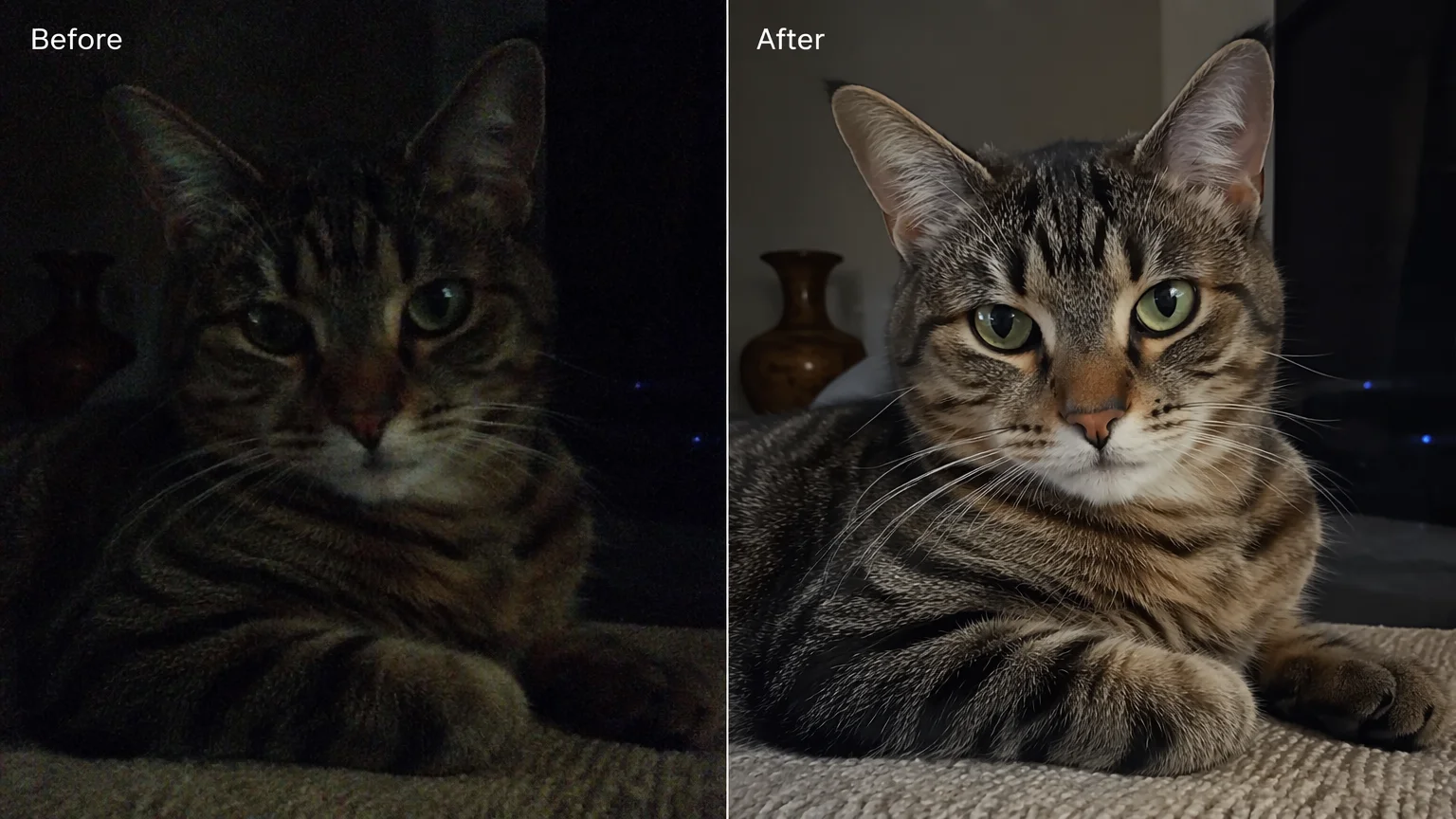
Clear grain and noise from a dim photo.
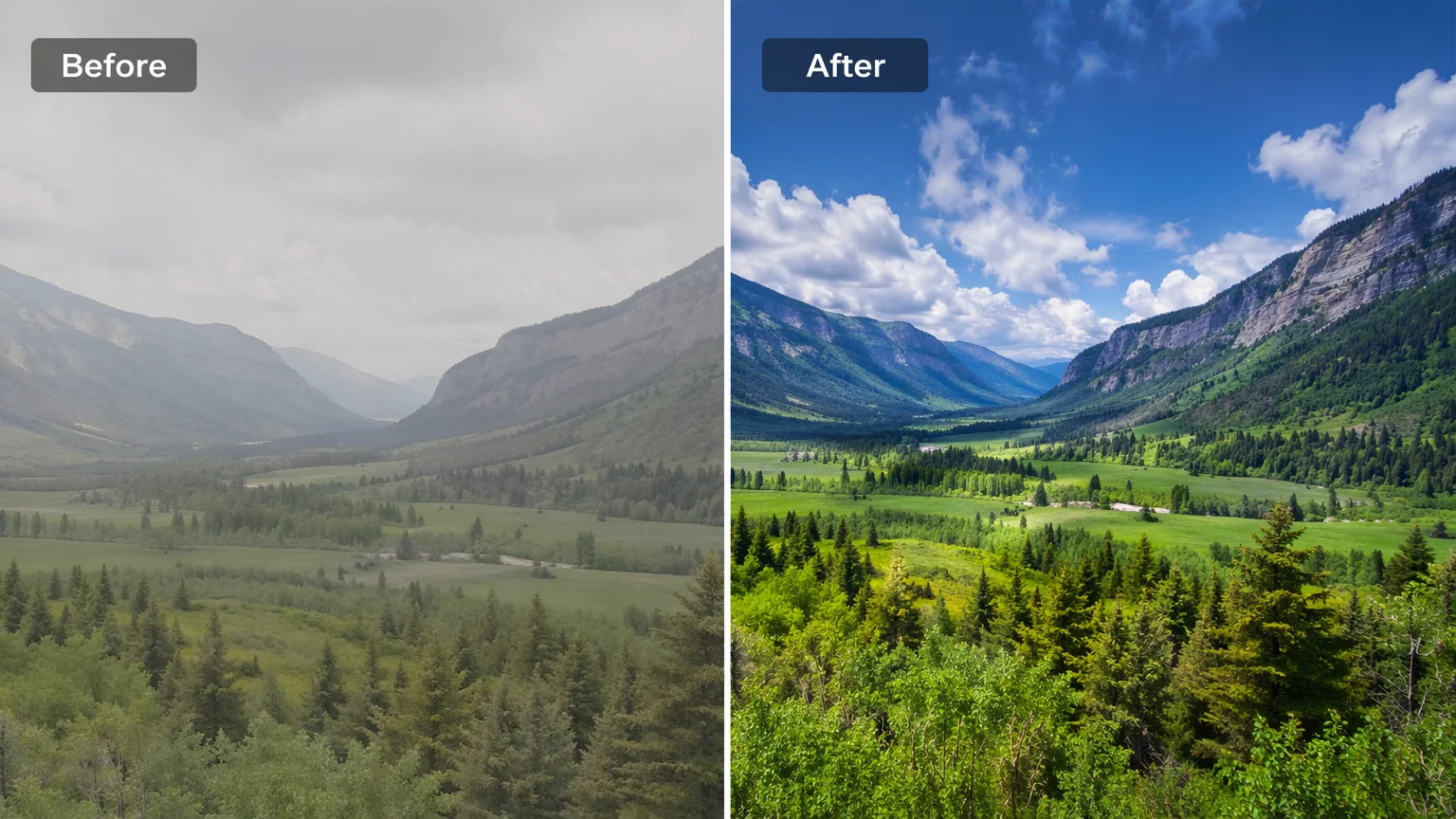
Lift flat color and contrast back to life with a canvas re-render.
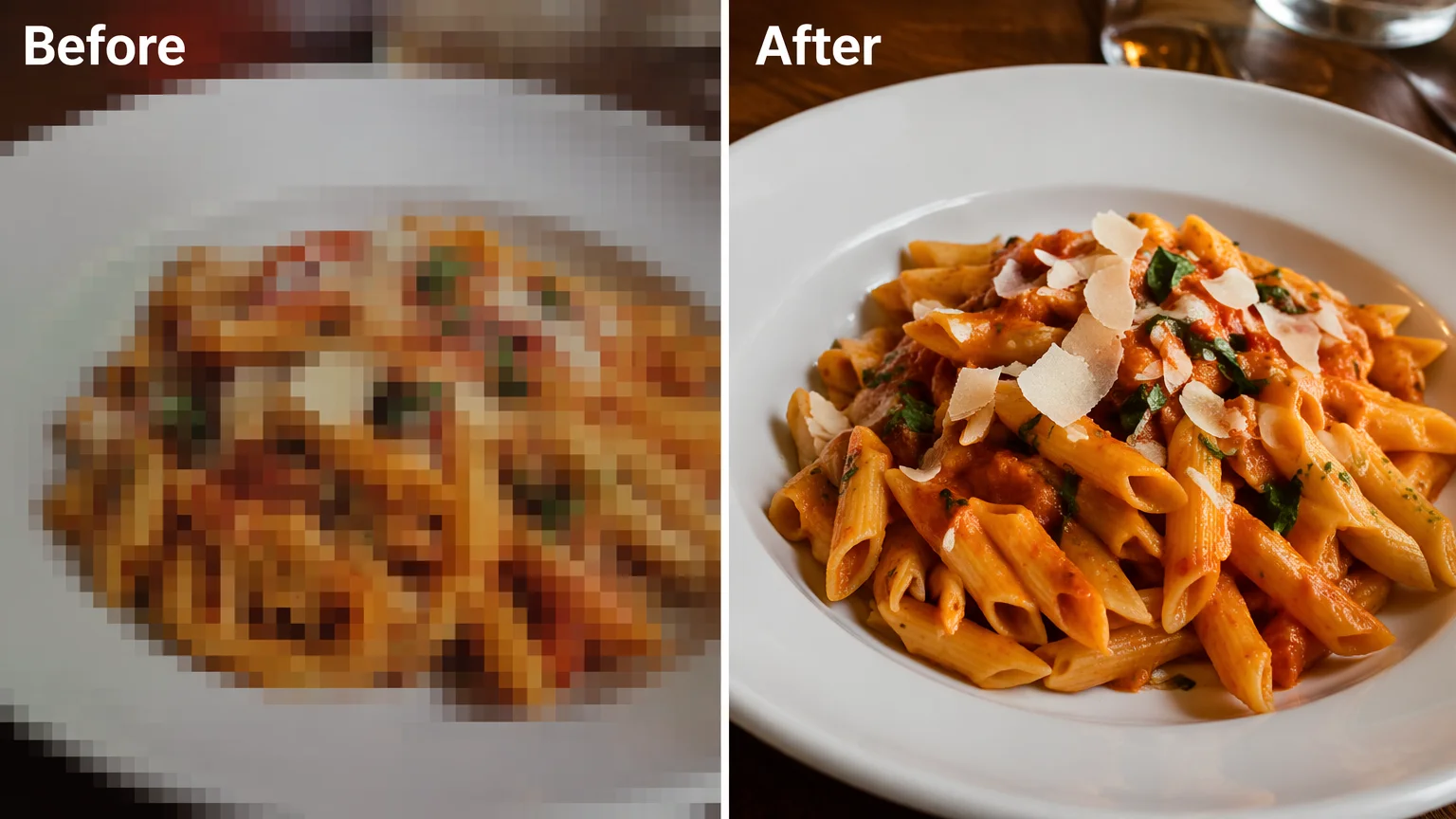
Remove JPEG artifacts from a re-saved image.
These three jobs get lumped together, but they are different — and picking the right one gives a better result. Enhancing is about quality: a photo that looks soft, noisy, dull, or over-compressed. The enhancer at the top of this page covers it in one pass, and because you pick the output size, a small photo comes out larger and cleaner at the same time.
If your only problem is size — the photo is fine but too small for print or a large display — use the image upscaler page, which is built around resolution targets. Restoration is a third job: scratches, tears, creases, fading, or colorizing a black-and-white print — an old-photo job covered in the photo restoration guide. The line is simple: enhance for quality, upscale for size, restore for age and damage.
One honest caveat: any AI pass reconstructs detail rather than recovering the exact original pixels. Results are usually clean at normal viewing sizes, but always compare against the original before you ship — the before/after slider above is there for exactly that.
What happens to an uploaded photo — the answer most enhancer tools avoid.
Picking a file only previews it on your device. Not one byte is stored until you sign in and click generate.
Uploads land in your private library, never a public gallery, and re-running the same photo stores nothing new.
Remove uploads and results from your library whenever you want.
Credits work across every tool — upscaling, image editing and the video models.
For first-time AI content creators
Billed $168 annually
Upgrade PlanSave $72/year
For creators shipping content every week.
Billed $504 annually
Upgrade PlanSave $216/year
For studios and pros producing at commercial scale.
Billed $1680 annually
Upgrade PlanSave $720/year
For first-time AI content creators
Billed monthly
Upgrade PlanFor creators shipping content every week.
Billed monthly
Upgrade PlanFor studios and pros producing at commercial scale.
Billed monthly
Upgrade PlanRenews automatically each year until canceled.
Renews automatically each month until canceled.
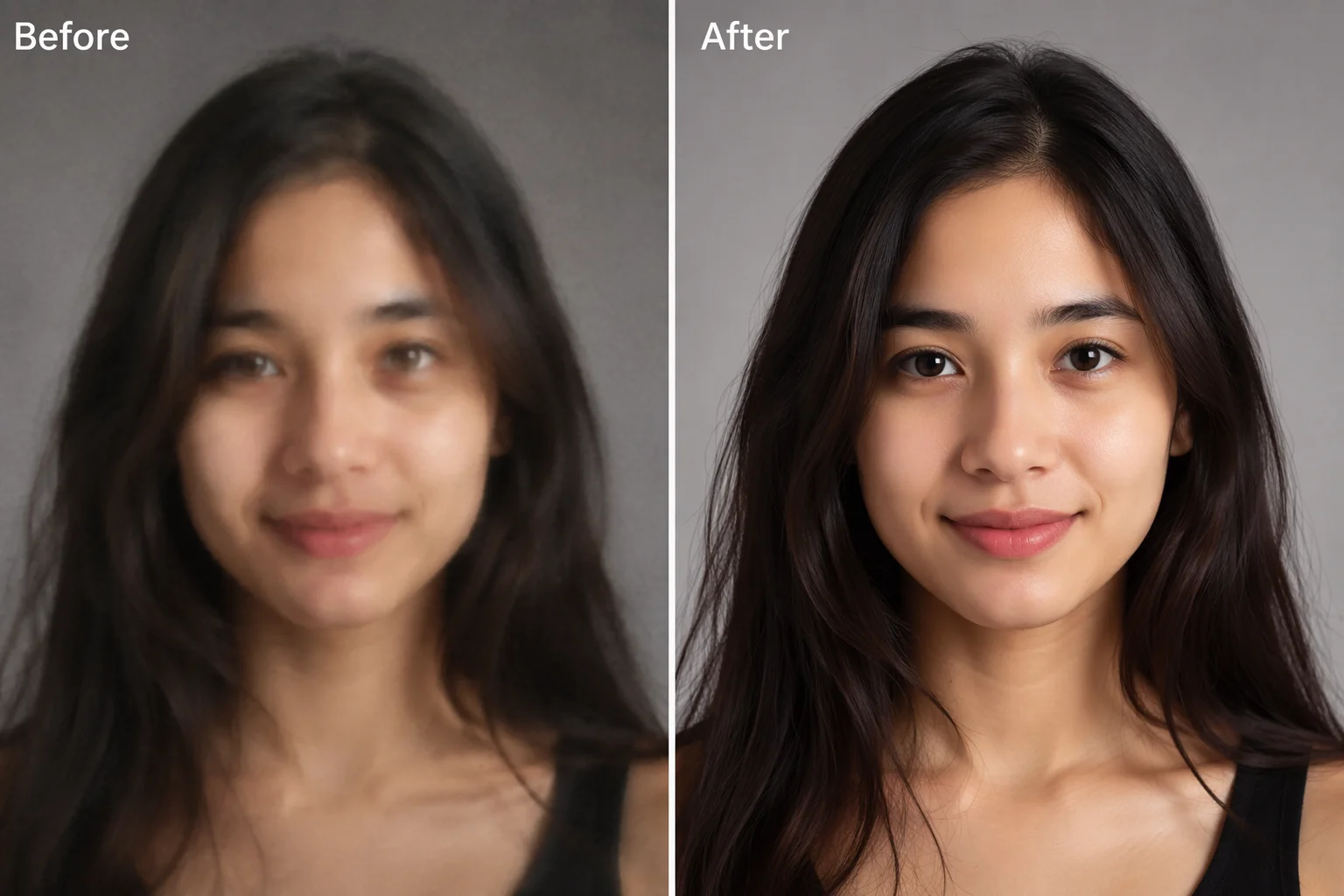
Upload, pick an output size, and compare before and after.
Upload it to the enhancer at the top of this page and click Enhance Image — the pass sharpens soft detail and clears noise so the picture reads clean. Soft focus and mild blur rebuild well; heavy motion blur destroys information no tool can recover — see the expectations table above for what rescues and what does not.
Yes, within limits. Unblurring is reconstruction: AI rebuilds edges and detail it can infer from the image, which works for soft focus, compression, and noise. It cannot recover detail that was never captured — severe motion blur or extreme crops stay unrescuable.
Yes. Upload up to 10 photos and they process one after another, billed per image with no daily caps — a whole event folder or product set lifts in a single run.
1080p for web and social posts, 2K for most everyday uses, and 4K when you plan to print or display large — 4K covers an A4 print at full 300 DPI (and A3 at a normal viewing distance). The pass is identical at every size.
No AI enhancement is lossless — the model reconstructs detail rather than recovering the exact original pixels. Results are usually clean at normal viewing sizes; use the before/after comparison to check the areas you care about before downloading.
Color and lighting are creative fixes, so they run as a generative re-render in the Renoise Canvas: upload the photo, pick Nano Banana Pro, and prompt "fix the lighting, keep the same subject and composition".
Not quite. The enhancer is for everyday photos that are soft, noisy, or compressed. For scratches, tears, creases, fading, or colorizing a black-and-white print, use the photo restoration workflow, which is built for old and damaged photos.
JPG, PNG, and WebP, up to 20MB per photo and up to 10 photos per run. Results export watermark-free on paid plans.