Isolate the subject
Lift a product or person off a busy background onto a clean, distraction-free backdrop.
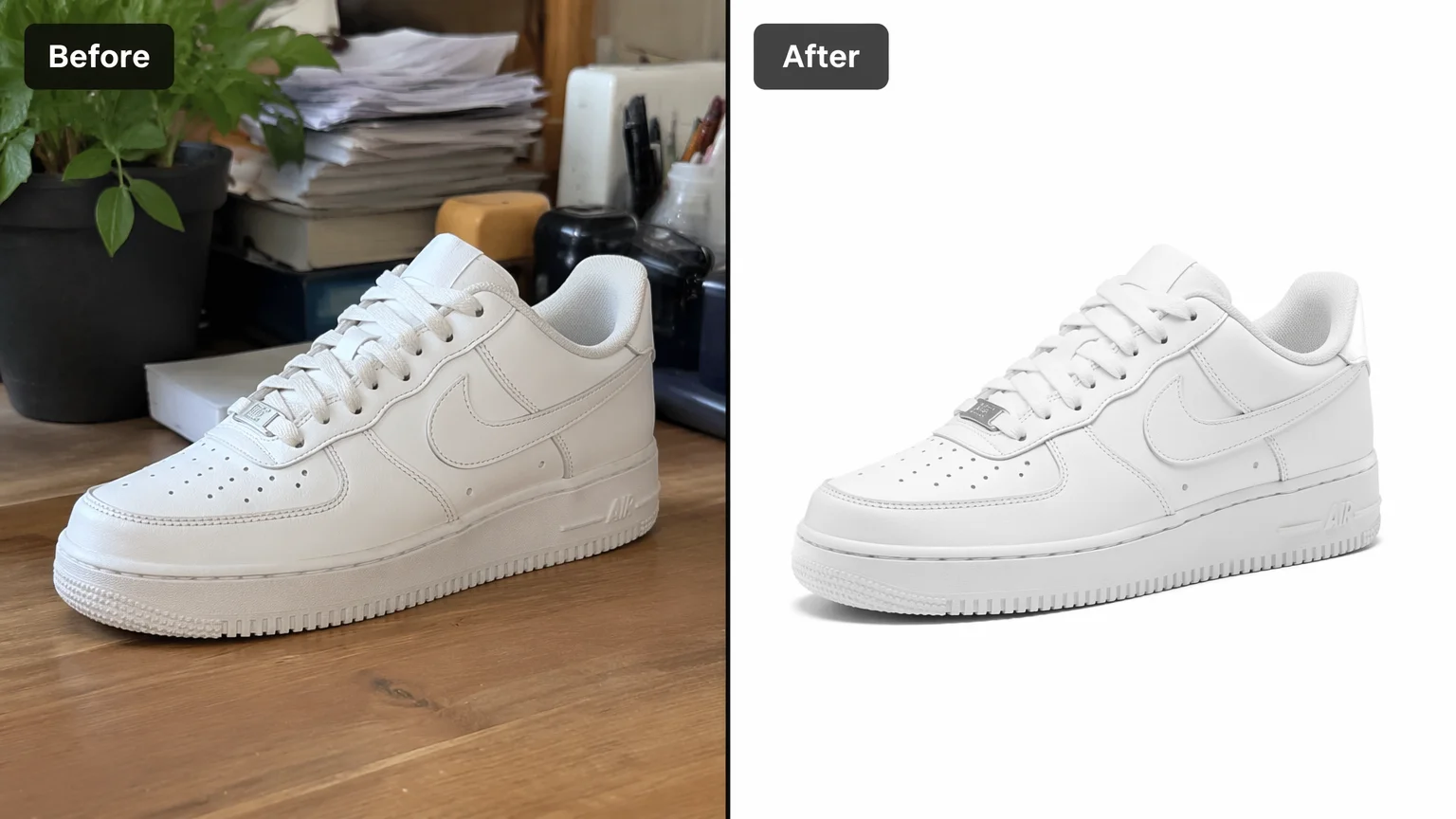
Cut the subject out of its background and put it on a clean solid backdrop.
Upload the image to Renoise Canvas, pick Nano Banana Pro, and prompt "isolate the subject, replace the background with a clean white backdrop", then export. This is generative re-render — the model rebuilds a clean backdrop around the subject, not a pixel-perfect alpha-matte cutout.
Want to place the subject in a NEW scene instead? See the background generator guide
What an AI background remove looks like in Renoise.
Lift a product or person off a busy background onto a clean, distraction-free backdrop.
Put the subject on plain white, grey, or a flat color for catalog and marketplace shots.
Rebuilds a clean backdrop around the subject — not a pixel-perfect alpha-matte cutout.
From a busy shot to a clean, listing-ready image, all in one canvas.
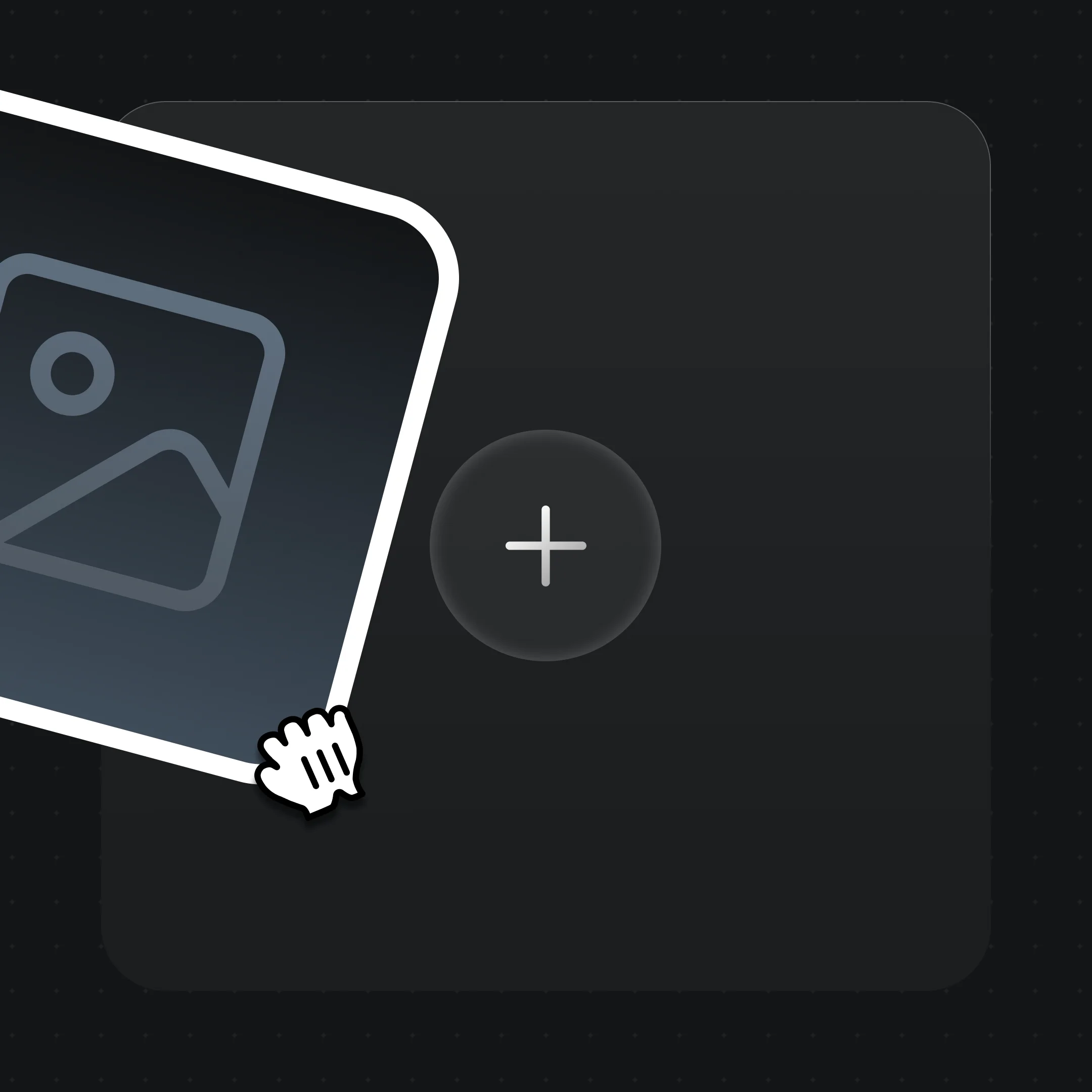
Drag the product or portrait onto the Renoise Canvas upload card so the model has the subject.
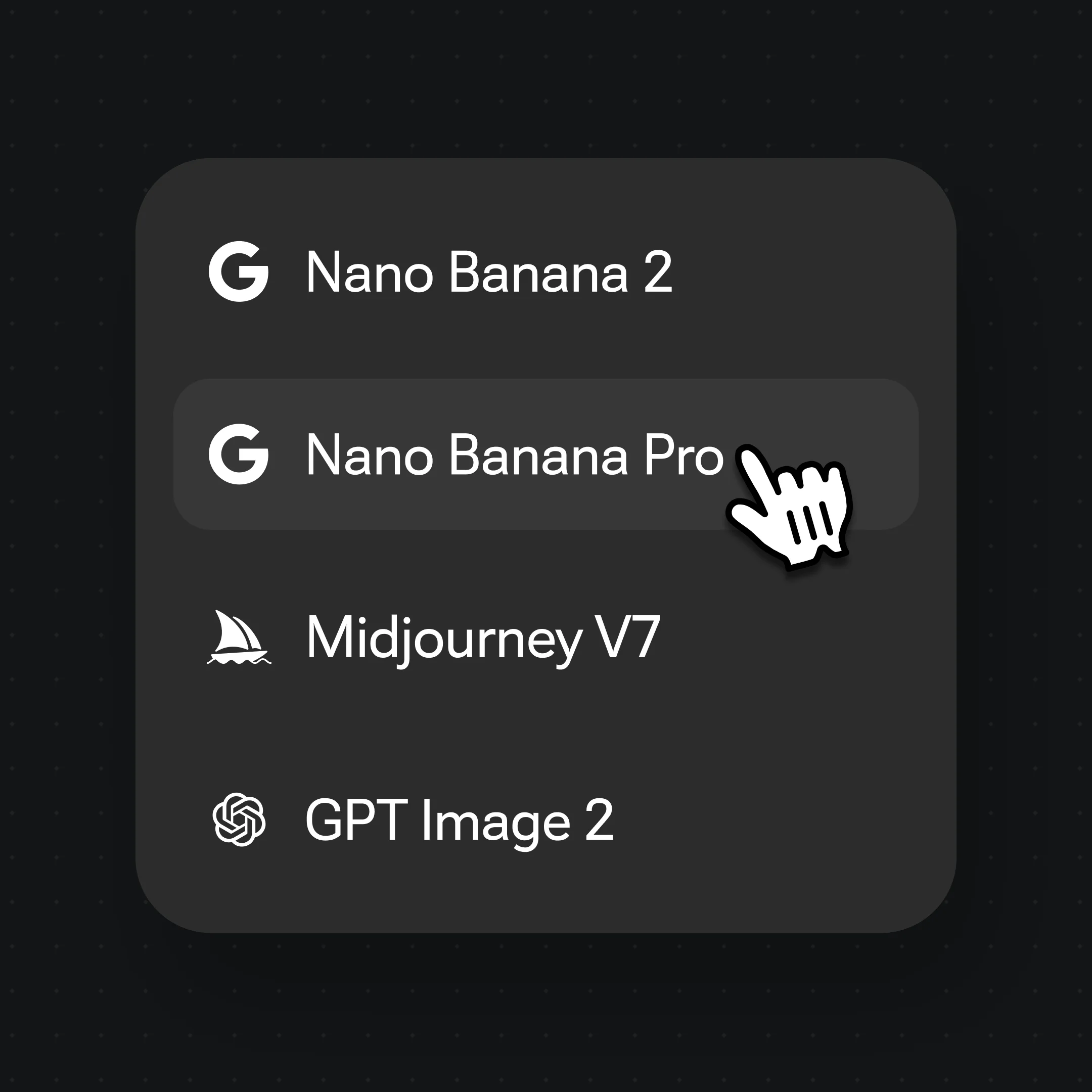
Choose Nano Banana Pro, then prompt "isolate the subject, replace the background with clean white".
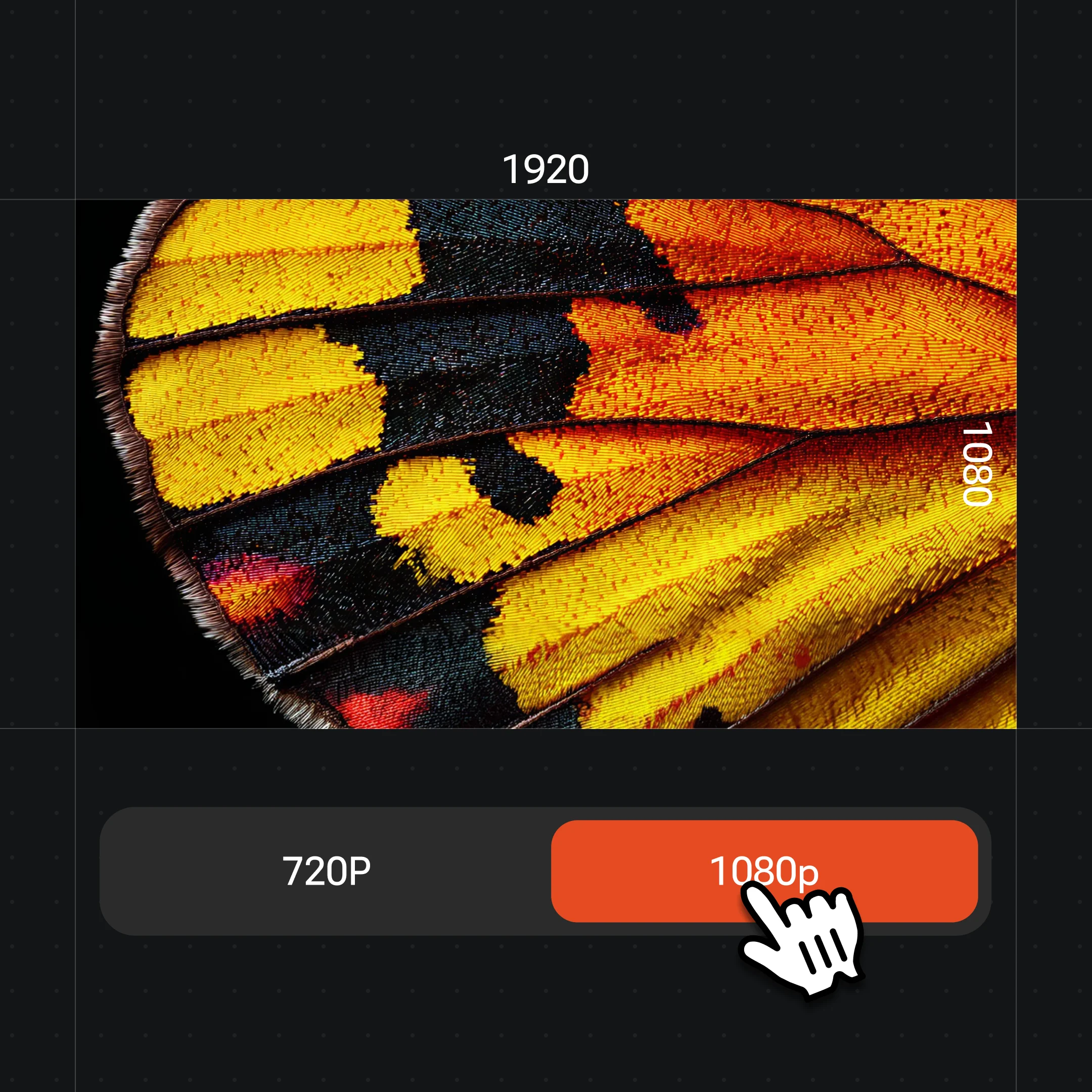
Generate, check the subject edges against the original, then export at up to 4K.
Subjects isolated onto a clean backdrop — the model re-renders the backdrop around the subject for listing-ready shots.
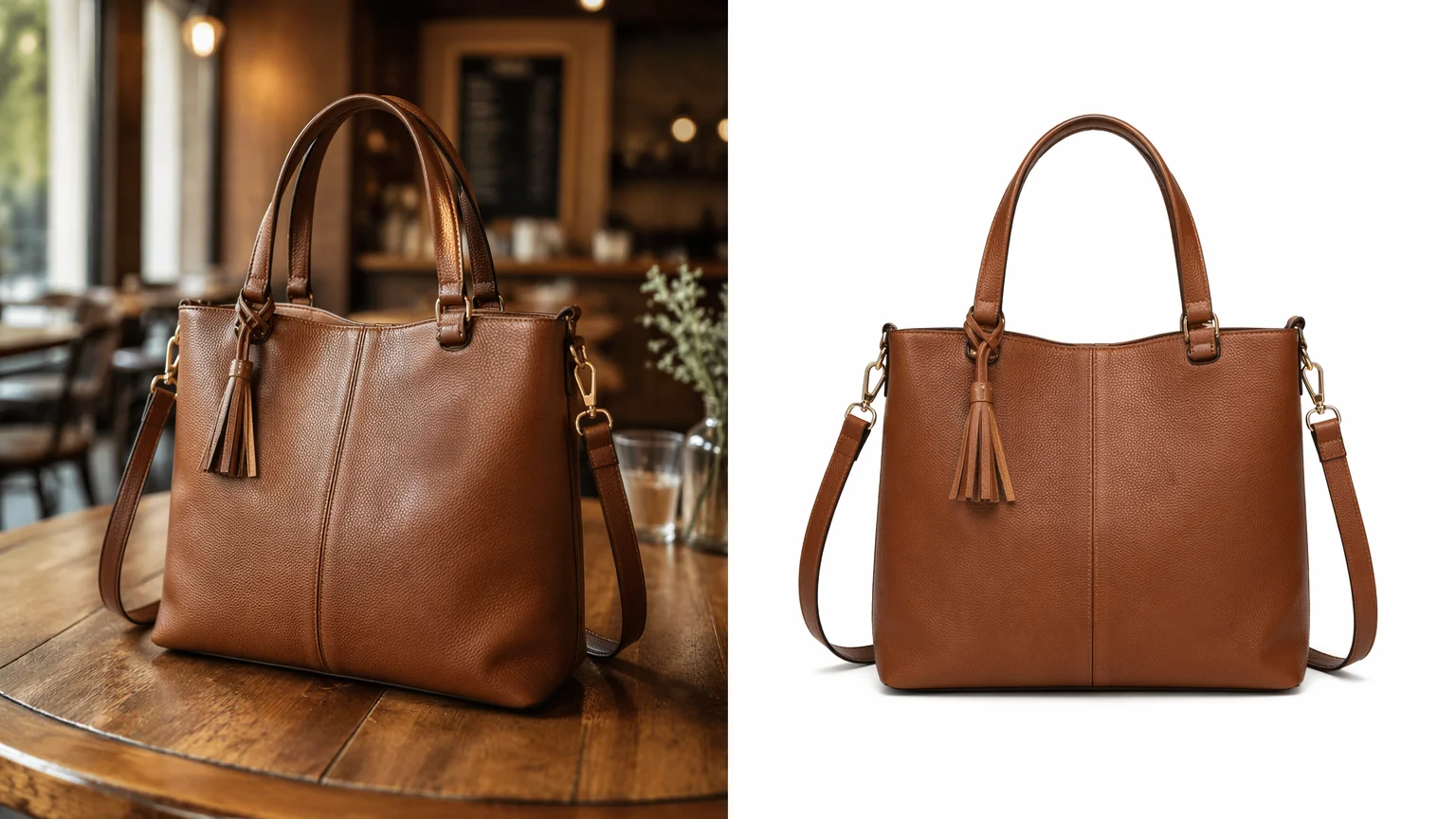
Lift a product off a busy scene onto plain white for a marketplace listing.
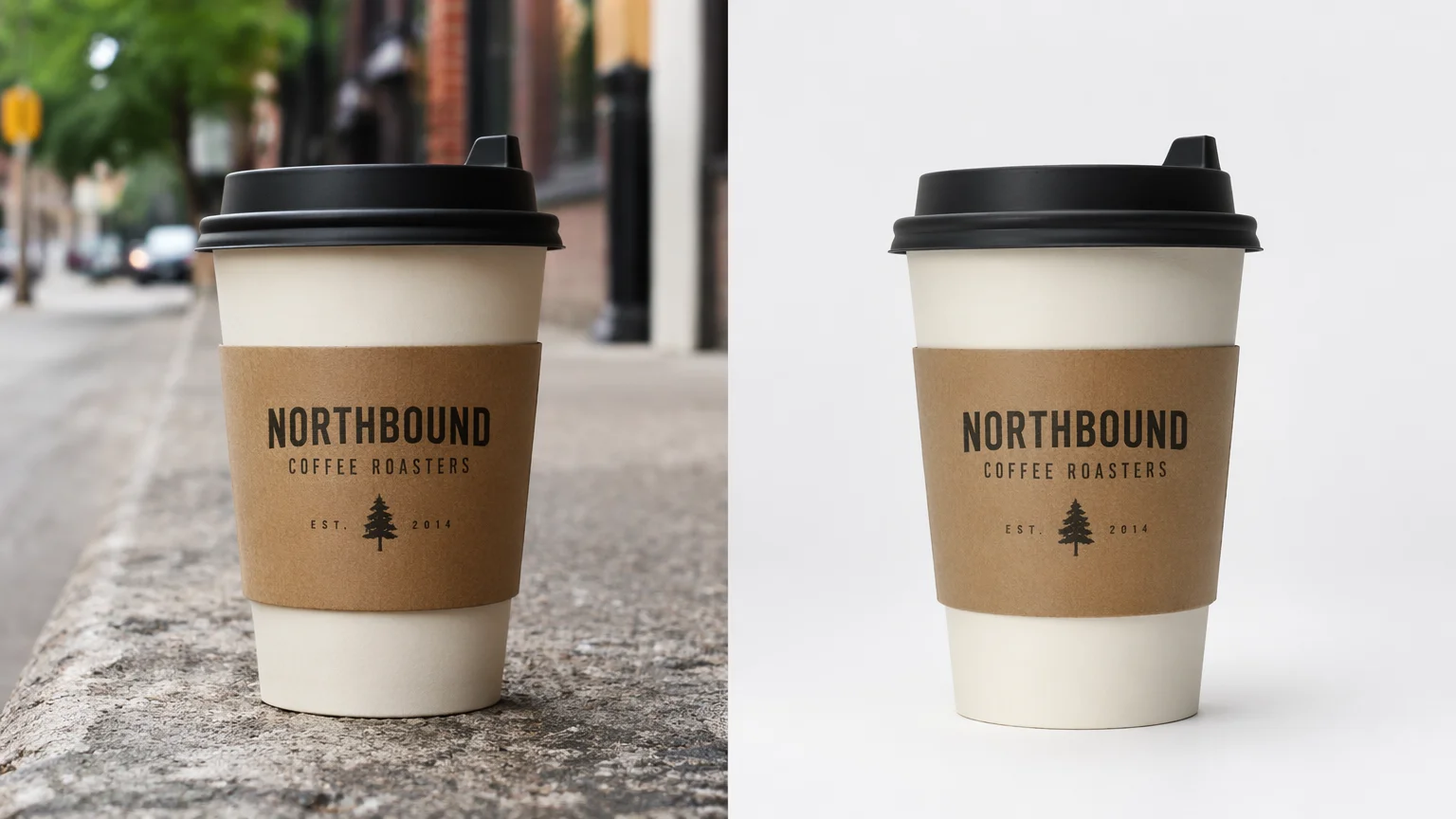
A clean grey or flat-color backdrop for a consistent catalog grid.
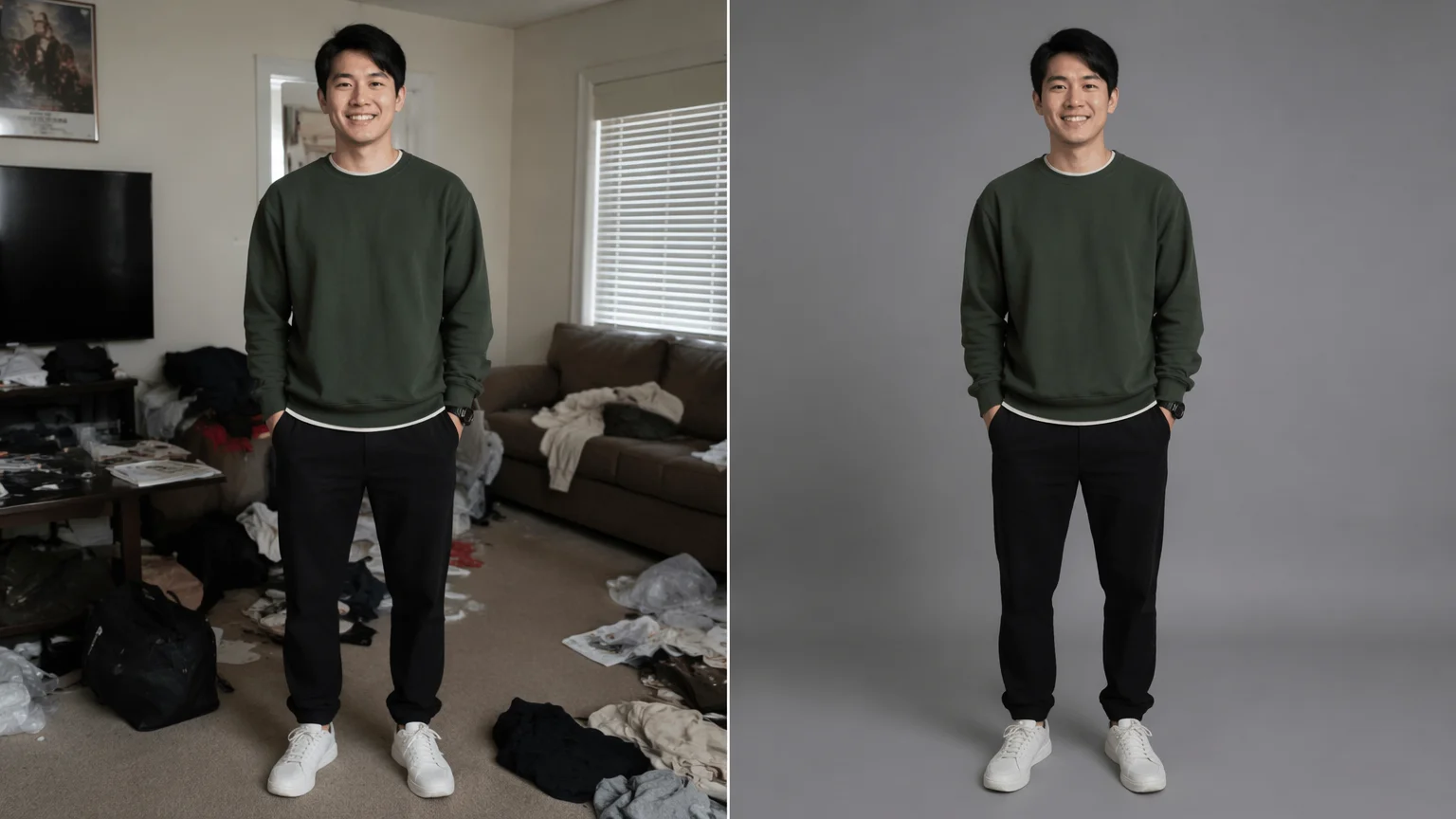
Isolate a person onto a clean studio backdrop for a profile or bio shot.
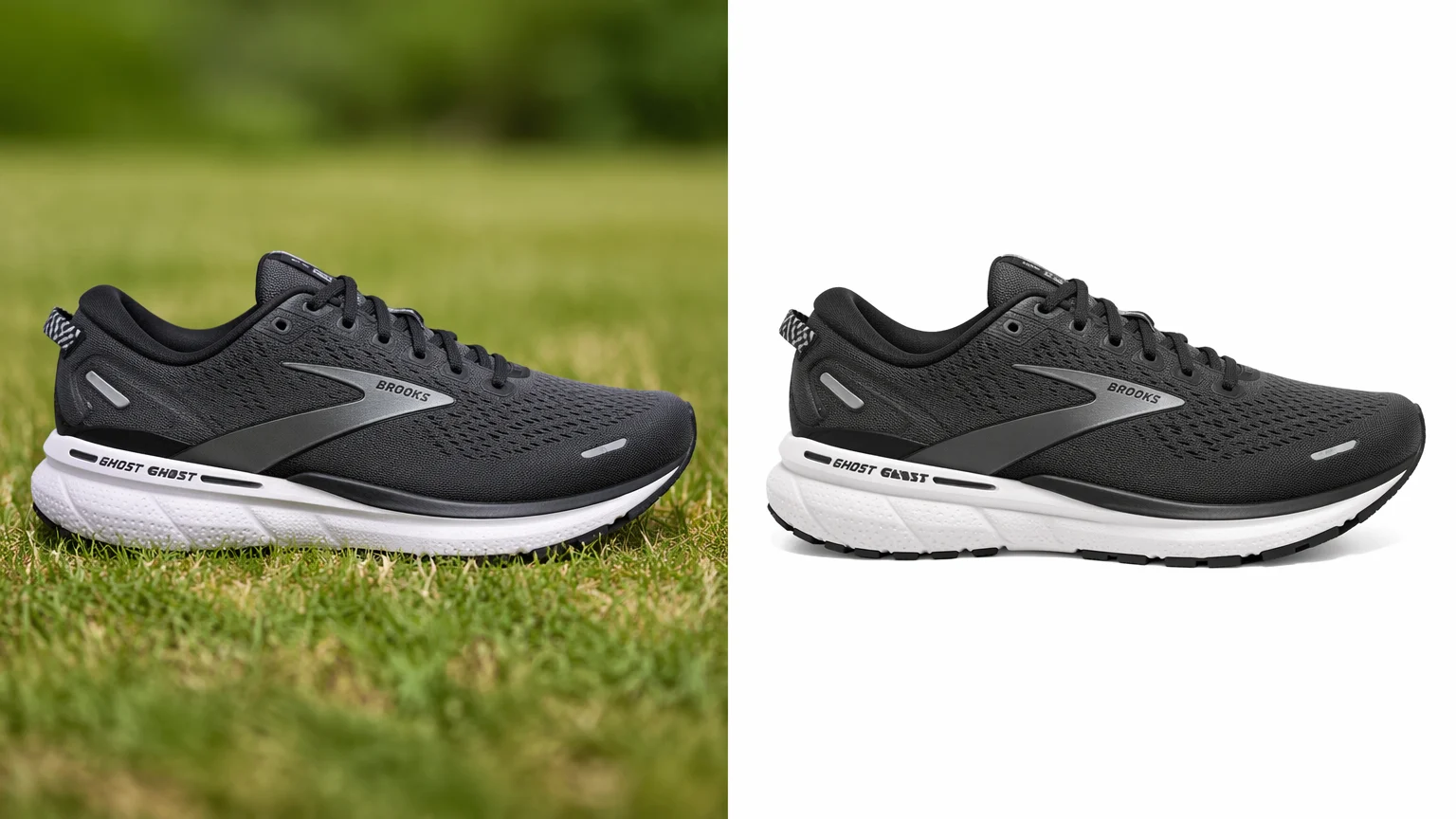
Strip the background from a small object so it sits cleanly on a flat color.
Both live in the same Renoise canvas — pick by what the shot needs. Nano Banana Pro for photoreal subjects and lighting; GPT Image 2 when the brief is precise or you fuse several reference images.
| For isolate / replace | Nano Banana Pro (Recommended) | GPT Image 2 |
|---|---|---|
| Best for | Photoreal subjects and lighting | Precise, instruction-heavy briefs |
| Edge handling | Best | Good |
| Reference images | Image-to-image | Up to 16 |
| Up to 4K export | ✓ | ✓ |
| Same canvas | ✓ | ✓ |
These are two different jobs, and it is worth knowing which one you need. Removing a background is subtractive: you isolate the subject and put it on a clean, neutral backdrop — plain white, grey, or a flat color — the staple of a marketplace listing or a catalog grid. Replacing a background is additive: you keep the subject but drop in a whole new scene, a lifestyle table, a seasonal set, a branded studio. If a new scene is what you are after, that lives on the background generator guide, not here.
How Renoise does the removal matters too. There is no dedicated alpha-matte tool. Instead, Nano Banana Pro and GPT Image 2 re-render the image as image-to-image: you prompt "isolate the subject, replace the background with clean white", and the model rebuilds a clean backdrop around the subject. For a solid-color or simple replaced backdrop, this works well and reads as a clean, professional shot. The limitation is the flip side of being generative: it is not a pixel-perfect cutout, so it will not hand you a guaranteed transparent-PNG edge around fine hair or fur the way a dedicated matting tool aims to. For most product and portrait work on a solid backdrop, that trade is well worth the speed and the single-canvas workflow.
Background removal leans on a few things — Renoise gives you Nano Banana Pro, GPT Image 2, and other image models in one canvas.
Re-renders photoreal subjects and lighting so the isolated shot reads clean.
Tight instruction following for precise briefs; fuses up to 16 reference images.
Export listing-ready images at 1K, 2K, or 4K — watermark-free on paid plans.
Need a lifestyle or seasonal backdrop instead? Swap in a new scene on the same canvas.
One plan unlocks Nano Banana Pro, GPT Image 2, and every other image model.
For first-time AI content creators
Billed $168 annually
Upgrade PlanSave $72/year
For creators shipping content every week.
Billed $504 annually
Upgrade PlanSave $216/year
For studios and pros producing at commercial scale.
Billed $1680 annually
Upgrade PlanSave $720/year
For first-time AI content creators
Billed monthly
Upgrade PlanFor creators shipping content every week.
Billed monthly
Upgrade PlanFor studios and pros producing at commercial scale.
Billed monthly
Upgrade PlanRenews automatically each year until canceled.
Renews automatically each month until canceled.
Isolate the subject onto a clean backdrop — watermark-free exports on paid plans.
You upload the image and an image model re-renders it, isolating the subject and rebuilding a clean backdrop around it. In Renoise this runs on Nano Banana Pro or GPT Image 2 — it is generative re-render, so the backdrop is rebuilt rather than matted out pixel-for-pixel.
No. Renoise removes backgrounds by generative re-render, not alpha matting, so it will not guarantee a perfect transparent-PNG edge around fine hair or fur. For a clean solid-color or replaced backdrop it works well, which covers most product and portrait listing needs.
Removing isolates the subject onto a clean, neutral backdrop — plain white, grey, or a flat color. Changing keeps the subject but drops in a whole new scene, like a lifestyle or seasonal set. For a new scene, use the background generator guide instead of this one.
Yes. Prompt "isolate the product, replace the background with clean white" and the model rebuilds a clean backdrop around it — the marketplace staple. Check each marketplace's image rules, since some require a specific plain background.
Nano Banana Pro for most shots — it re-renders photoreal subjects and lighting so the isolated image reads clean. Switch to GPT Image 2 when the brief is precise or you fuse several reference images. Both live in the same canvas.
Yes. The isolated image stays on the Canvas, so you can swap in a new scene, upscale it, or animate it into a video with another model — no re-upload, no switching tools.
Up to 4K for images. Choose 1K for web thumbnails, 2K for most listings, or 4K for banners and large display. Exports are watermark-free on paid plans.