Native lipsync — no editing
Kling 3.0 Omni syncs audio to mouth movement in a single generation pass — no manual keyframing or post-editing required.
Upload a face and audio — Kling 3.0 Omni syncs them into a video.
Upload a reference face photo and an audio track into Renoise Canvas, write a prompt describing the performance, and render on Kling 3.0 Omni — its native lipsync maps the audio to mouth movement in one step. For any real public figure's likeness, FacePass clearance with their written consent is required before the model will generate.
Want a still photo to speak a script instead of sing? See the AI talking photo guide
Kling 3.0 Omni native lipsync — key facts before you start.
Kling 3.0 Omni syncs audio to mouth movement in a single generation pass — no manual keyframing or post-editing required.
Each lip sync generation produces a 3–15 second clip. Generated video clips can be edited and trimmed directly in Renoise.
Attach a spoken voice track or a music audio file — Kling 3.0 Omni reads phonemes and drives mouth shapes for both.
To sync a real person's likeness — including any public figure — FacePass clearance with their written consent is required first.
From a reference face and audio to a synced performance — all inside Renoise Canvas. Demonstrated here with original fictional characters.
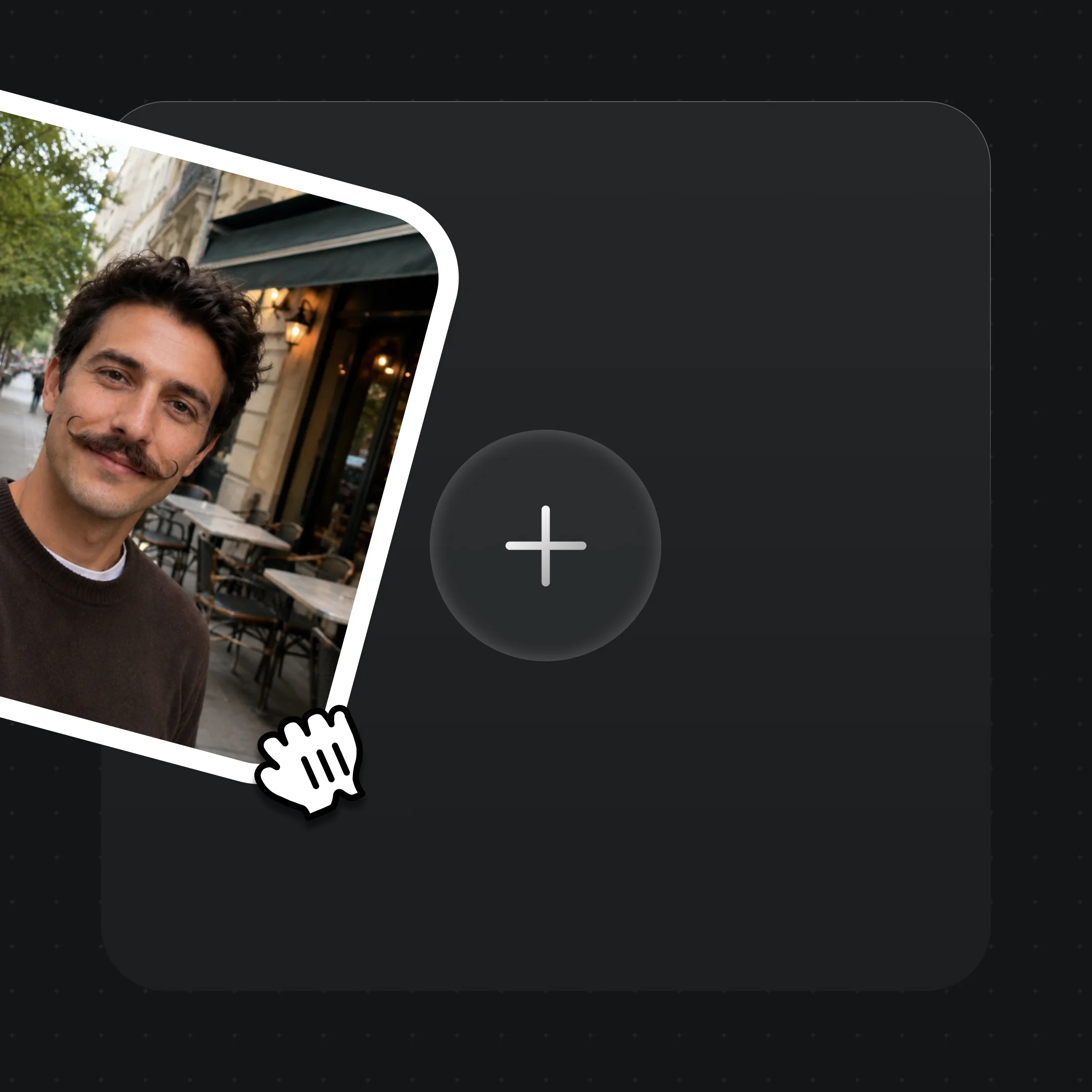
Drag a clear front-facing reference photo and your audio track onto Canvas. For a real person, complete FacePass clearance first.
Describe the setting, emotion, and style — "singer on a neon stage, energetic pop performance, wide shot".
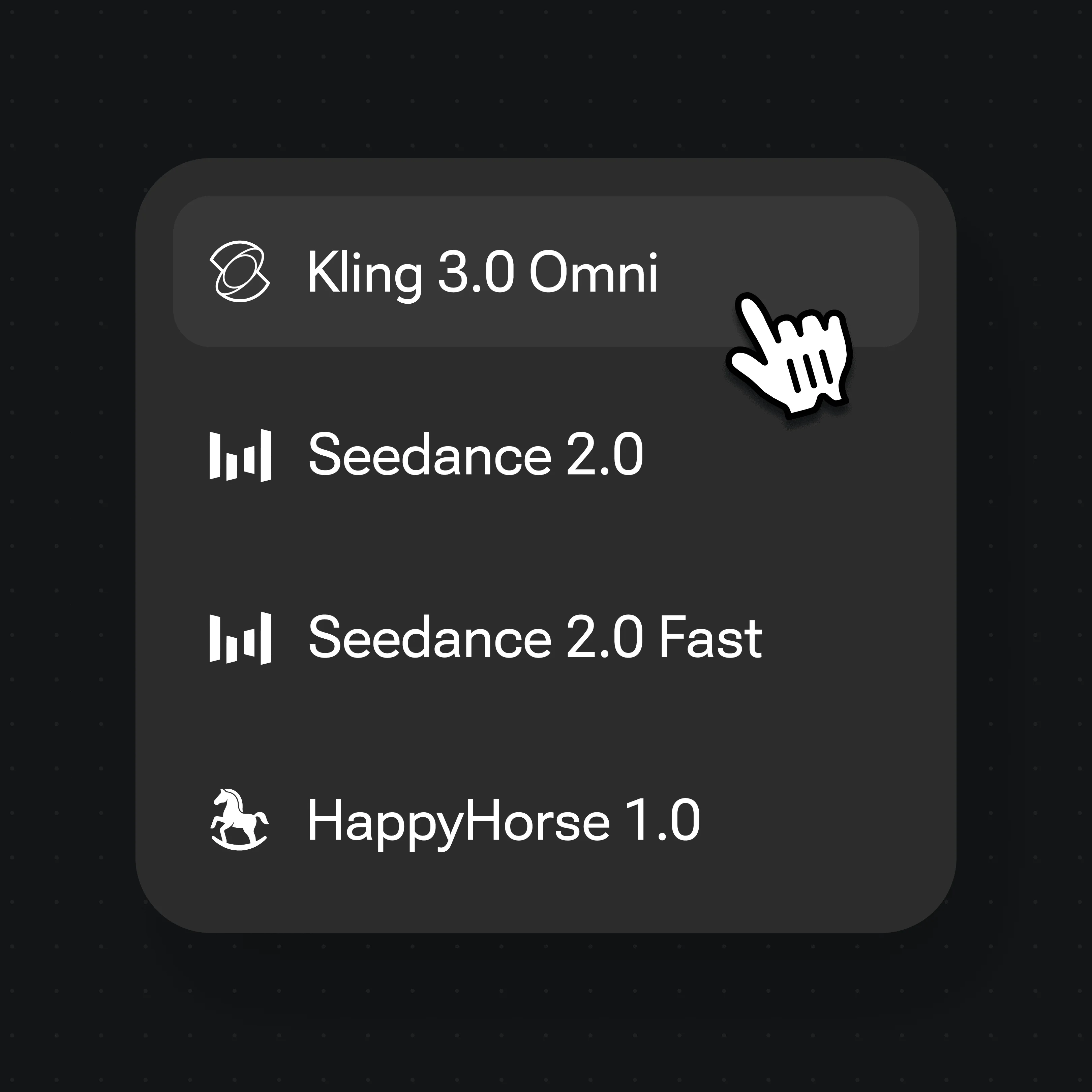
Pick Kling 3.0 Omni from the model menu — it handles lipsync natively. Generate and export the synced clip.
Examples made with original fictional characters in Renoise — the same pipeline works for any authorized face and audio.
Original 3D-style singer character performing synced to music on a neon-lit stage
Original fictional presenter in cream blazer delivering synced speech in a studio setting
Original fictional chef character narrating in the kitchen with synced mouth movement
Original dark-fantasy warrior character delivering a synced speech in fire-lit atmosphere
Lip sync maps audio to mouth shapes. Every distinct sound in speech or song — a phoneme — has a corresponding visible mouth position, called a viseme. Kling 3.0 Omni, developed by Kuaishou, reads the audio you provide frame by frame and drives the jaw, lips, and cheeks to match those phoneme shapes. The result is a synchronized talking or singing clip generated directly from your reference face and audio in a single pass — no manual animation or post-processing step required.
The reference face anchors the identity: the model keeps the face consistent across the clip while only the speech animation changes. This is why a still portrait can become a performing singer or presenter — the face stays recognizable, the mouth and expression move.
For fictional characters, illustrated avatars, or AI-generated faces, this pipeline requires no extra steps. For any real, identifiable person — a public figure, a performer, anyone — Renoise requires FacePass clearance before the model will generate. FacePass is the authorized-likeness system: it records that you hold the rights or written consent to use that face for AI-generated video. Without FacePass clearance, the model blocks real human faces by default.
This means you cannot generate a real celebrity's lip sync video in Renoise simply by uploading their photo — that requires FacePass, which requires their written consent. You can however generate a lip sync video with your own face, a consenting subject you represent, or entirely original fictional characters. The demo examples on this page all use original fictional characters to illustrate the pipeline.
One plan unlocks Kling 3.0 Omni and every other video model.
For first-time AI content creators
Billed $168 annually
Upgrade PlanSave $72/year
For creators shipping content every week.
Billed $504 annually
Upgrade PlanSave $216/year
For studios and pros producing at commercial scale.
Billed $1680 annually
Upgrade PlanSave $720/year
For first-time AI content creators
Billed monthly
Upgrade PlanFor creators shipping content every week.
Billed monthly
Upgrade PlanFor studios and pros producing at commercial scale.
Billed monthly
Upgrade PlanRenews automatically each year until canceled.
Renews automatically each month until canceled.
Not without their written consent. Renoise's FacePass system requires likeness clearance for any real, identifiable person — including public figures and celebrities. Without clearance the model blocks real human faces by default. You can use your own face, a consenting subject you represent, or fully original fictional characters without FacePass.
Kling 3.0 Omni accepts standard audio tracks — spoken voice recordings and music files both work. Attach the audio file directly in Renoise Canvas alongside your reference face photo. The model reads phonemes from the audio regardless of language or whether the source is speech or song.
A single Kling 3.0 Omni generation produces a 3–15 second clip. Generated video clips can be edited and trimmed directly in Renoise.
A clear, front-facing portrait gives the best results. The face should be well-lit, unobstructed, and looking roughly toward the camera. Side angles, heavy shadows, or partial occlusion reduce lipsync quality because the model has less face geometry to anchor the mouth animation to.
No. Renoise's lip sync pipeline is a consented AI video generation tool — not an identity-fraud or impersonation tool. Real-face generation requires FacePass clearance with explicit written consent, making unauthorized impersonation of anyone not permitted by the platform.
Yes. Fictional or AI-generated faces have no FacePass requirement. Generate an original character, then use that same character as the reference face for lip sync. All demo examples on this page use this approach — original fictional characters only.
Kling 3.0 Omni, developed by Kuaishou, is the model that provides native lipsync in Renoise. "Native" means lipsync is built into the generation pipeline — you supply the face and audio and the synced video comes out in one pass, without a separate processing step.
The pipeline is identical — both use Kling 3.0 Omni native lipsync with a reference face and audio. The intent differs: a talking photo is typically a presenter or speaker delivering a script; celebrity lip sync refers to the performance / singing entertainment use case. See the AI talking photo guide for the presenter framing.