Pencil sketch
Graphite lines, soft tonal shading, and cross-hatching — the classic hand-drawn portrait look.
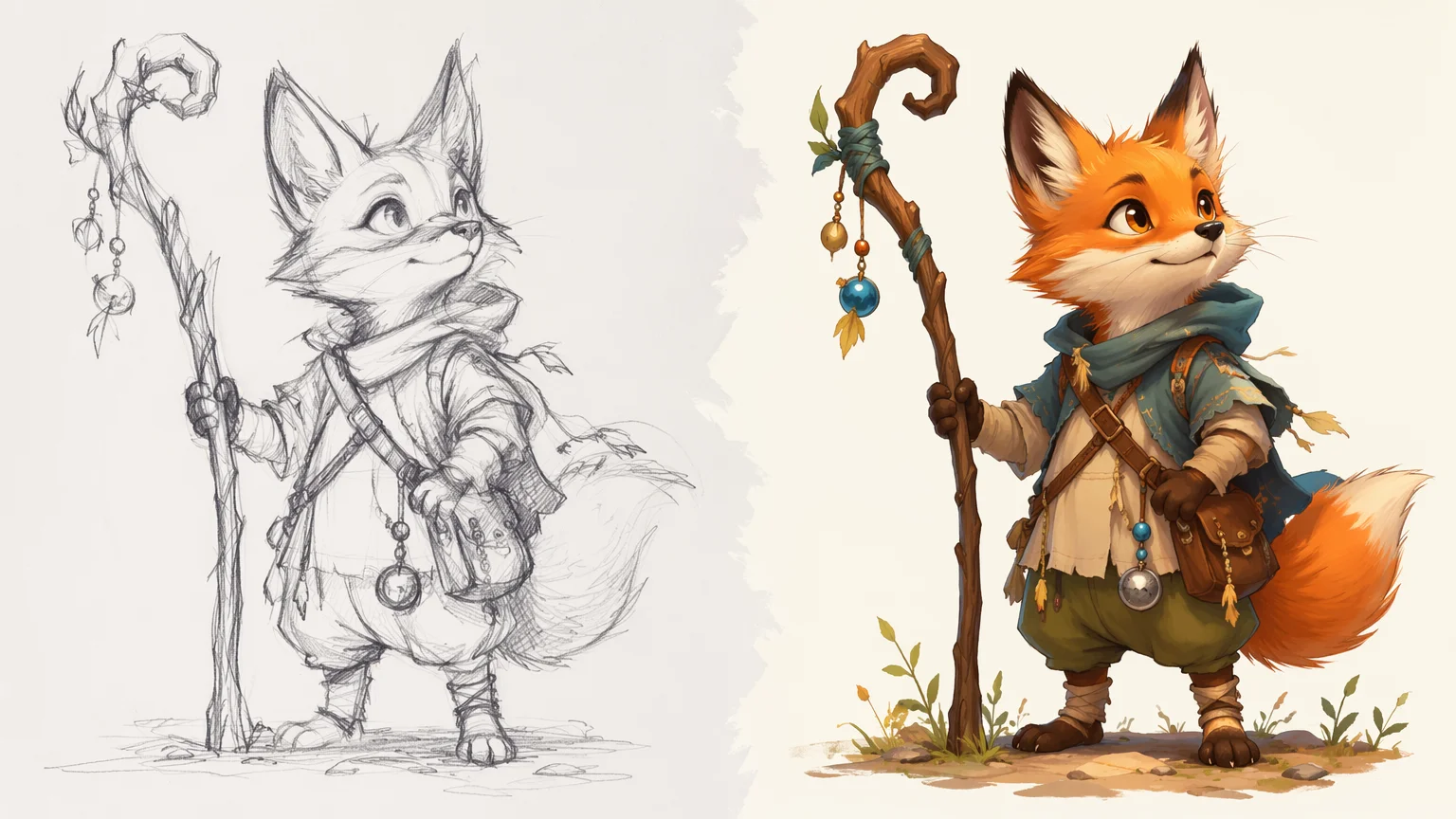
Upload a portrait and convert it to pencil sketch, charcoal, or ink.
Open Renoise Canvas, upload a portrait photo to the image card, and prompt the drawing style you want — "convert this portrait to a detailed pencil sketch with soft shading" or "charcoal rendering, high contrast". Select GPT Image 2 as the model. It reads the uploaded face and re-renders it in the target drawing medium, preserving structure while applying the drawn look.
For drawing from text prompts without a photo, see the AI Drawing guide. AI Drawing guide
Four distinct drawing looks, all achievable by prompting GPT Image 2 in Renoise.
Graphite lines, soft tonal shading, and cross-hatching — the classic hand-drawn portrait look.
Bold smudged shadows and high contrast — charcoal gives faces dramatic depth and texture.
Clean bold lines with minimal shading — a crisp editorial line art look drawn in black ink.
Delicate pencil linework with a soft watercolor wash — painterly and artistic portrait drawings.
Upload any portrait, describe the drawing style, and download the result.
Drag a portrait photo onto the Canvas upload card as a reference image for GPT Image 2.
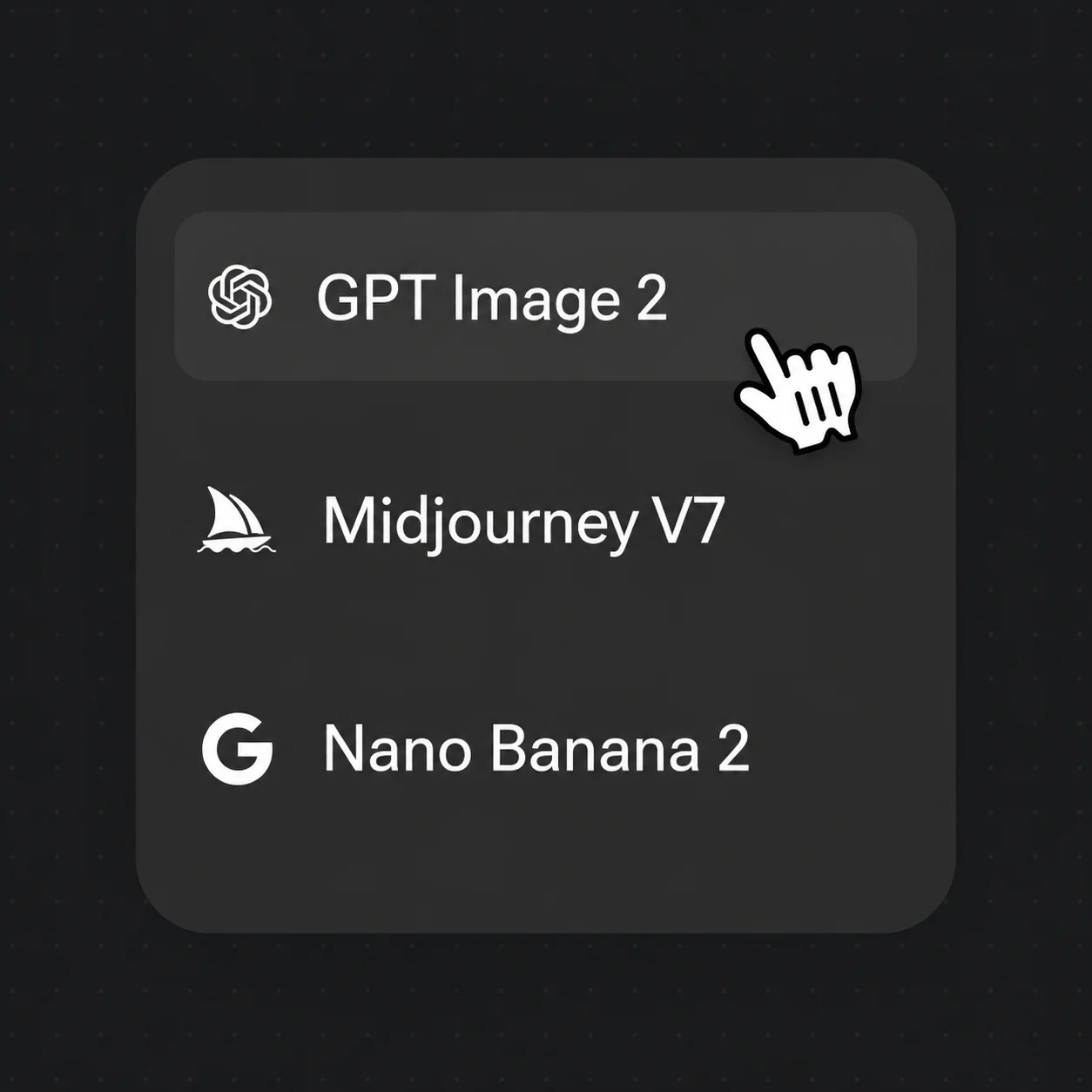
Prompt the medium: "convert to pencil sketch, soft shading" or "charcoal rendering, dramatic shadows". Select GPT Image 2.
Generate, refine the prompt if needed, and download the finished drawing — watermark-free on paid plans.
Pencil sketch, charcoal, ink, and watercolor-pencil — all from a single portrait upload in Renoise.
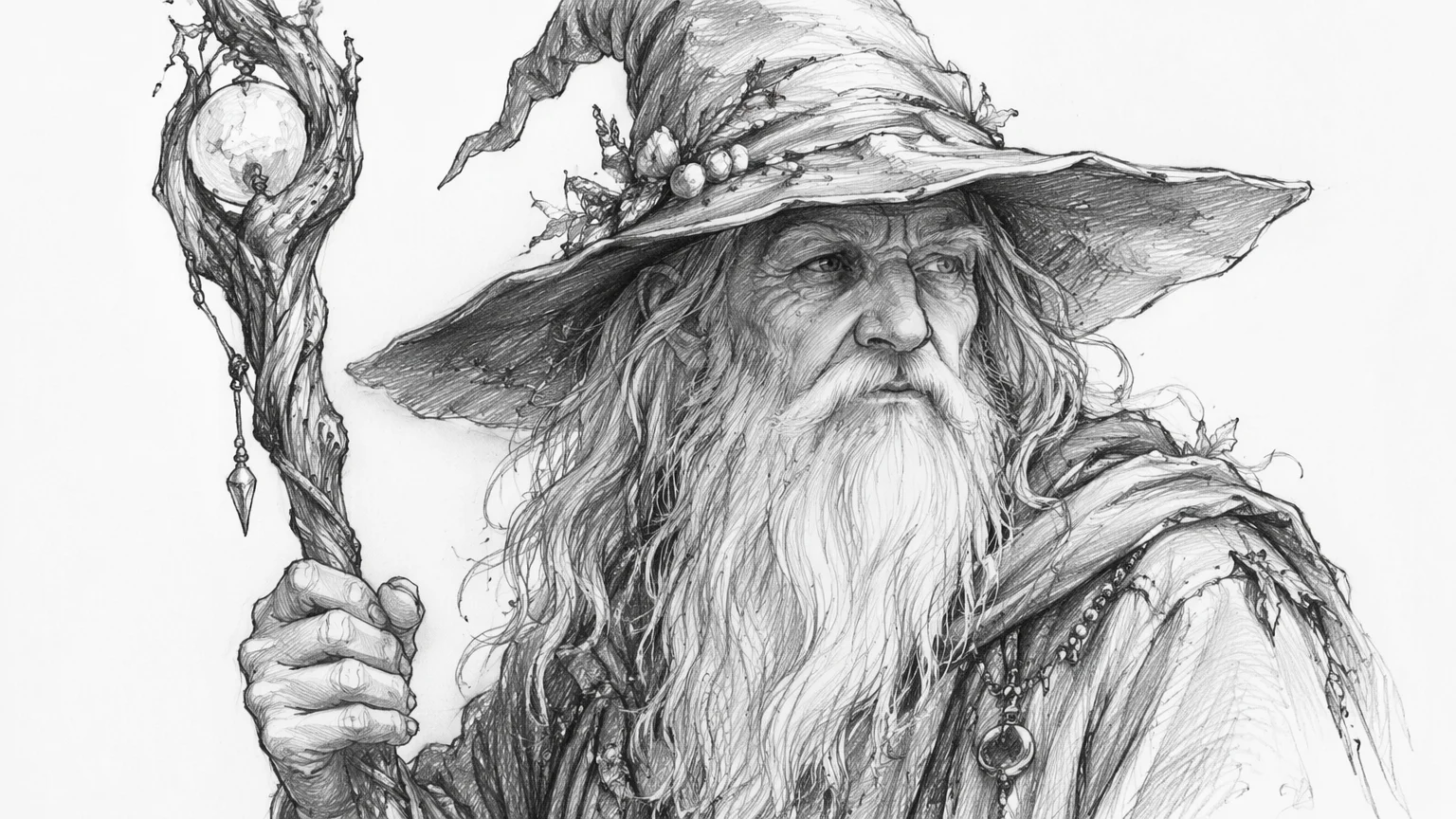
Cross-hatching shadows and soft graphite shading on an original fictional face.
Deep smudged shadows and dramatic contrast in a charcoal portrait drawing style.
Bold clean lines with minimal shading — an editorial ink illustration of a face.
Soft pencil linework combined with a light watercolor wash for a painterly result.
Each drawing medium creates a different visual mood, and choosing the right one comes down to the level of contrast, texture, and finish you want.
A pencil sketch is the most versatile and naturalistic option. Graphite renders fine tonal gradations — soft shadows built up through cross-hatching, delicate highlights, and the slight imprecision that reads as hand-drawn warmth. Prompt it with "pencil sketch, graphite, soft shading, cross-hatching shadows" and GPT Image 2 will preserve facial structure while converting the photo into drawn marks. This style works for both casual portraits and more detailed, realist approaches.
Charcoal rendering pushes contrast and texture further. Charcoal drawings are defined by deep smudged shadows, strong dark-to-light transitions, and a granular mark quality that feels expressive and dramatic. Use "charcoal rendering, rich blacks, smudged shadows, high contrast" for a bold portrait drawing. Ink illustration takes a different approach: the emphasis is on clean, confident line art rather than tonal shading. Ink is the right choice when you want a crisp editorial look — "ink illustration, bold lines, minimal shading, line art" produces this in Renoise.
A watercolor-pencil hybrid blends pencil linework with a soft translucent color wash — delicate and artistic. Try "watercolor-pencil, light wash, sketch lines, soft color" for a gentler, illustrated result.
In Renoise, all four styles run through GPT Image 2 on the same Canvas — upload the portrait, name the drawing medium explicitly in the prompt, and generate.
One plan unlocks GPT Image 2, Nano Banana Pro, and every other image model.
For first-time AI content creators
Billed $168 annually
Upgrade PlanSave $72/year
For creators shipping content every week.
Billed $504 annually
Upgrade PlanSave $216/year
For studios and pros producing at commercial scale.
Billed $1680 annually
Upgrade PlanSave $720/year
For first-time AI content creators
Billed monthly
Upgrade PlanFor creators shipping content every week.
Billed monthly
Upgrade PlanFor studios and pros producing at commercial scale.
Billed monthly
Upgrade PlanRenews automatically each year until canceled.
Renews automatically each month until canceled.
Upload a face photo, name a drawing style, and download the result. Watermark-free on paid plans.
Upload the portrait photo to Renoise Canvas as a reference image, then prompt GPT Image 2 with the drawing style — for example, "convert this portrait to a detailed pencil sketch with soft shading". Generate, and the model converts the photo into a drawn version while preserving the face's structure and proportions.
Pencil sketch, charcoal rendering, ink illustration, and watercolor-pencil hybrid are the four main options. Each is produced by prompting the medium explicitly — "pencil sketch, cross-hatching" or "charcoal rendering, smudged shadows". GPT Image 2 applies the correct drawing marks and tonal language for each style.
GPT Image 2, developed by OpenAI, is the model used in Renoise for photo-to-drawing conversion. Its image-to-image editing reads an uploaded portrait and re-renders it in the target drawing medium based on your prompt instructions.
Name the medium explicitly and describe the tonal approach: "convert this portrait to a detailed pencil sketch, soft graphite shading, cross-hatching on the shadows". Adding descriptors like "fine linework", "realistic proportions", or "light highlights" helps the model calibrate the level of detail. Avoid vague words like "artistic" on their own — name the specific drawing medium instead.
Yes. GPT Image 2's image-to-image mode uses the uploaded photo as structural guidance — it preserves facial proportions, features, and expression while converting the rendering to the drawn style. The result looks like the same face drawn by hand in the medium you specified.
Any well-lit portrait photo with a visible face works. Front-facing or three-quarter-angle shots with clear facial features produce the best results. Very low-resolution, heavily blurred, or obscured faces give GPT Image 2 less to work from and may produce less detailed drawings.
The AI Drawing guide covers generating drawings from text prompts and refining rough sketches into finished images. This guide is specifically about uploading a portrait photo and converting it into a drawing style — photo in, drawing out. The two approaches can also be combined: start with a photo conversion, then refine it further with a follow-up prompt.
Renoise provides watermark-free exports on paid plans suitable for commercial use. Verify the applicable license for GPT Image 2 outputs for your specific use case. Keep the source portrait original — avoid converting photos of real public figures without appropriate permissions.