Tourists at the landmark
The shot you waited for, with six strangers walking through it — the most common reason by far.
Upload the photo, brush over the people you want gone, and AI rebuilds what was behind them from the surrounding scene. Everything you do not paint stays untouched.
Follow us and get 20 free credits — about 2 images
For photos you own or are licensed to edit.
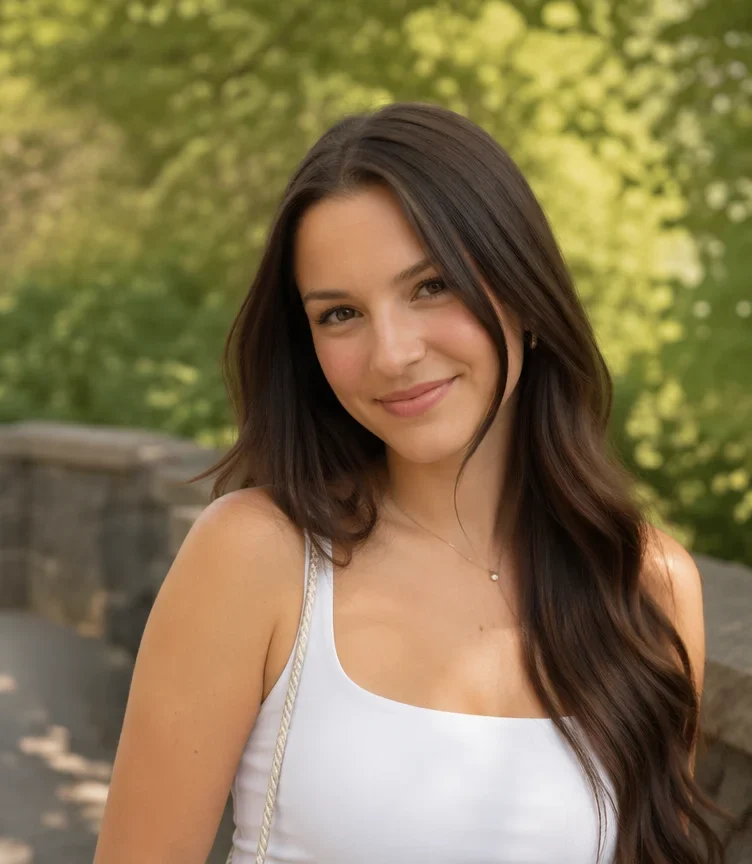
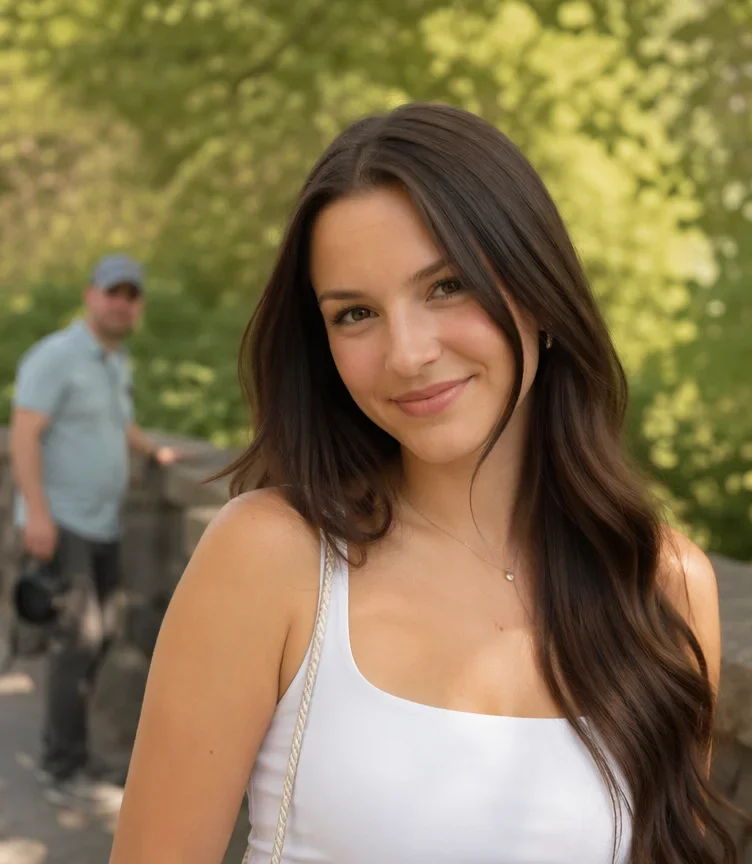
Our own before/after test — the subject is untouched. Drag the handle to compare.
Subscribe for more credits and more models.
Upload the photo above, paint over the people you want gone with the brush, and generate. In about a minute AI re-renders only the painted area, rebuilding the sand, wall, pavement or sky that was behind them, and hands back the same photo minus the strangers. Nothing outside your brush strokes is touched, which is why the subject of the shot stays exactly as it was. Following us on X and YouTube earns 20 free credits and an edit here costs 8, so your first two are free; after that each edit is billed per image.
It is a thing rather than a person in the way? Use the AI object remover
The four cases that show up over and over.
The shot you waited for, with six strangers walking through it — the most common reason by far.
One person in the background of an otherwise good picture of someone you love.
An ex, a former colleague, a stranger holding a phone — the rest of the photo is worth keeping.
A room, a car or a product photo with people wandering through the background.
No prompt to write — the brush is the instruction.
Drop in the original at full size; a bigger file gives the model more surrounding detail to rebuild from.
Brush over each person plus their shadow and a little margin. Miss the shadow and it stays behind.
Compare with the slider. Painted areas are rebuilt; everything else is your original, pixel for pixel.
It is generative fill, not magic: what matters is how much of the frame the person covers and what they were standing in front of. Tested on our own photos.
| The person you want gone | Expected result | What to do |
|---|---|---|
| Small figure on sand, grass, water or sky | Best case — disappears without a trace | Paint the figure and its shadow, nothing more |
| Stranger in a blurred background | Very good — soft backgrounds are easy to rebuild | A generous brush is fine here |
| Person standing in front of a pattern or railing | Mixed — repeating lines can be rebuilt slightly out of alignment | Paint tightly; run a second pass on any leftover kink |
| Person overlapping your main subject | Risky — the overlap has to be invented, including limbs and hair edges | Crop instead if the overlap is large |
| Large foreground person, a third of the frame or more | The whole area behind them is invented — plausible, but not what was there | Accept an invented background or reframe the photo |
| A crowd of a dozen people | Works in passes rather than one go | Remove the nearest few first, then re-run on the rest |
Real erase results from our own tests, on the same surface this page runs.
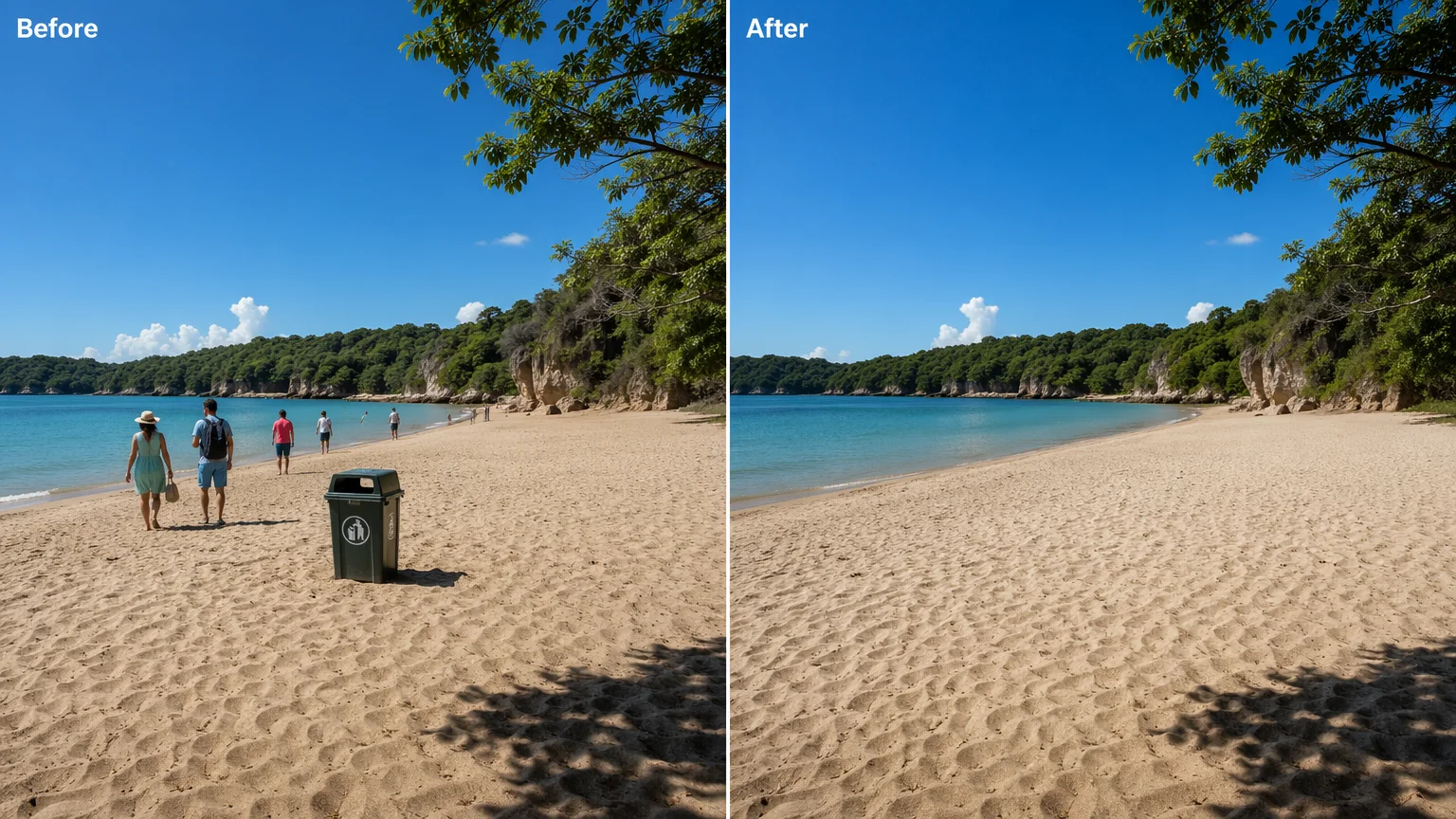
Walkers along the shoreline and a bin removed; the sand, surf and treeline are rebuilt.
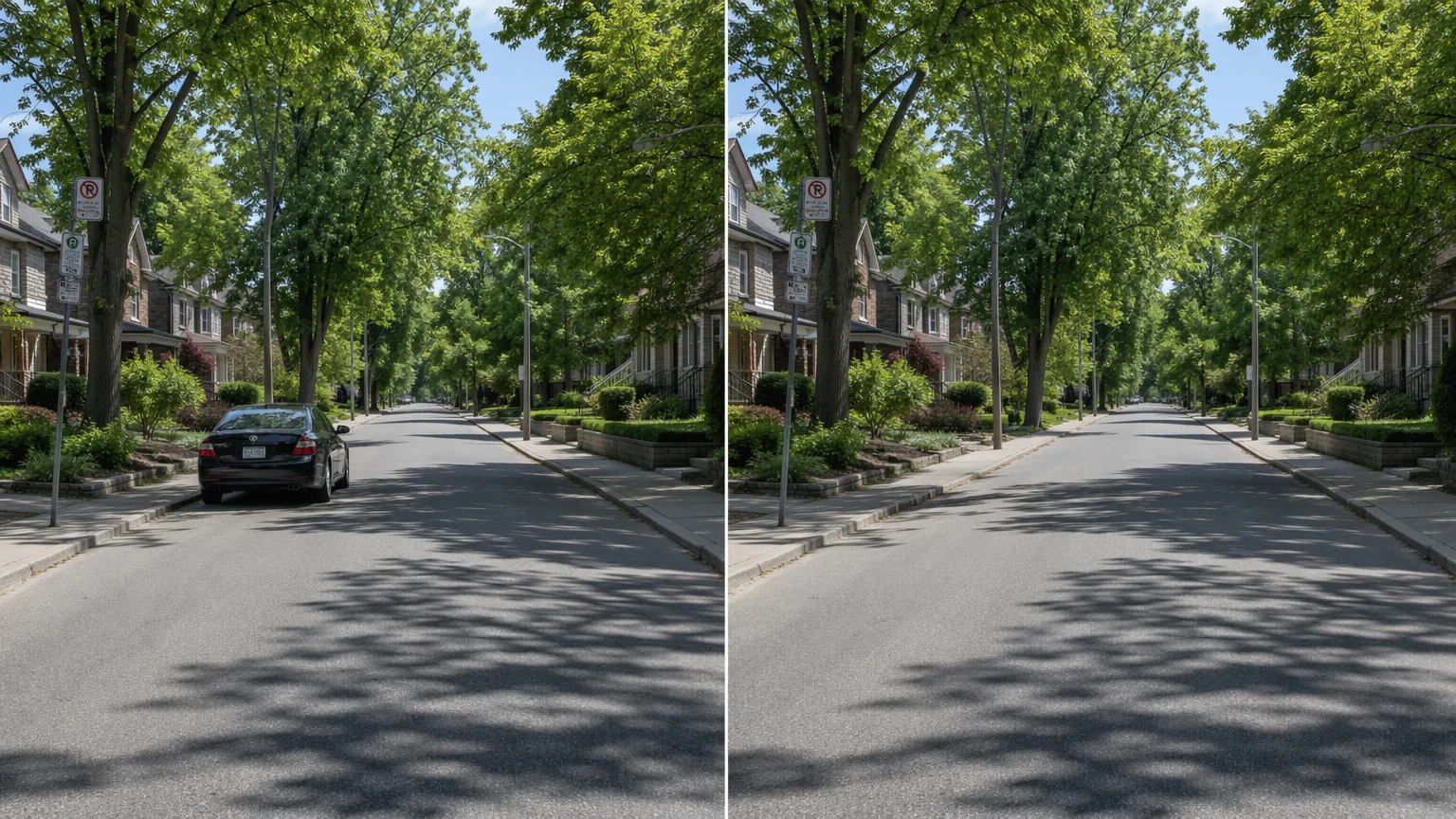
The same brush removes objects too — a parked car, a sign, a cable.
Two things happen when you brush over someone. Your strokes become an alpha mask, and the photo plus that mask go to the erase surface on GPT Image 2, which re-renders only the masked region and composites it back into your original. Everything outside the brush is your file, unchanged — that is the difference between an erase tool and asking an image model to "remove the people", which we tested on 2026-08-13: a plain image-to-image pass came back as a different beach with a different composition, because generative models rewrite what they cannot be told to leave alone. The mask is what makes the promise on this page keepable.
What the model does inside the mask is invent. It looks at the pixels around the hole and continues them: more sand, more wall, more foliage, a plausible continuation of the railing. For a person standing on a beach that is trivially easy and the result is indistinguishable. For a person standing in front of a bookcase, a face, or a repeating tiled pattern, the continuation is a guess, and a guess can be a beat out of alignment. This is why the size and position of the person matter more than the resolution of your photo — and why painting the shadow is not optional. A removed body with its shadow still on the sand is the single most common way one of these edits gives itself away.
Practical workflow: work at full resolution, paint tightly rather than generously when the background has structure, and treat a crowd as several passes instead of one enormous mask. Each pass costs 8 credits, so it pays to plan where the passes fall rather than retrying blindly. When the photo is clean, it stays in the Renoise Canvas — you can enhance it, upscale it, change the background entirely, or animate it from there.
The honest answer to "what should I use" is not always this page, so here is the comparison people are actually making.
Your phone first. iPhone Clean Up (Photos app, on supported models) and Google Photos Magic Eraser both remove small background people well, they are already on the device, and they are free with the photo in hand. If you are standing on the beach with one stranger in the shot, use them — nothing on the web is going to beat "tap, done". Their limits show up with bigger removals, with a crowd, and with judgement calls: the phone decides how big your brush is and gives you one result.
Photoshop is the other end. Content-Aware Fill and Generative Fill with a manual selection give you total control, layers to fall back on, and the ability to fix a misaligned railing by hand. It costs a subscription and the skill, and for one holiday photo it is a lot of tool.
A browser tool like this one is for the middle: a desktop screen where you can see what you are painting, the original file at full resolution rather than a phone copy, several photos in a row, nothing to install, and the same edit available on a laptop that has no Photos app. That is also why the searches around this include "app to remove people from photo" at the highest cost-per-click in the cluster — a lot of people specifically do not want another app.
And ChatGPT? It will happily hand you an image with the people gone, but it regenerates the whole picture: faces change, framing drifts, and you cannot compare it to your original because it is not your original any more. For anything you care about, use a masked erase.
What happens to a photo after you upload it:
Picking a file only previews it on your device. Not one byte is stored until you sign in and click generate.
Uploads land in your private library, never a public gallery, and re-running the same photo stores nothing new.
Remove uploads and results from your library whenever you want.
Credits work across every tool — upscaling, image editing and the video models.
For first-time AI content creators
Billed $168 annually
Upgrade PlanSave $72/year
For creators shipping content every week.
Billed $504 annually
Upgrade PlanSave $216/year
For studios and pros producing at commercial scale.
Billed $1680 annually
Upgrade PlanSave $720/year
For first-time AI content creators
Billed monthly
Upgrade PlanFor creators shipping content every week.
Billed monthly
Upgrade PlanFor studios and pros producing at commercial scale.
Billed monthly
Upgrade PlanRenews automatically each year until canceled.
Renews automatically each month until canceled.
Erase the strangers here, then enhance, upscale or animate the clean photo in the Renoise Canvas.
Following us on X and YouTube earns 20 free credits. An erase here costs 8 credits, so your first two edits are free. After that each edit is billed per image — there is no free plan, and no subscription is needed to spend the credits you were given.
Open the photo in the Photos app, tap Edit and use Clean Up (on supported models), then brush over the person. For a small background figure that is the fastest route and you should use it. This page is better for large removals, several photos in a row, or working on a desktop at full resolution.
Google Photos includes Magic Eraser and Apple includes Clean Up, both free with the app. On the web, tools give you a limited number of free edits — here it is the two that your free credits cover, with per-image billing afterwards.
It can produce an image without them, but it regenerates the entire picture, so faces and framing change. A masked erase only re-renders the area you paint, which is why your subject survives intact.
No. This runs in the browser on a desktop or a phone with nothing to install, which is exactly why "app to remove people from photo" is such a common search — plenty of people would rather not install one.
On plain backgrounds — sand, grass, sky, a painted wall — no. Structured backgrounds like railings, tiles or bookshelves can come back slightly misaligned, and forgetting to paint the shadow is what usually gives an edit away.
Yes, paint them all in one mask. For a crowd it works better in passes: remove the nearest few, then run the result again for the rest. Each pass costs 8 credits.
The erase gateway runs its own moderation and occasionally declines photos with people in them. Try painting a smaller area or a photo where the person is smaller in frame; if it keeps failing, the object remover and the background changer use different paths.
JPG, PNG and WebP up to 20MB, one photo and one mask per edit. The result keeps your original framing rather than being cropped square.
Only photos you own or are licensed to edit. This is a tool for cleaning up your own pictures — not for altering someone else’s photograph or misrepresenting what happened somewhere.