Watermark-free exports
Your own AI creations in Renoise export without a Renoise watermark on paid plans.
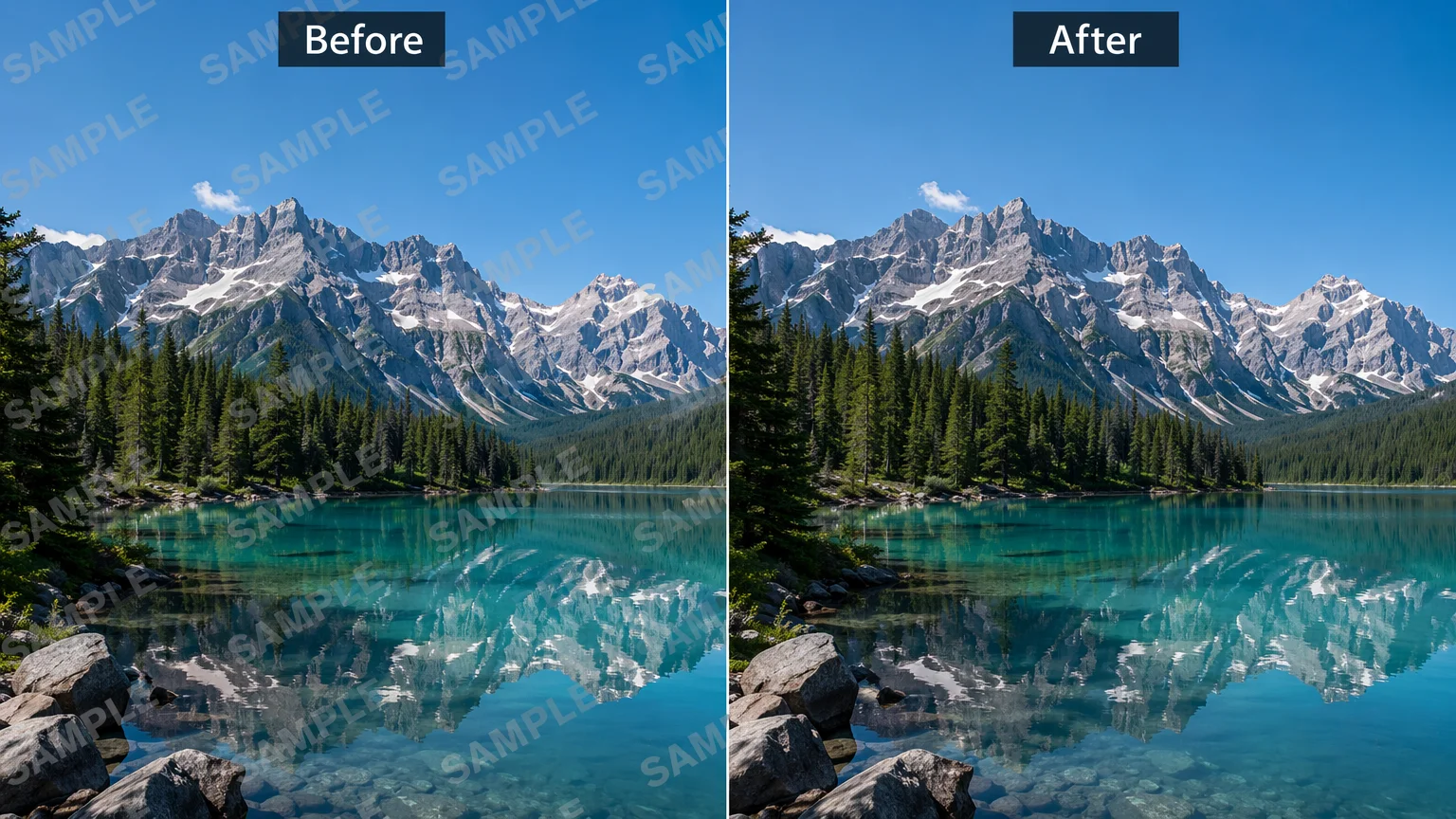
Export your own AI creations watermark-free, and rebuild a marked area on images you own.
AI does not lift a watermark off untouched pixels — it re-renders the marked region, rebuilding it from the surrounding image. In Renoise you do this on Nano Banana Pro by inpainting an area you own, and your own AI creations export watermark-free on paid plans. Only edit images you own or are licensed to edit.
Removing an unwanted object instead of a mark? See the object remover guide
What "AI watermark removal" actually means in Renoise — both rights-respecting.
Your own AI creations in Renoise export without a Renoise watermark on paid plans.
Inpaint a marked region you own — the model rebuilds it from surrounding context.
Only on images you own or are licensed to edit. Respect the rights holder.
For images you own or are licensed to edit — never someone else's copyrighted or stock photo.
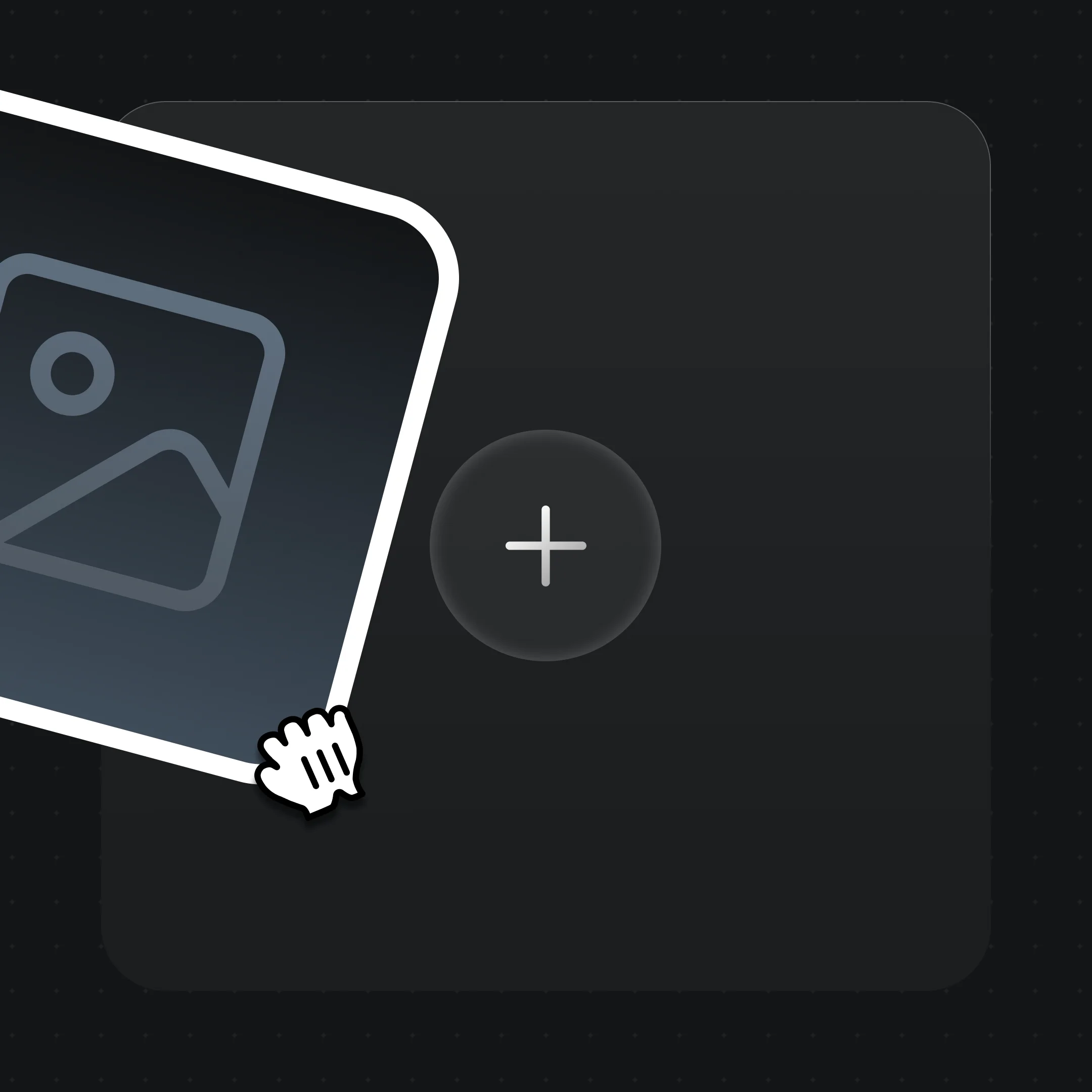
Drag an image you own onto the Renoise Canvas upload card so the model has the surrounding context.
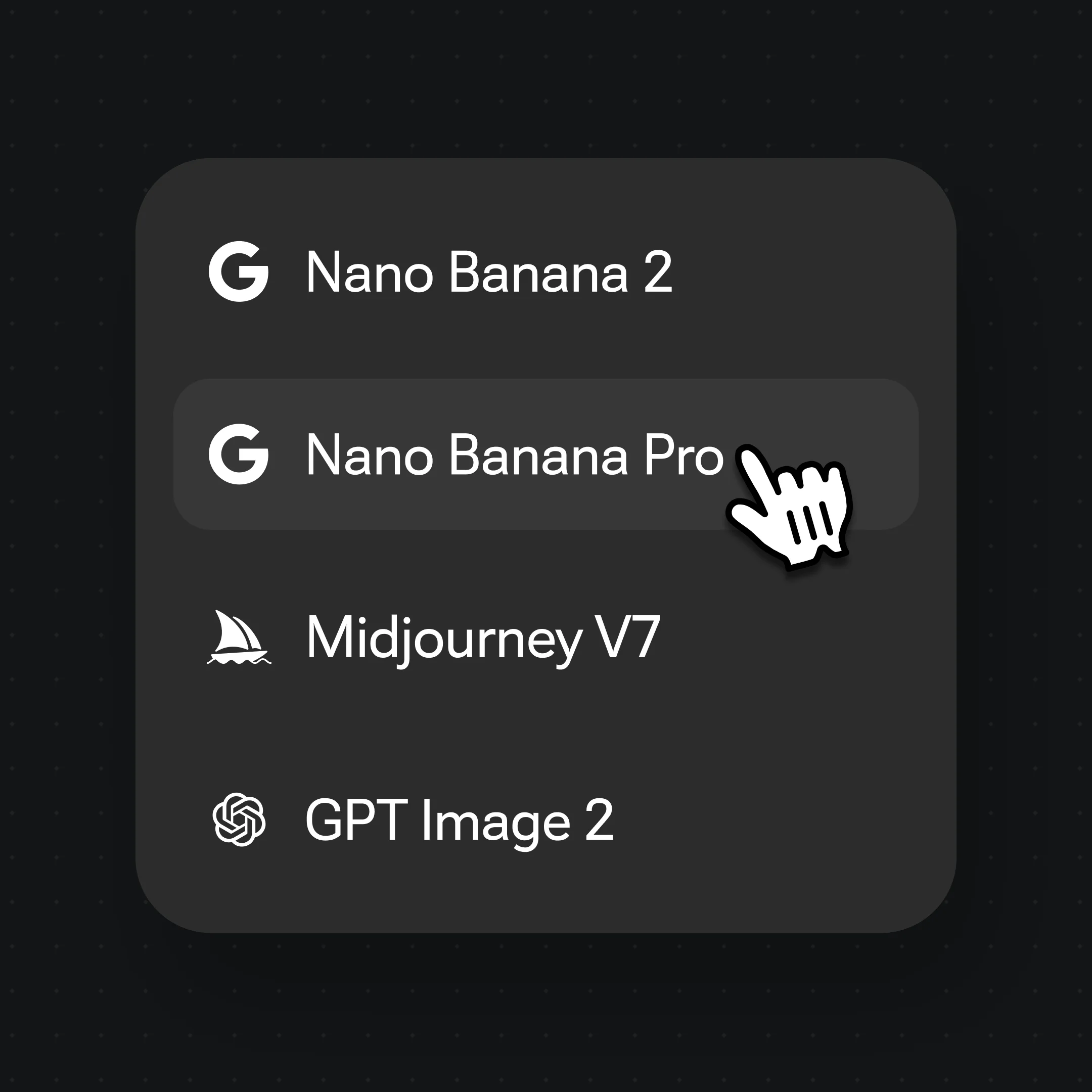
Choose Nano Banana Pro, mark the region, and prompt "rebuild this area to match the surrounding image".
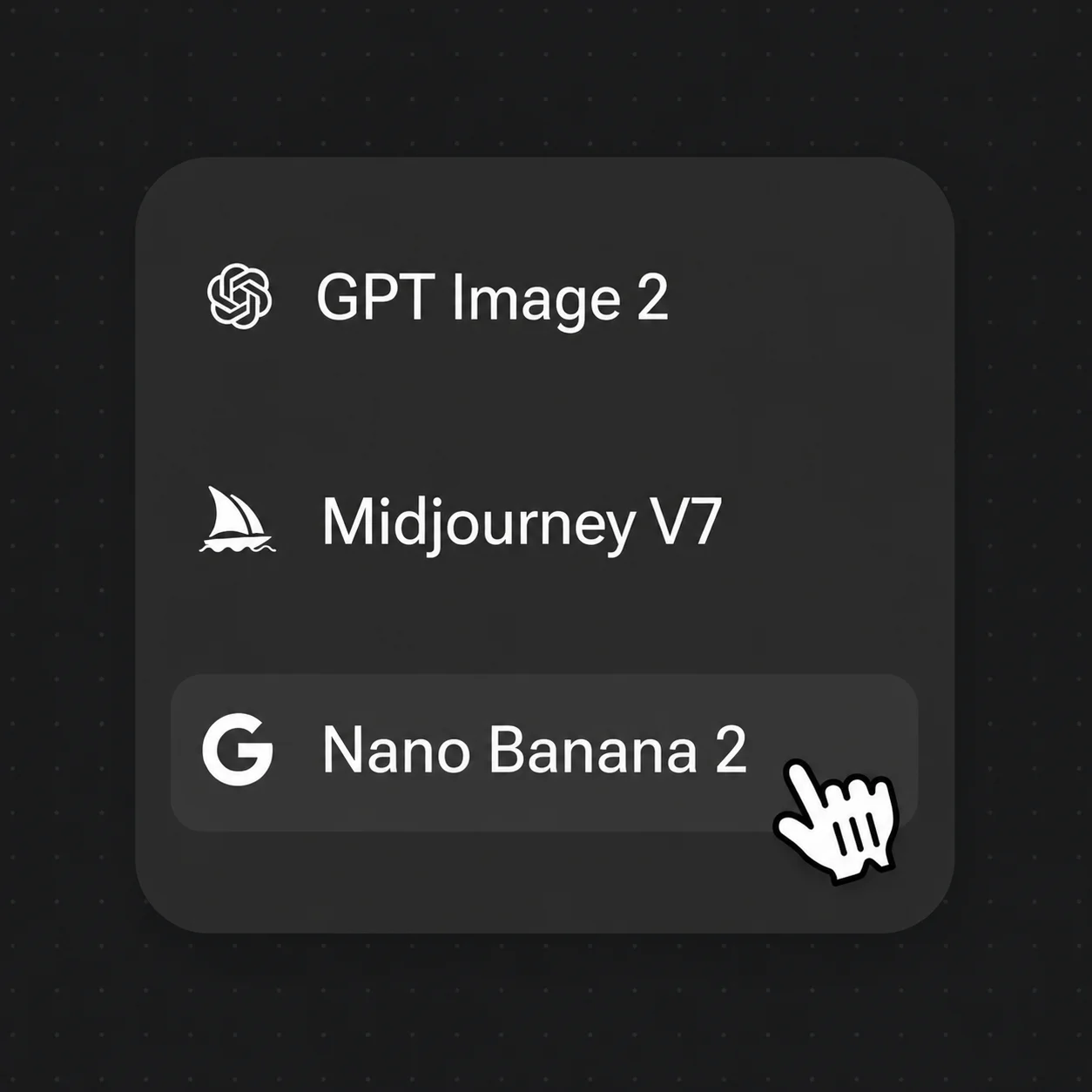
Generate, compare against the original, then export watermark-free at up to 4K on a paid plan.
Rebuilt regions on owned images — the model repaints the area from surrounding context, not a pixel-perfect erase.
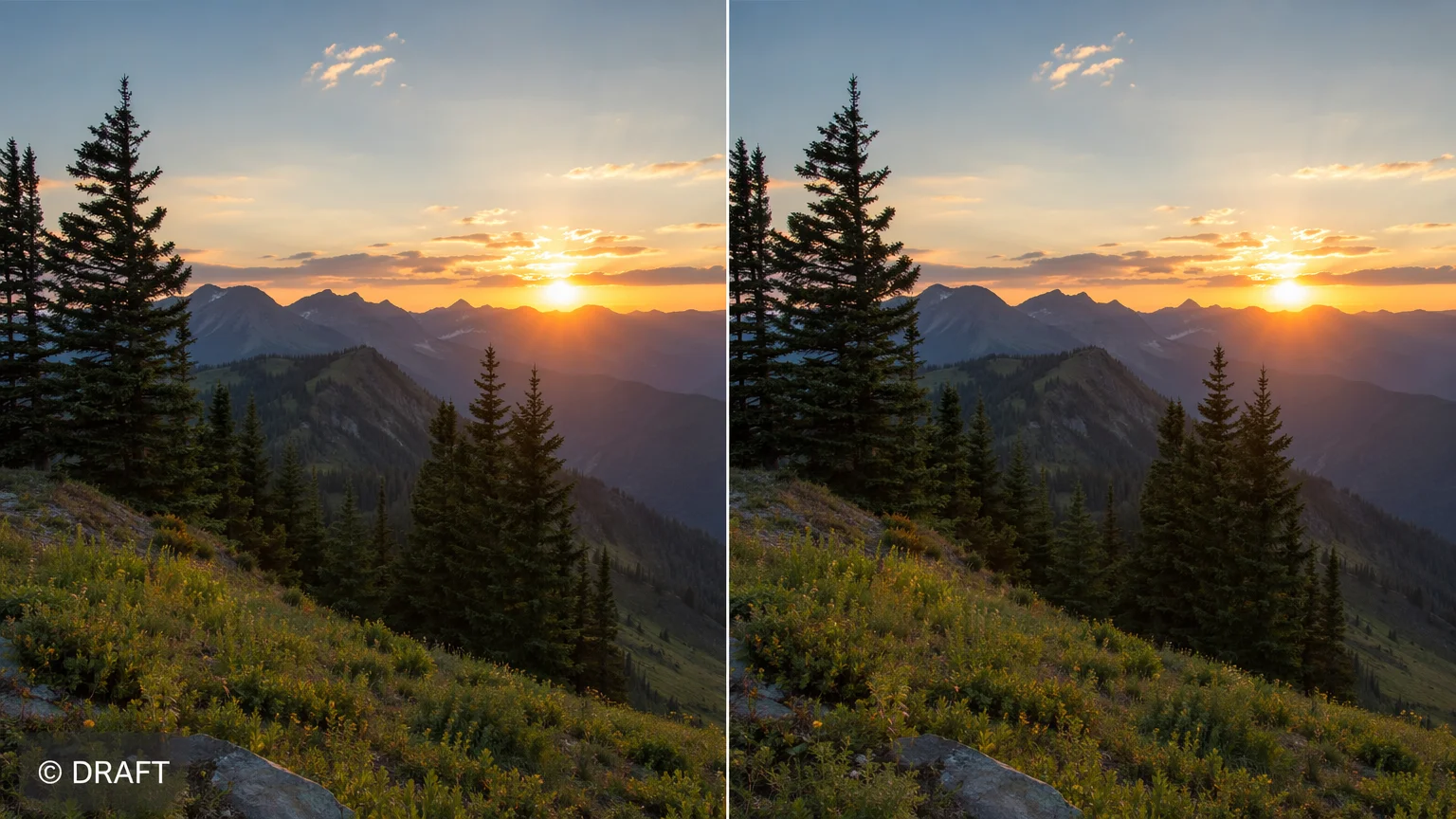
A marked area on a photo you own, rebuilt to match the scene around it.
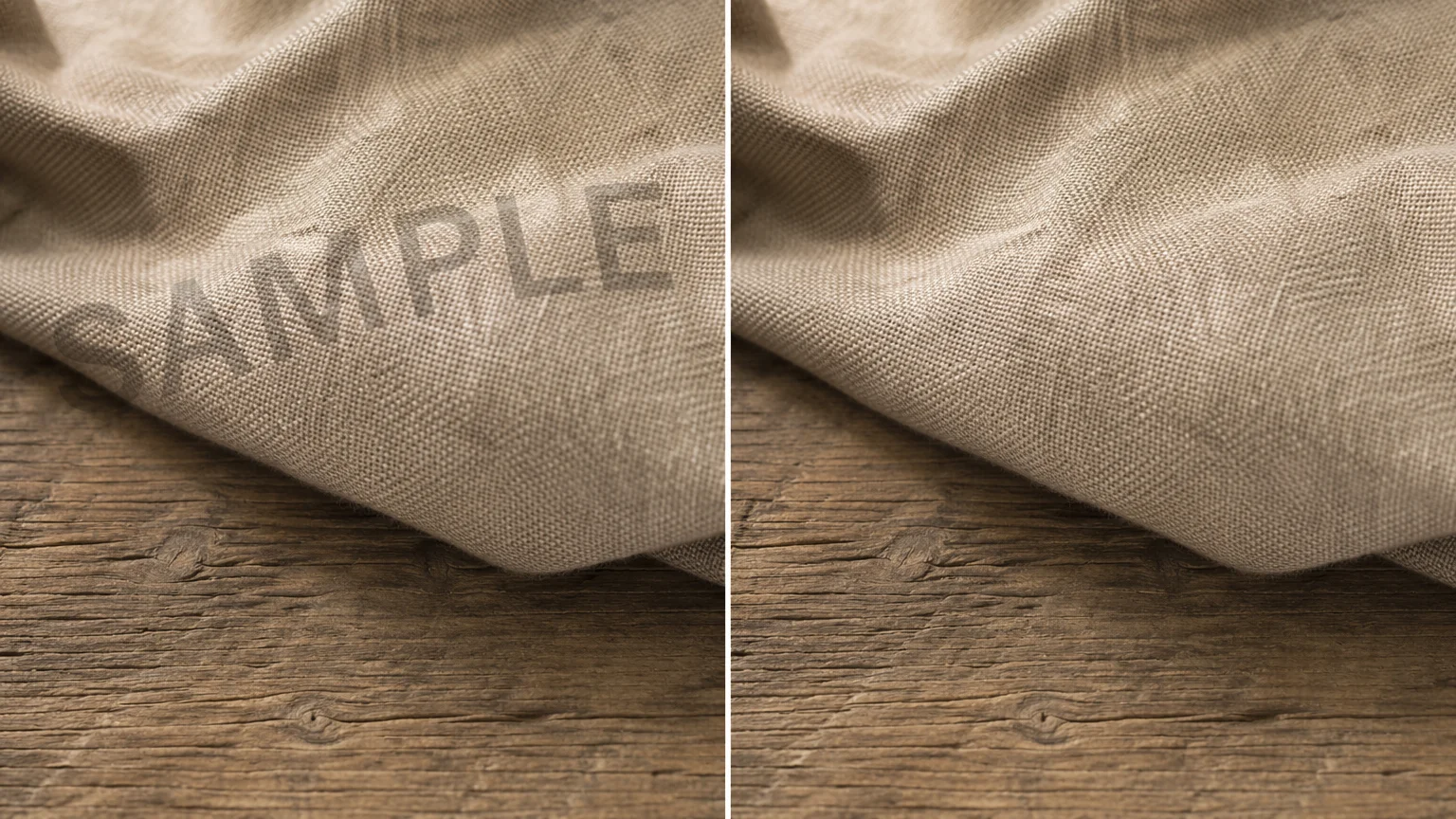
The model infers fabric and surface texture to fill the patched region.
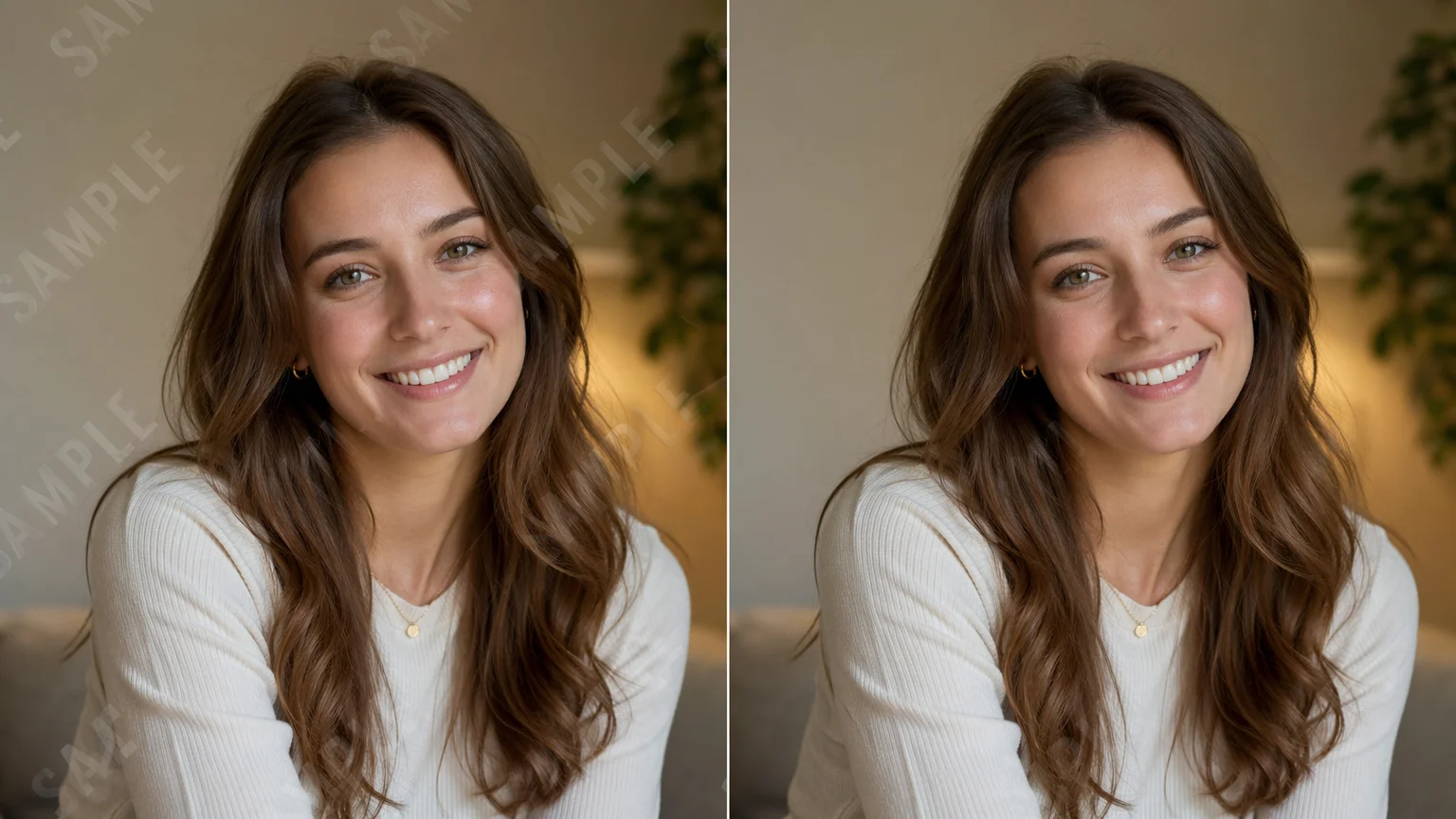
Edges and lighting are re-rendered so the rebuilt area reads as part of the shot.

A Renoise creation exported watermark-free on a paid plan, ready to publish.
It helps to be precise about what is happening, because "AI watermark remover" sounds like a one-click erase and it is not. A watermark sits on top of the original pixels; once it is there, the information underneath is partly gone. Renoise has no dedicated remover tool. What it has is generative inpainting on Nano Banana Pro and GPT Image 2: you mask the marked region and the model re-renders it, rebuilding the area from the surrounding image. It is an interpretation, not a recovery, so a busy or text-heavy mark may leave traces and the result is not pixel-for-pixel identical to whatever was underneath.
The more important point is when this is appropriate. Use it only on images you own or are licensed to edit — a frame you shot, a render you generated, an asset you hold the rights to. Do not use it to strip watermarks from stock libraries, photographers, or any third party's copyrighted images; those marks signal ownership, and removing them can infringe rights and violate licences. If your goal is simply clean output, the cleanest path is to generate the image in Renoise yourself: your own AI creations export watermark-free on paid plans, with nothing to remove in the first place.
Both live in the same Renoise canvas — pick by what the patch needs. Nano Banana Pro for photoreal skin, surfaces, and lighting; GPT Image 2 when the area is detail-heavy and you want precise control.
| For inpaint / rebuild | Nano Banana Pro (Recommended) | GPT Image 2 |
|---|---|---|
| Best for | Photoreal surfaces and skin | Precise, detail-heavy patches |
| Context match | Best | Good |
| Reference images | Image-to-image | Up to 16 |
| Watermark-free export | ✓ (paid plans) | ✓ (paid plans) |
| Same canvas | ✓ | ✓ |
Region rebuilds lean on a few things — Renoise gives you Nano Banana Pro, GPT Image 2, and other image models in one canvas.
Re-renders photoreal surfaces, skin, and lighting so a patched area blends with the scene.
Tight instruction following for detail-heavy patches; fuses up to 16 reference images.
Export the rebuilt image at 1K, 2K, or 4K — watermark-free on paid plans.
Edit only images you own or are licensed to edit, and respect every rights holder.
Paid plans export your own AI creations watermark-free and unlock Nano Banana Pro, GPT Image 2, and every other image model.
Generate your own images in Renoise and export them watermark-free on paid plans.
No. Do not use Renoise to strip watermarks from stock libraries, photographers, or any third party's copyrighted images. A watermark signals ownership, and removing it can infringe rights and breach licences. Only edit images you own or are explicitly licensed to edit, and respect the rights holder.
Renoise has no dedicated remover. You mask the marked region and an image model re-renders it, rebuilding the area from the surrounding image. It is generative inpainting — an interpretation rebuilt from context, not a recovery of the exact pixels that were underneath the mark.
Generate the image in Renoise yourself. Your own AI creations export watermark-free on paid plans, so there is no third-party mark to remove in the first place — which is both the cleanest result and the rights-safe path.
Not always. The model repaints the masked region from context, so a busy, textured, or text-heavy mark can leave traces, and the result is not pixel-for-pixel identical to what was underneath. Compare against the original at full size before you use it.
Nano Banana Pro for most images — it re-renders photoreal surfaces, skin, and lighting so the patch blends in. Switch to GPT Image 2 for detail-heavy or instruction-precise patches. Both live in the same canvas, so you can switch per image.
Yes. The image stays on the Canvas, so you can restyle it, upscale it, or animate it into a video with another model — no re-upload, no switching tools.
Up to 4K for images. Choose 1K for web, 2K for most uses, or 4K for print and large display. Exports are watermark-free on paid plans.
