Deblur and sharpen
Rebuilds soft edges, faces, and textures lost to motion or focus blur.
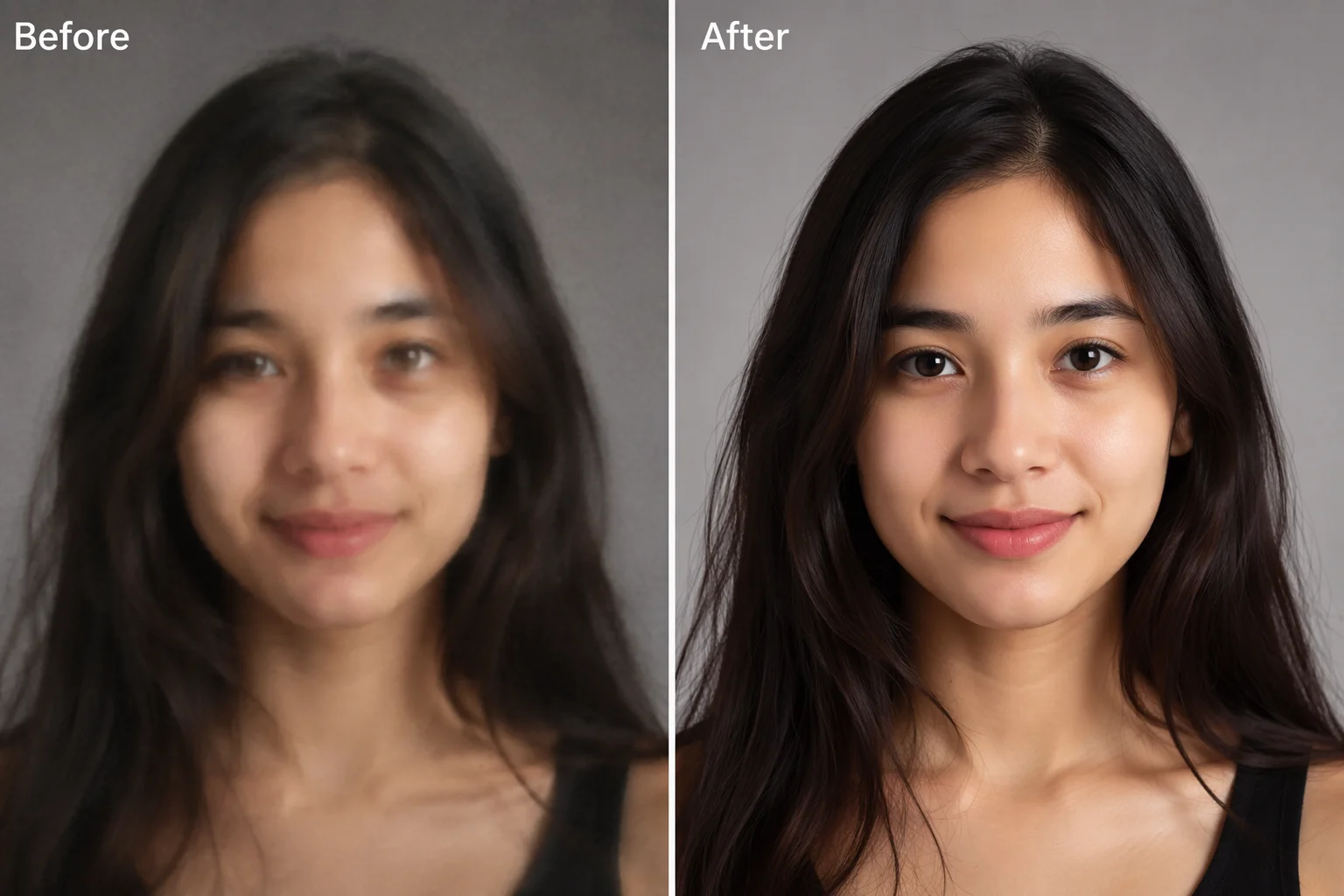
Deblur, denoise, and sharpen a soft photo — same size, better quality.
Upload the photo to Renoise Canvas, pick Nano Banana Pro, and prompt "enhance quality: deblur, denoise, and sharpen, keep the same subject, size, and composition", then export. This is generative re-render — the model rebuilds soft detail it infers from context, not a pixel-faithful filter that only touches the pixels you already have.
Need it bigger, or fixing an old damaged photo? See the upscaler guide (for size)
How a generative re-render lifts the quality of an everyday photo.
Rebuilds soft edges, faces, and textures lost to motion or focus blur.
Clears grain, noise, and JPEG compression artifacts from the image.
Lifts flat, dim, or muddy shots into balanced color and contrast.
From a soft, dull, or noisy photo to a clean, sharp version at the same size.
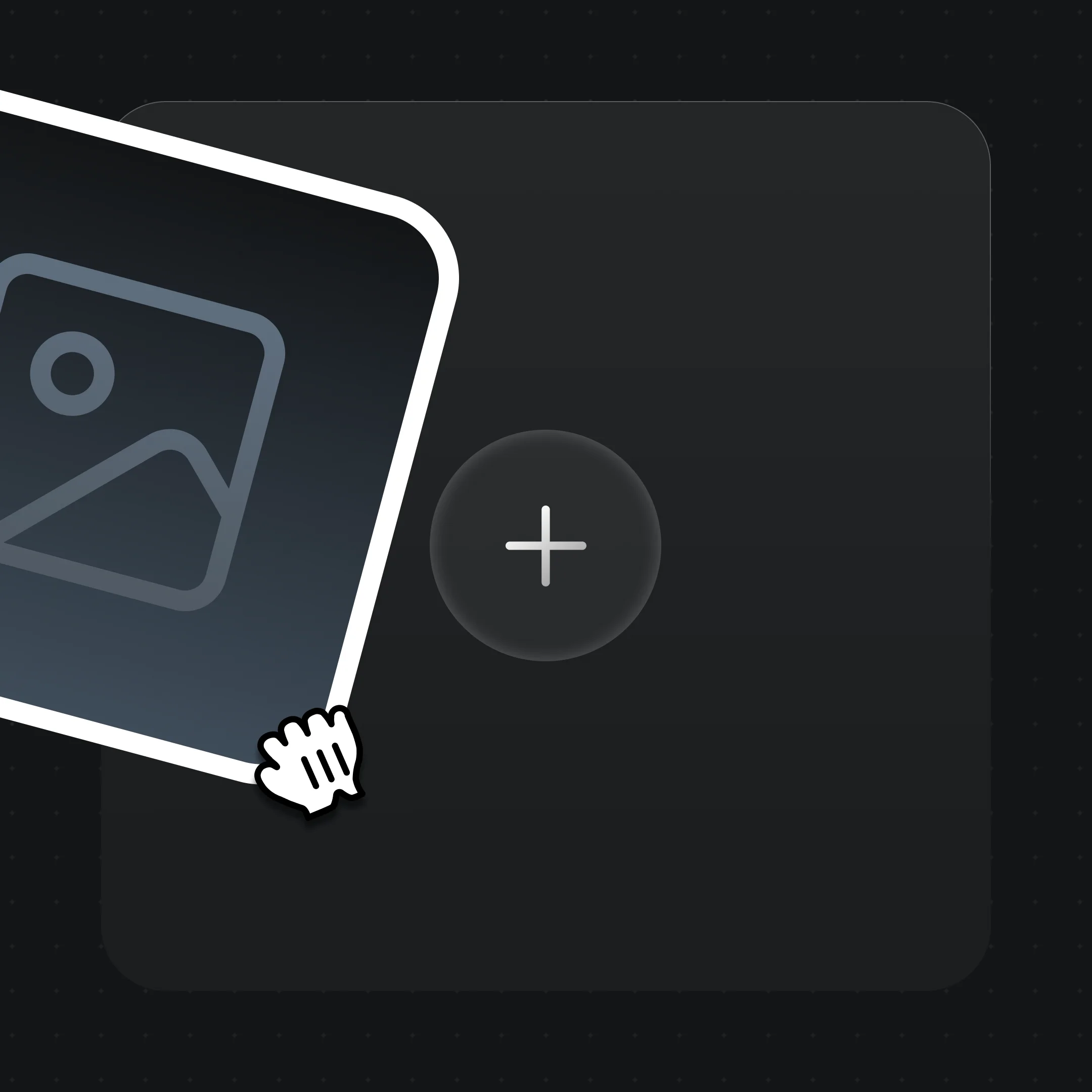
Drag the blurry, noisy, or dull photo onto the Renoise Canvas upload card.
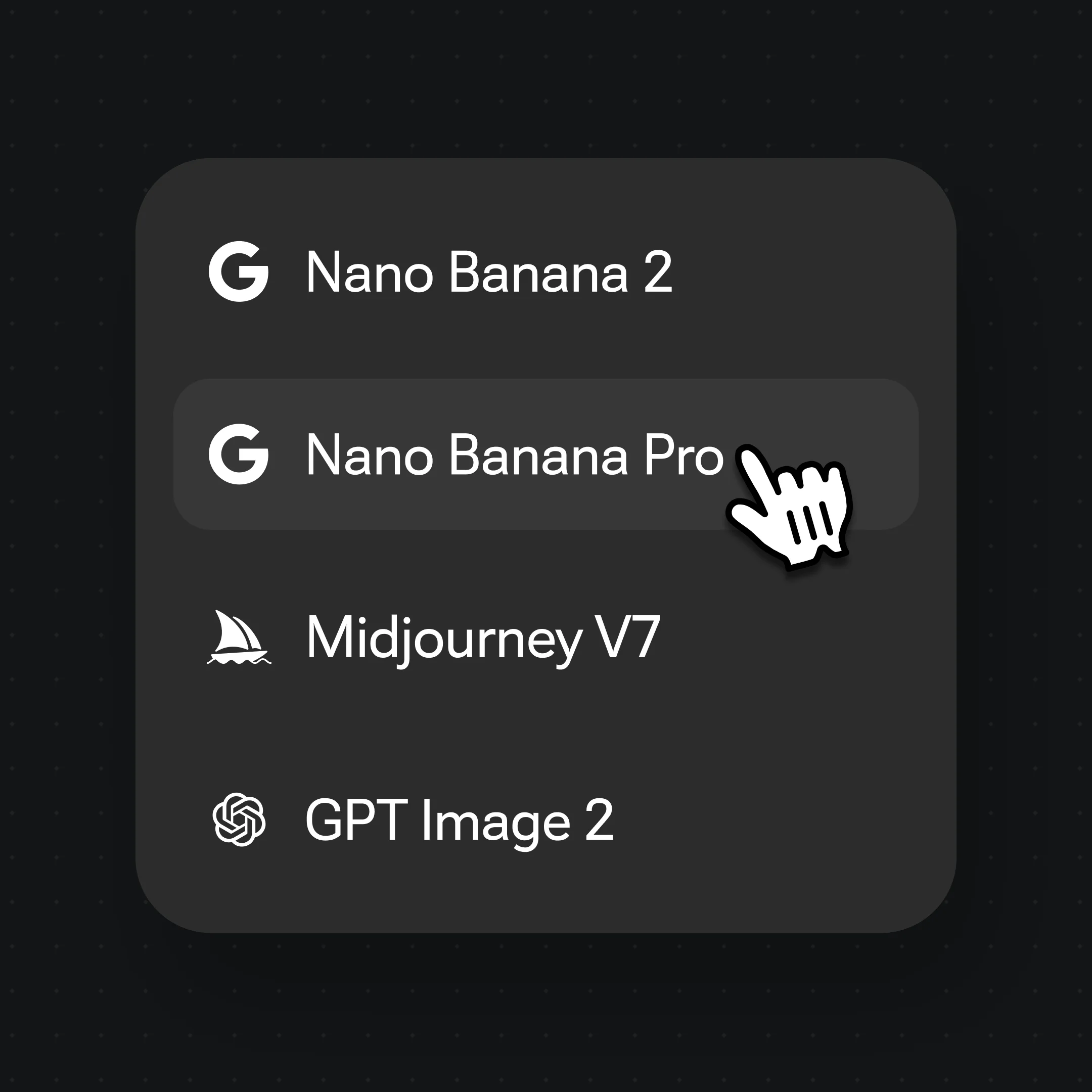
Pick Nano Banana Pro, then prompt "enhance quality: deblur, denoise, sharpen, keep the same subject and composition".
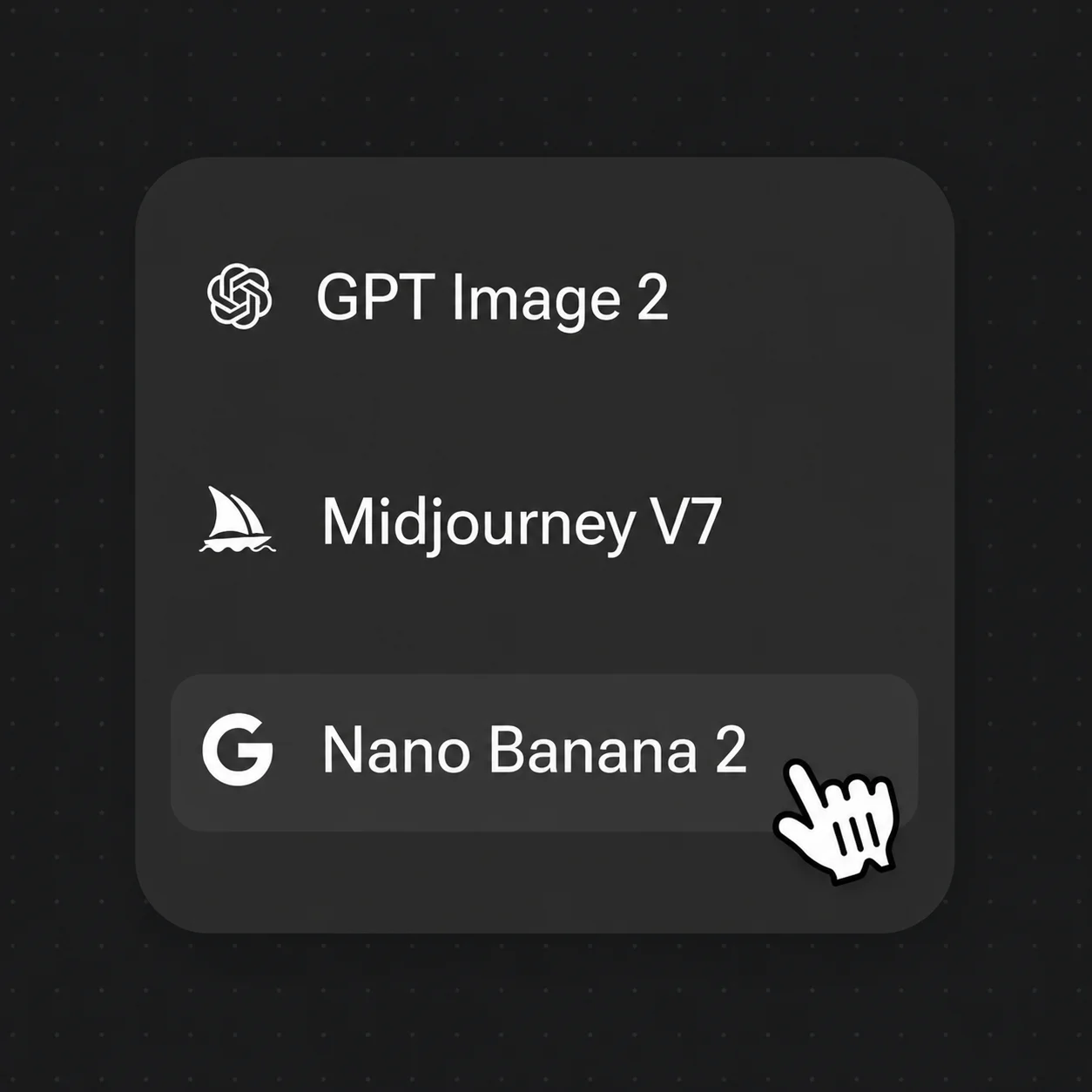
Generate, compare with the original at the same size, then export the cleaner version.
Generative re-renders that lift quality without changing the size — deblur, denoise, and color fixes in one canvas.
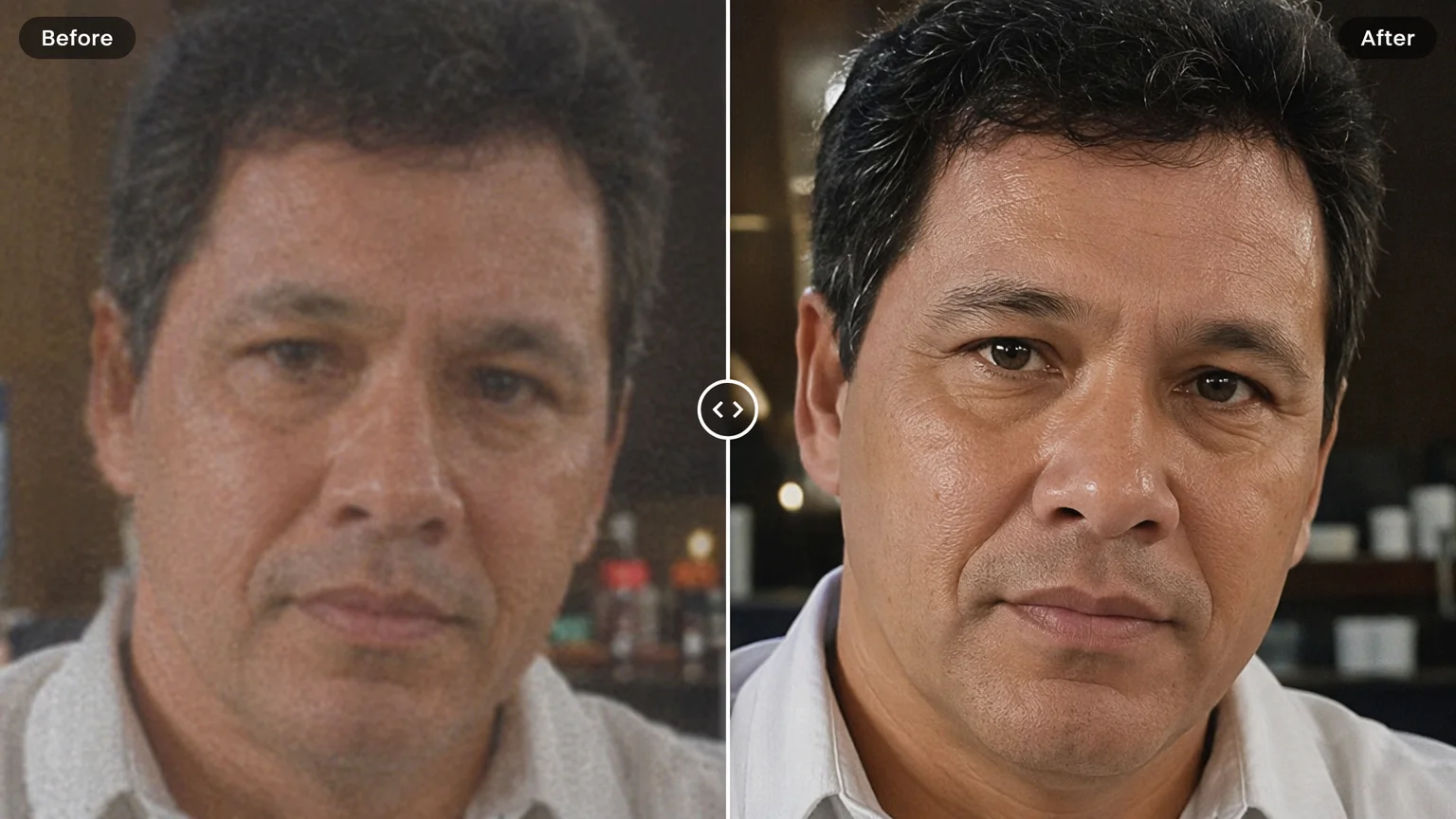
Rebuild a soft, out-of-focus face into a sharp one.
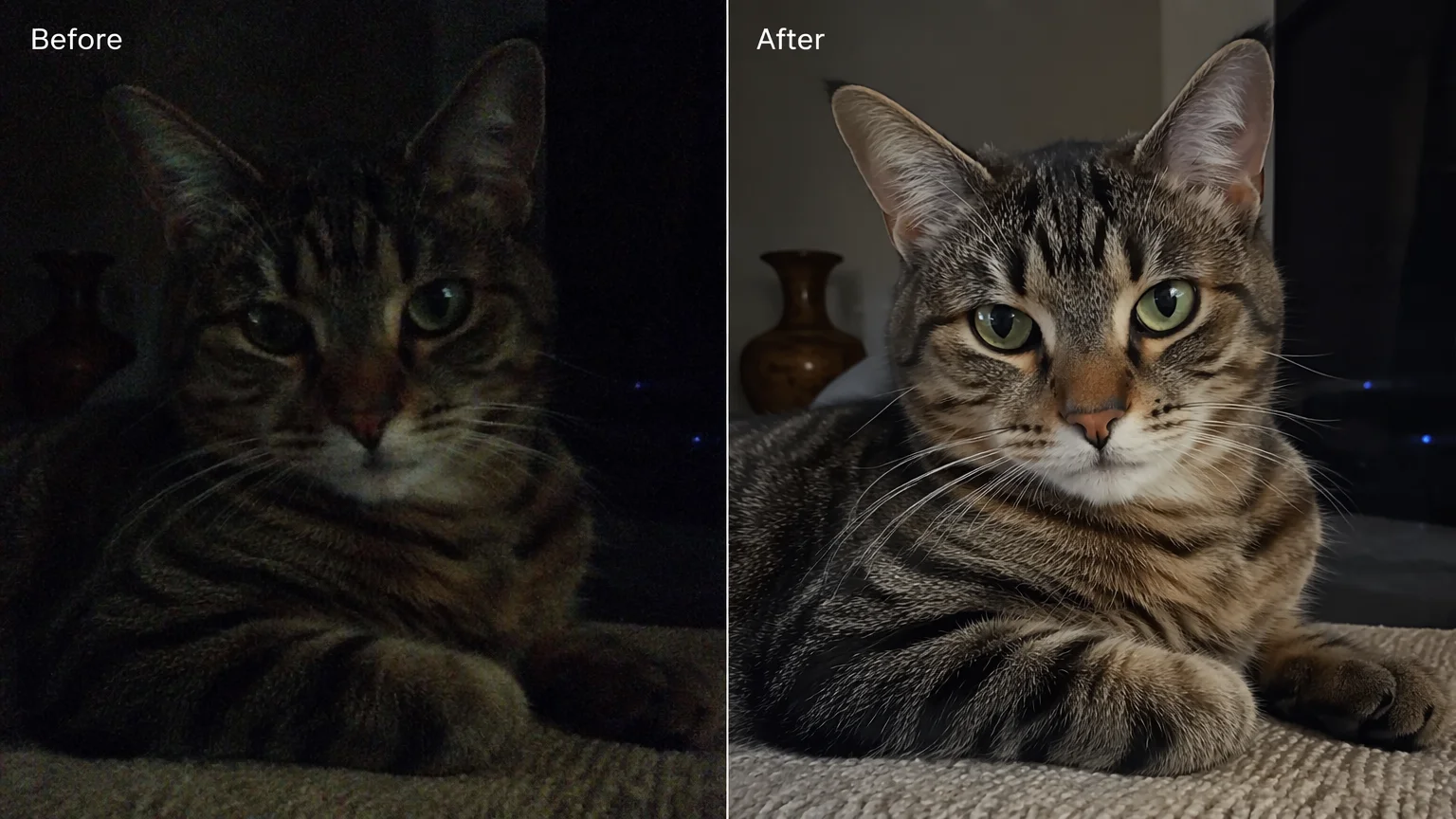
Clear grain and noise from a dim photo.
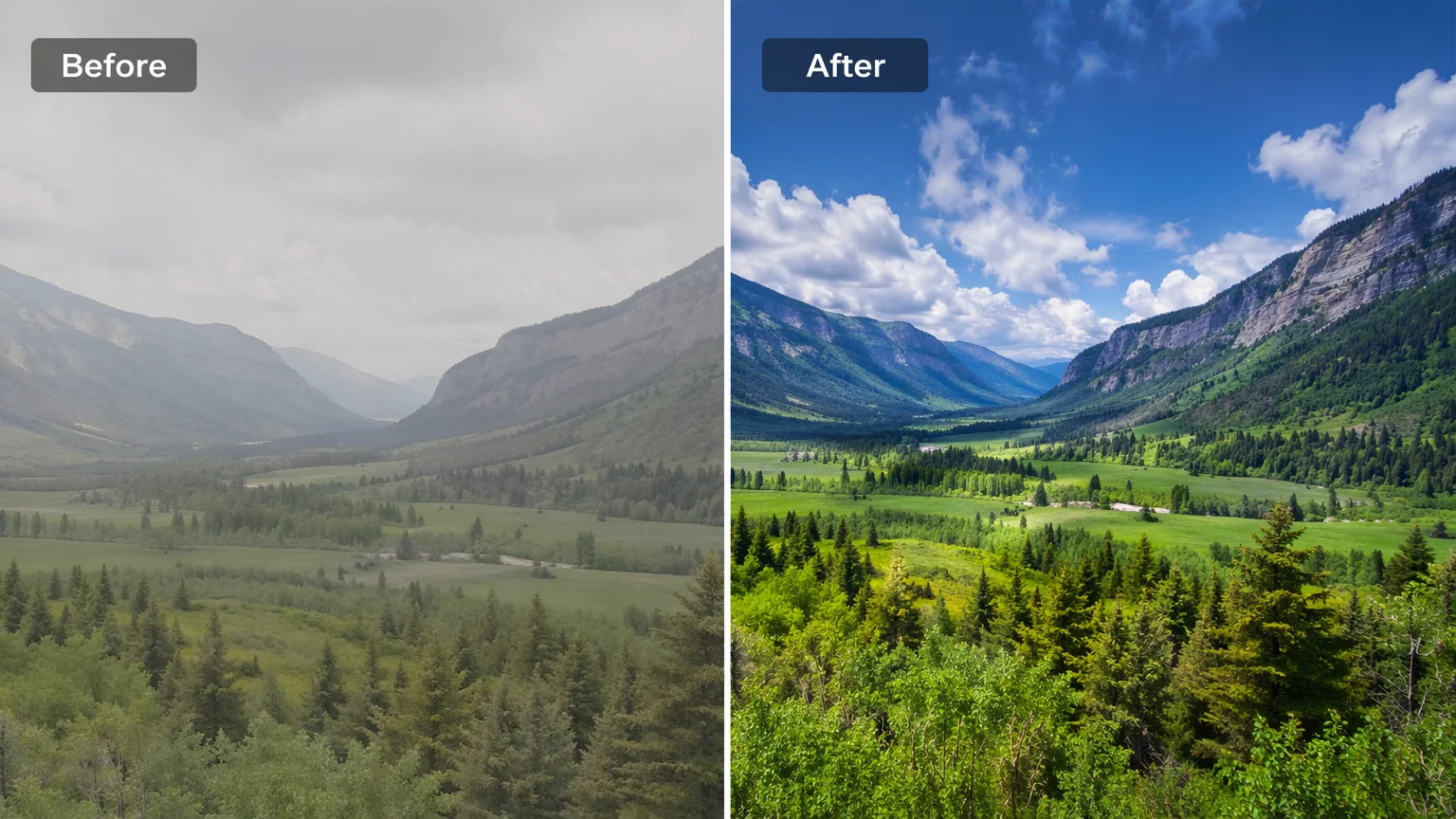
Lift flat color and contrast back to life.
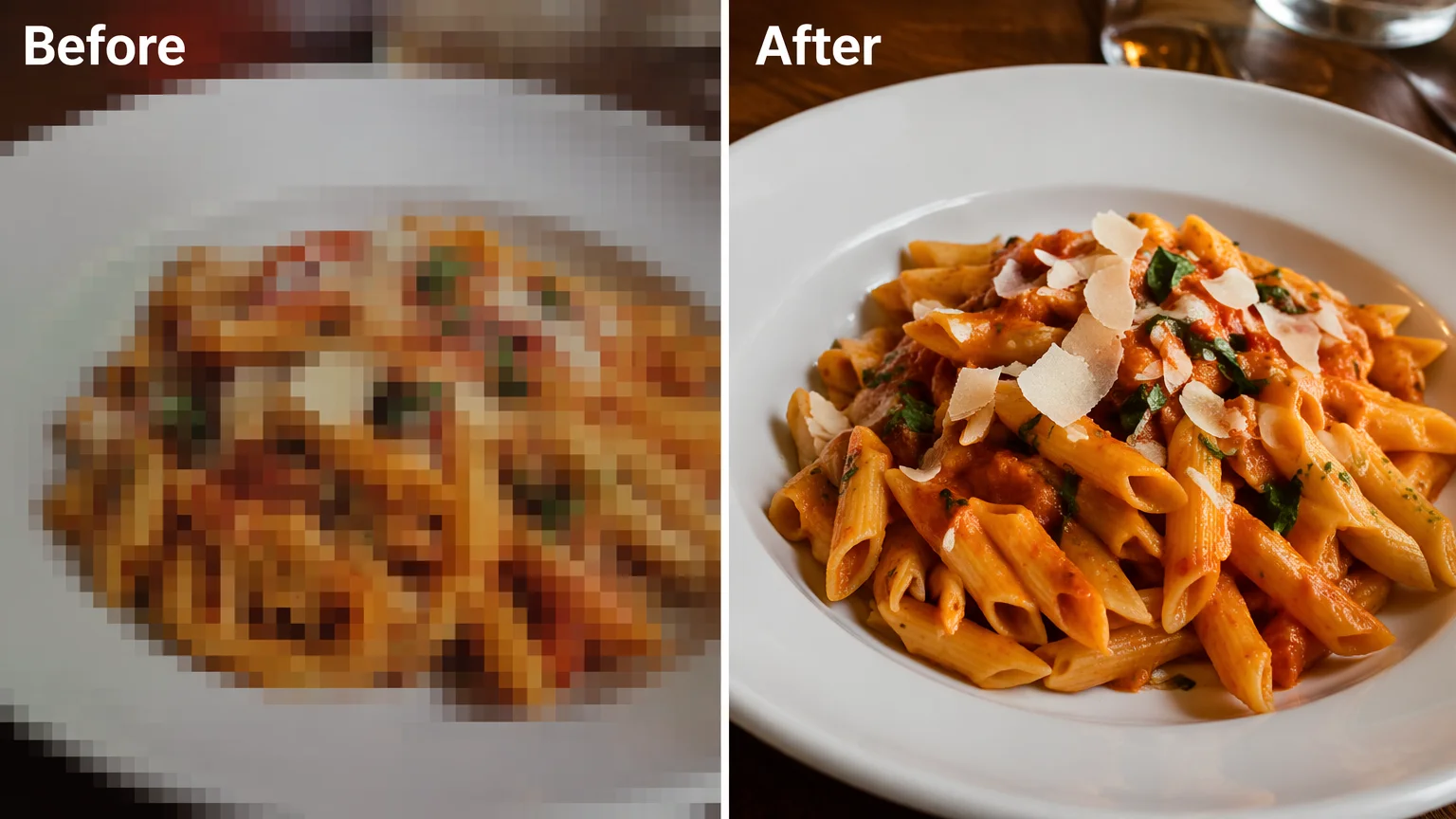
Remove JPEG artifacts from a re-saved image.
Both live in the same Renoise canvas — pick by what the photo needs. Nano Banana Pro for photoreal faces, skin, and lighting; GPT Image 2 when the detail is instruction-heavy and you want precise control.
| For enhancement | Nano Banana Pro (Recommended) | GPT Image 2 |
|---|---|---|
| Best for | Photoreal faces and skin | Precise, detail-heavy fixes |
| Deblur and sharpen | Best | Good |
| Reference images | Multi-reference | Up to 16 |
| Keep original size | ✓ | ✓ |
| Same canvas | ✓ | ✓ |
These three jobs get lumped together, but they are different — and picking the right one gives a better result. Enhancing is about quality at the size you already have: a photo that is the right dimensions but looks soft, noisy, dull, or over-compressed. You are not making it bigger, you are making it cleaner — deblur, denoise, sharpen, balance the light. That is what this page covers.
Upscaling is about size. If the image is too small for print or a large display and you need a 2K or 4K copy, that is a resolution job — see the upscaler guide. Restoration is about damage: scratches, tears, creases, fading, or colorizing a black-and-white print — an old-photo job covered on the photo restoration guide. The line is simple: enhance for quality, upscale for size, restore for age and damage.
In Renoise all three run the same way — image-to-image generative re-render on Nano Banana Pro or GPT Image 2. Upload to Canvas, prompt "enhance quality: deblur, denoise, sharpen, keep the same subject, size, and composition", and lock the framing so the model rebuilds rather than reimagines. Because it is a re-render and not a faithful filter, fine specifics may shift — it is not lossless — so always compare against the original before you ship.
Enhancement leans on a few things — and Renoise gives you Nano Banana Pro, GPT Image 2, and other image models in one canvas.
Re-renders photoreal skin, faces, and lighting for a believable, cleaner result.
Tight instruction following for detail-heavy fixes; fuses up to 16 reference images.
Rebuilds soft edges and clears grain, noise, and compression at the same size.
Stay on the same canvas to upscale, restyle, or animate the enhanced image into a video.
One plan unlocks Nano Banana Pro, GPT Image 2, and every other image model.
Deblur, denoise, and sharpen, with watermark-free exports on paid plans.
In Renoise you upload the photo and an image model re-renders it at the same size, rebuilding soft edges and clearing noise from context. This is generative re-render — the model repaints detail rather than only filtering the pixels you already have.
It is a generative re-render, not a faithful pixel-level filter. The result can look much cleaner, but fine specifics may shift, so it is not lossless. Lock the subject, size, and composition in your prompt to stay close to the original.
Yes. Prompt "deblur, denoise, and sharpen, keep the same subject and composition" and the model rebuilds soft edges and clears grain or compression. The noisier or softer the input, the more the model infers, so compare against the original before exporting.
Enhancing improves quality at the same size — deblur, denoise, sharpen, fix dull color. Upscaling makes a small image bigger by changing the resolution. If you need a larger 2K or 4K copy for print, use the image upscaler guide instead.
Not quite. Enhancing is for everyday photos that are just soft, noisy, or dull. For scratches, tears, creases, fading, or colorizing a black-and-white print, use the photo restoration guide, which is built for old and damaged photos.
Nano Banana Pro for most photos — it re-renders photoreal skin, faces, and lighting. Switch to GPT Image 2 for detail-heavy fixes like fine lettering or patterned fabric, where precise instruction following helps. Both live in the same canvas.
Yes. The enhanced image stays on the Canvas, so you can upscale it, restyle it, or animate it into a video with another model — no re-upload, no switching tools.
Outputs are watermark-free on paid plans, so an enhanced image exports clean and ready to print, post, or share. The same canvas handles enhancing, upscaling, and animating in one place.
