Change aspect ratio
Turn a 9:16 portrait into a 16:9 landscape, or a square into a wide banner — the model fills in what was outside the frame.
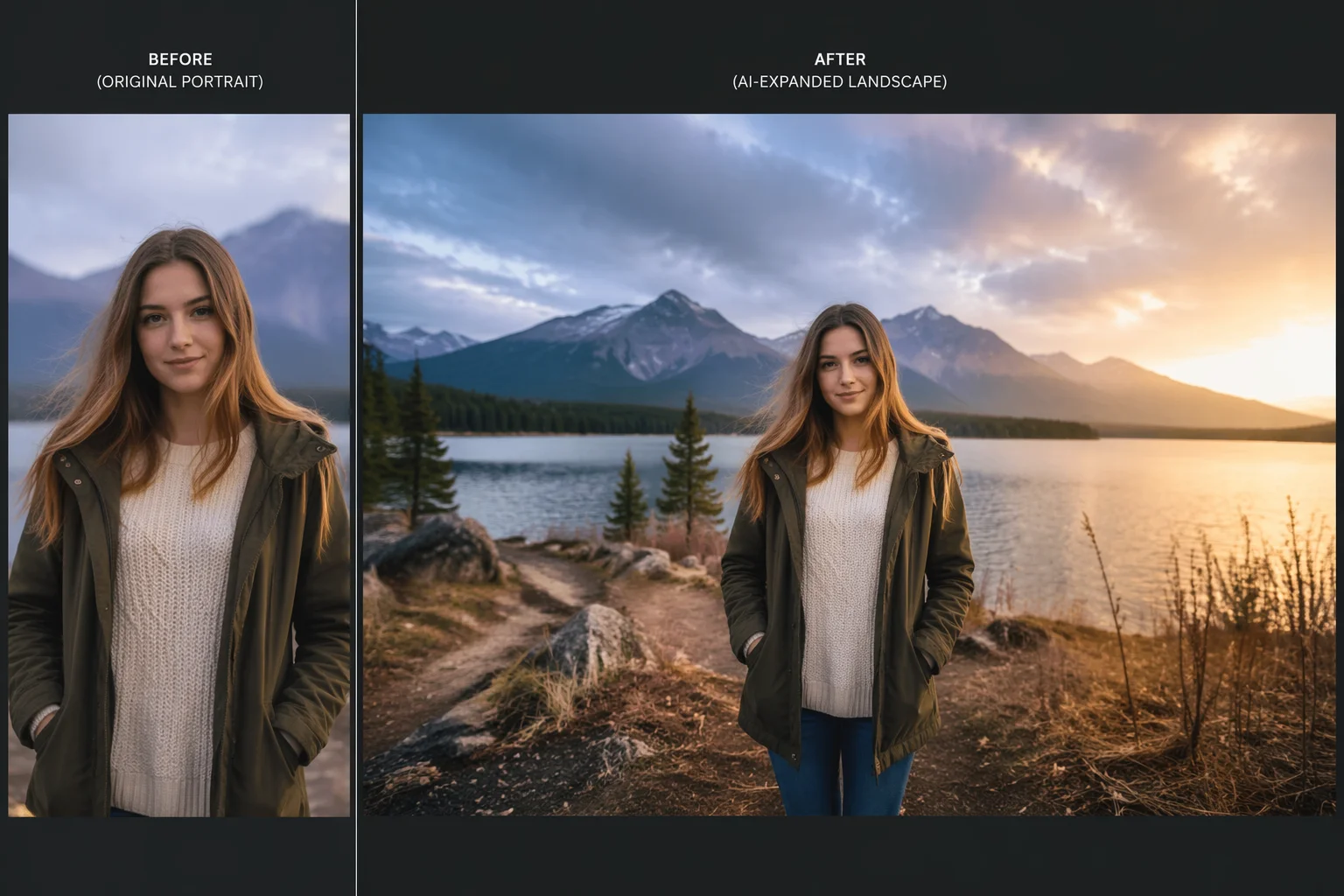
Expand the canvas beyond the original borders — outpaint new content and change aspect ratio with AI.
Upload the image to Renoise Canvas, pick Nano Banana Pro, describe what should fill the new canvas area, and generate. The model outpaints new content around the edges — useful for changing aspect ratio (9:16 to 16:9), widening a tight crop, or adding sky or foreground. This is generative outfill, not pixel-perfect seamless cloning, so results look best in scenes where the extended region is described clearly.
Need to enlarge existing pixels without adding new canvas? See the image upscaler guide
The common reasons to expand an image canvas in Renoise.
Turn a 9:16 portrait into a 16:9 landscape, or a square into a wide banner — the model fills in what was outside the frame.
A subject that was cut off at the edges? Extend the canvas to give it breathing room.
Prompt the model to continue a sky, ground, or architectural scene beyond the original border.
From a tight crop to a wider composition, all inside one canvas.
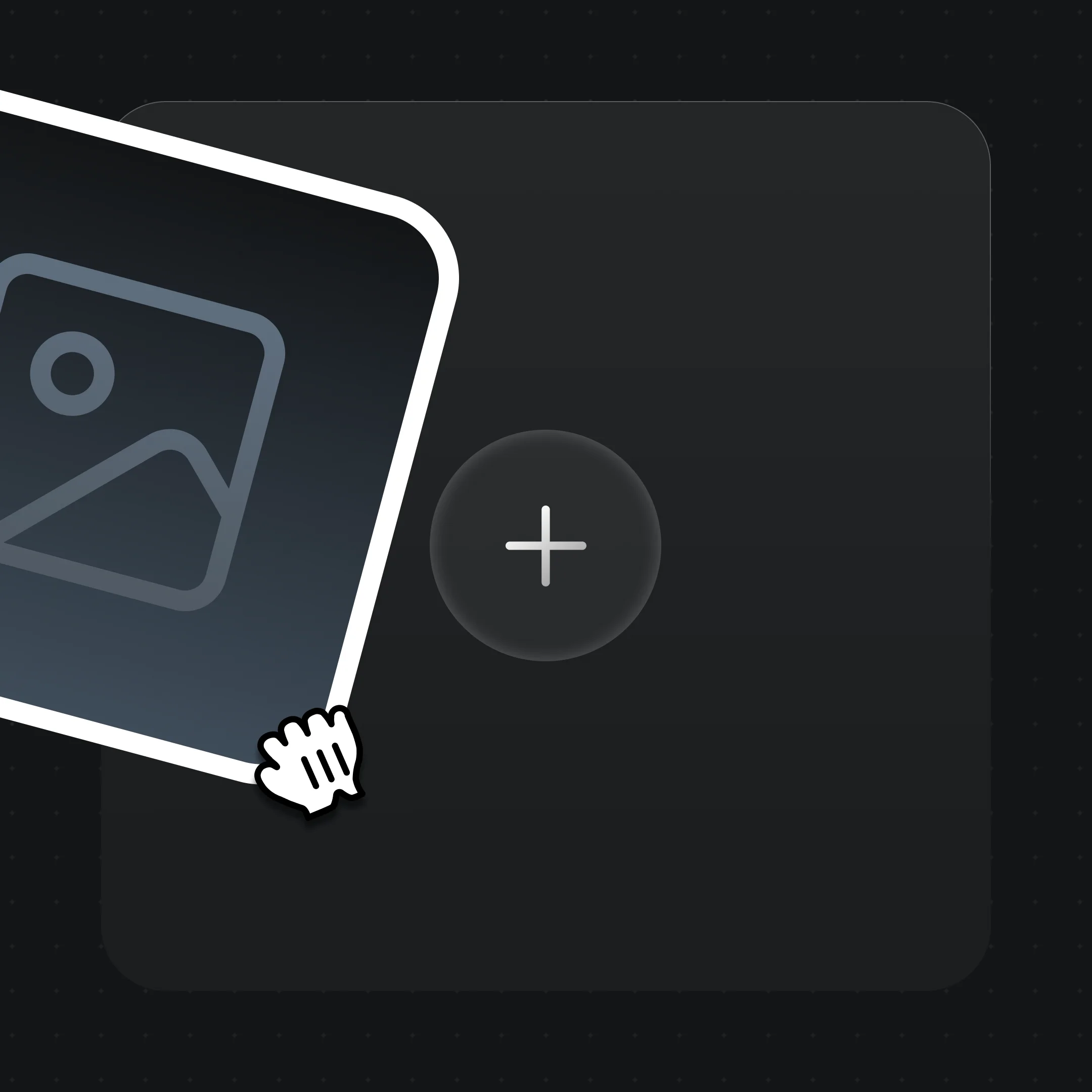
Drag the photo or artwork onto the Renoise Canvas upload card so the model has the original content to work from.
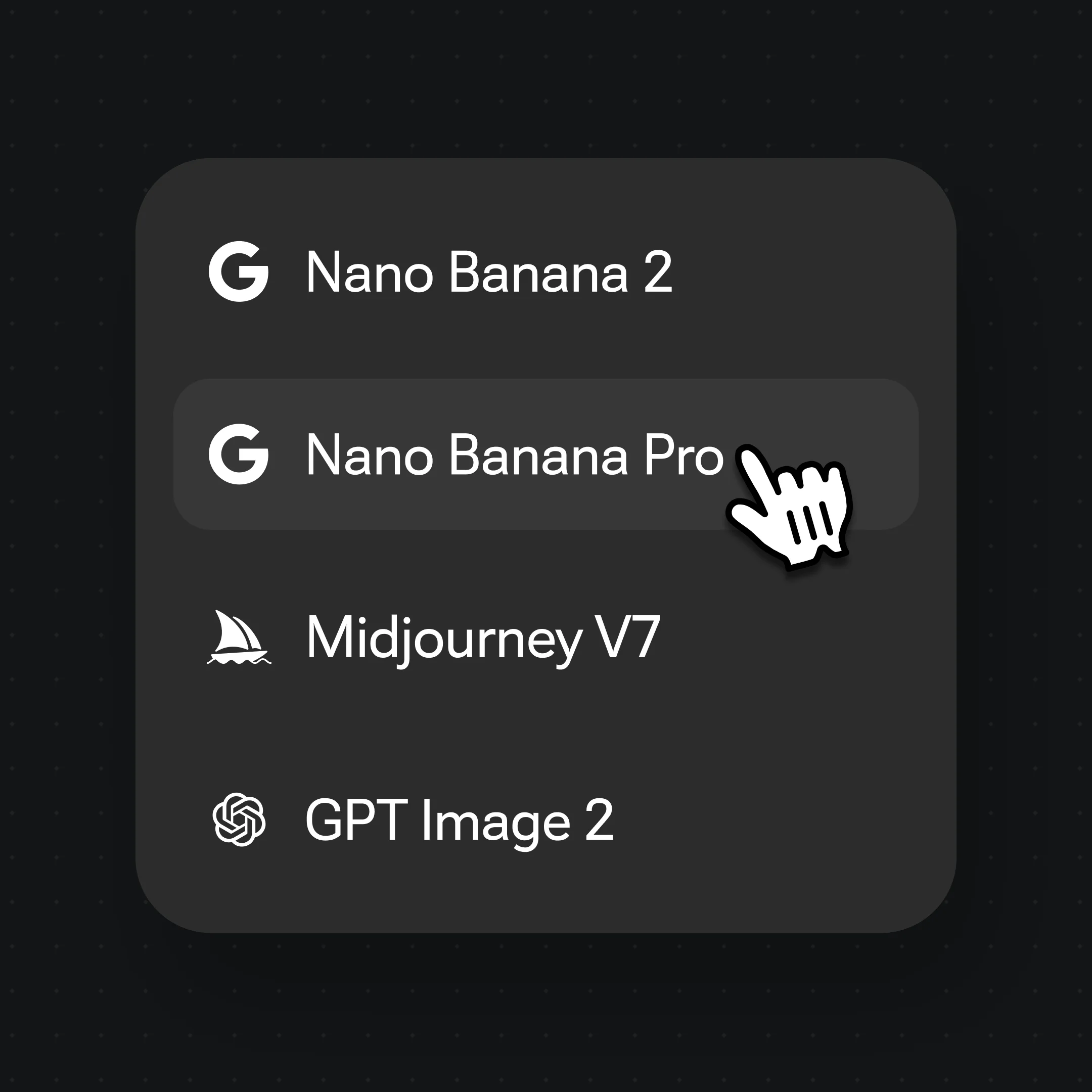
Pick Nano Banana Pro, set a wider output ratio, then prompt the fill — e.g. "continue the beach scene, add open sky above".
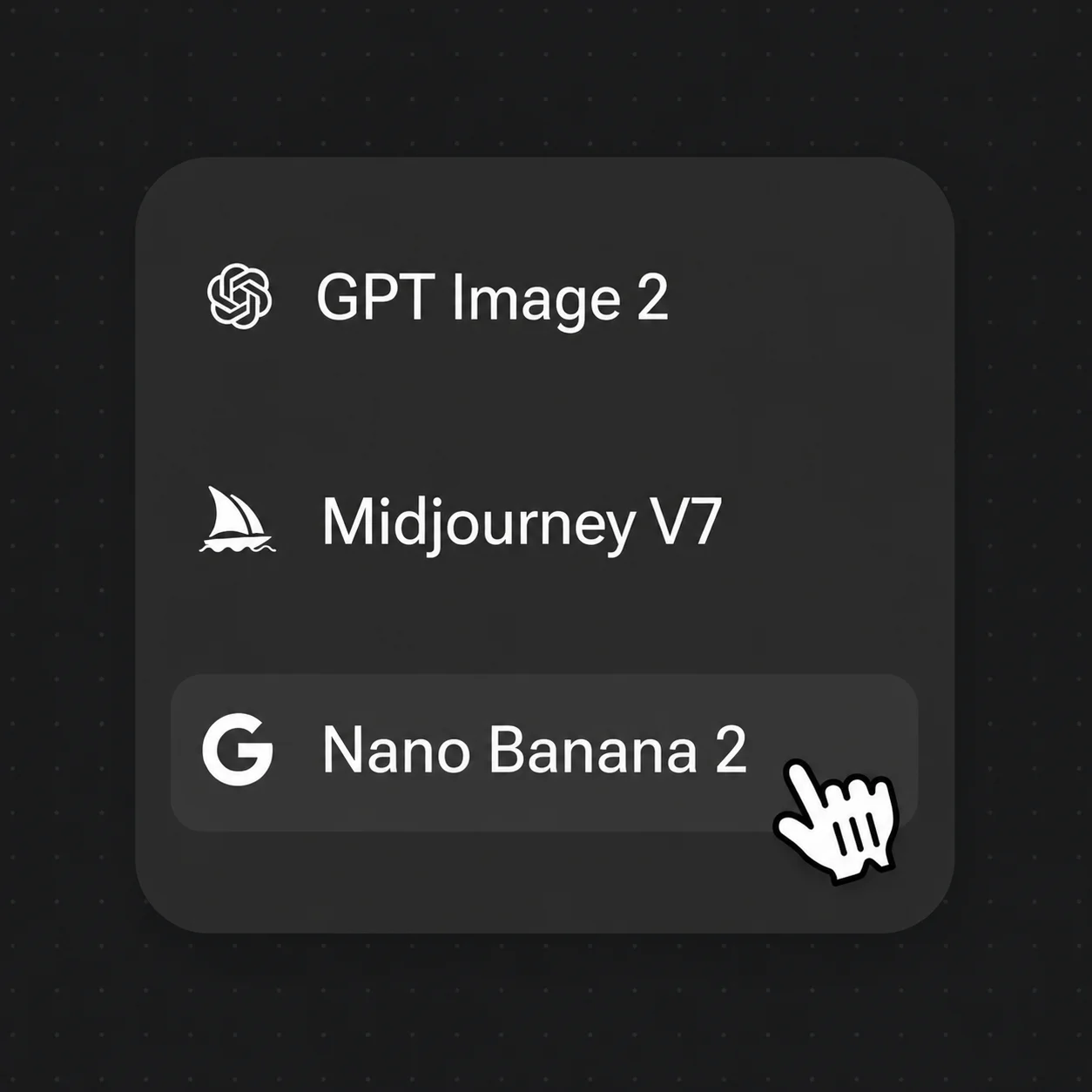
Generate, review the edges for coherence, prompt-refine if needed, then export at up to 4K.
New canvas filled around the original — the model generates plausible content that continues the scene.
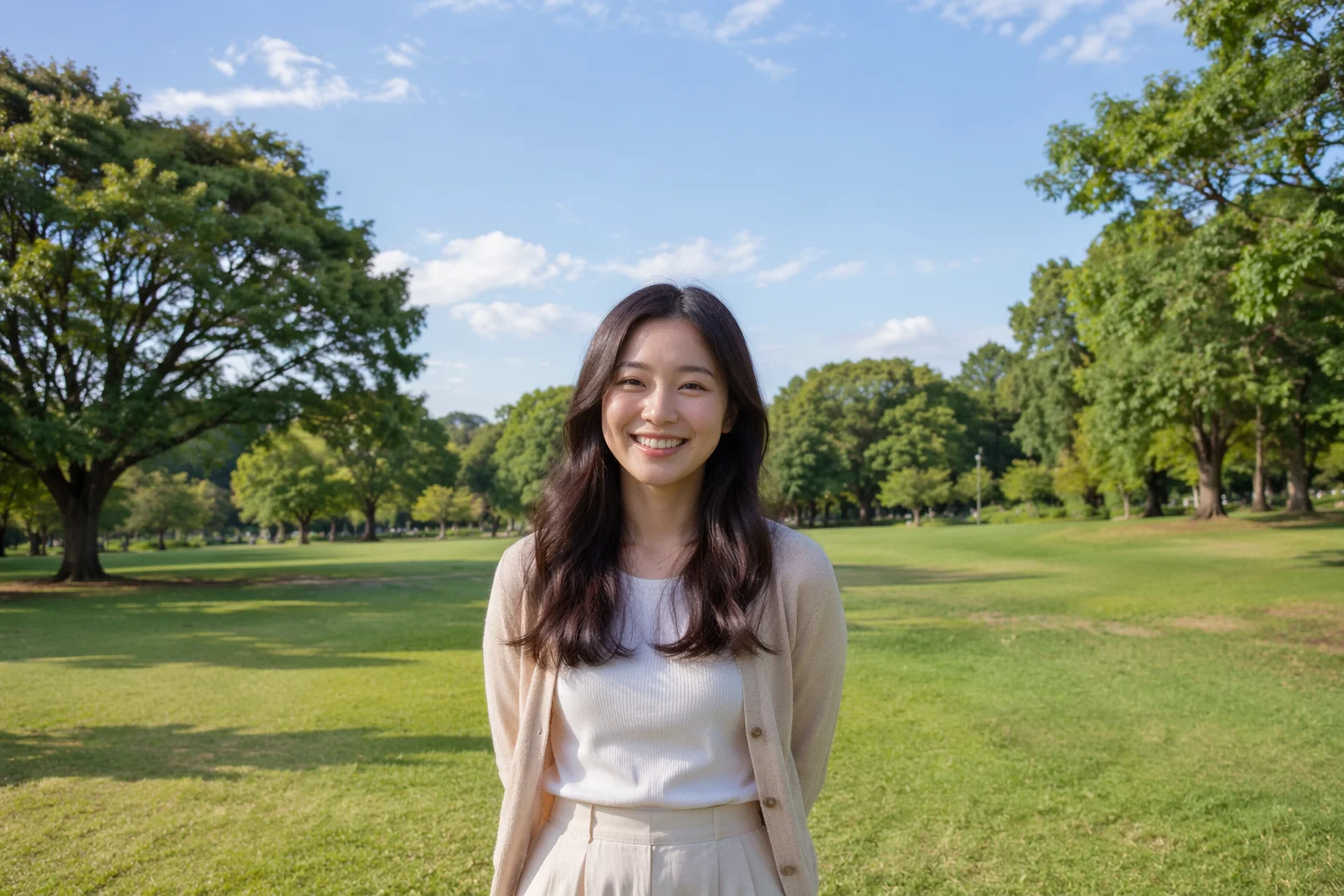
A 9:16 outdoor portrait extended to 16:9 — sky and ground filled in generatively.
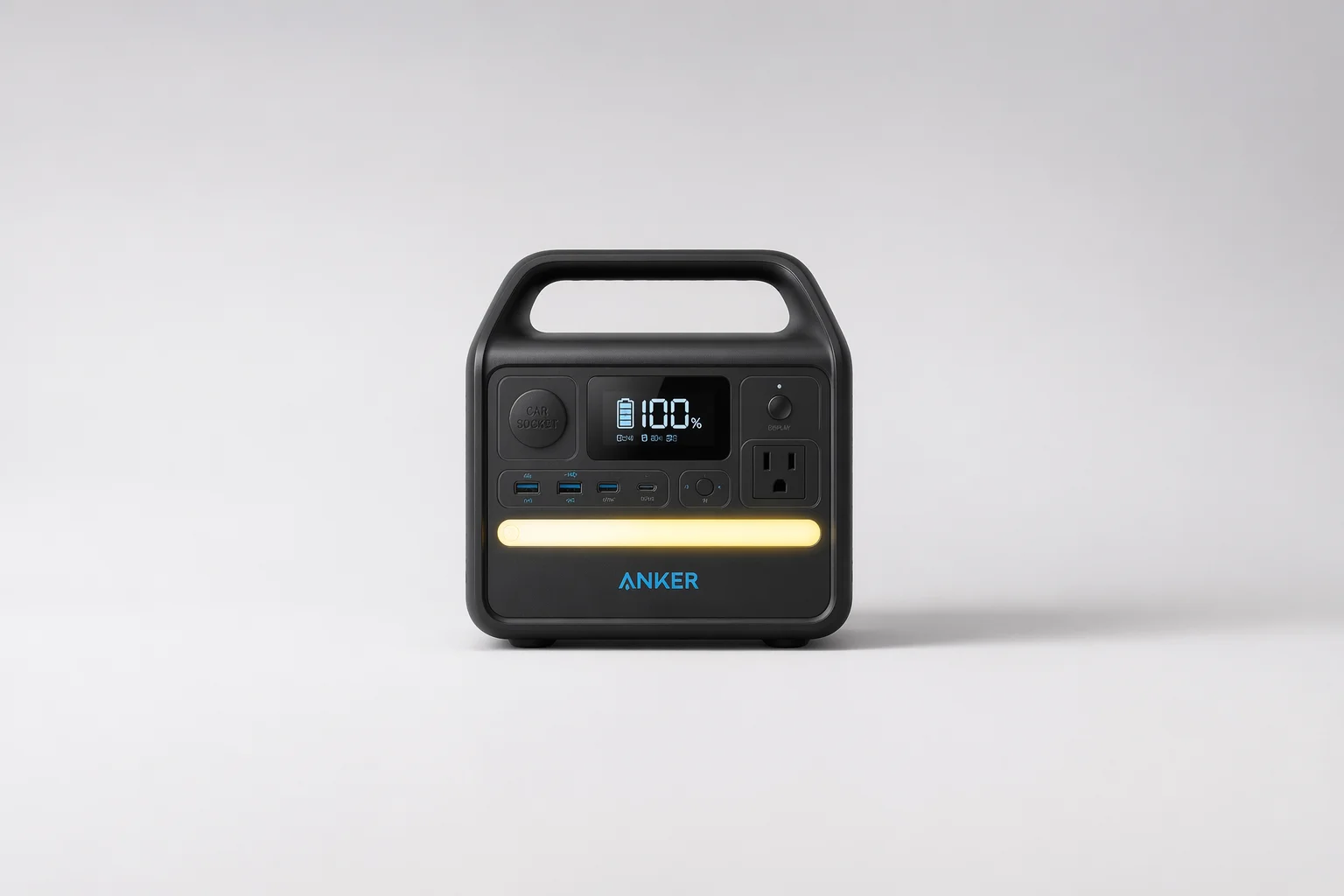
A tightly cropped product given more negative space and context around it.
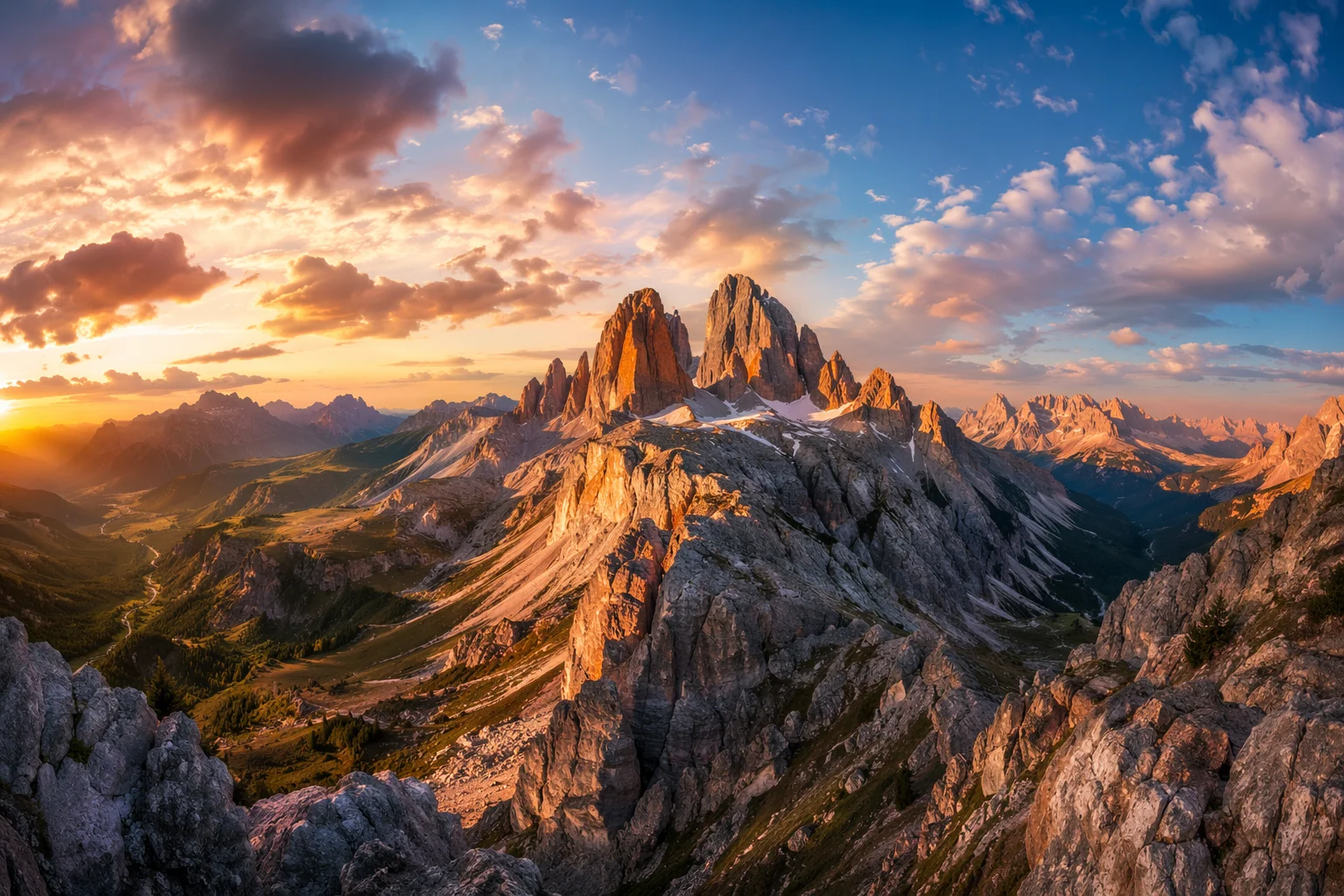
A narrow landscape widened into a panoramic banner by continuing the horizon.
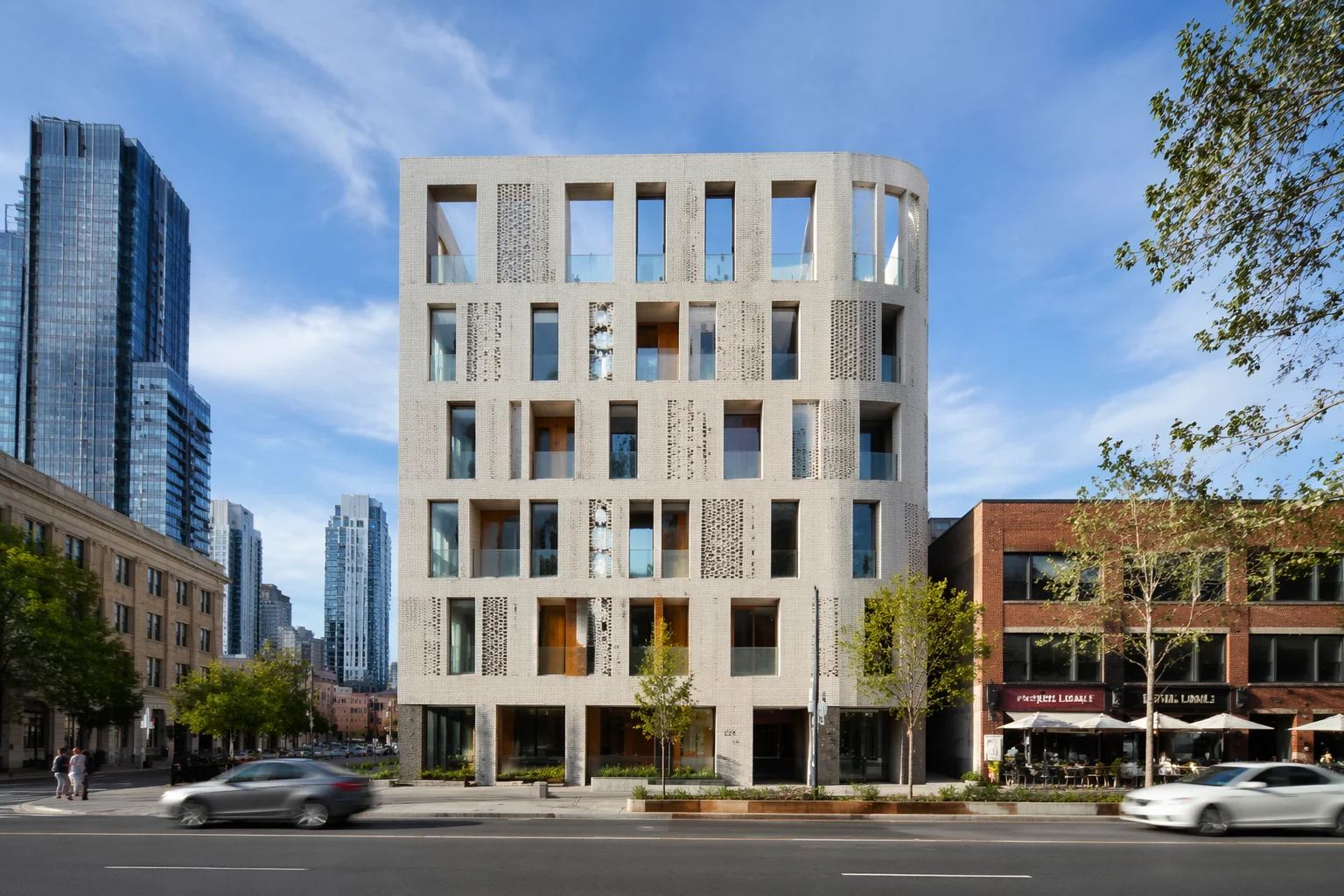
A building shot extended to include more street, sky, and surrounding context.
Both live in the same Renoise Canvas. Nano Banana Pro for photoreal scenes and lighting continuity; GPT Image 2 when you have detailed instructions or want to fuse multiple reference images.
| For outpainting / extension | Nano Banana Pro (Recommended) | GPT Image 2 |
|---|---|---|
| Best for | Photoreal scene continuation and lighting | Instruction-heavy or multi-reference briefs |
| Scene coherence | Best | Good |
| Reference images | Image-to-image | Up to 16 |
| Up to 4K export | ✓ | ✓ |
| Same canvas | ✓ | ✓ |
Extending an image means expanding its canvas: the original photo stays in place and the model fills in new content around the edges. The most common reason is changing aspect ratio — a 9:16 phone portrait needs to become a 16:9 banner, or a square product shot needs to become a wide display ad. Outpainting lets you do that without reshooting.
How Renoise does it matters for managing expectations. There is no dedicated pixel-cloning or frequency-matching outpaint tool. Instead, Nano Banana Pro and GPT Image 2 do generative image-to-image: you describe what the extended region should show, and the model generates new content that continues the scene. For most landscape, architectural, and product extension jobs, the results read as plausible continuations. The limitation is also generative: the model invents the extension rather than cloning pixels, so in very high-contrast or highly textured scenes you may see a seam. Prompting the continuation clearly reduces that — "continue the sandy beach, same lighting, no people" gives the model less room to drift than no description at all.
This is a different job from two things that sound similar. Upscaling enlarges existing pixels — the canvas size and pixel count grow, but no new scene content is added. Background swapping keeps the subject but replaces the entire scene behind it. Extension keeps both the subject and the existing scene, adding new canvas around them.
Image extension in Renoise draws on these models and features.
Generative outfill for photoreal scenes — extends the canvas with plausible new content at up to 4K.
Instruction-following outpainting; fuses up to 16 reference images to guide the extension.
Export the extended image at 1K, 2K, or 4K — watermark-free on paid plans.
Set any target aspect ratio from the same canvas — switch between portrait, landscape, and square.
One plan unlocks Nano Banana Pro, GPT Image 2, and every other image model.
Expand the canvas and outpaint new content — watermark-free exports on paid plans.
Outpainting expands the canvas of an existing image and generates new content to fill the added area. You keep the original image in place and the model fills in what would have been outside the frame — useful for changing aspect ratio or widening a composition.
Results look most natural when the extension is clearly described and the scene has gradual transitions — sky, open landscape, plain backdrop. For high-contrast edges or intricate textures, you may see a seam. Renoise uses generative outfill, not pixel cloning, so the model invents the continuation rather than mirroring pixels.
Upscaling makes the same image larger at higher pixel density — the canvas content stays identical, just bigger. Extending adds new canvas area and fills it with generated content. Both can be done in Renoise, but they answer different needs.
Yes. Set the target output ratio wider (or taller) than the source, then describe what the new area should contain. The model generates the extended region to match the rest of the scene.
Nano Banana Pro handles most photoreal scene-continuation jobs. Switch to GPT Image 2 if your brief is very detailed or you want to guide the extension with multiple reference images.
Extending keeps the original scene and adds canvas around it — both subject and background stay. Changing the background swaps the entire scene behind the subject. If you want a new environment rather than more of the same one, the background generator guide is the right starting point.
