AI presenter
Generate a fictional presenter — appearance, style — or clear a real face via FacePass.
A talking AI presenter delivers your narration over generated concept footage.
Generate a presenter avatar in Canvas, then animate it with Kling 3.0 Omni native lipsync: type the explanation script and the presenter mouth syncs to the narration. Generate supporting concept footage with Seedance 2.0, then edit and trim each clip directly in Renoise.
Looking for a general AI ad video rather than a narrated explainer? See the AI ad generator guide
What a Renoise-generated explainer video is made of.
Generate a fictional presenter — appearance, style — or clear a real face via FacePass.
Kling 3.0 Omni syncs the presenter mouth to your script — no external voiceover sync needed.
Generate concept footage with Seedance 2.0 to illustrate what the presenter explains.
Edit and trim presenter clips and b-roll directly in Renoise.
From a script to a narrated explainer with a presenter and generated b-roll.
Describe the presenter look in Canvas and generate a portrait — the anchor face for your explainer.
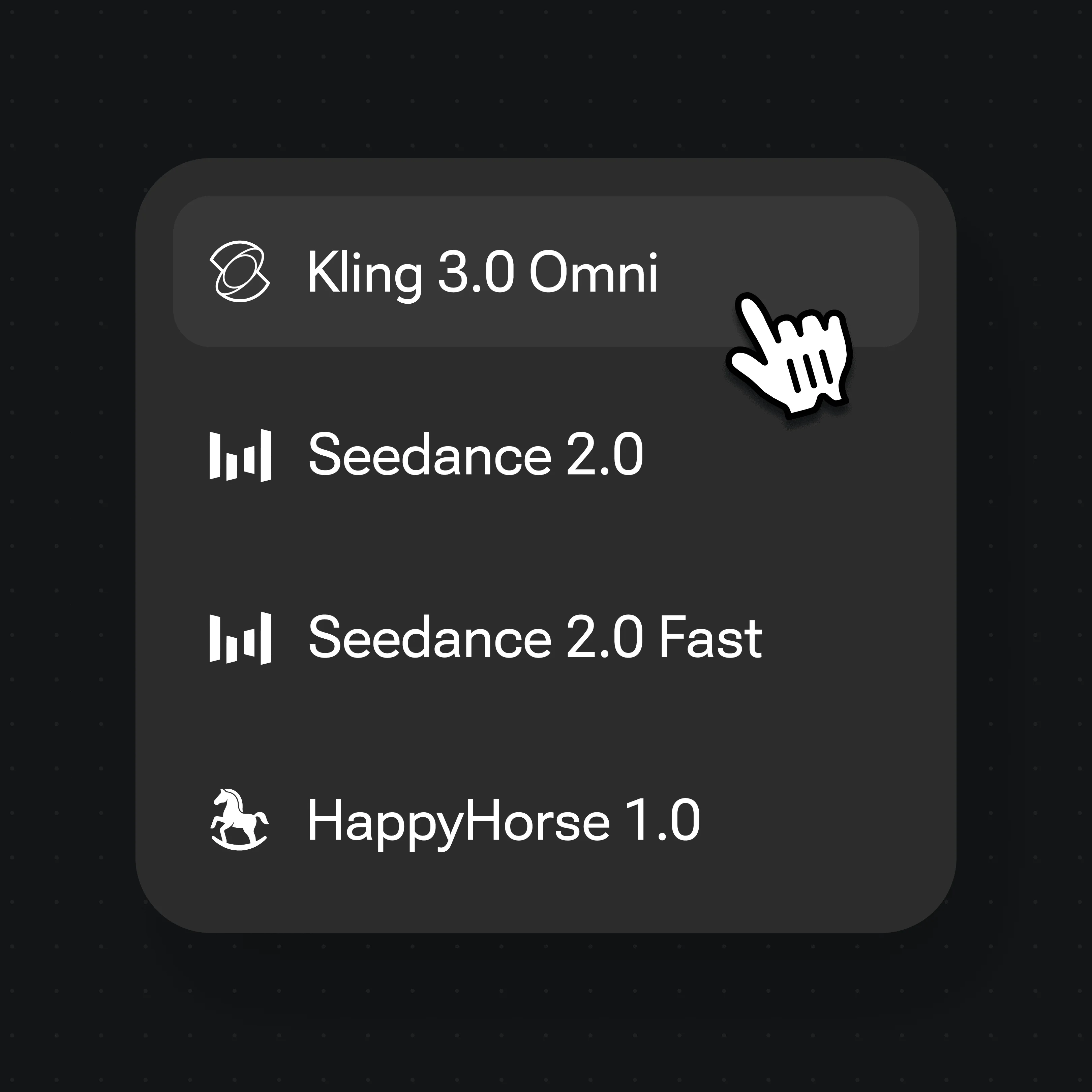
Select Kling 3.0 Omni, upload the presenter portrait as reference, and type the narration script.
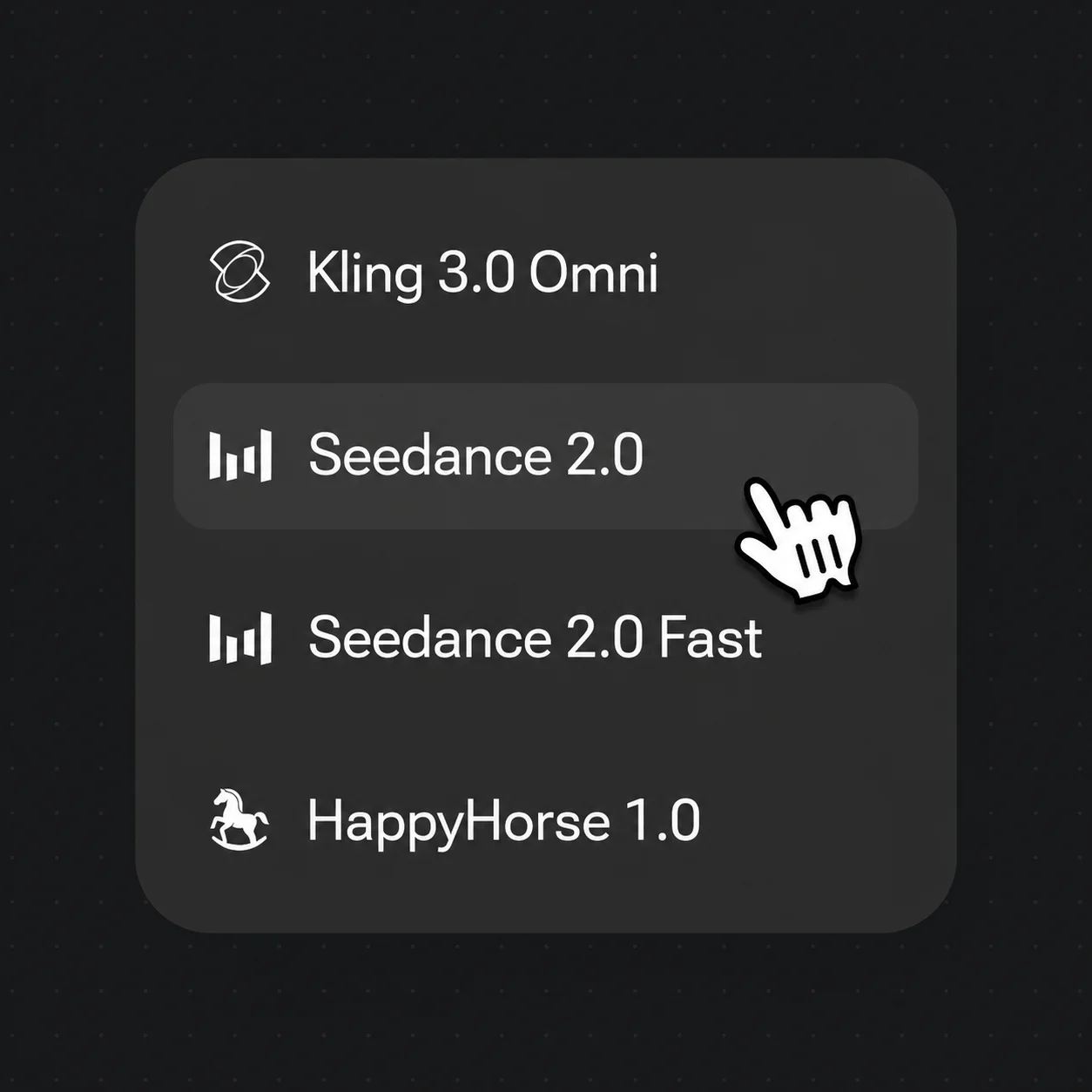
Generate concept footage on Seedance 2.0 with text prompts, then edit and trim each result directly in Renoise.
AI-generated explainer clips from Renoise — talking presenter, concept b-roll, and narrated product walkthroughs.
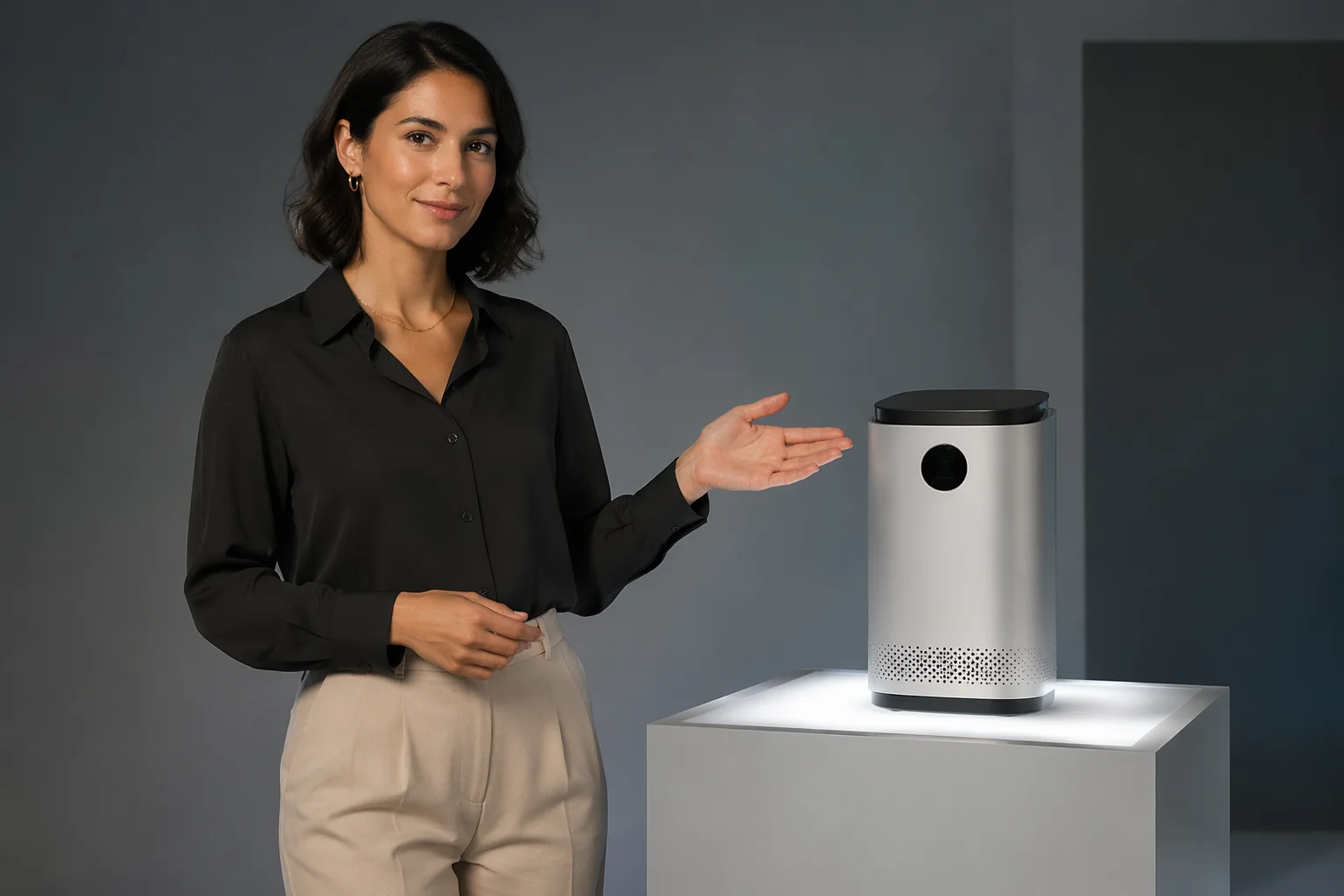
Presenter walks through a product with b-roll showing the item in use.
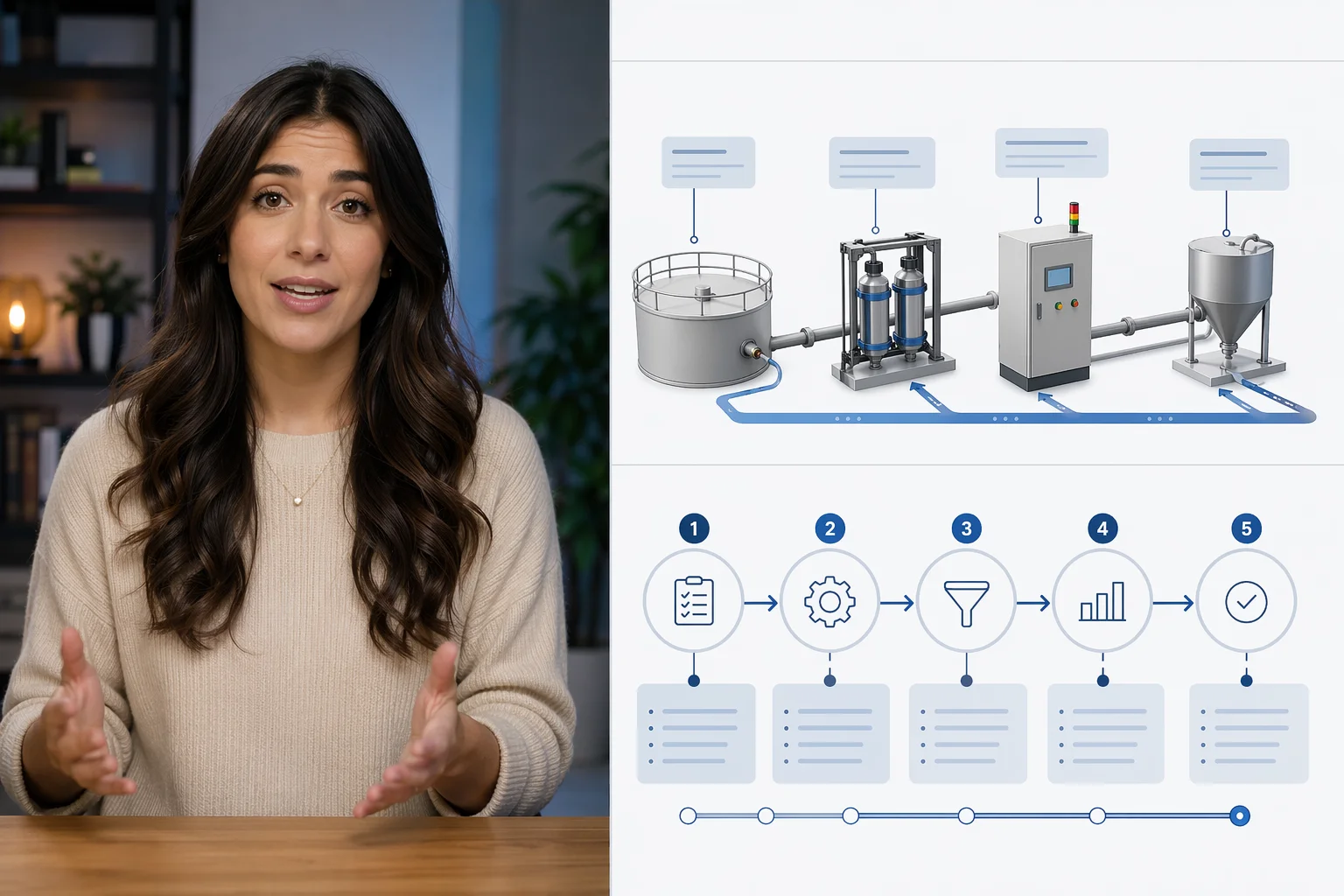
Step-by-step narration from an AI presenter over process footage.
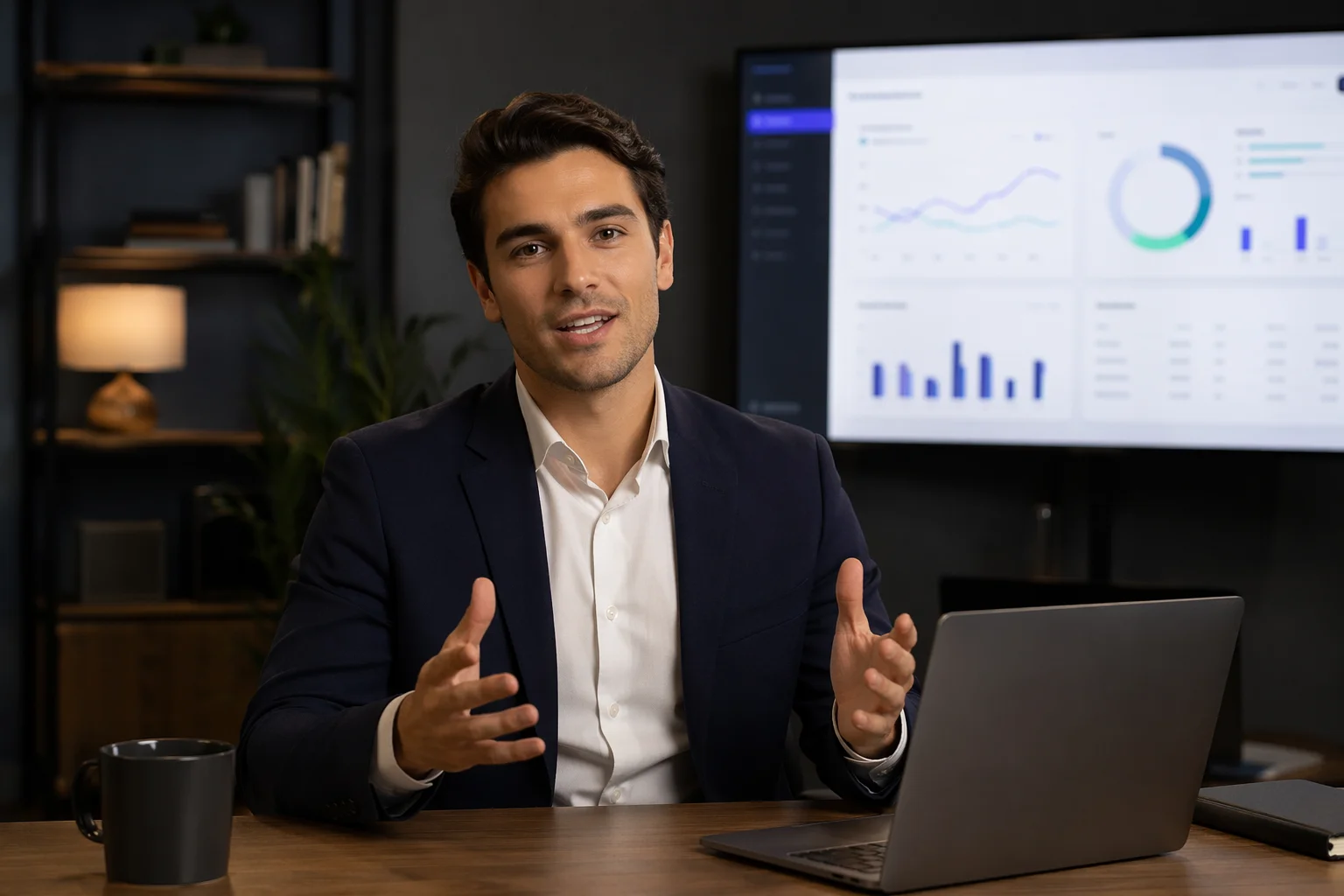
Presenter introduces a feature set — camera-to-camera delivery, scripted.
Abstract concept illustrated with generated b-roll and a narrating presenter.
Use Kling 3.0 Omni for the talking presenter with lipsync; use Seedance 2.0 for concept b-roll and audio-native explainer footage.
| For explainer video | Kling 3.0 Omni (Recommended) | Seedance 2.0 |
|---|---|---|
| Best for | Talking presenter, scripted lipsync | Concept b-roll, audio-native footage |
| Native lipsync | ✓ | — |
| Multi-subject consistency | ✓ | Good |
| Audio-native output | — | ✓ |
| Clip length | 3–15s (≤10s with ref video) | 4–15s |
| Resolution | 720p / 1080p | 720p / 1080p |
Explainer videos and ad videos share some DNA — both usually have a presenter and some kind of call to action — but their primary jobs differ. An explainer video is built to transfer understanding: it walks the viewer through how something works, what a product does, or why a concept matters. The presenter is the anchor for that explanation, not a persuasion vehicle. Ad videos lead with desire or urgency; explainer videos lead with clarity.
In Renoise the workflow reflects that. You start by generating a presenter whose job is to narrate — generate a reliable, clear, presenter-type avatar rather than a high-impact ad face. The lipsync is the core: Kling 3.0 Omni takes the explanation script and animates the presenter mouth to match the narration, so the talking-head clip is the scripted walkthrough. Seedance 2.0 handles the concept footage — the b-roll that shows what the presenter is explaining: product shots, abstract concepts, process visuals.
Both presenter clips and b-roll can be edited and trimmed directly in Renoise. That keeps iteration fast: change the script, re-run the lipsync, adjust the b-roll, and refine the resulting clips.
For a real presenter (your own face, a team member), the same workflow applies — but the face must clear FacePass before it can be used as a reference in generation.
Explainer video production draws on image models, video models, lipsync, and direct video editing and trimming.
Syncs the presenter to a narration script — the core of the explainer format.
Audio-native concept b-roll to illustrate what the presenter explains.
Clears a real presenter face if you use a real likeness rather than a fictional avatar.
Edit and trim presenter clips and b-roll directly in Renoise.
One plan covers Kling 3.0 Omni, Seedance 2.0, and direct video editing and trimming.
For first-time AI content creators
Billed $168 annually
Upgrade PlanSave $72/year
For creators shipping content every week.
Billed $504 annually
Upgrade PlanSave $216/year
For studios and pros producing at commercial scale.
Billed $1680 annually
Upgrade PlanSave $720/year
For first-time AI content creators
Billed monthly
Upgrade PlanFor creators shipping content every week.
Billed monthly
Upgrade PlanFor studios and pros producing at commercial scale.
Billed monthly
Upgrade PlanRenews automatically each year until canceled.
Renews automatically each month until canceled.
Generate a presenter, script the narration, layer the b-roll — complete explainer in Canvas.
An AI explainer video generator creates narrated walkthrough videos using a generated presenter avatar, native lipsync, and generated concept footage — no studio, camera, or voiceover session needed. In Renoise, Kling 3.0 Omni handles the talking presenter; Seedance 2.0 handles the concept b-roll.
Select Kling 3.0 Omni in Canvas, upload the presenter portrait as a reference frame, type the narration script, and generate. Native lipsync animates the presenter mouth to match the spoken line — no post-sync work required.
An explainer video is built to transfer understanding — how a product works, what a feature does, why a concept matters. An ad video leads with desire or urgency. Explainers are usually longer, presenter-led, and structured around a walkthrough; ads are punchy and conversion-focused. The AI ad generator guide covers ad creative specifically.
Yes, but your face is a real likeness that requires FacePass clearance. Submit it for whitelist review; once approved it can be used as a reference frame for the presenter avatar. FacePass is consent-first and the review is not guaranteed to pass.
Kling 3.0 Omni and Seedance 2.0 output at 720p or 1080p. For a presenter portrait used as the source frame, the image can be generated at up to 4K, giving a sharp reference before animation.
Yes. Edit the script text, keep the presenter reference, and re-run the lipsync generation on Kling 3.0 Omni. The Canvas holds your references so the revised clip uses the same presenter without re-generating the image from scratch.