Continue a clip
Seedance 2.0 extends from your footage or its last frame, carrying the action forward.

Continue a clip from its last frame with Seedance 2.0, then edit and trim the generated result directly.
Bring your clip into Renoise, then run it through Seedance 2.0 with extend (last-frame return): the model takes the final frame as its start and generates a new 4–15 second segment that continues the action. Generated video clips can be edited and trimmed directly in Renoise.
Starting from a single still rather than a clip? See the AI photo to video AI tool
Seedance 2.0 extends from your footage or its last frame, carrying the action forward.
Each generated continuation runs 4–15 seconds and can be edited and trimmed directly.
Extend in 21:9, 16:9, 4:3, 1:1, 3:4, or 9:16 — matched to where the video runs.
How we recommend continuing an existing clip. Each pass adds one 4–15s segment; repeat to go longer.
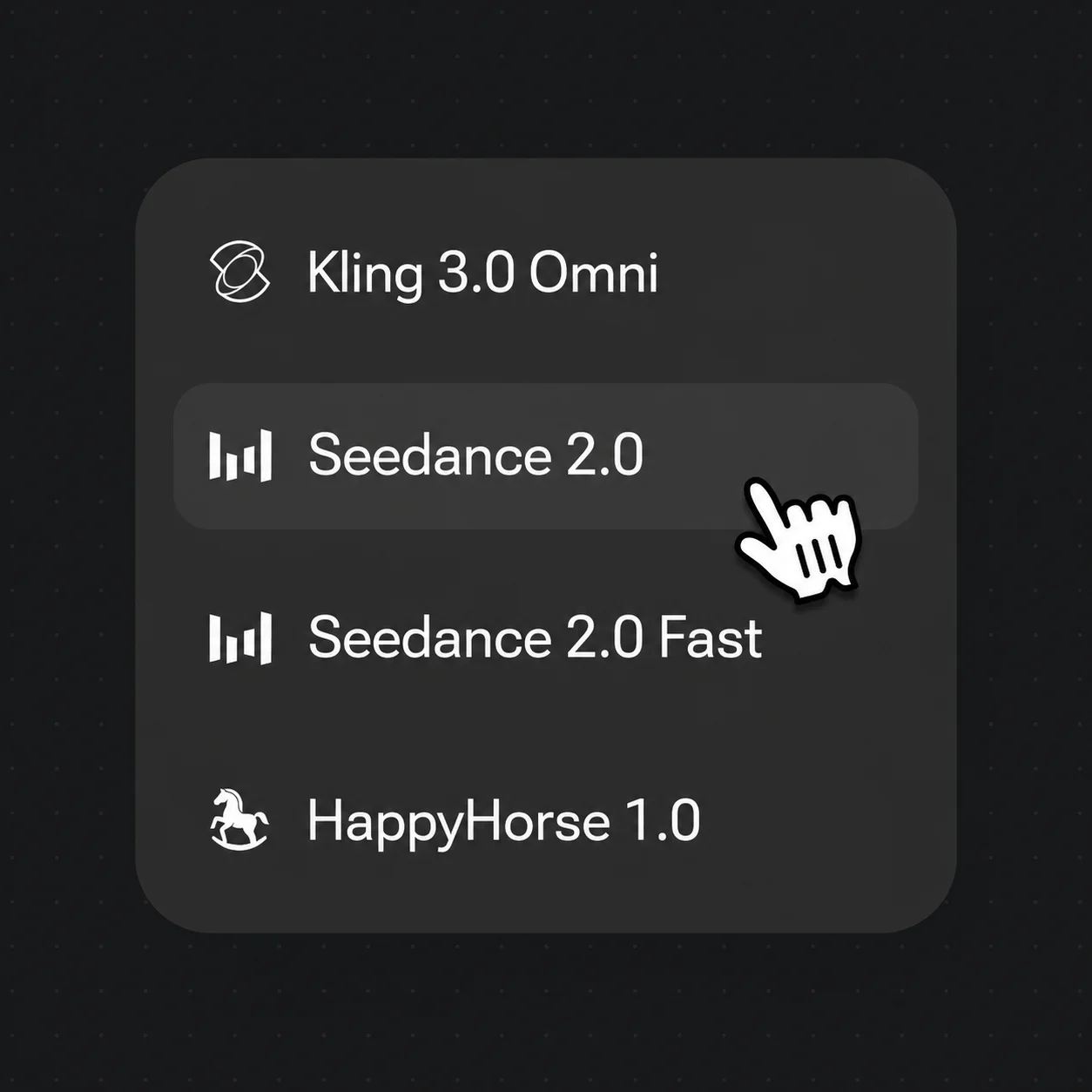
Drop your clip into Canvas and select Seedance 2.0 from the model bar — it supports extend and last-frame return.
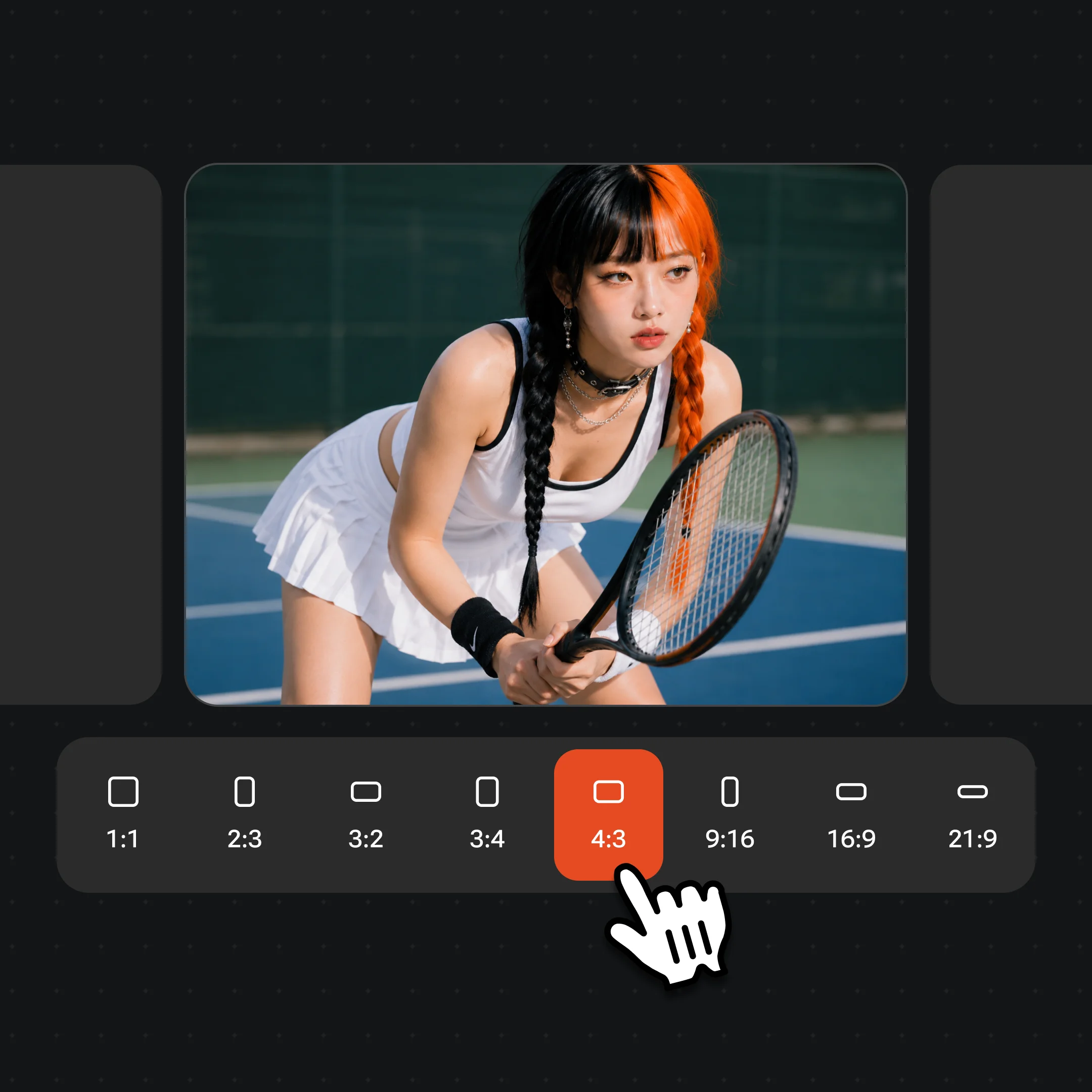
Match the source aspect ratio (e.g. 9:16 for Shorts), then write a one-line prompt for what happens next.
Generate a 4–15 second continuation from the last frame, then edit and trim the result directly in Renoise.

Start from your first clip.

Generate the next segment from the last frame.
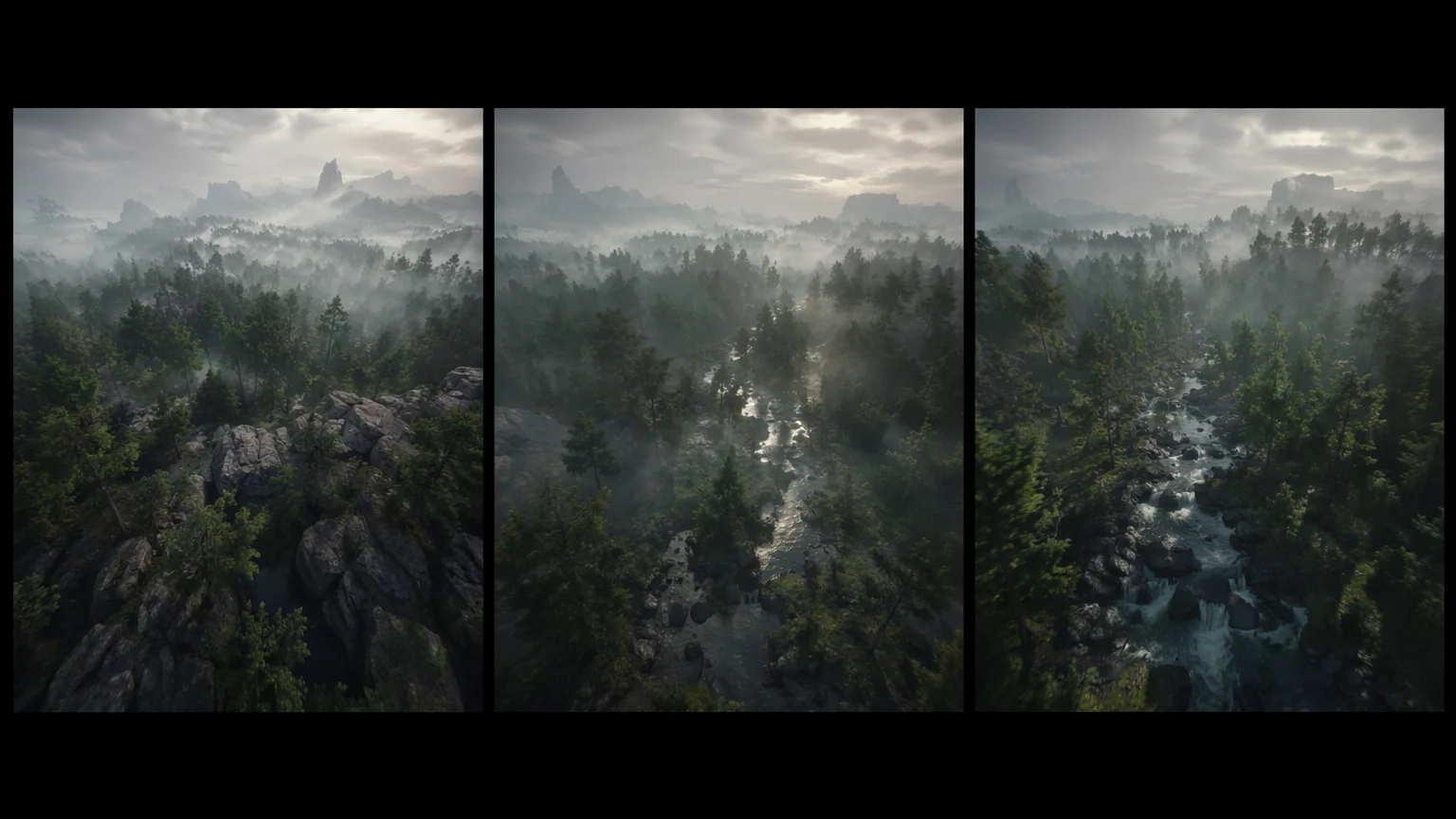
Edit and trim each generated continuation directly in Renoise.
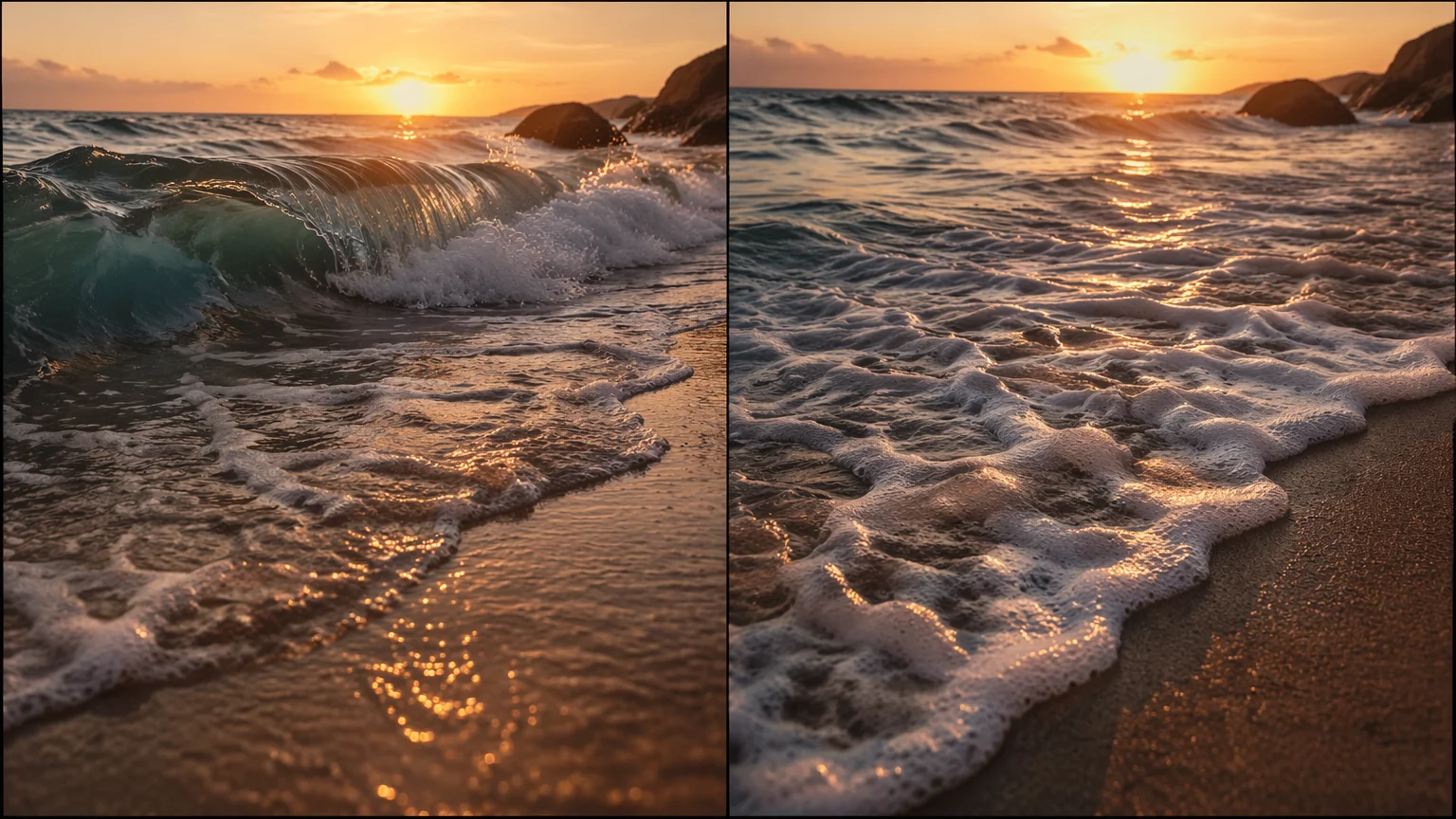
The seam stays continuous in pose and lighting.
These two get confused often, so it is worth separating them. Upscaling raises a video's resolution — it adds pixels to footage you already have, but no new time. Extending does the opposite: it adds new time. An AI video extender keeps the resolution as-is and generates fresh frames after your clip ends, continuing the motion, subject, and scene rather than sharpening them. If your goal is "make this video longer," extending is the job; if it is "make this video sharper," that is a different tool.
In Renoise, extending runs on Seedance 2.0's extend and last-frame return. The model reads the final frame of your clip — pose, lighting, camera position — and uses it as the opening frame of the next segment, so the seam between them stays continuous instead of cutting to an unrelated shot. You steer each pass with a one-line prompt for what should happen next.
One honest limit: each pass produces a 4–15 second segment, not an arbitrarily long video. Generated video clips can be edited and trimmed directly in Renoise. Continuity is strong frame-to-frame but not guaranteed — fine details can drift across a long chain, so review each seam as you build.
One plan unlocks Seedance 2.0 and every model you extend with.
For first-time AI content creators
Billed $168 annually
Upgrade PlanSave $72/year
For creators shipping content every week.
Billed $504 annually
Upgrade PlanSave $216/year
For studios and pros producing at commercial scale.
Billed $1680 annually
Upgrade PlanSave $720/year
For first-time AI content creators
Billed monthly
Upgrade PlanFor creators shipping content every week.
Billed monthly
Upgrade PlanFor studios and pros producing at commercial scale.
Billed monthly
Upgrade PlanRenews automatically each year until canceled.
Renews automatically each month until canceled.
Run your clip through Seedance 2.0 in Renoise using extend (last-frame return). The model continues from the final frame to generate a new 4–15 second segment. Generated video clips can be edited and trimmed directly in Renoise.
Each generated segment is 4–15 seconds on Seedance 2.0. Generated video clips can be edited and trimmed directly in Renoise.
Last-frame return uses your clip's final frame as the next segment's start, so the seam stays continuous in pose, lighting, and framing. Continuity is strong frame-to-frame but not guaranteed — fine details can drift across a long chain, so review each seam.
No. Renoise extends videos — it adds new time, not resolution. An extender continues your footage; it does not upscale it. Seedance 2.0 outputs at 720p or 1080p, and 4K applies to image models, not video.
Seedance 2.0 supports 21:9, 16:9, 4:3, 1:1, 3:4, and 9:16. Match the source clip's ratio when you extend — for example 9:16 for TikTok or Shorts, 16:9 for YouTube — so the continuation frames the same way.
Video models block reference media with a real human face. If your clip shows a real person you hold rights to, clear their likeness through FacePass first; then you can continue the clip with that cleared face referenced across segments.
Yes. Every generated continuation can be edited and trimmed directly in Renoise.