Video reference input
Attach your source clip and the model uses it to guide composition and motion.
Feed an existing clip as a reference and regenerate it in a new visual style.
In Renoise Canvas, attach your source clip as a video reference and prompt the new style. Seedance 2.0 accepts up to 3 video references and re-generates the footage guided by your composition and motion; Kling 3.0 Omni accepts 1 video reference. The output is a new generative render influenced by the source — motion and framing are guided by the input, but exact pixel alignment is not guaranteed.
Want to control camera moves in a new video rather than restyle an existing clip? See the AI motion control guide
Generative restyle guided by a video reference — not a filter, a new render.
Attach your source clip and the model uses it to guide composition and motion.
Describe the new look — cinematic, anime, neon noir, watercolor — in the prompt.
The output is a new generation. Motion is guided, not pixel-perfectly transferred.
Seedance 2.0 supports up to 3 video references to blend composition across clips.
From your source clip to a new visual style — guided by the model, not a post filter.
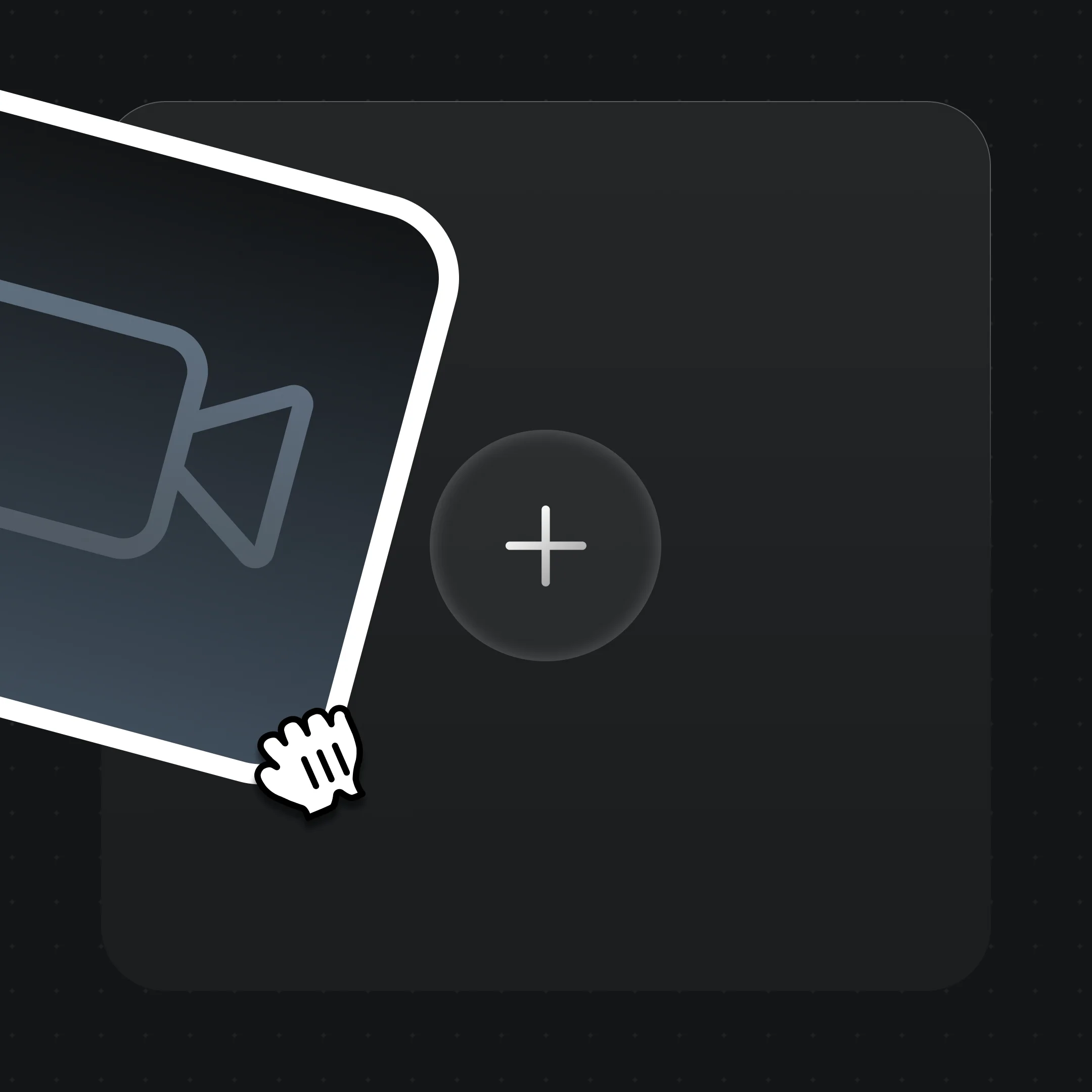
Add your clip to the Canvas as a video reference. The model will use it to guide the motion and composition of the output.
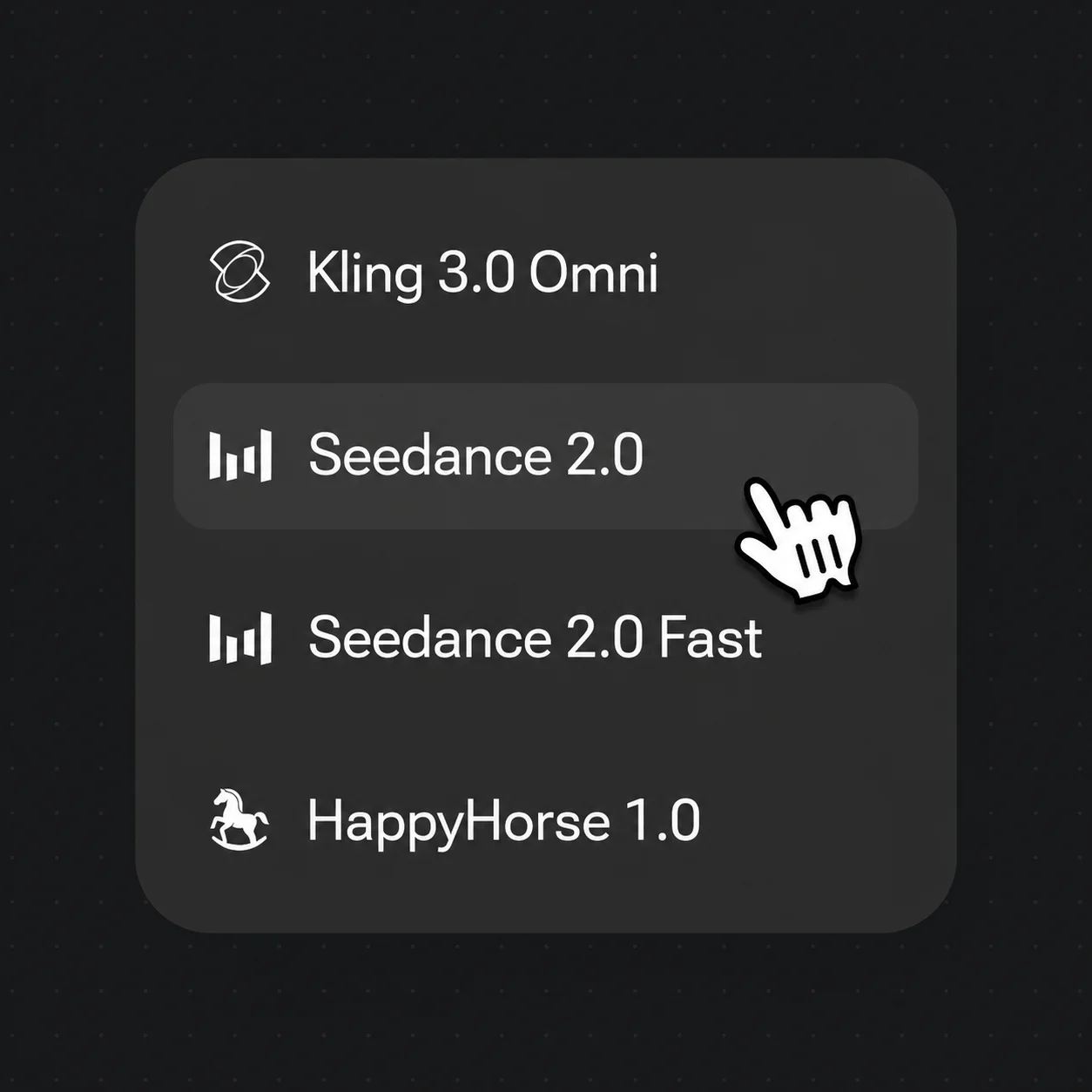
Switch to Seedance 2.0 in the model menu. Describe the visual style you want — lighting, palette, aesthetic — in the prompt.
Run the generation and compare the result against the source. Adjust the style prompt or reference weight and re-generate to dial in the look.
Clips regenerated in a new style using a video reference — composition guided by the source, look driven by the prompt.
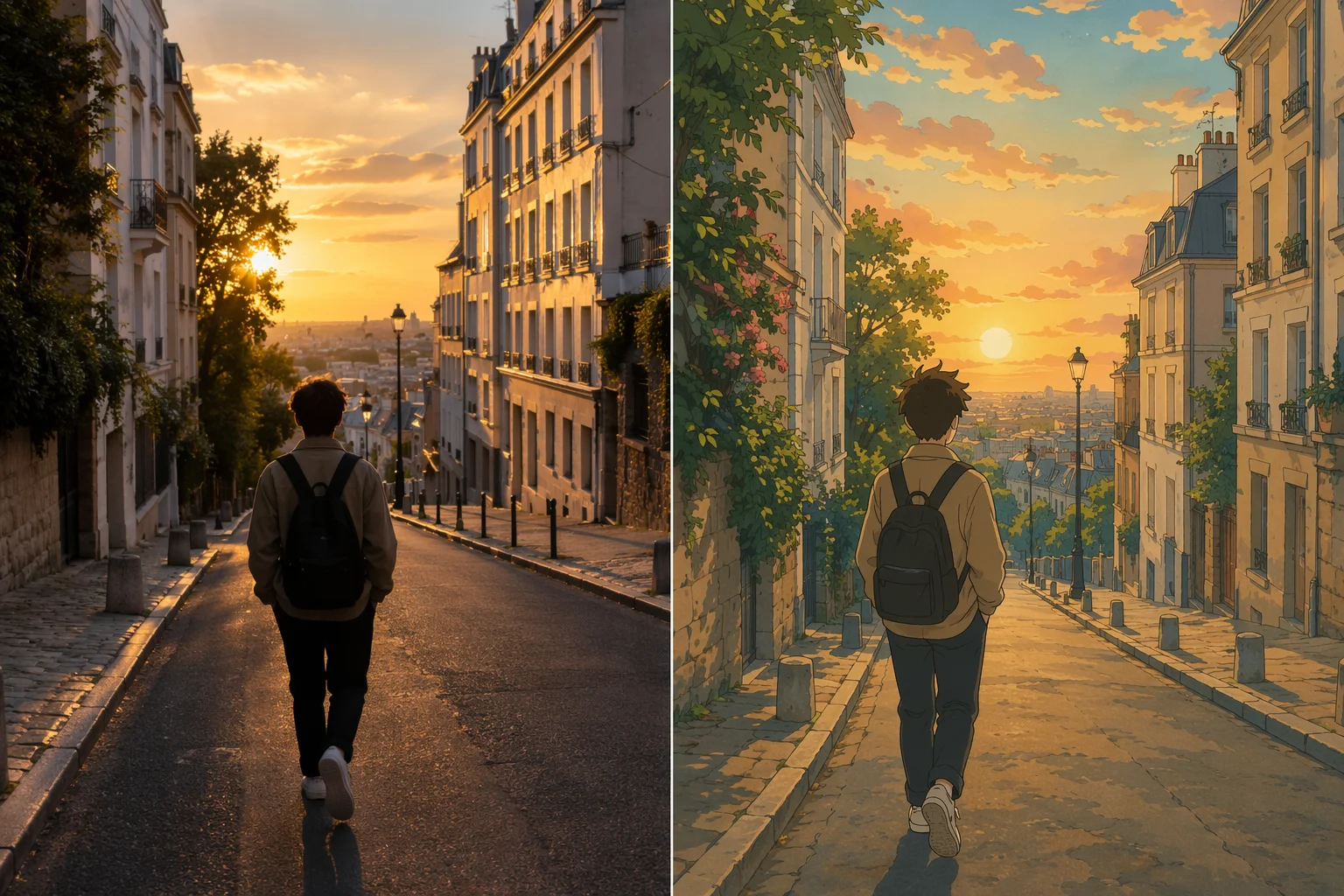
A city walk clip regenerated in a Studio Ghibli-influenced anime style.
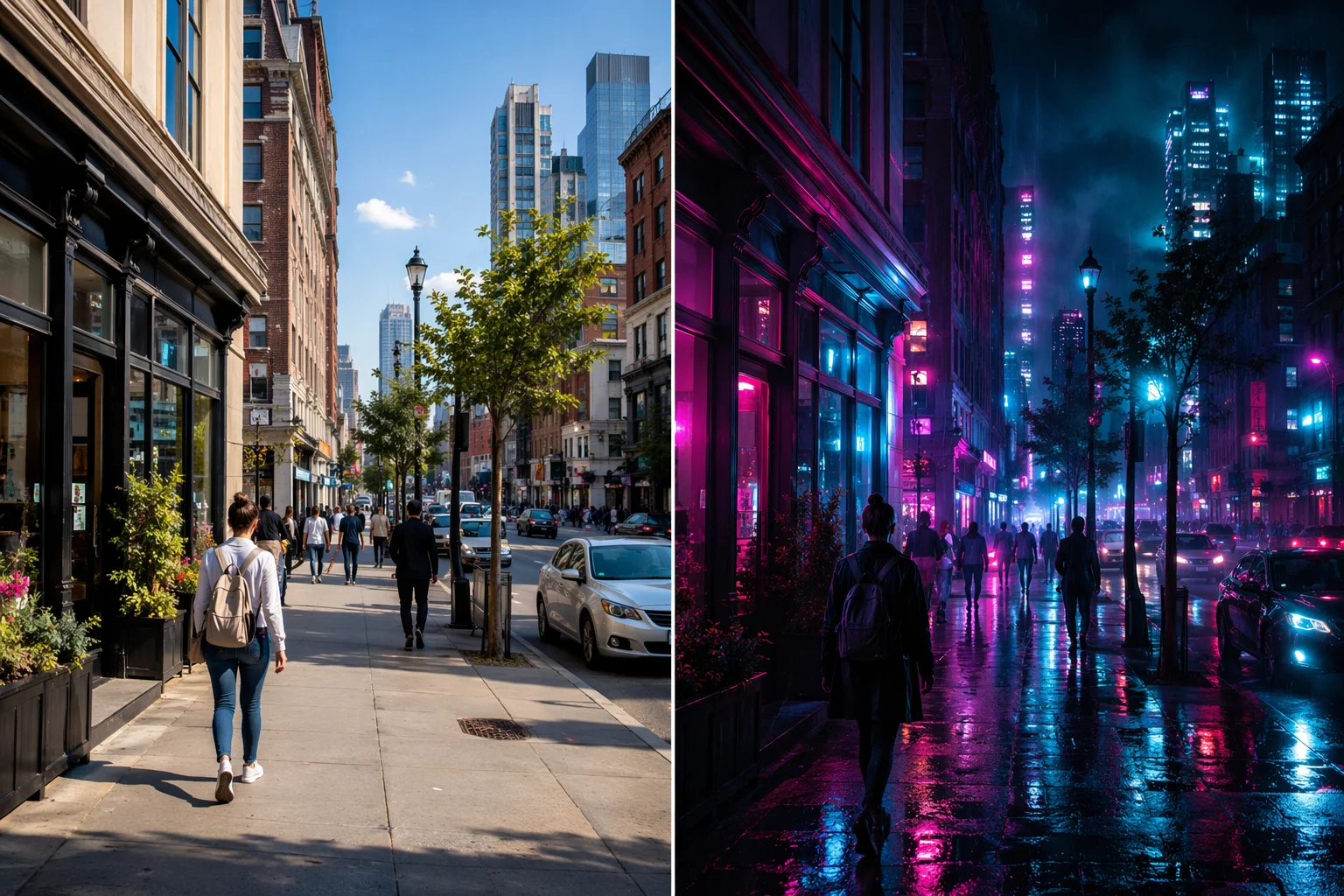
Daytime street footage re-rendered as a neon-lit, high-contrast noir scene.
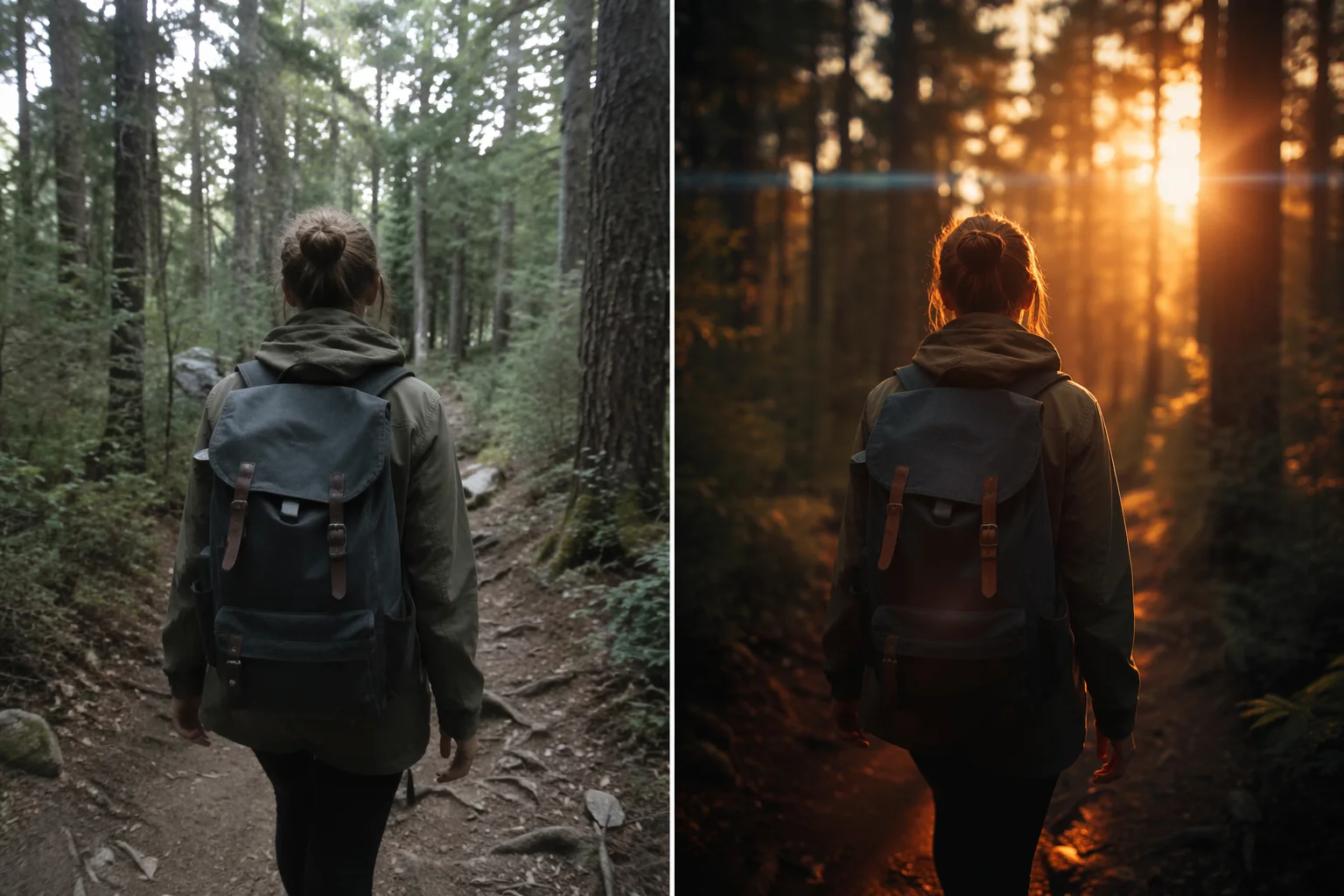
A handheld clip given a cinematic lens and color grade through generative re-render.
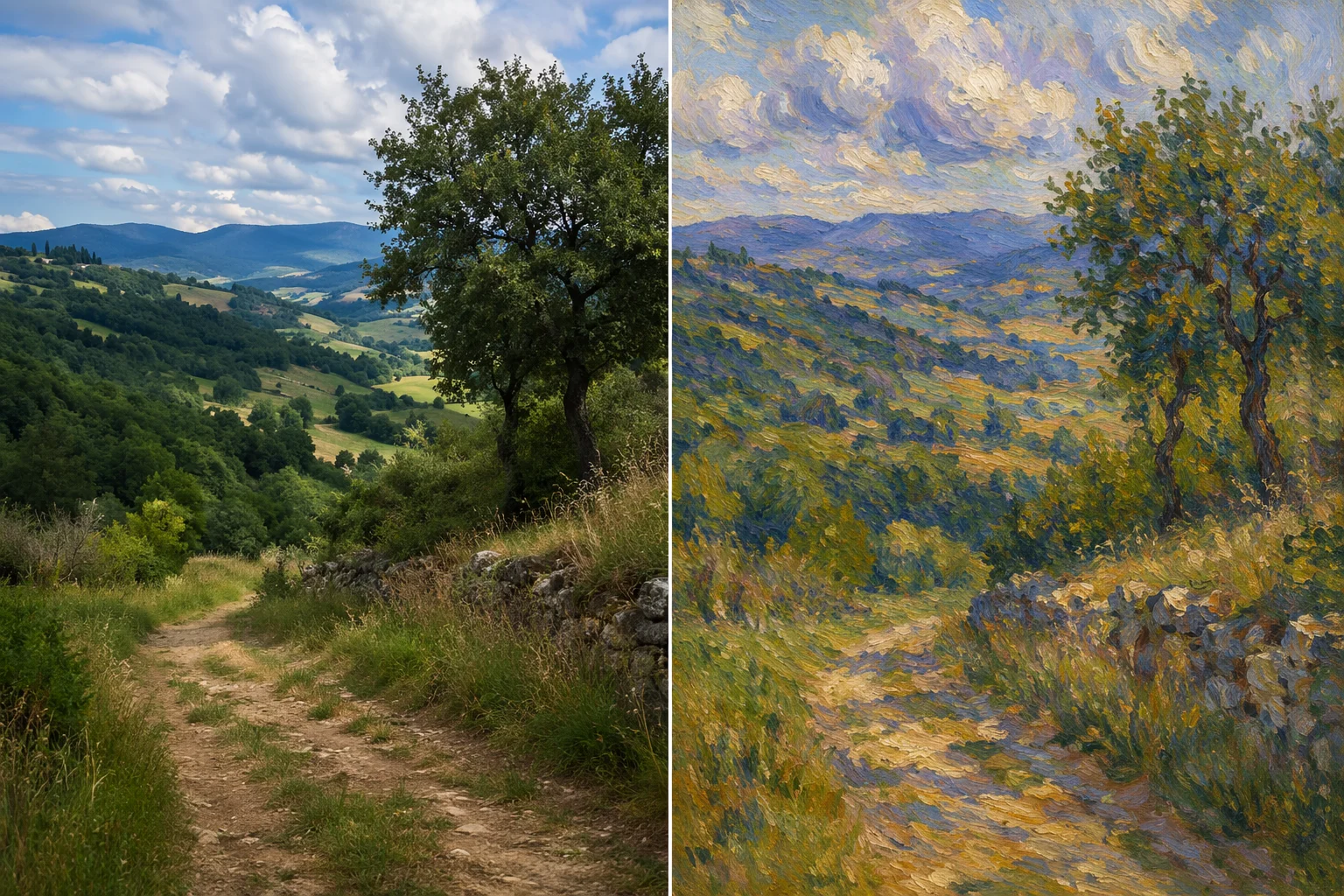
Footage restyled with an oil-painting / impressionist aesthetic.
Both accept video references. Seedance 2.0 supports up to 3 references for a blended restyle; Kling 3.0 Omni supports 1 reference with stronger multi-subject consistency.
| For video restyle | Seedance 2.0 (Recommended) | Kling 3.0 Omni |
|---|---|---|
| Video references | Up to 3 | 1 |
| Best for | Blended multi-clip restyle | Single-reference restyle with subject consistency |
| Audio-native output | ✓ | — |
| Native lipsync | — | ✓ |
| Clip length | 4–15s | 3–15s (≤10s with ref video) |
| Resolution | 720p / 1080p | 720p / 1080p |
It is worth being direct about what AI video-to-video does and does not do in Renoise, because the two are often confused.
A frame-perfect style transfer maps a visual style onto every pixel of every frame of the source clip — the content is preserved exactly, the look changes on top of it. Think of it as a filter that respects frame boundaries. Dedicated style-transfer tools and some ComfyUI pipelines aim for this.
Generative restyle is different. You supply the source clip as a reference and the model generates a new video guided by the composition, motion, and subjects of the input. The motion and framing follow the source, but the model re-renders the content in the new style — it is not tracing pixels. That means the output can drift from the exact input: an actor's expression might shift slightly, a background object might change, timing might not be frame-for-frame identical. For aesthetic restyling — turning a live clip into anime, adding a neon noir grade, painting with a cinematic aesthetic — generative restyle produces strong results and is faster to iterate than a full frame-by-frame pipeline. For content that needs exact pixel-level preservation, it is not the right approach.
Seedance 2.0 supports up to 3 video references, which lets you blend composition from multiple clips into the restyle. Kling 3.0 Omni supports 1 video reference with stronger multi-subject consistency across the output. Both run in the same Canvas, so you can try both on the same source and compare.
Video-to-video restyle draws on multi-reference video models in one canvas.
Up to 3 video references for a blended generative restyle, audio-native output.
Video reference restyle with strong multi-subject consistency across the clip.
Attach video references, adjust prompts, and compare model outputs in one workspace.
Describe the target aesthetic in natural language — lighting, palette, art direction.
One plan unlocks Seedance 2.0, Kling 3.0 Omni, and multi-reference video generation.
For first-time AI content creators
Billed $168 annually
Upgrade PlanSave $72/year
For creators shipping content every week.
Billed $504 annually
Upgrade PlanSave $216/year
For studios and pros producing at commercial scale.
Billed $1680 annually
Upgrade PlanSave $720/year
For first-time AI content creators
Billed monthly
Upgrade PlanFor creators shipping content every week.
Billed monthly
Upgrade PlanFor studios and pros producing at commercial scale.
Billed monthly
Upgrade PlanRenews automatically each year until canceled.
Renews automatically each month until canceled.
Attach a clip as a reference, prompt the new aesthetic, and generate.
Not exactly. Frame-perfect style transfer maps a visual style pixel-by-pixel onto an existing clip. AI video-to-video in Renoise is generative restyle: you supply the source as a reference and the model generates new footage guided by its composition and motion. The look changes from the style prompt; the content may drift slightly compared to frame-perfect mapping.
Seedance 2.0 for blended restyling — it accepts up to 3 video references so you can combine composition from multiple clips. Kling 3.0 Omni for single-clip restyling where multi-subject consistency matters. Both are in the same Canvas and can be tested on the same source.
Motion and composition are guided by the reference, but exact frame-for-frame alignment is not guaranteed. Generative re-render means the model interprets the motion and rebuilds the clip in the new style — it is not a post-processing filter. For most aesthetic restyling this produces good results; for content requiring precise pixel preservation, a dedicated matting pipeline is more appropriate.
Motion control is about directing movement in a new video — camera pan, zoom, orbit — generated from an image or text prompt. Video restyle takes an existing clip as input and changes its visual look. They can be combined: restyle a clip and add camera motion in a follow-up generation.
Yes — prompt the anime aesthetic you want (Studio Ghibli, shonen action, flat manga style) and attach the source clip as a reference. Seedance 2.0 or Kling 3.0 Omni will regenerate the clip guided by the source motion. There is a dedicated anime video guide if anime is the primary use case.
Seedance 2.0 outputs 4–15 second clips; Kling 3.0 Omni outputs 3–15 seconds (up to 10s when a reference video is attached). Generated video clips can be edited and trimmed directly in Renoise.