Multiple photos, one video
Animate a set of photos into individual motion clips for a slideshow project.
Turn a set of photos into a flowing slideshow video — AI generates motion for each shot.
Upload your photos to Renoise Canvas and generate a short motion clip from each one with Seedance 2.0. Each result can be edited and trimmed directly, turning static photos into animated building blocks for a slideshow.
Animating just one photo into a motion clip? See the photo to video AI tool
Photo sequences turned into motion video — the generative slideshow workflow.
Animate a set of photos into individual motion clips for a slideshow project.
Seedance 2.0 generates subtle motion from each still — a gentle zoom, a parallax shift, a soft drift.
Generated video clips can be edited and trimmed directly in Renoise.
From a folder of photos to a flowing slideshow video, all inside Renoise.
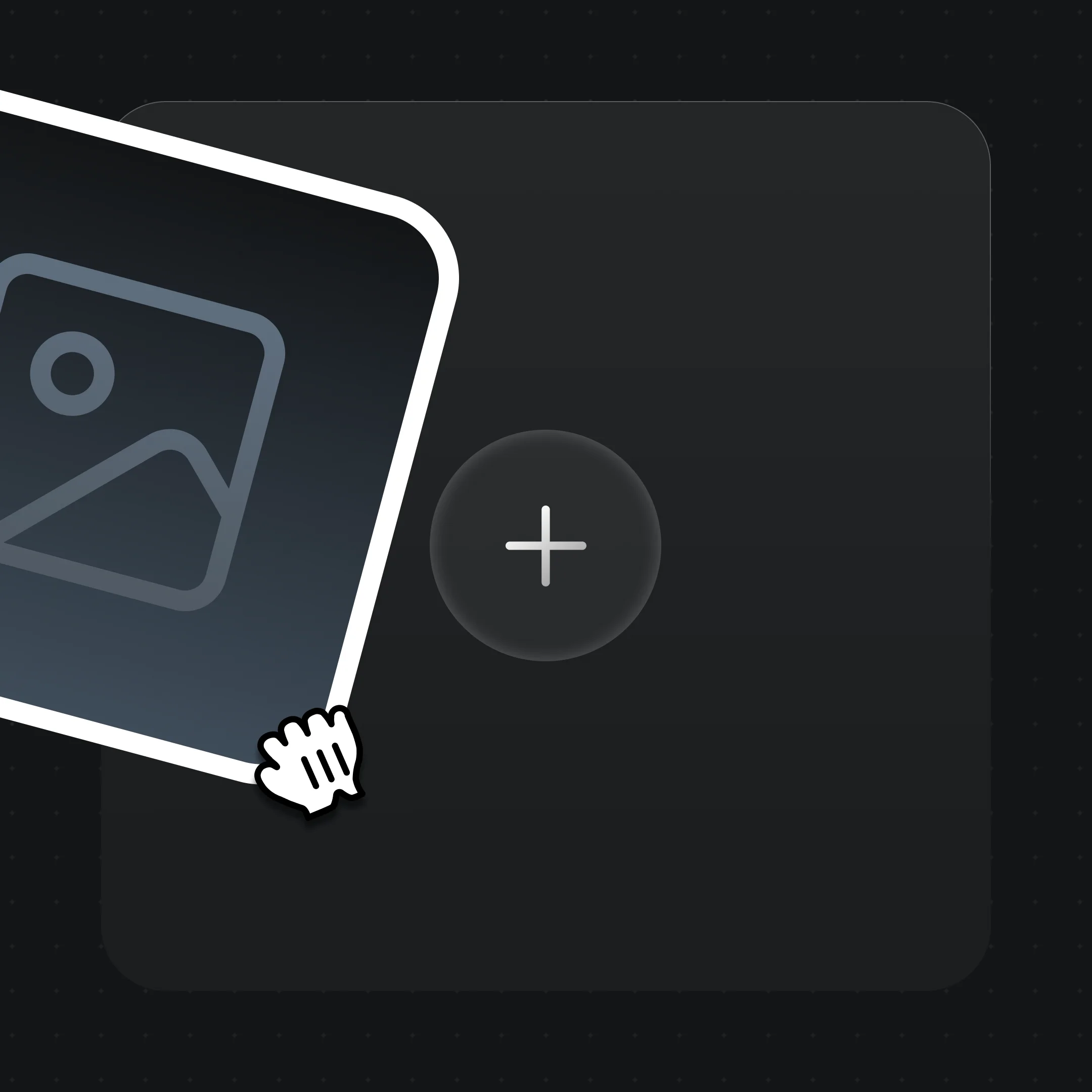
Drag your photos onto the Renoise Canvas upload card. Each photo becomes its own generation input.
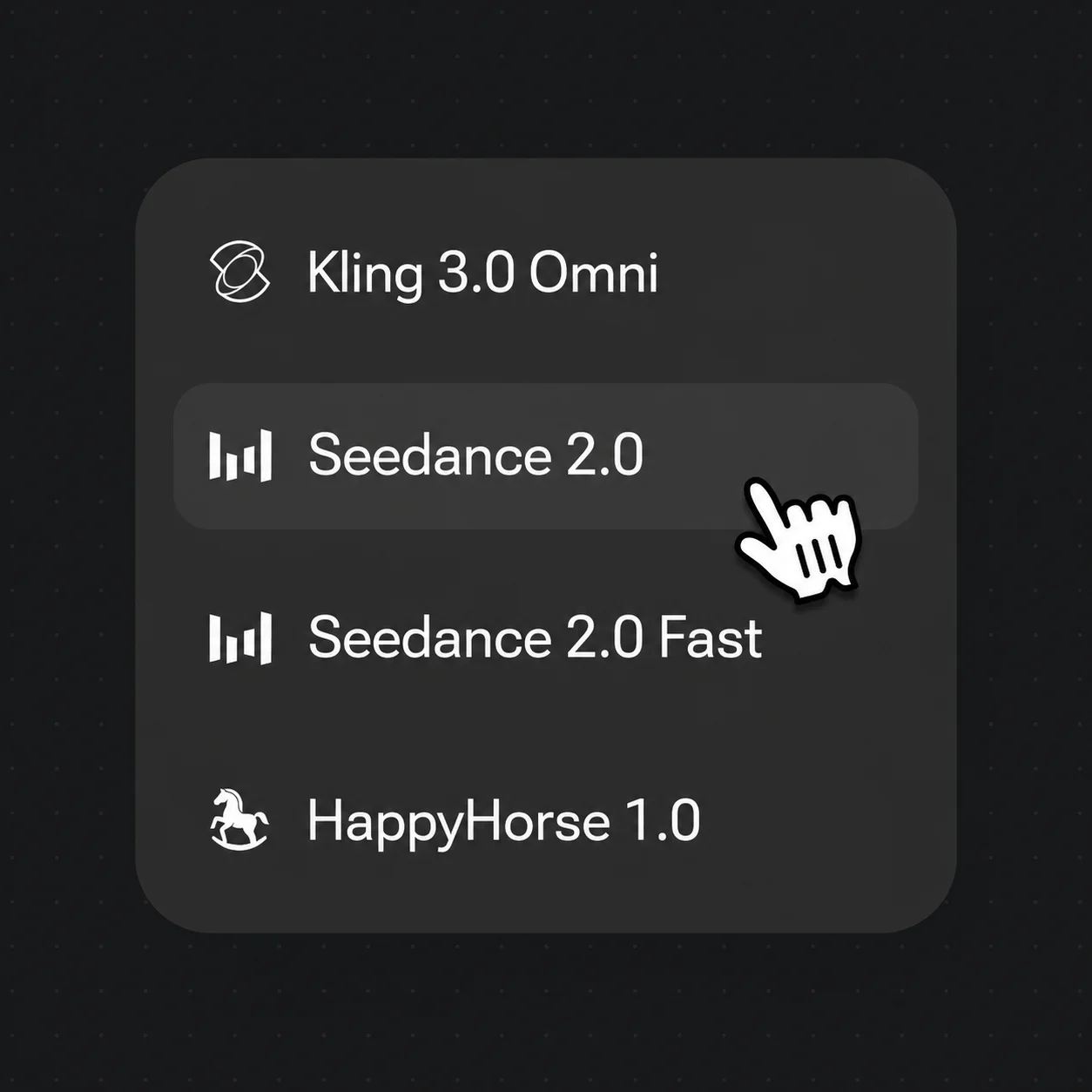
Pick Seedance 2.0, set a short duration (4–8s per clip), and prompt the motion style — "gentle zoom in". Generate one clip per photo.
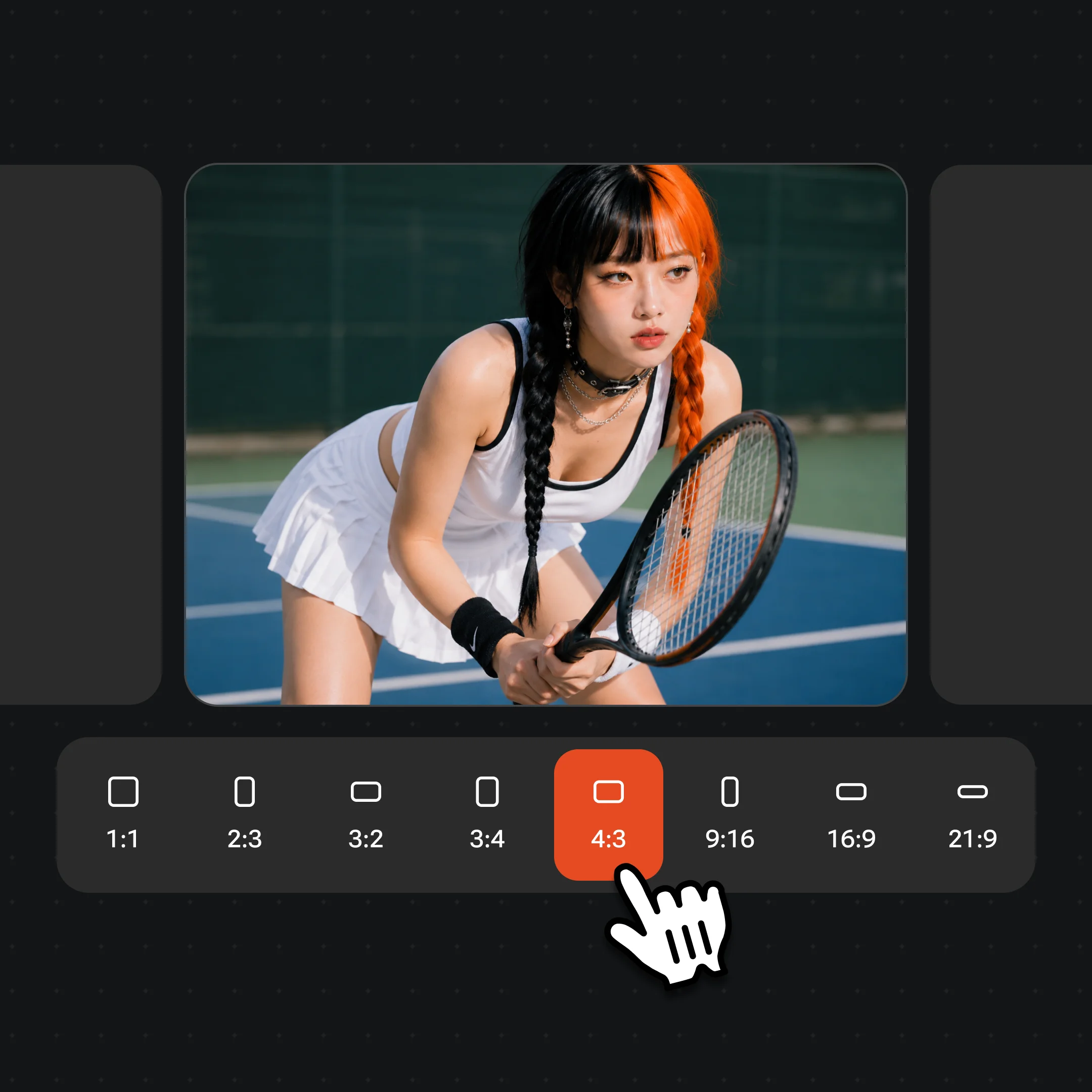
Edit and trim each generated motion clip directly in Renoise. Downloads are watermark-free on paid plans.
Animated photo sequences generated on Seedance 2.0 — travel, family, product, and event slideshows.
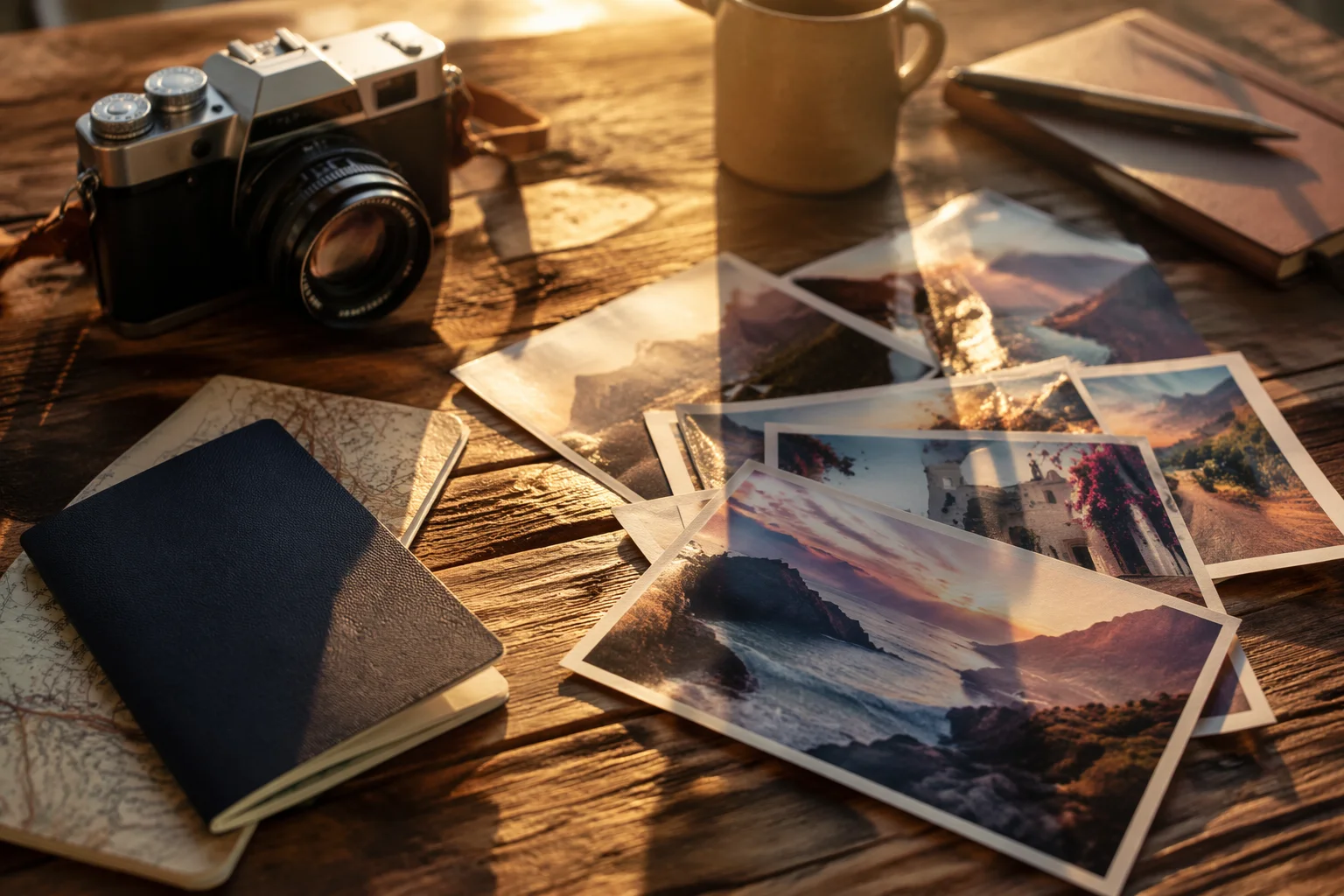
A set of travel photos animated into a flowing trip recap video.
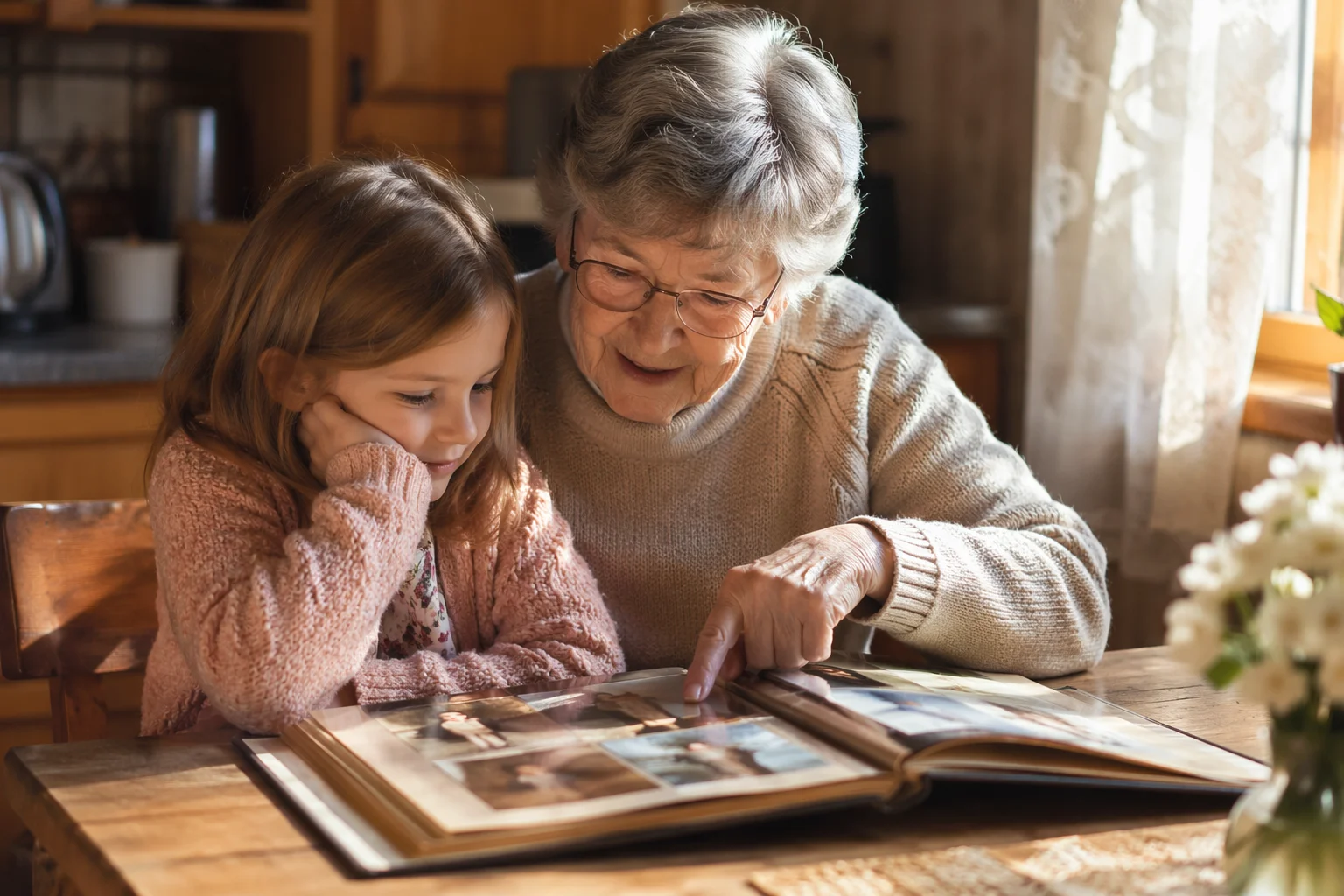
Family photos turned into a warm animated memory slideshow.

Product photos animated as polished e-commerce showcase clips.
Event photos generated with subtle motion for a quick recap project.
Seedance 2.0 handles most slideshow needs; switch to Kling 3.0 Omni for more dynamic physical motion.
| For photo slideshow | Seedance 2.0 (Recommended) | Kling 3.0 Omni |
|---|---|---|
| Best for | Smooth parallax and zoom motion from stills | Dynamic physical motion, character movement |
| First-frame lock | ✓ | ✓ |
| Multimodal reference | Up to 9 images | Up to 7 images |
| Duration per clip | 4–15s | 3–15s |
| Video editing and trimming | ✓ | ✓ |
Traditional slideshow makers apply movement and effects to otherwise static photos. An AI slideshow workflow in Renoise starts differently: each photo becomes a generative prompt input, and Seedance 2.0 creates motion from it — a slow push into a mountain range, a soft parallax drift across a family portrait, or a gentle ripple on a product shot. The movement is generated inside each clip.
Each generated motion clip runs 4–15 seconds and can be edited and trimmed directly in Renoise. That makes it easy to refine the usable section of every animated photo before download.
Plan the number of photos around the amount of source material you need. Because every photo is generated independently, you can revise weak clips without regenerating the rest of the set.
The slideshow workflow uses image-to-video generation plus direct video editing and trimming.
ByteDance video model — generates smooth motion from still photos.
Generated video clips can be edited and trimmed directly in Renoise.
Seedance 2.0 accepts audio references — add a music track to guide the mood.
Download edited motion clips watermark-free on paid plans.
One plan unlocks Seedance 2.0 plus direct video editing and trimming.
For first-time AI content creators
Billed $168 annually
Upgrade PlanSave $72/year
For creators shipping content every week.
Billed $504 annually
Upgrade PlanSave $216/year
For studios and pros producing at commercial scale.
Billed $1680 annually
Upgrade PlanSave $720/year
For first-time AI content creators
Billed monthly
Upgrade PlanFor creators shipping content every week.
Billed monthly
Upgrade PlanFor studios and pros producing at commercial scale.
Billed monthly
Upgrade PlanRenews automatically each year until canceled.
Renews automatically each month until canceled.
Upload photos, generate motion, then edit and trim each clip — watermark-free downloads on paid plans.
Generate one motion clip per photo, then edit and trim each result directly in Renoise. Plan around 4–8 seconds of usable motion per photo.
Yes. Every generated motion clip can be edited and trimmed directly in Renoise.
The photo to video AI tool (/features/photo-to-video-ai) focuses on animating one photo. This guide applies the same generation method to a set of photos prepared for a slideshow project.
The music video guide (/guides/ai-music-video) starts from a song and a shot plan. The slideshow maker starts from a set of travel, family, product, or event photos and turns each one into an editable motion clip.
Seedance 2.0 accepts audio references (up to 3 clips) that influence the motion mood. For a more structured music-video-style production, the AI music video guide covers that workflow in more depth.
Video exports are 720p (Seedance 2.0 Fast) or 720p/1080p (Seedance 2.0 standard). Video is not 4K — 4K is image-only in Renoise. Exports are watermark-free on paid plans.