Clip length
4–15 seconds per clip on Seedance 2.0, with direct editing and trimming in Renoise.
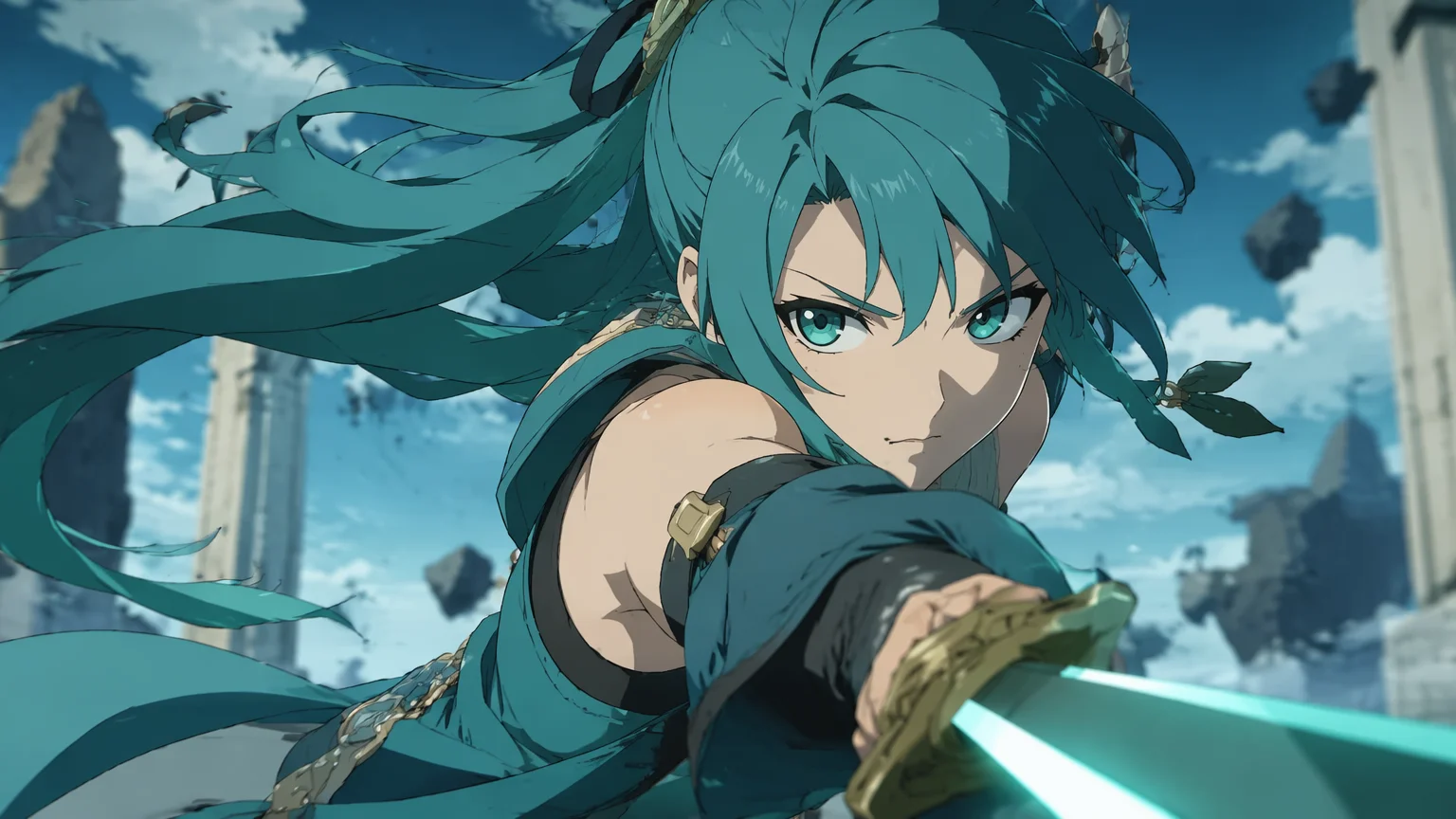
Design an anime character, then bring it to motion as a short video clip.
First generate an anime character image on GPT Image 2 or Nano Banana Pro. Then feed that still into Seedance 2.0 as the first frame and prompt the motion — a 4–15 second clip at 720p or 1080p. For dialogue, use Kling 3.0 Omni instead for native lip-sync and multi-subject scenes.
Just want a single anime image, not motion? See the AI anime generator guide
4–15 seconds per clip on Seedance 2.0, with direct editing and trimming in Renoise.
Up to 1080p on both Seedance 2.0 and Kling 3.0 Omni.
Design a still on GPT Image 2, then animate it image-to-video.
Kling 3.0 Omni adds native lip-sync for talking anime characters.
Three steps from a character still to a short anime video clip.
Generate an anime still on GPT Image 2 or Nano Banana Pro: "anime-style character, cel-shading, clean lineart" plus outfit.
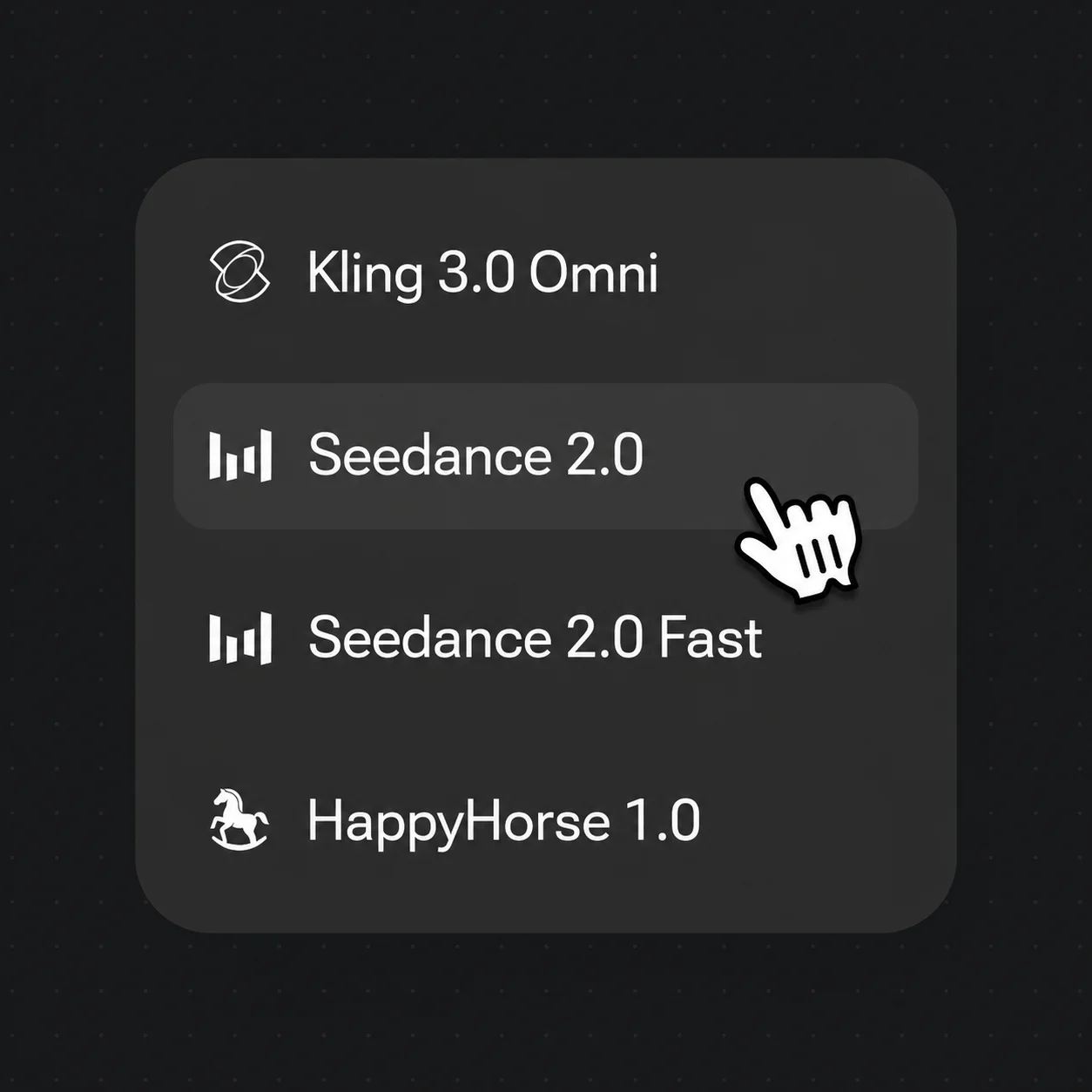
Switch to Seedance 2.0 for cinematic motion, or Kling 3.0 Omni when the shot needs lip-synced dialogue.
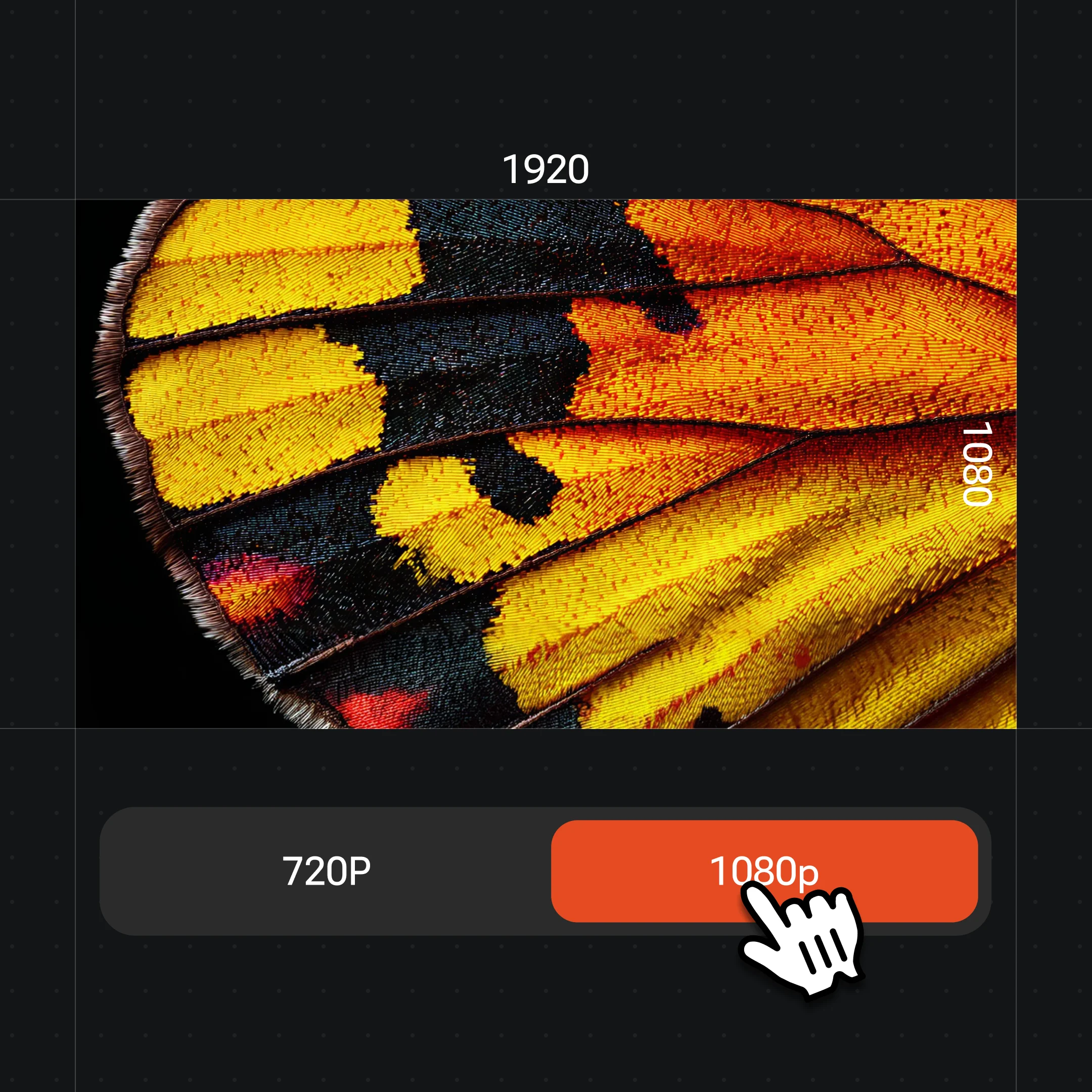
Set the still as the first frame, prompt the motion, choose 1080p and 16:9 or 9:16, then generate.
These are dedicated cel-shaded frames generated in Renoise — the still you feed into Seedance 2.0 as the first frame. Animated clips coming soon.
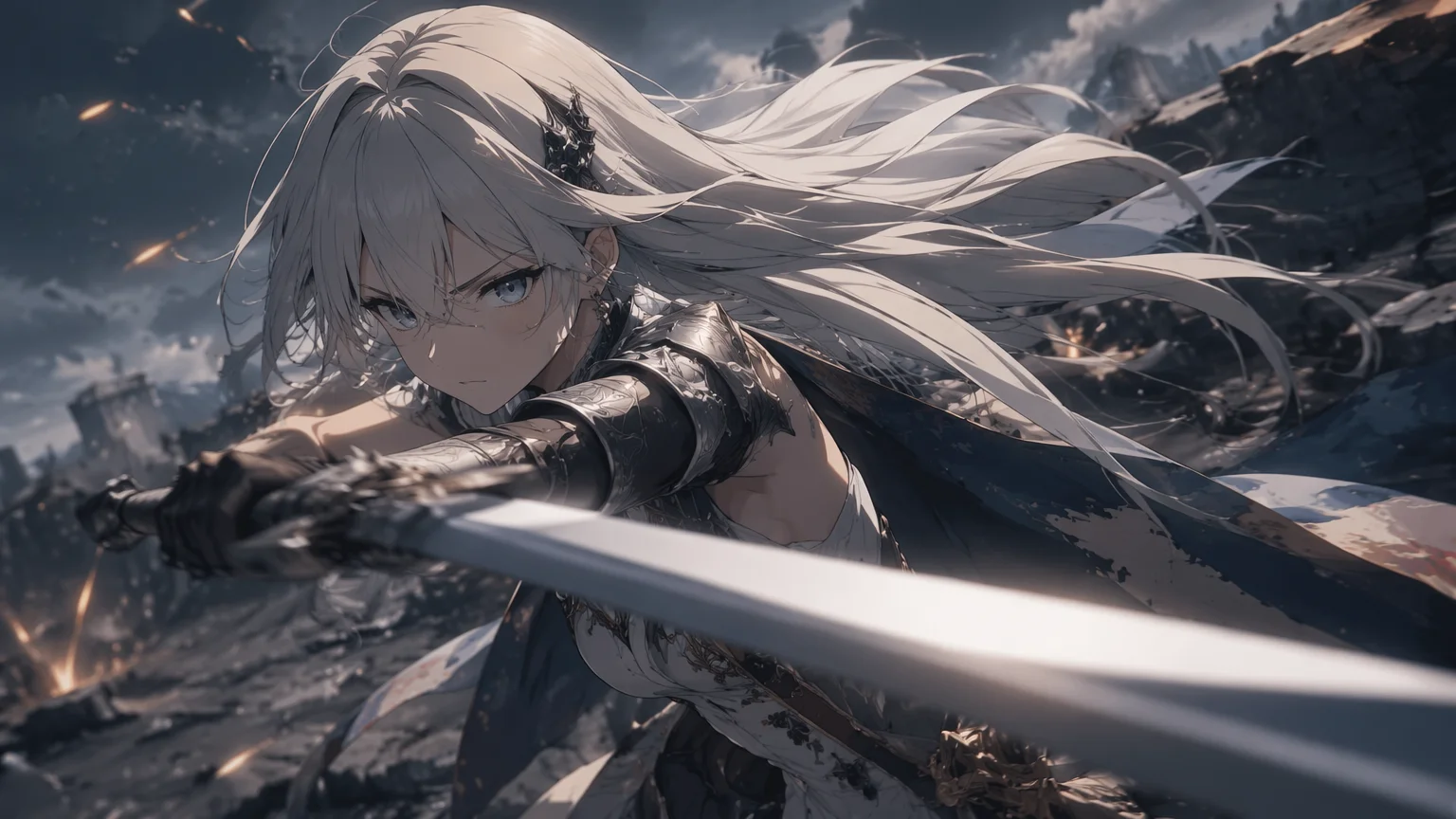
A dynamic cel-shaded action frame.
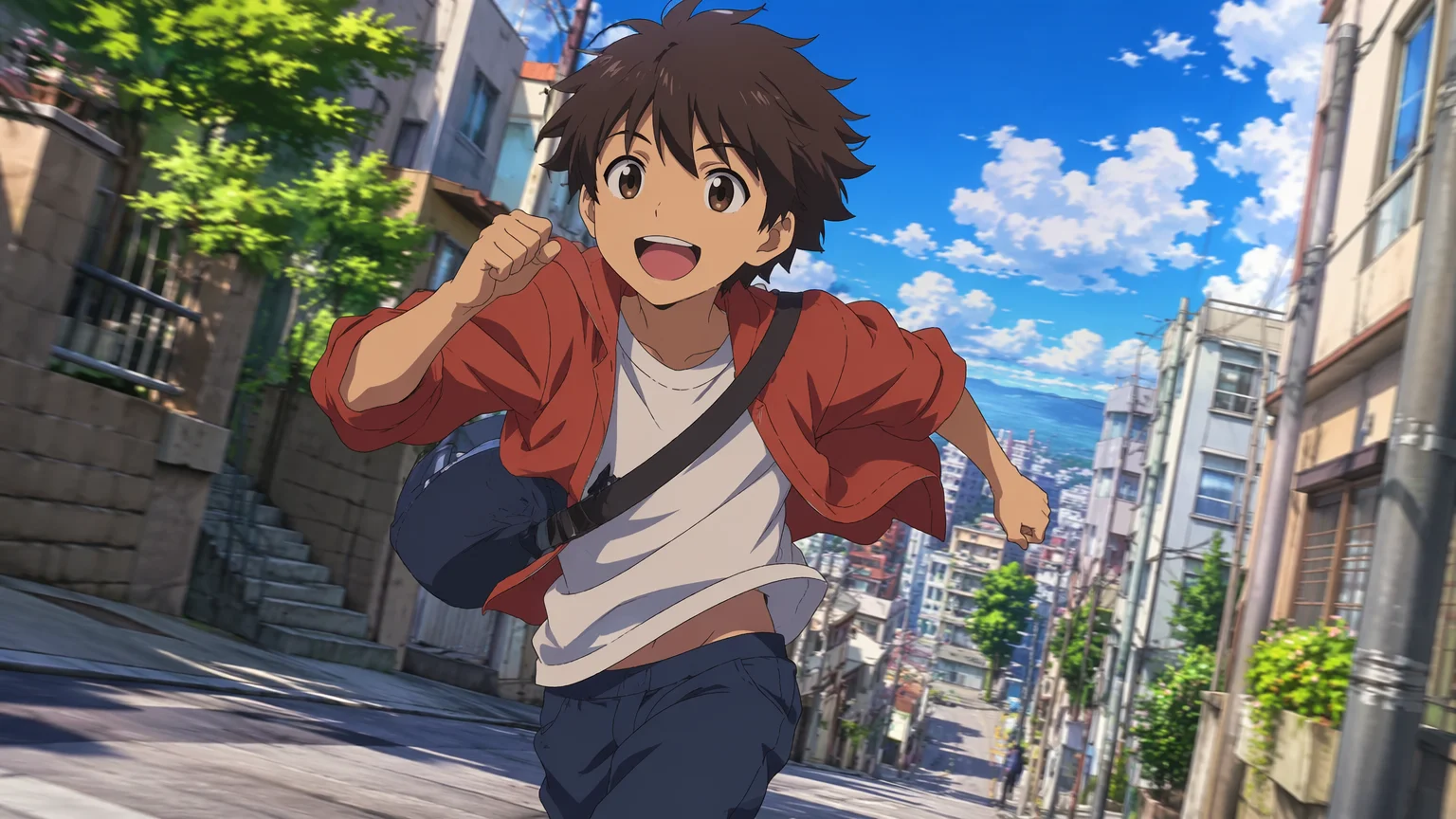
A character moving through a scene.
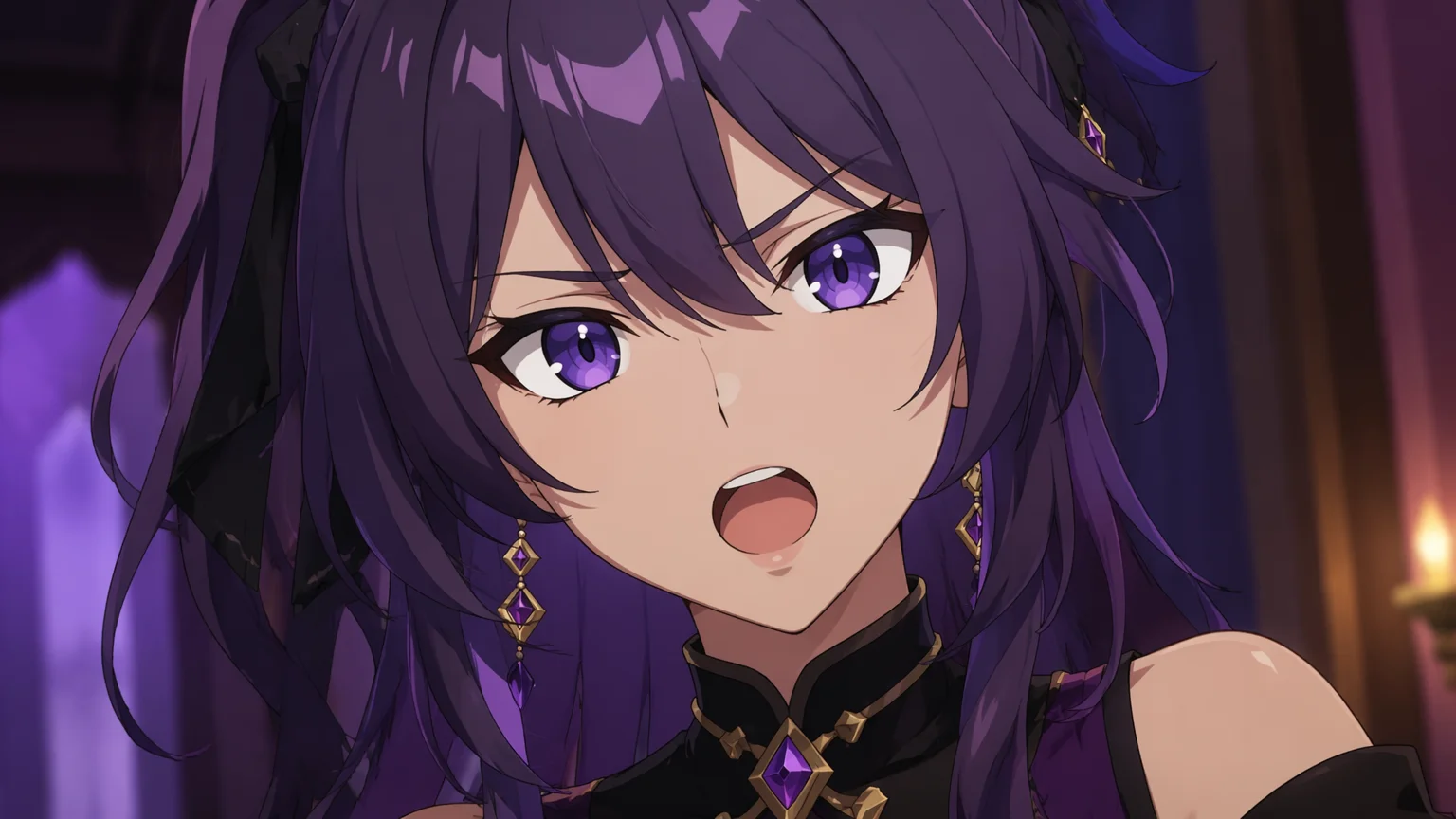
Native lip-sync for talking characters on Kling 3.0 Omni.
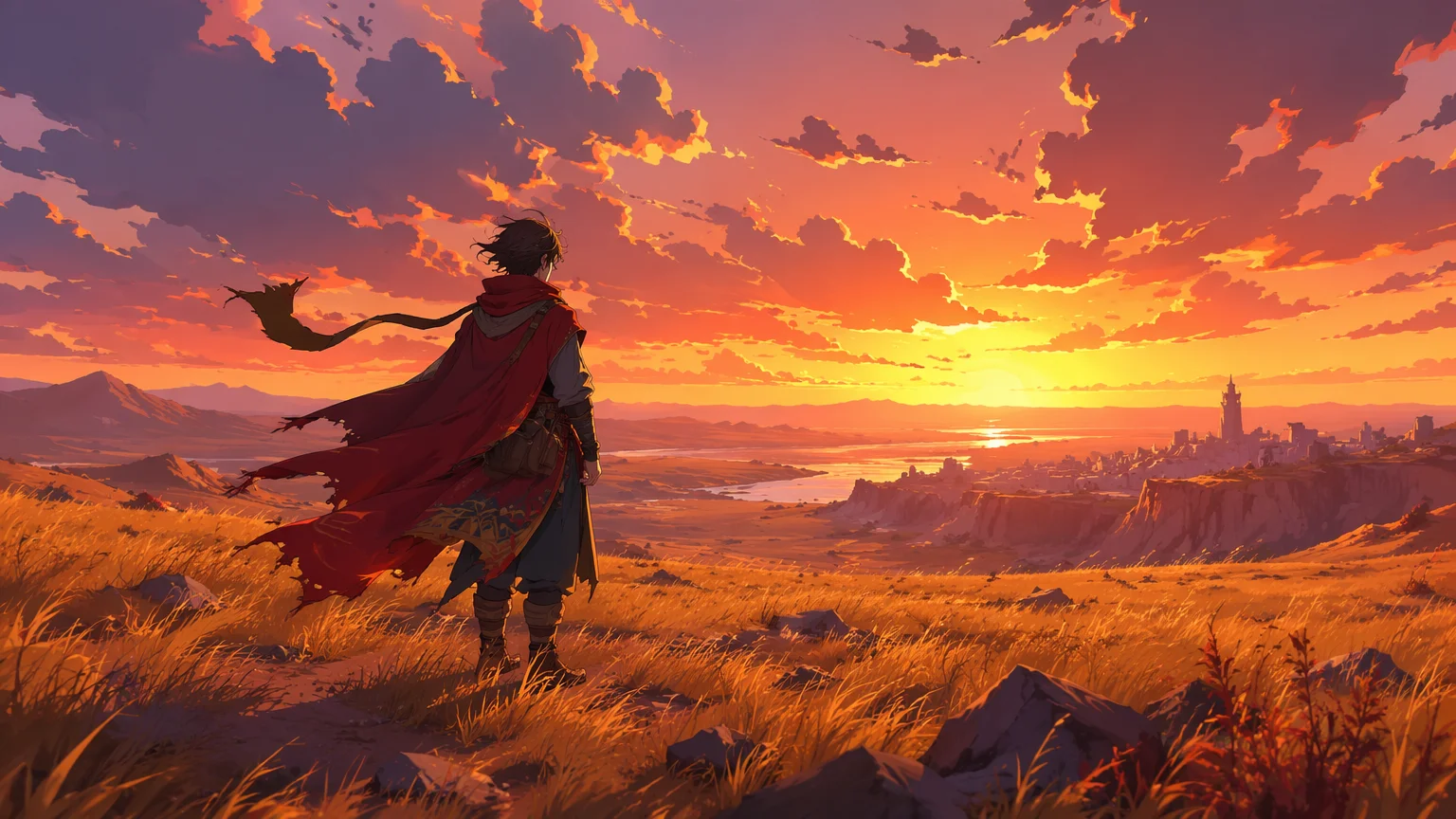
A full cel-shaded scene with an original character.
Both video models live in the same Renoise canvas — pick by what the shot needs. Seedance 2.0 for cinematic image-to-video motion, Kling 3.0 Omni when an anime character has to talk.
| For anime video | Seedance 2.0 (Recommended) | Kling 3.0 Omni |
|---|---|---|
| Best for | Cinematic motion | Lip-synced dialogue |
| Clip length | 4–15s | 3–15s |
| Image-to-video | ✓ | ✓ |
| Native lip-sync | — | ✓ |
| Multi-subject | Good | Best |
| Same canvas | ✓ | ✓ |
Generating an anime image and generating anime video are two different jobs that share a starting point. A still is one frame: you prompt cel-shading, lineart, and proportions on an image model like GPT Image 2, and you judge it on composition and likeness. Video adds time — the character has to move coherently, the camera has to behave, and the cel-shaded look has to hold across every frame instead of just one.
The practical bridge between them is image-to-video. Rather than asking a video model to invent a character from text, you design the character as a still first, then feed that still into Seedance 2.0 as the first frame. The model animates from a look you have already locked, so motion drift is smaller and the style stays on-model. This is also why character work usually starts on an image model and finishes on a video one.
In Renoise both halves share a canvas. Generate the still on GPT Image 2 or Nano Banana Pro, then switch the model bar to Seedance 2.0 for motion or Kling 3.0 Omni when the shot needs lip-synced dialogue — multi-subject consistency and native lip-sync make Kling the better pick for talking-character scenes. Consistency improves at the model layer but is not guaranteed, so a clean first frame matters.
Anime video leans on a few things — and Renoise gives you image and video models in one canvas.
Image-to-video and first-frame control for cinematic 4–15s anime motion at up to 1080p.
Native lip-sync and multi-subject consistency for talking anime characters and dialogue scenes.
Generate the cel-shaded character still you animate from — clean lineart, original characters.
Design on an image model, animate on a video model, without leaving the Canvas.
One plan unlocks the image and video models your anime clip needs.
For first-time AI content creators
Billed $168 annually
Upgrade PlanSave $72/year
For creators shipping content every week.
Billed $504 annually
Upgrade PlanSave $216/year
For studios and pros producing at commercial scale.
Billed $1920 annually
Upgrade PlanSave $480/year
For first-time AI content creators
Billed monthly
Upgrade PlanFor creators shipping content every week.
Billed monthly
Upgrade PlanFor studios and pros producing at commercial scale.
Billed monthly
Upgrade PlanRenews automatically each year until canceled.
Renews automatically each month until canceled.
Animate cel-shaded characters, watermark-free on paid plans.
Generate the anime still on GPT Image 2 or Nano Banana Pro, switch the Canvas model bar to Seedance 2.0, set that image as the first frame, and prompt the motion. Seedance 2.0 outputs a 4–15 second clip animated from your design.
Yes. First restyle the photo into an anime or cartoon still — Nano Banana Pro holds the likeness hardest — then feed that frame into Seedance 2.0 as the first frame and animate it. Doing it in two steps keeps the style locked before motion is added.
Each clip runs 4–15 seconds on Seedance 2.0 and 3–15 seconds on Kling 3.0 Omni. Generated video clips can be edited and trimmed directly in Renoise.
Seedance 2.0 for cinematic single-character motion from a first-frame still. Kling 3.0 Omni when an anime character has to speak or two characters share a shot — it adds native lip-sync and stronger multi-subject consistency.
Yes, with Kling 3.0 Omni, which has native lip-sync. Generate the character still, then prompt the dialogue on Kling 3.0 Omni so the mouth tracks the speech. It is the better pick than Seedance 2.0 for talking-character scenes.
Consistency improves at the model layer but is not guaranteed — outputs can still drift. Animating from the same first-frame still and reusing that design across clips is what keeps the character on-model from shot to shot.
Up to 1080p on both Seedance 2.0 and Kling 3.0 Omni. Choose 16:9 for YouTube or 9:16 for shorts before generating. Renoise does not output 4K video — 4K applies to the image models only.
Yes, with the usual AI-generated-content caveats. Outputs are watermark-free on paid plans. Keep characters original and avoid copying any real studio or franchise, and verify the licensing terms in your account before publishing.