Any shot count
Lay out a 3-, 6-, or 9-panel sheet — wide, close-up, and pan in one sequence.
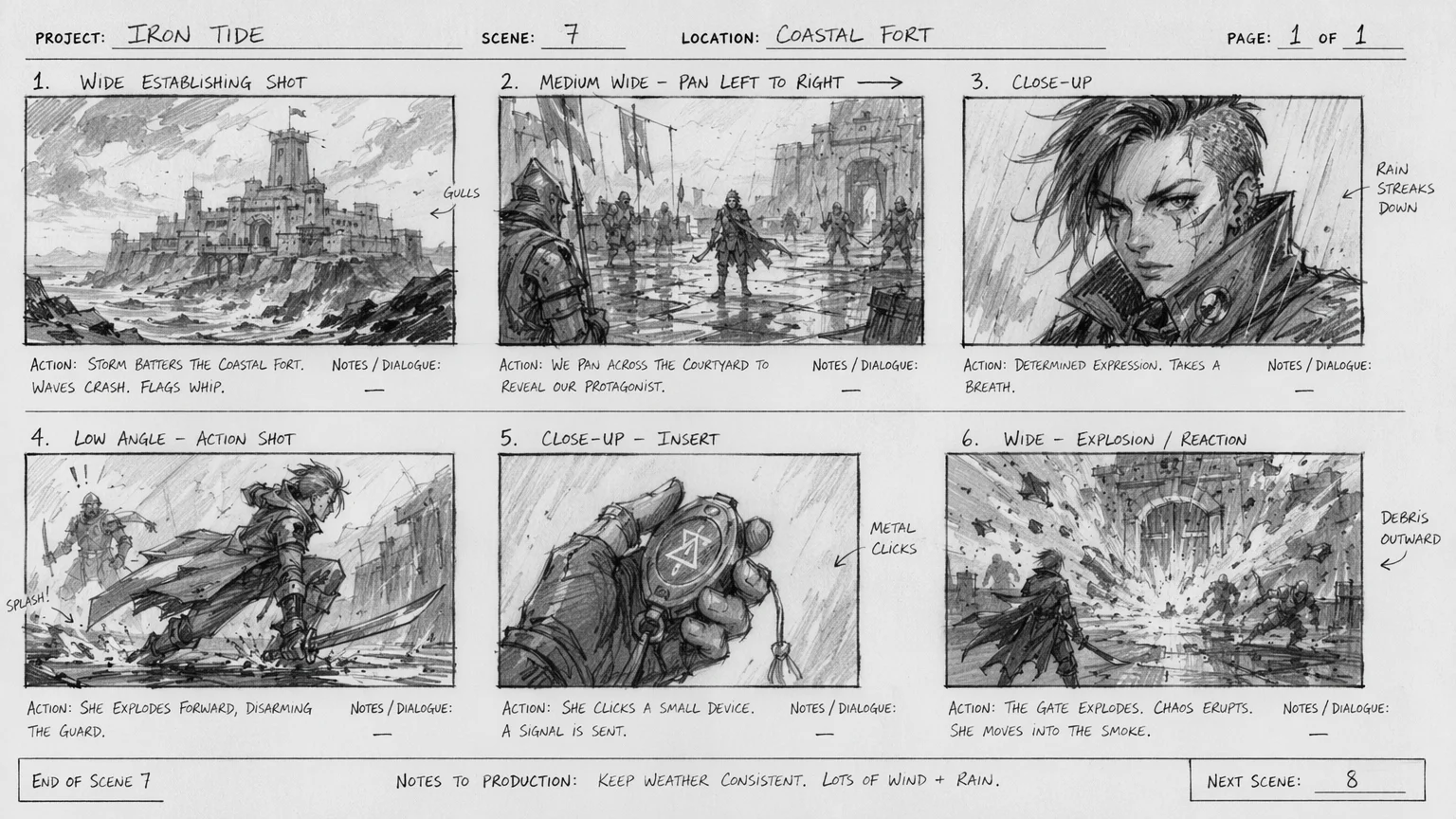
Plan your film shot by shot — then turn the boards into video.
Describe each shot — framing, action, and camera move — then generate the frames as images on Nano Banana Pro or GPT Image 2 in Renoise Canvas. Lay the panels out as a sheet (wide, close-up, pan), keep one consistent look across them, and use each finished board as the reference for generating that shot as video.
Building toward a finished trailer instead? See the movie trailer guide
What a board session looks like in Renoise.
Lay out a 3-, 6-, or 9-panel sheet — wide, close-up, and pan in one sequence.
Prompt framing and moves — wide shot, CU, dolly, pan — straight into each frame.
Each board becomes the reference shot for Seedance 2.0 video in the same canvas.
From a shot list to moving footage, all in one canvas.
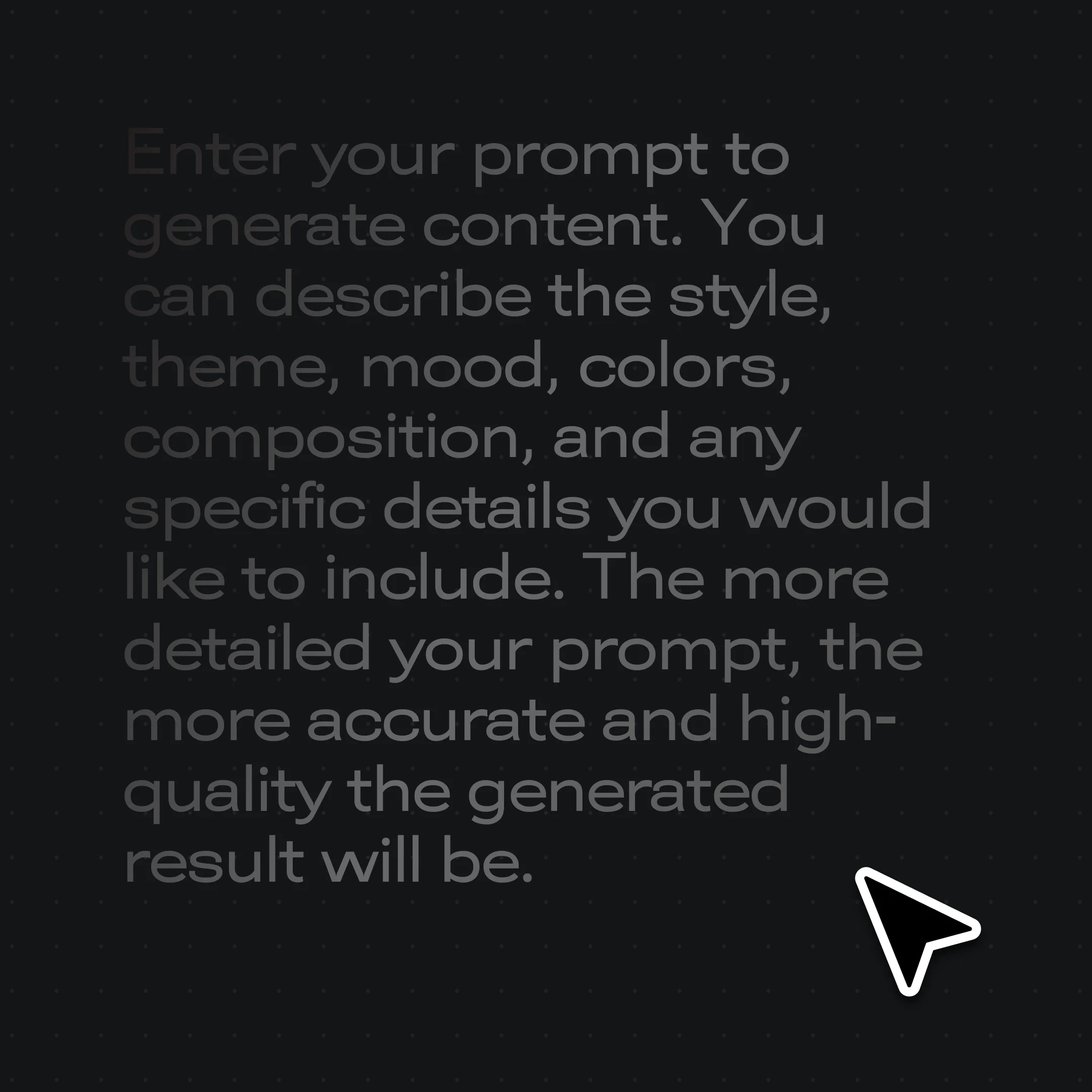
Drop a shot per node — "wide establishing, dawn rooftop" / "CU on the runner, breathing hard".
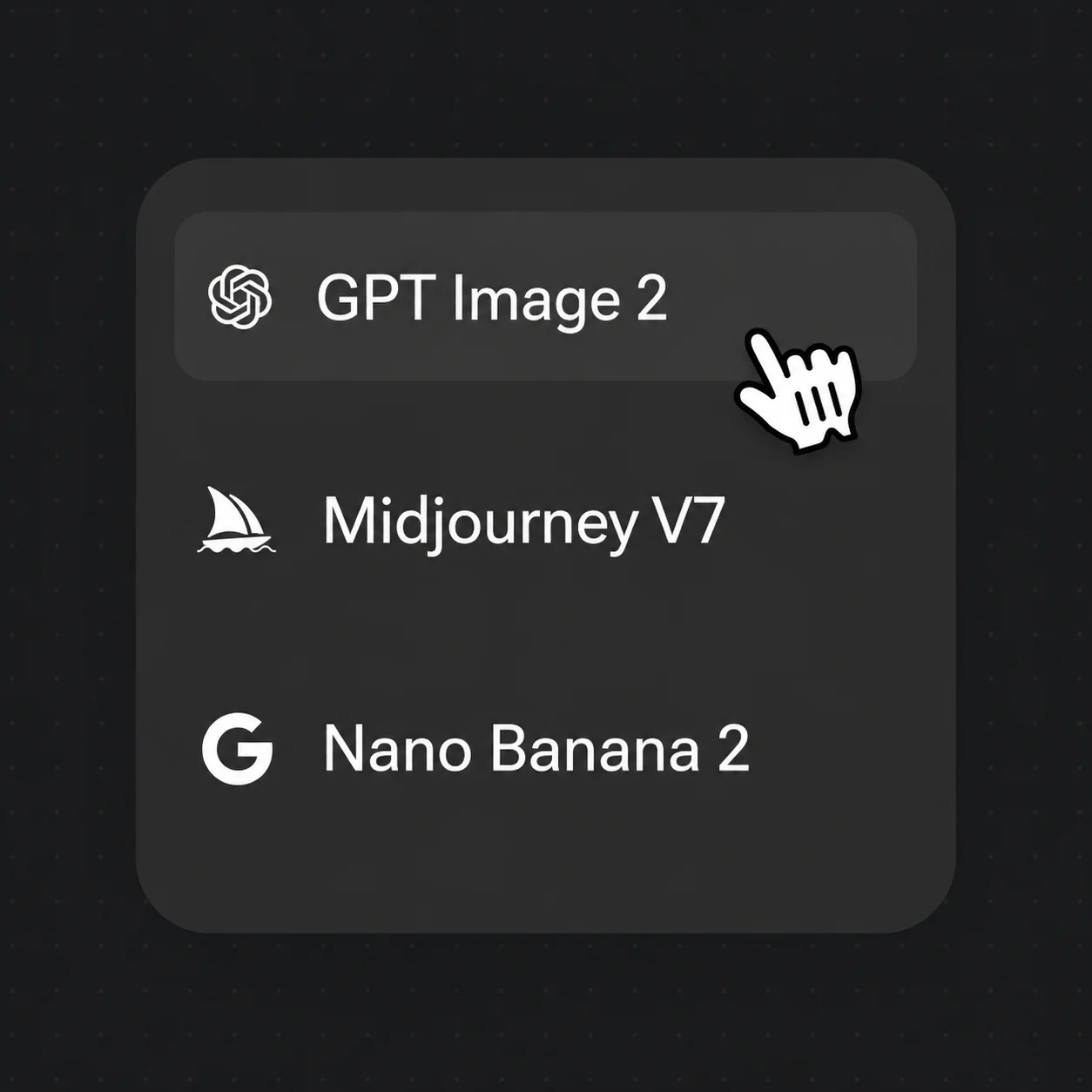
Pick GPT Image 2 from the model bar and render each shot as a panel; keep one style across them.
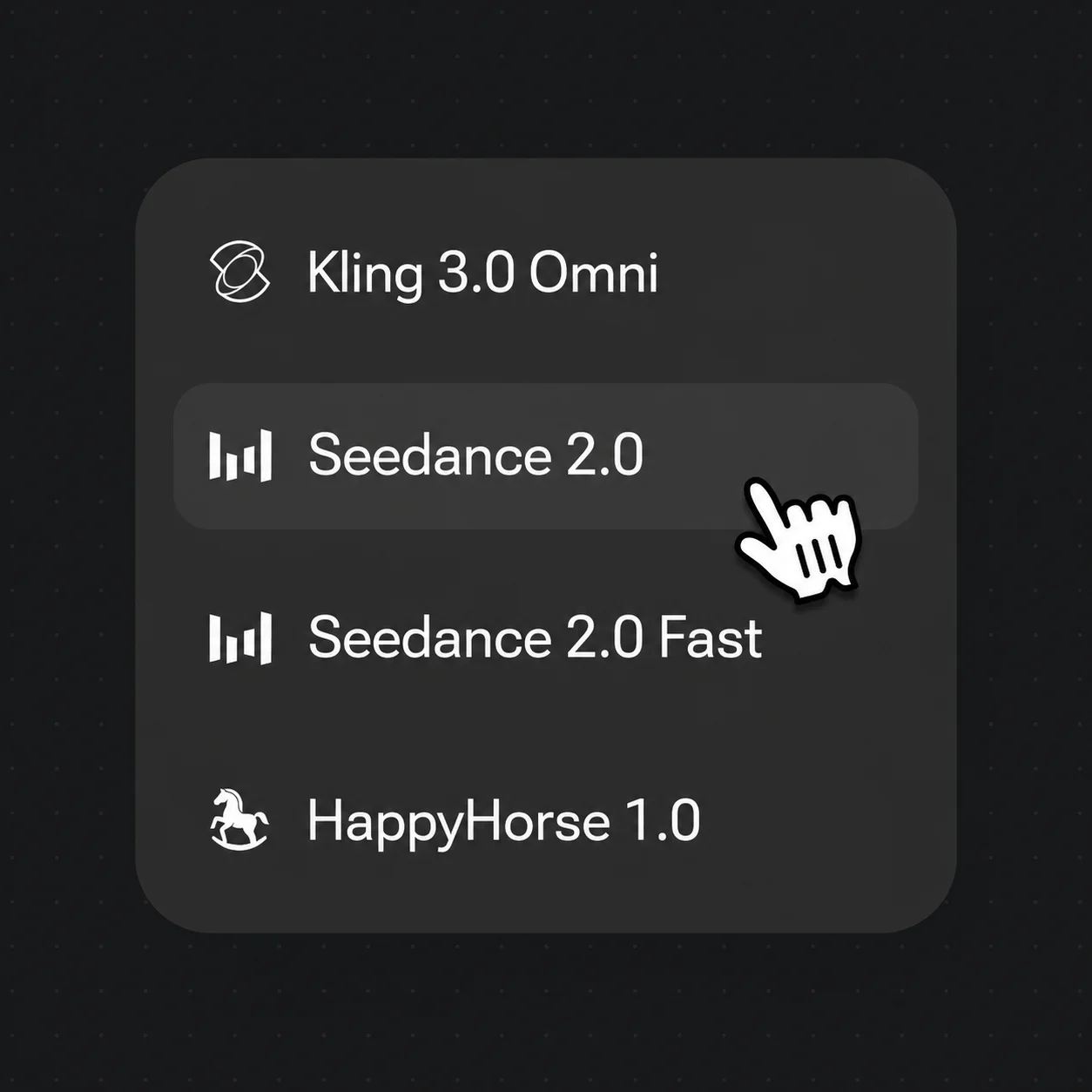
Switch to Seedance 2.0, feed a board as the reference, and generate the shot as 1080p video.
Plan the sequence as frames, then carry the same look into the generated footage.
A full storyboard page with shot labels — the wide-to-close beat sheet for an original scene.
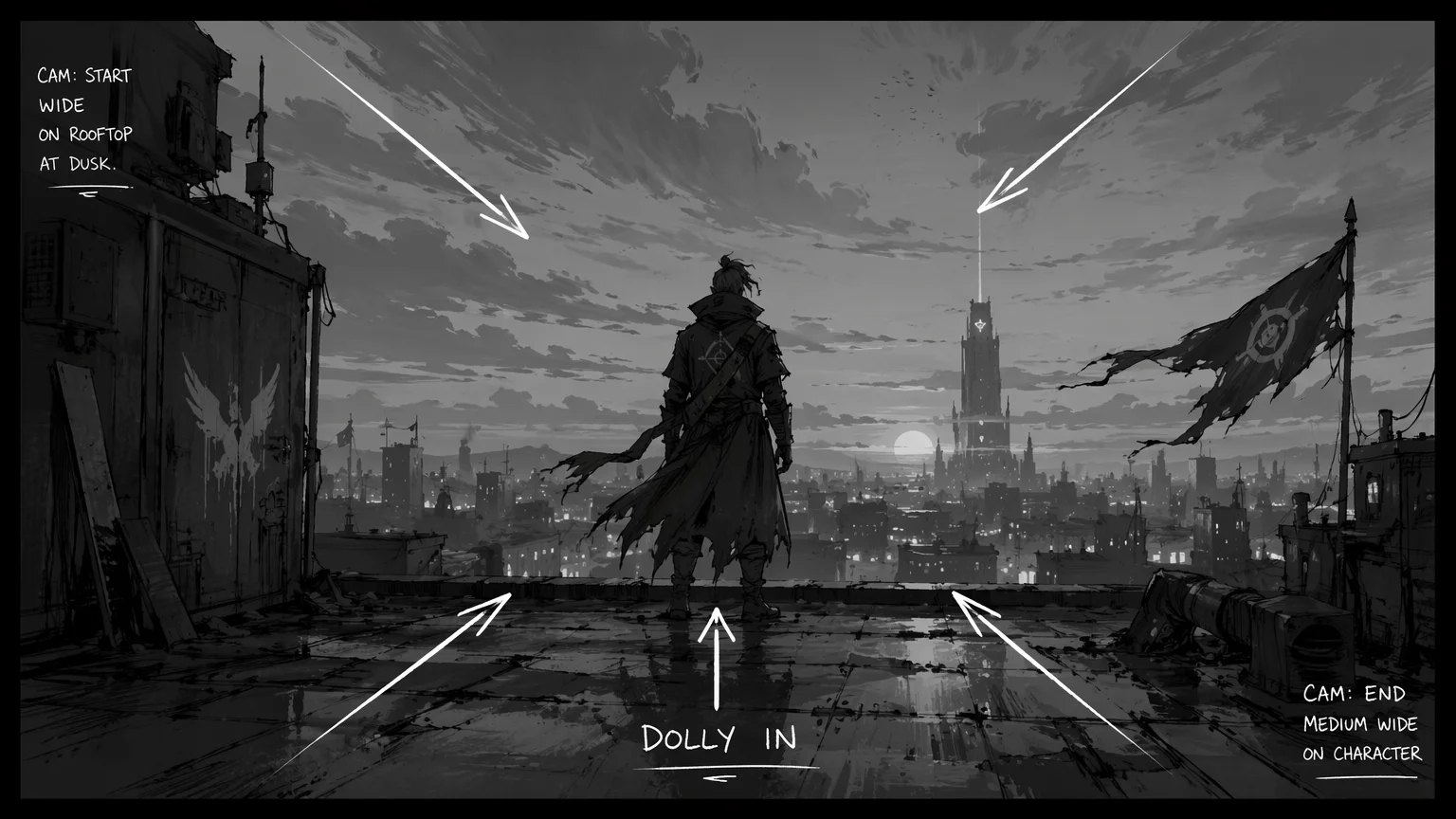
One board with camera arrows — framing and movement marked up before you generate the shot.
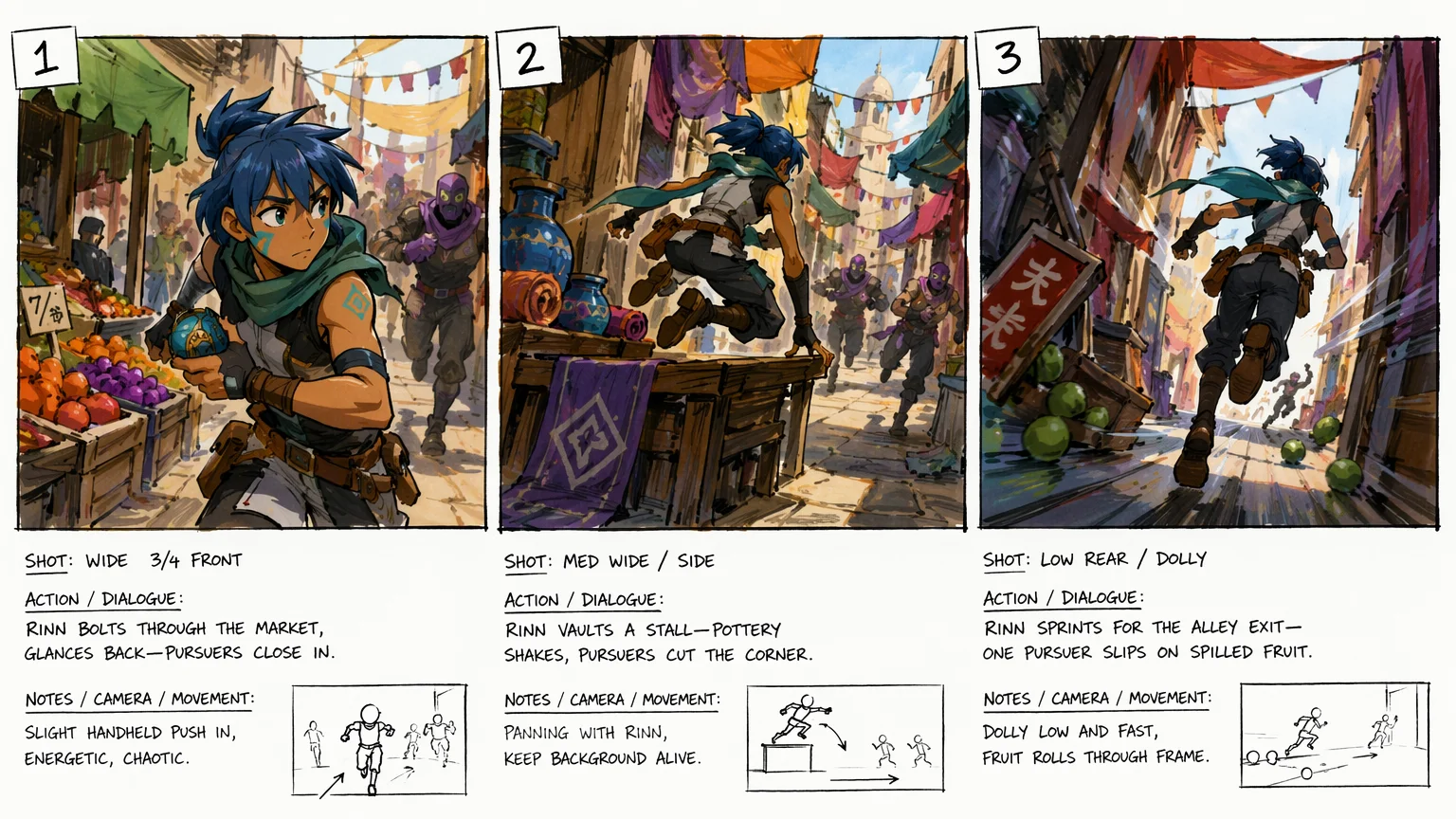
A three-panel action beat — wide, tracking, and CU — keeping one character and look across cuts.
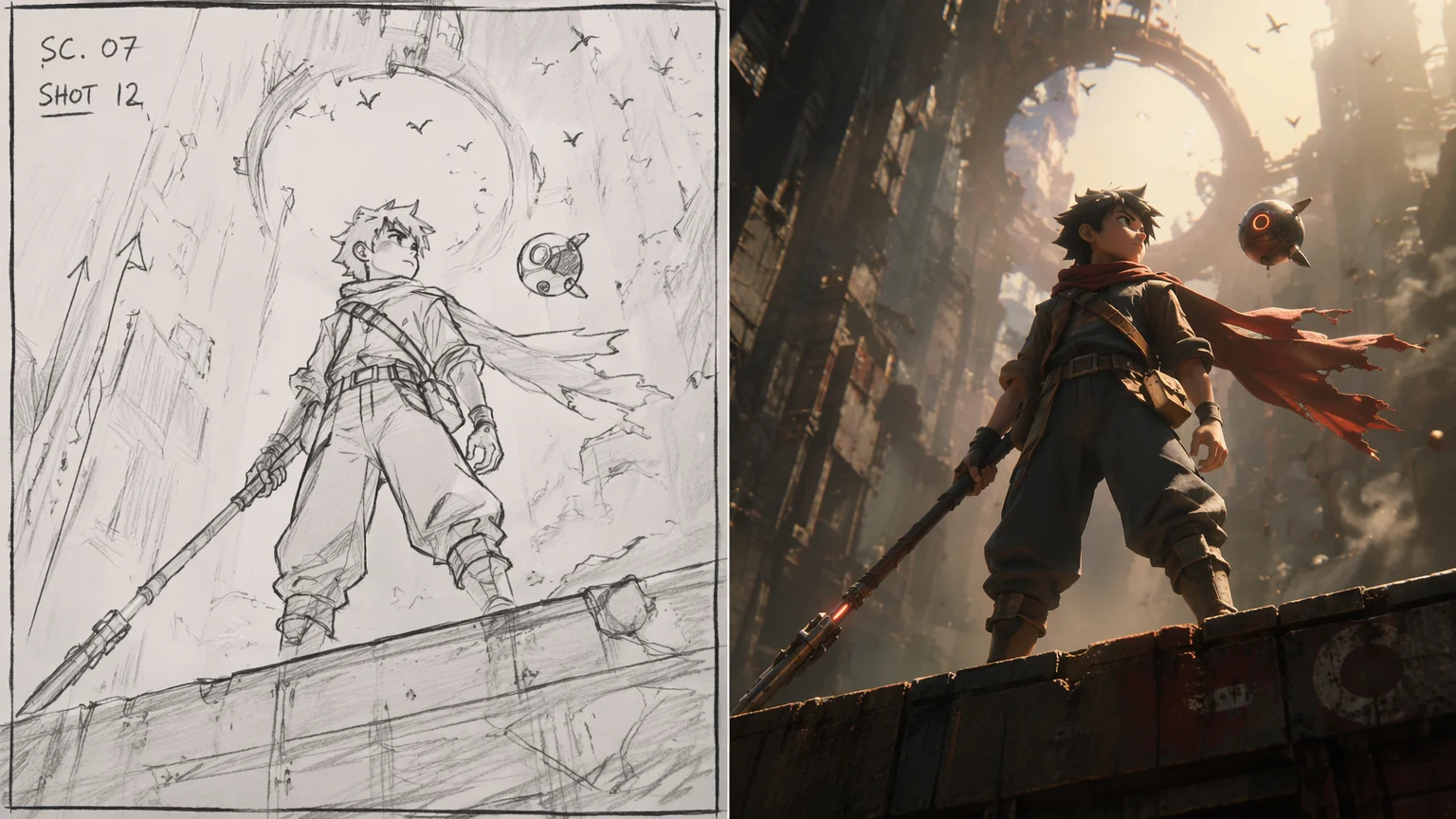
The storyboard frame beside its generated video shot — proof the board carries into the footage.
Both image models live in the same Renoise canvas — pick by what the board needs. Nano Banana Pro for clean line-art panels and crisp shot labels, GPT Image 2 when you need to fuse references or follow a detailed, instruction-heavy brief.
| For storyboard frames | Nano Banana Pro (Recommended) | GPT Image 2 |
|---|---|---|
| Best for | Clean panels, labeled shots | Reference fusion, precise briefs |
| Text on frame | Best | Good |
| Reference images | Up to 10 ratios | Up to 16 refs |
| Max resolution | 4K | 4K |
| Same canvas | ✓ | ✓ |
A storyboard is a shot-by-shot plan, not a finished film — each panel fixes one decision before the camera rolls: the framing (wide establishing, medium, close-up), the staging, and the camera move (a pan, a push-in, a tracking dolly). Spell those out in the prompt for every frame — "wide low-angle, dawn light, character entering frame left" — and you get a board that reads like a real shot list instead of disconnected illustrations. Keep one style line across panels ("flat black-and-white storyboard, marker shading") so the sequence holds together.
Where most AI storyboard tools stop at the drawing, Renoise keeps the boards in the same Canvas as the video models — so a panel is not a dead end, it is the reference for the shot. Once a board is right, switch to Seedance 2.0, feed the frame as a reference, and generate that beat as 1080p video up to 15 seconds; the framing and look you planned carry through. For sequences that need several cuts from one prompt, Kling 3.0 Omni supports multi-shot output of up to six shots, so a boarded beat can come back as a short edited run rather than a single clip. That board-to-shot loop — plan in images, generate in video, all in one canvas — is the part a general image model can not do for you.
Boarding a sequence leans on a few things — Renoise gives you the image models, the video models, and the canvas that links them.
Renders clean storyboard panels with legible shot labels and consistent line work.
Turns a finished board into a 1080p video shot using the frame as reference.
Image frames and video shots share a node graph, so a board flows straight into footage.
Kling 3.0 Omni outputs up to six shots, turning one boarded beat into an edited run.
One plan unlocks the image models for boards and the video models for shots.
Plan the shots as frames, then generate them as video — all in one canvas.
It is a tool that turns a written shot list into storyboard frames. In Renoise you describe each shot — framing, action, camera move — and an image model like Nano Banana Pro or GPT Image 2 renders the panels in Canvas.
Reuse the same style line in every prompt — for example "flat black-and-white storyboard, marker shading" — and keep your character description verbatim. Generating all frames on one model in the same canvas keeps the sequence consistent.
Yes — that is the point of doing it in Renoise. Once a board looks right, switch to Seedance 2.0, feed the frame as a reference, and generate that shot as video. The framing and look you planned carry into the footage.
Seedance 2.0 generates shots from 4 to 15 seconds at up to 1080p. Storyboard a beat per panel, then generate each as its own clip so a full sequence is a string of short, planned shots.
Kling 3.0 Omni supports multi-shot output of up to six shots, so a single boarded beat can come back as a short edited run instead of one clip. For single, controlled shots, Seedance 2.0 is the default.
Nano Banana Pro for clean panels and legible shot labels; GPT Image 2 when you need to fuse reference images or follow a detailed brief. Both export up to 4K and live in the same canvas, so you can switch per frame.
Yes. Spell out framing and movement per frame — "wide establishing", "CU", "slow push-in", "tracking pan". The board captures the intent, and the same cues guide the video model when you generate the shot.
Yes. The workflow is the same for films, ads, and music videos — board the beats as frames, set ratios per platform, then generate each shot. For music videos, see the dedicated guide for the full edit flow.
