Black-and-white photos
Classic monochrome portraits, street scenes, and family photos given a plausible full-color version.
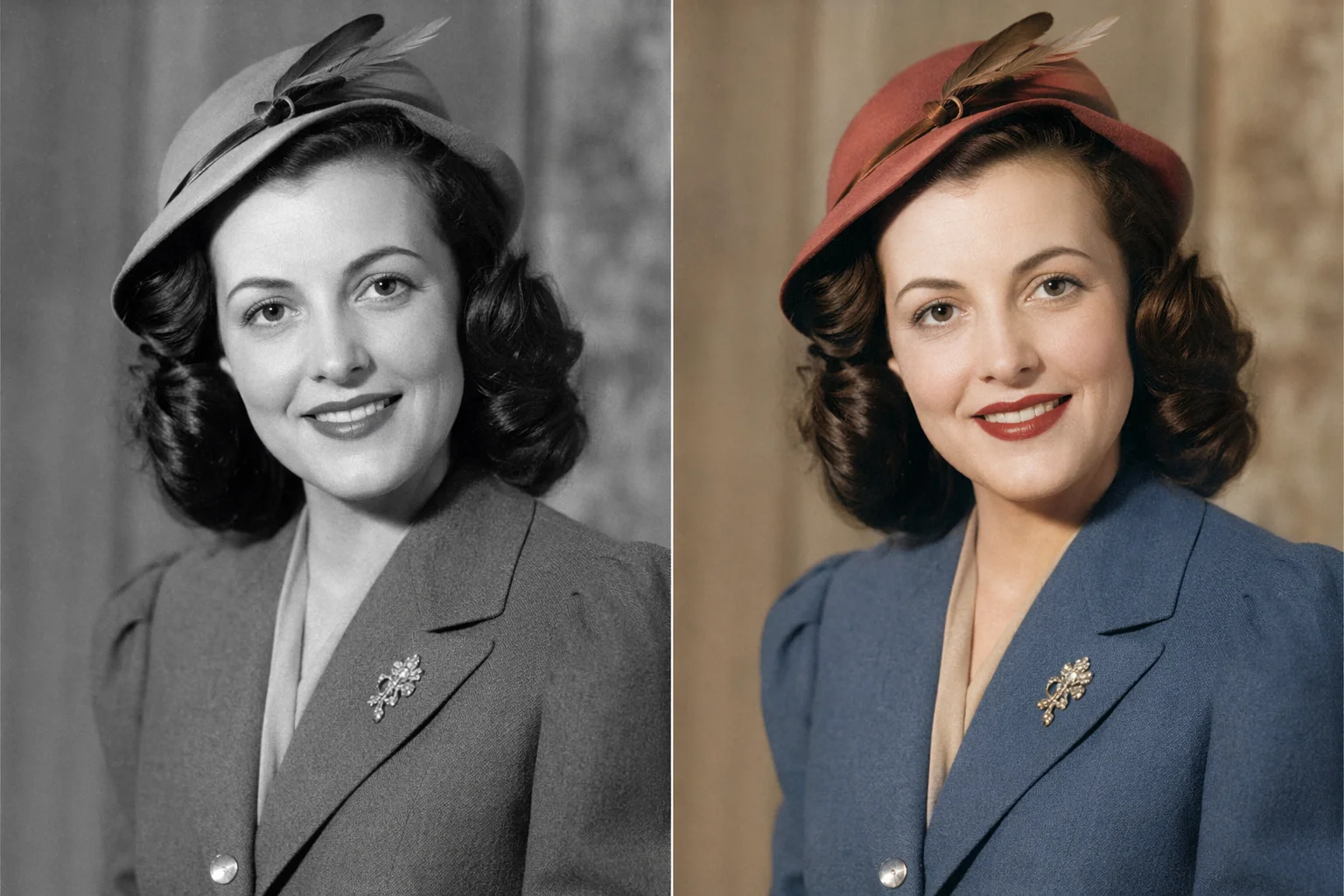
Add realistic color to black-and-white and old photos — generative recolor gives monochrome images a plausible full-color version.
Upload the photo to Renoise Canvas, pick Nano Banana Pro, and prompt "colorize this black-and-white photo with natural, realistic colors — warm skin tones, blue sky, green foliage". The model re-renders it as a full-color image. Colors are plausible reconstructions, not historically verified — describe the palette you expect to steer the result.
Need to repair damage, scratches, or fading instead? See the photo restoration guide
The main colorization jobs in Renoise.
Classic monochrome portraits, street scenes, and family photos given a plausible full-color version.
Old newspaper clippings, archival images, and vintage prints colorized for modern display.
Sepia-tinted photos recolored back to natural hues — or shifted to a new palette.
From monochrome to color in a single canvas session.

Drag the black-and-white or sepia photo onto the Renoise Canvas upload card.
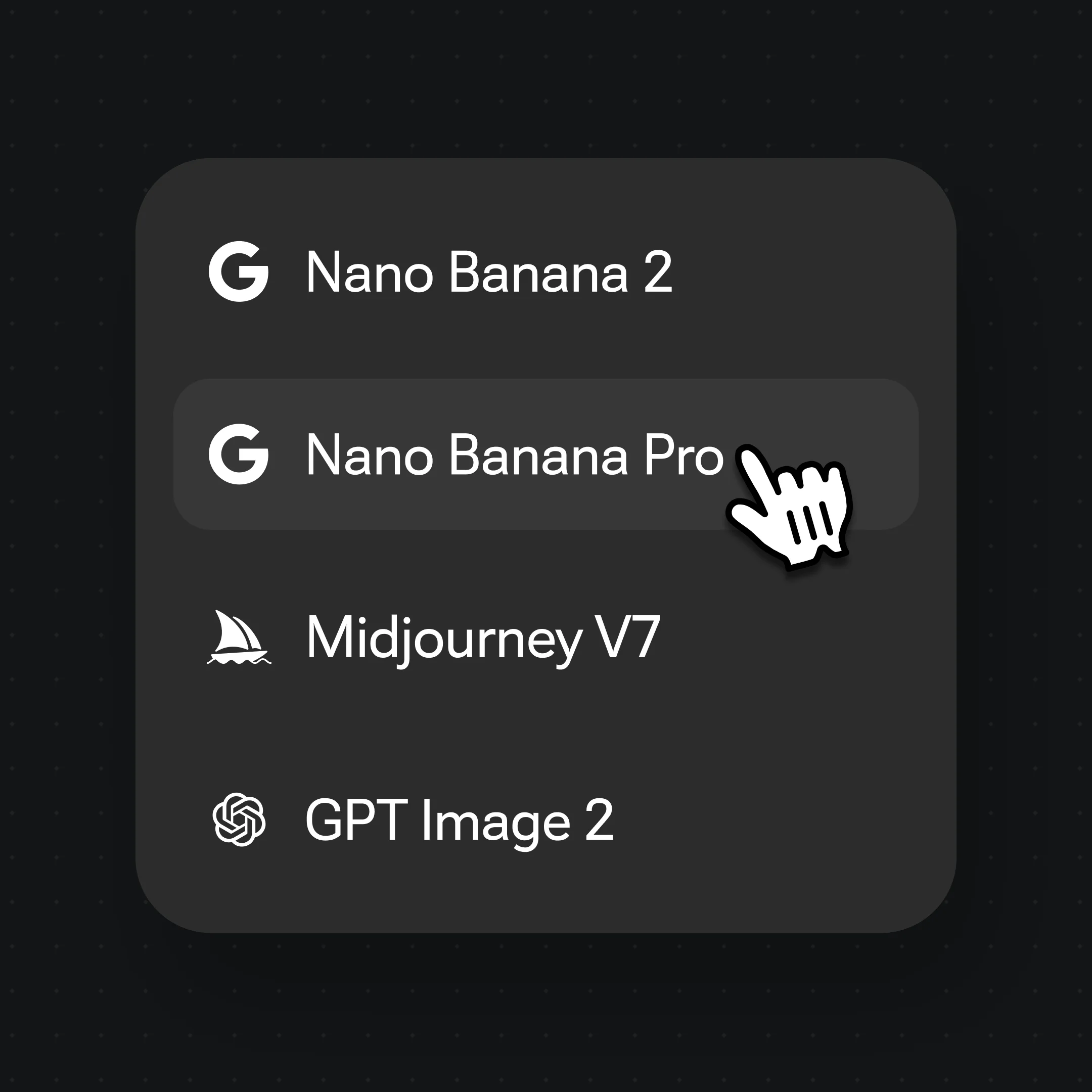
Choose Nano Banana Pro, then prompt "colorize with natural colors — warm skin tones, blue sky". Describe the expected palette for more accurate results.
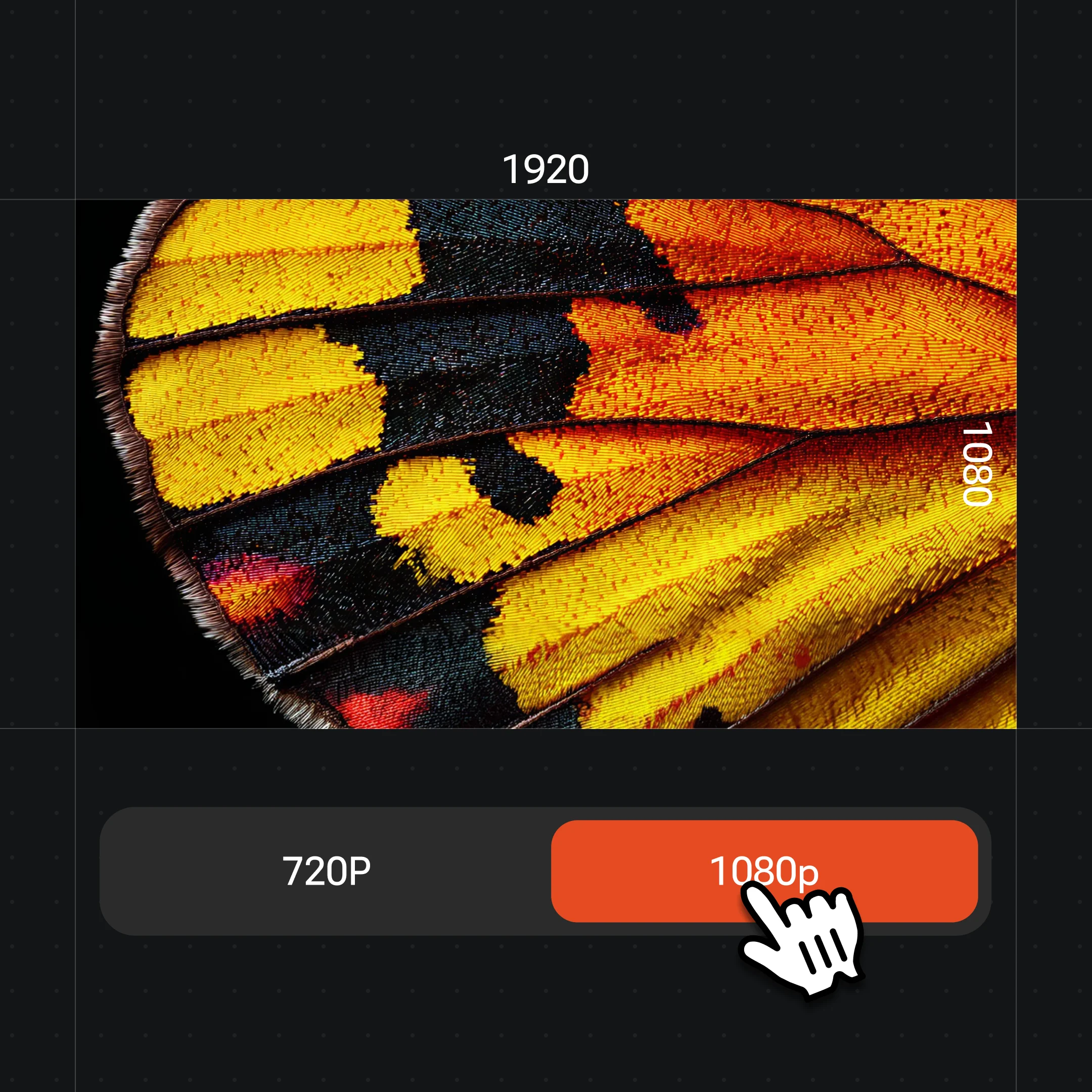
Generate the result, compare colors against reference materials if accuracy matters, then export at up to 4K.
Monochrome photos brought to life with AI-generated color — each result is a plausible reconstruction.
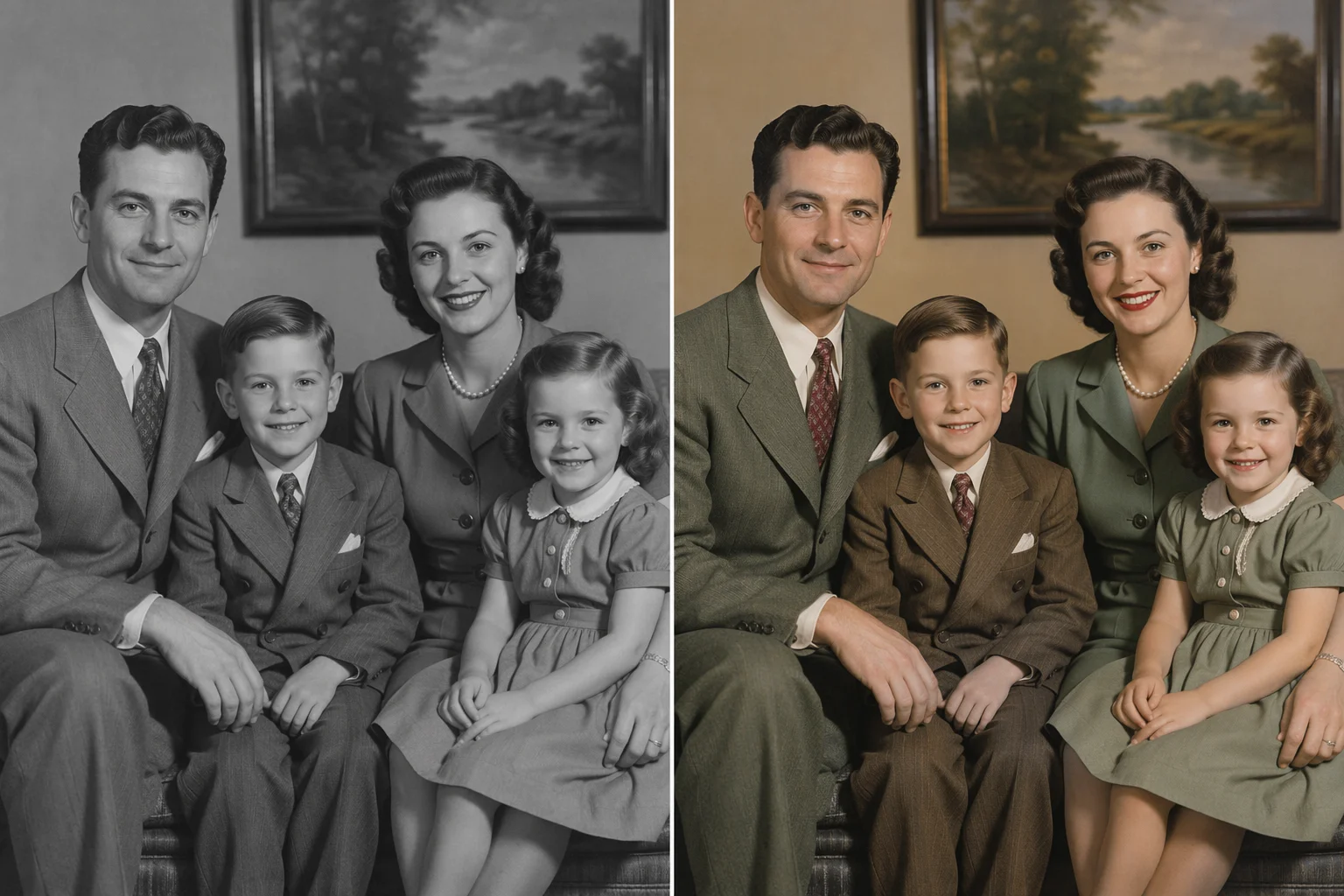
A 1940s family portrait colorized with warm skin tones and era-appropriate clothing hues.
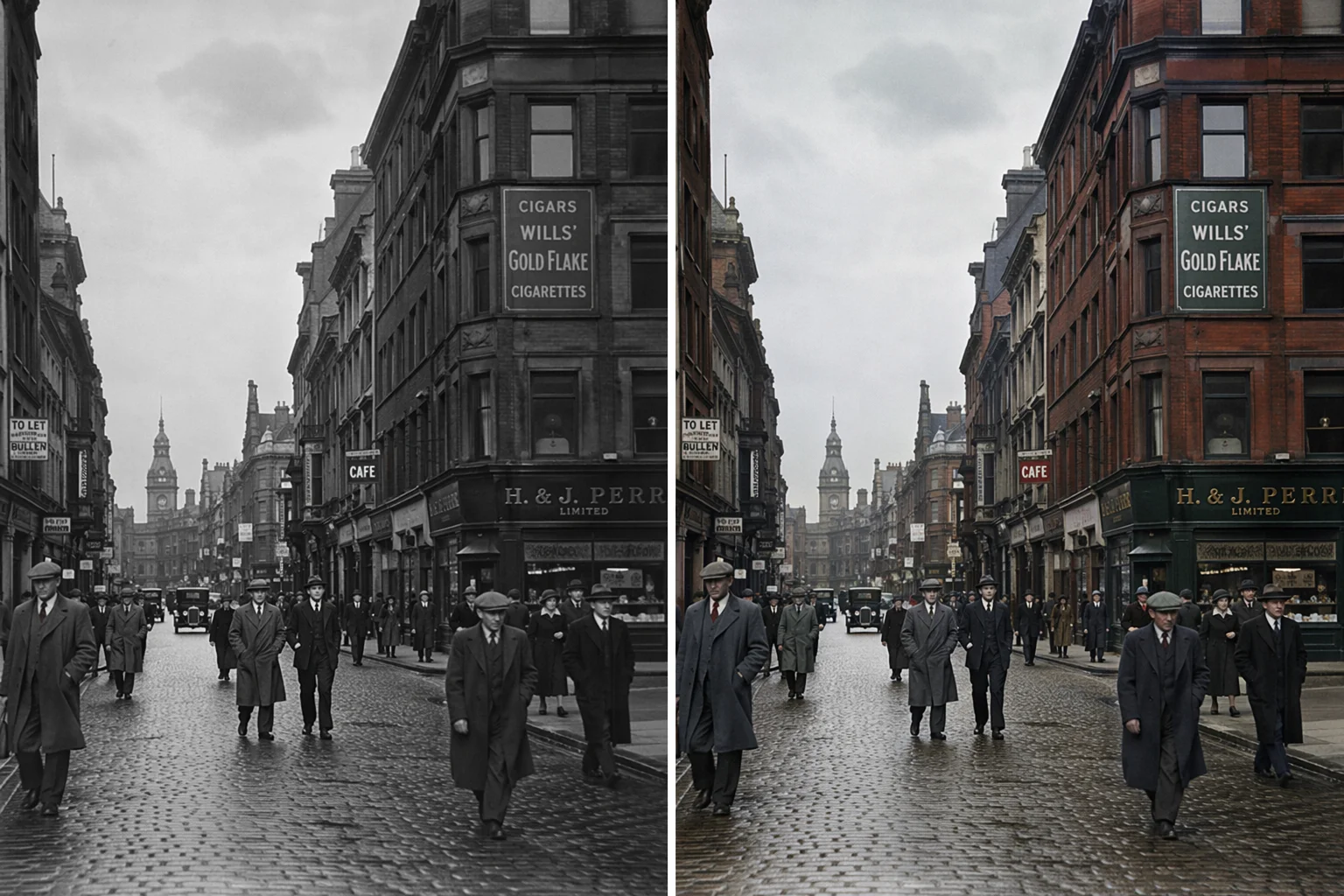
A vintage city street given plausible color — storefronts, clothing, and overcast sky.
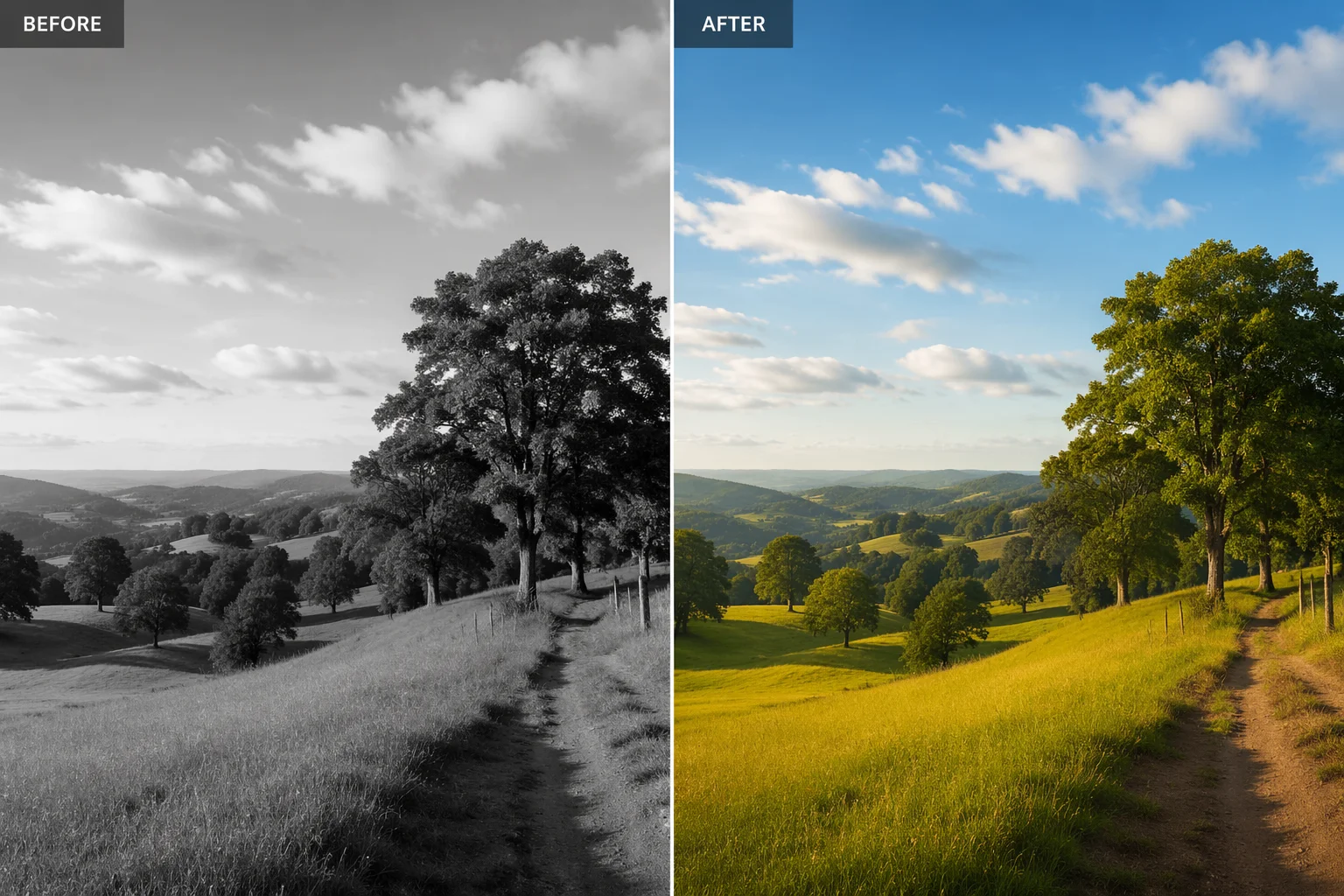
A monochrome landscape recolored with green foliage, brown earth, and blue sky.
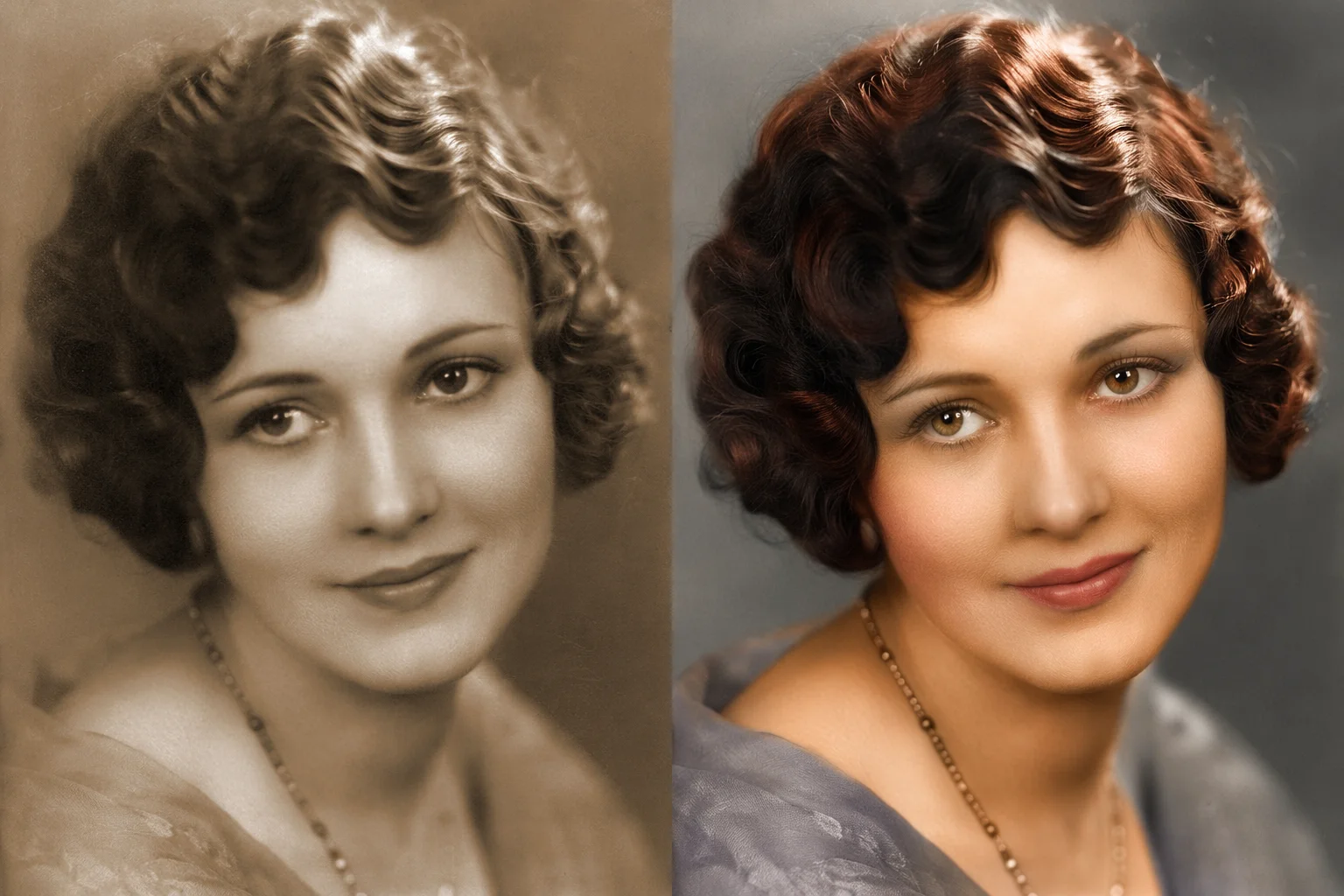
A sepia-toned close-up portrait recolored with natural skin and eye tones.
Nano Banana Pro handles most colorization jobs. Use GPT Image 2 when you have reference images showing the expected color palette and want tight instruction-following.
| For colorize / recolor | Nano Banana Pro (Recommended) | GPT Image 2 |
|---|---|---|
| Best for | Most portrait and scene colorization | Reference-guided or instruction-heavy recolor |
| Prompt following | Strong | Very strong |
| Reference images | Source image | Up to 16 |
| Up to 4K export | ✓ | ✓ |
| Same canvas | ✓ | ✓ |
AI photo colorization uses image-to-image re-rendering: you provide the black-and-white photo and the model generates a full-color version based on training data, visual context, and your prompt. The model identifies likely objects — sky, skin, foliage, fabric — and assigns plausible colors based on patterns in its training.
The honest limit is that these are plausible reconstructions, not historical facts. There is no way for the model to know that a particular dress was red rather than green, or that the sky was overcast that day. Prompting helps: "warm skin tones, golden afternoon light, blue denim, terracotta tiles" steers the model more tightly than no description at all. For historical photos where accuracy matters — museum or archival work — treat the result as an interpretation, not documentation.
This is a different job from photo restoration. Restoration fixes physical damage: tears, scratches, fading, mold spots. Colorization assumes the photo is structurally intact and adds color. If your photo has both problems, restoration first, then colorization, will give a cleaner result — both are available on the same Renoise Canvas.
Photo colorization in Renoise uses these models and features.
Studio-level image-to-image re-rendering for realistic colorization with strong prompt following.
Tight instruction following and multi-reference support when you need to match a specific palette.
Export the colorized photo at 1K, 2K, or 4K — watermark-free on paid plans.
Repair scratches and damage on the same canvas before colorizing for best results.
One plan unlocks Nano Banana Pro, GPT Image 2, and every other image model.
Upload a black-and-white photo and generate a realistic color version — watermark-free exports on paid plans.
The model takes your black-and-white photo as input and re-renders it with generated color. It uses visual context — identifying sky, skin, fabric, foliage — and your prompt to assign plausible hues. The result is a generative reconstruction, not a historically verified record.
No. The model assigns colors that look plausible based on training data and context clues, but it cannot know what color a specific garment or wall actually was. For archival work, treat the colorized output as an interpretation. Describing the expected palette in the prompt gives the model more to work with.
Restoration repairs structural damage — scratches, tears, mold, fading. Colorization assumes the photo is intact and adds color. If your photo has both problems, restore it first, then colorize — both steps are possible on the same Renoise Canvas.
Black-and-white portraits, street scenes, nature photos, and sepia-toned prints all work well. Photos with clear, identifiable subjects (sky, skin, grass, stone) tend to produce the most coherent color results.
Yes, through the prompt. Describe the expected palette: "warm amber skin tones, blue denim jacket, green grass, overcast sky" gives the model more context than no description. You can also use GPT Image 2 with reference images if you have a color sample to match.
Up to 4K for images in Renoise. Choose 1K for web display, 2K for most print sizes, or 4K for large-format printing and framing. Exports are watermark-free on paid plans.
