Restyle
Keep the composition but shift the visual style — anime, oil painting, cinematic, comic, and more.
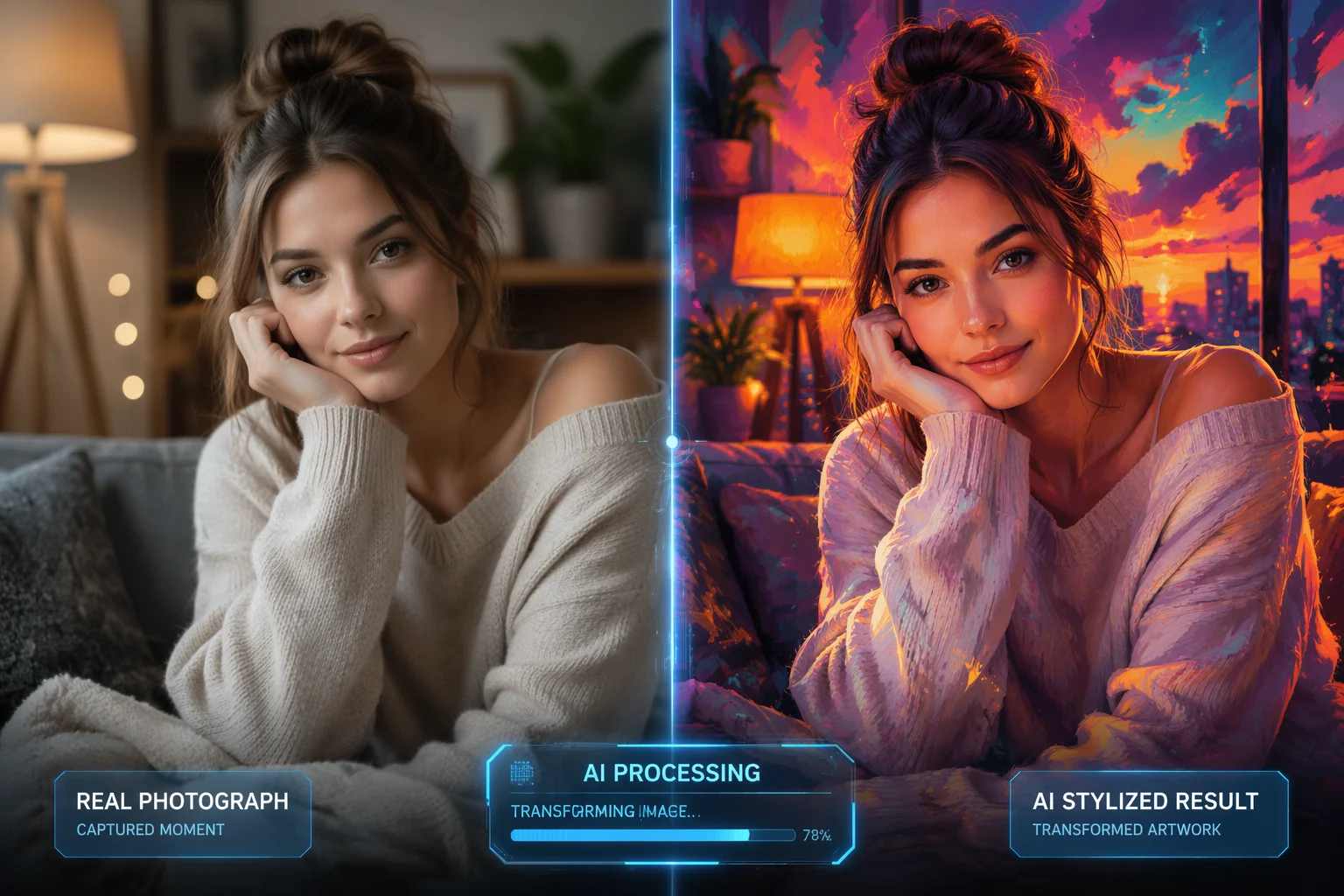
Upload an image and a prompt — re-render it into a restyle, variation, or edited version.
Upload a source image to Renoise Canvas, pick a model (Nano Banana 2 for speed, Nano Banana Pro for quality, GPT Image 2 for multi-reference), write a prompt describing the new version, and generate. The model uses your image as a structural reference and re-renders it according to the prompt — same composition, new style or content.
Starting from scratch with no source image? See the text-to-image guide
The main reasons to use an existing image as input.
Keep the composition but shift the visual style — anime, oil painting, cinematic, comic, and more.
Generate multiple interpretations of the same image — useful for exploring options before committing.
Change specific elements: clothes, background, colors, lighting — anything you describe in the prompt.
From a source image to a re-rendered result in the same Canvas.
Drag your photo, design, or artwork onto the Renoise Canvas upload card. This becomes the structural reference for the model.
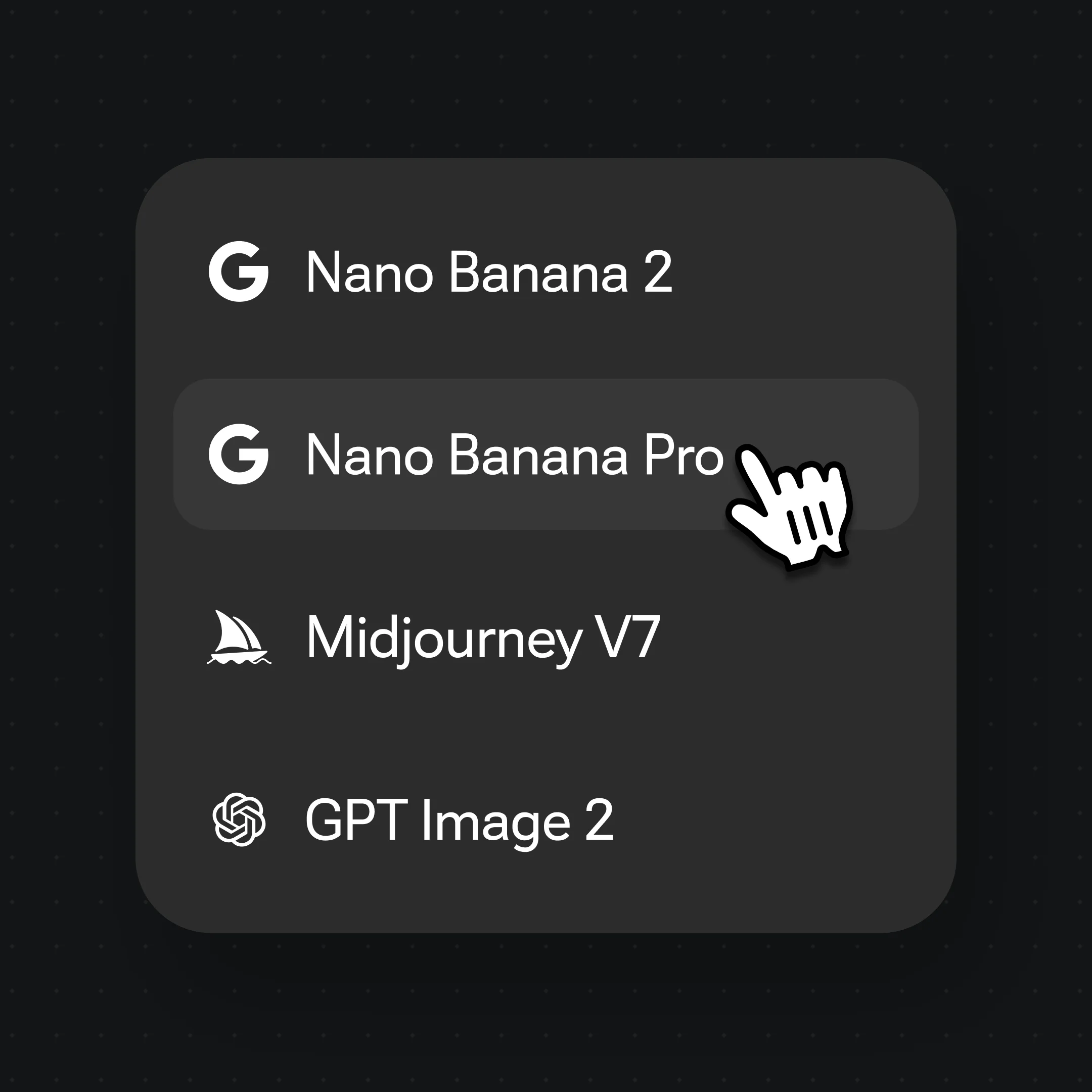
Choose Nano Banana Pro for most jobs, then write a prompt — "restyle as an anime illustration, same pose, vibrant colors".
Generate, compare against your source, then adjust the prompt or try Nano Banana 2 for a faster iteration loop.
Upload a source, describe the result — each example starts from an existing image.
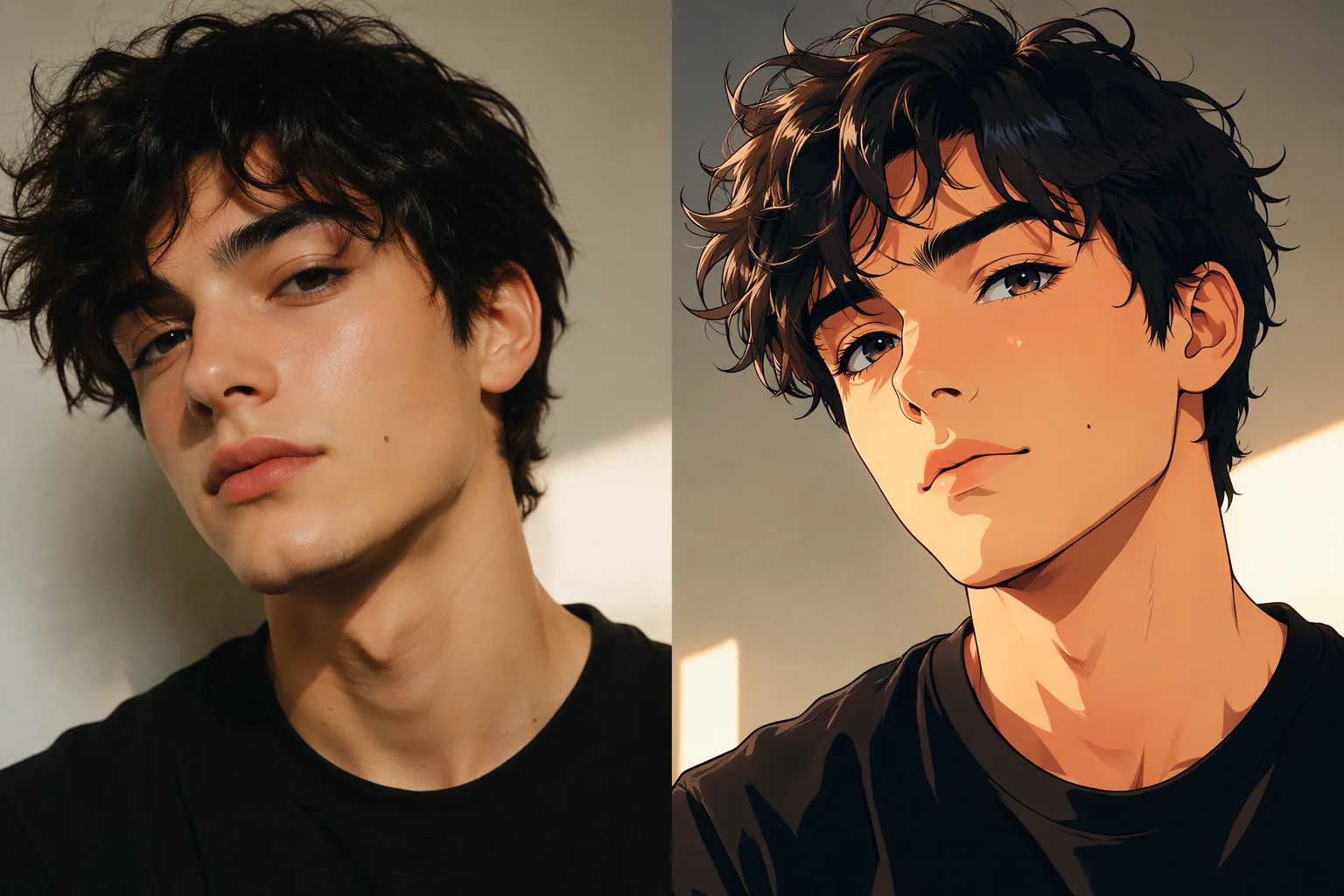
A portrait photo re-rendered as an anime illustration with the same face and pose.
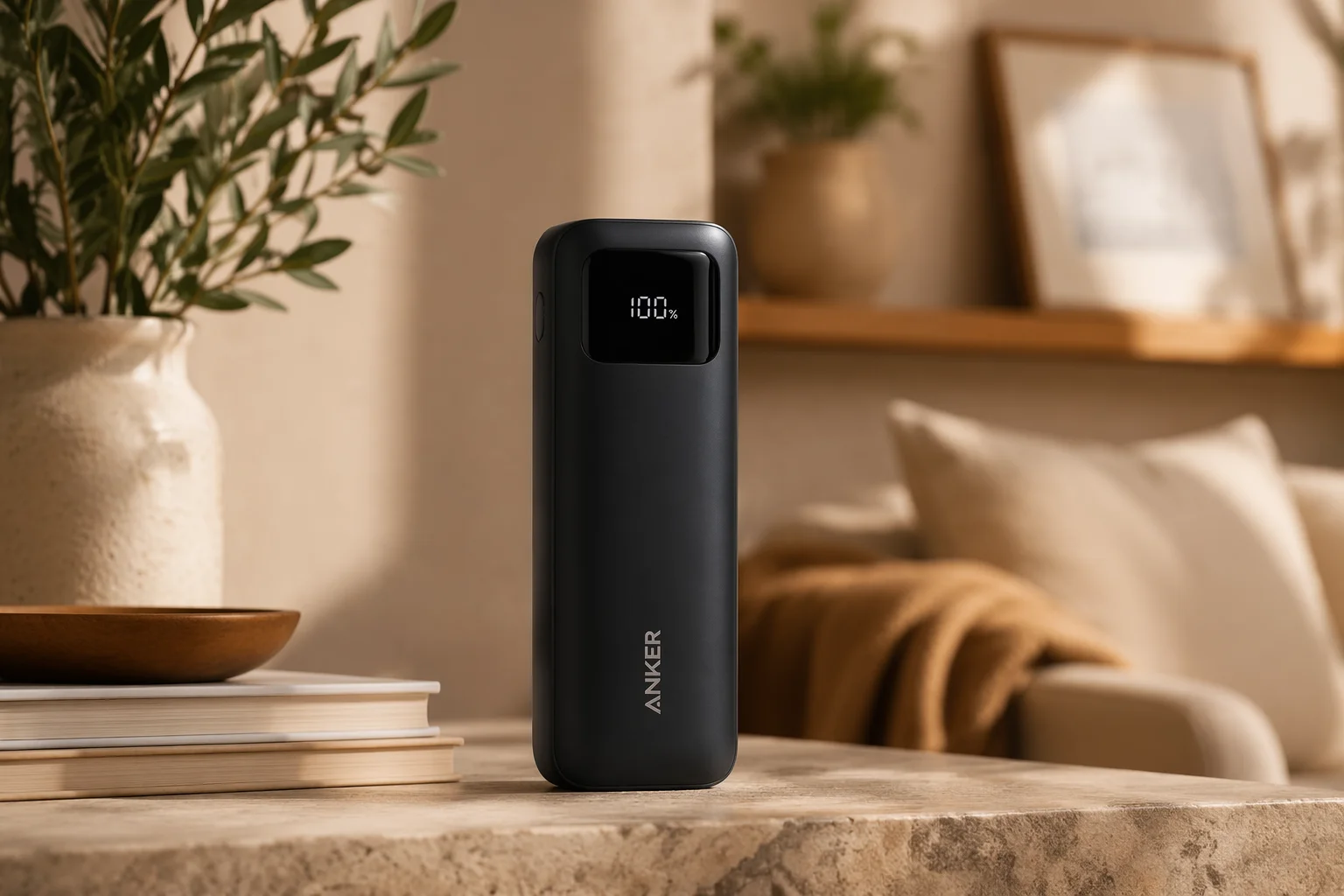
Product kept, background replaced with a lifestyle studio scene via prompting.
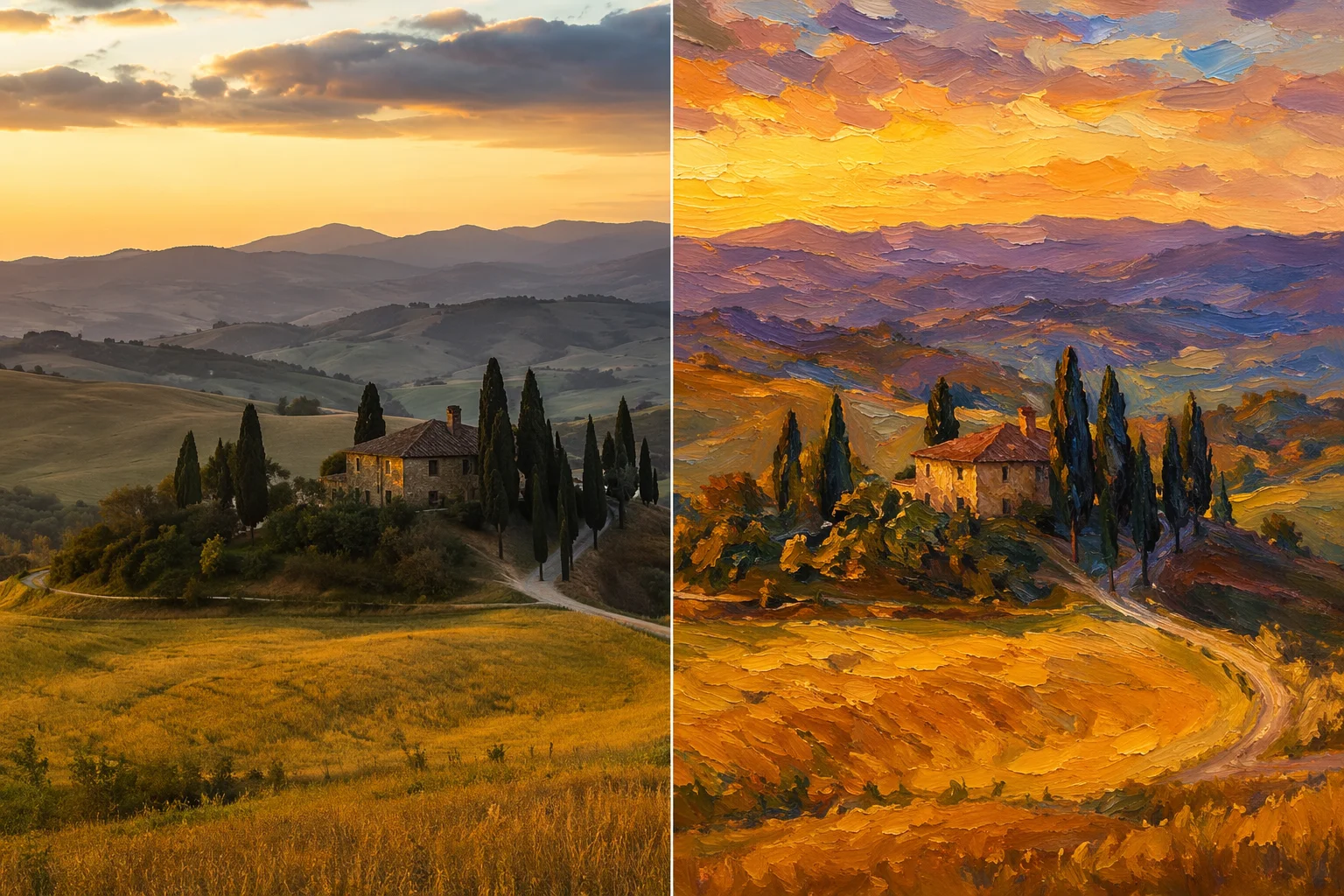
The same landscape photo rendered in an oil-painting style — same composition, new medium.
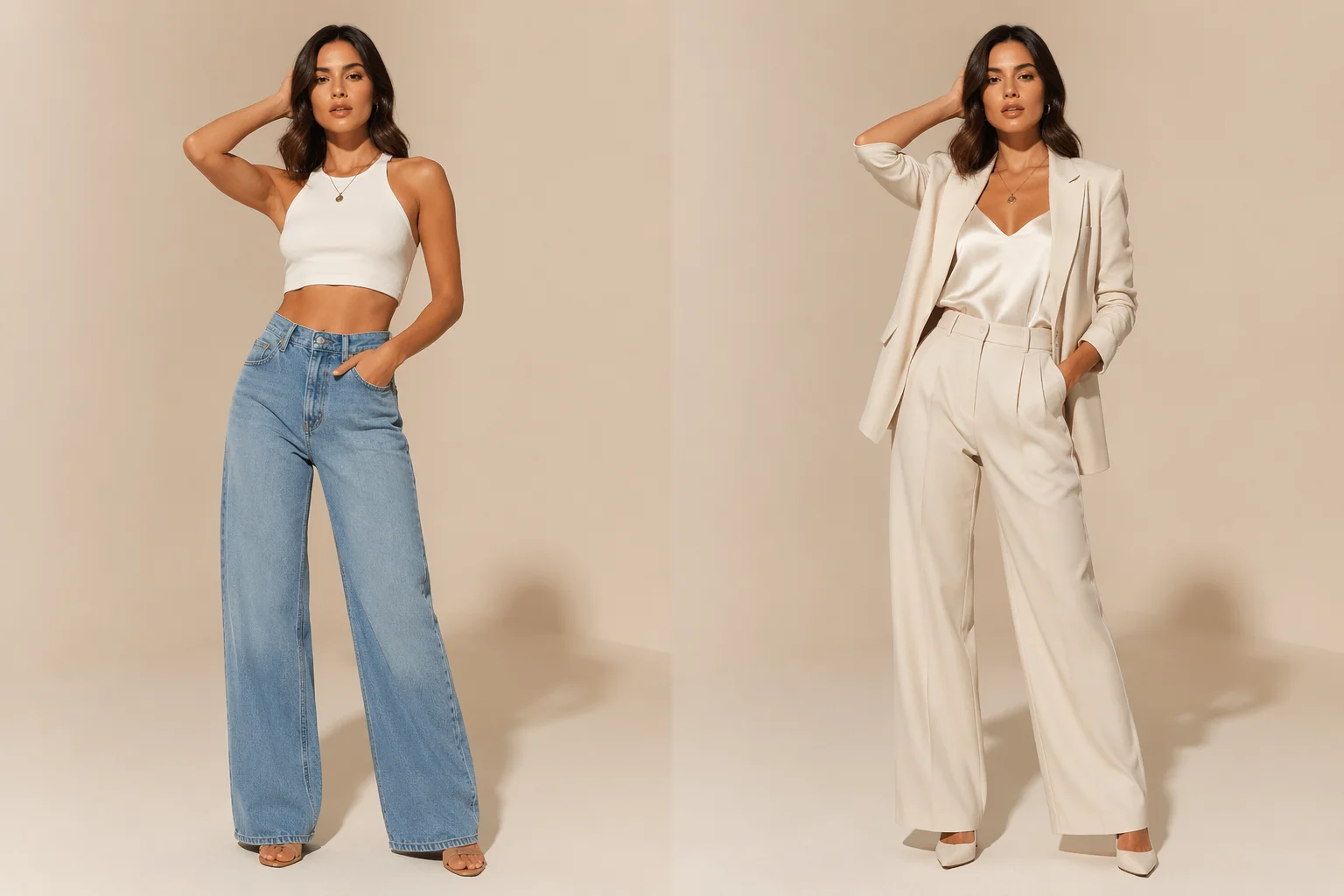
A model photo re-rendered with different clothes while keeping the lighting and pose.
All three image models support image-to-image in Renoise Canvas. Choose by the job: speed, quality, or multi-reference fusion.
| For img2img | Nano Banana 2 | Nano Banana Pro (Recommended) | GPT Image 2 |
|---|---|---|---|
| Best for | Fast iterations | Quality restyles | Multi-reference fusion |
| Speed | Fastest | Mid | Mid |
| Output quality | Good | High | High |
| Reference images | 1 | 1 | Up to 16 |
| Up to 4K export | ✓ | ✓ | ✓ |
Text-to-image starts from nothing: you describe an image entirely in words and the model generates it from scratch. Image-to-image starts from something: you provide a source image alongside your prompt, and the model uses that image as a structural, compositional, or stylistic anchor before re-rendering.
The practical difference is control. With a source image you get outputs that preserve the pose, layout, or likeness of the original — helpful when you are iterating on a real photo, a product, or an existing design. Without a source image, the model interprets the prompt freely, which gives more variation but less predictability.
Renoise supports image-to-image on three models. Nano Banana 2 is the fast lane — quick iterations to test prompts before committing to a longer job. Nano Banana Pro is the quality lane — the same image-to-image approach with Studio-level output and text rendering up to 94% accuracy. GPT Image 2 adds the ability to fuse up to 16 reference images into a single generation, useful when you want to blend multiple sources or keep tight control over the output.
From the img2img starting point you can branch into specific transforms: cartoon or anime restyle, background replacement, outfitting change, or outpainting to extend the canvas. Each of those is covered by its own guide, linked below, so this page stays focused on the concept and model comparison.
Image-to-image is the foundation — these guides cover specific transforms built on top of it.
Re-render a photo as anime, comic, or illustrated art.
Keep the subject, replace the scene behind it with a lifestyle or branded environment.
Re-render a fashion or product photo with a different outfit.
Studio-level image-to-image with strong text rendering and 10 aspect ratios.
One plan unlocks all three image-to-image models — Nano Banana 2, Nano Banana Pro, and GPT Image 2.
For first-time AI content creators
Billed $168 annually
Upgrade PlanSave $72/year
For creators shipping content every week.
Billed $504 annually
Upgrade PlanSave $216/year
For studios and pros producing at commercial scale.
Billed $1680 annually
Upgrade PlanSave $720/year
For first-time AI content creators
Billed monthly
Upgrade PlanFor creators shipping content every week.
Billed monthly
Upgrade PlanFor studios and pros producing at commercial scale.
Billed monthly
Upgrade PlanRenews automatically each year until canceled.
Renews automatically each month until canceled.
Upload a source image, write a prompt, and generate — watermark-free exports on paid plans.
Image-to-image means you provide both a source image and a prompt, and the model re-renders the image according to that prompt. It uses your image as a structural anchor — preserving composition, pose, or likeness — while applying the style or content changes you describe.
Text-to-image generates an image entirely from a written description, with no source image. Image-to-image takes an existing image as input alongside the prompt, so outputs stay closer to the original composition or subject.
Nano Banana 2 (fast, great for iteration), Nano Banana Pro (high quality, Studio-level output), and GPT Image 2 (fuses up to 16 reference images) all support image-to-image in Renoise Canvas.
GPT Image 2 accepts up to 16 reference images in a single generation, making it the right choice when you need to blend or fuse multiple sources. Nano Banana 2 and Pro use a single source image each.
Style (cartoon, anime, painting, cinematic), background, clothing, colors, lighting, aspect ratio — anything you describe in the prompt. For specific transforms there are dedicated guides: cartoon restyle, background swap, clothes change, and more.
The model uses your source image as a reference, so pose and composition are generally preserved. Full identity consistency (especially for faces) is not guaranteed by the model alone — for use cases involving real, authorized faces, FacePass provides the likeness clearance framework.